Advanced Bank Account Management
Javapackage: com.etendoerp.advanced.bank.account.management
Javapackage: com.etendoerp.advanced.bank.account.management.template
Overview
This section describes the Advanced Bank Account Management module included in the Etendo Financial Extensions bundle.
Info
To be able to include this functionality, the Financial Extensions Bundle must be installed. To do that, follow the instructions from the marketplace: Financial Extensions Bundle. For more information about the available versions, core compatibility and new features, visit Financial Extensions - Release notes.
This functionality enhances the bank account management enabling greater customization and control over bank account selection associated with customers and vendors.
This functionality is available in the following windows:
Business Partner - Bank Account
Application > Master Data Management > Business Partner
This module introduces the possibility to mark a bank account as Default within the Bank Account tab of the Business Partner window. Here, it is possible to check the Default Account checkbox in order to set the account to be used in invoices and orders. This information determines the bank account of each payment.
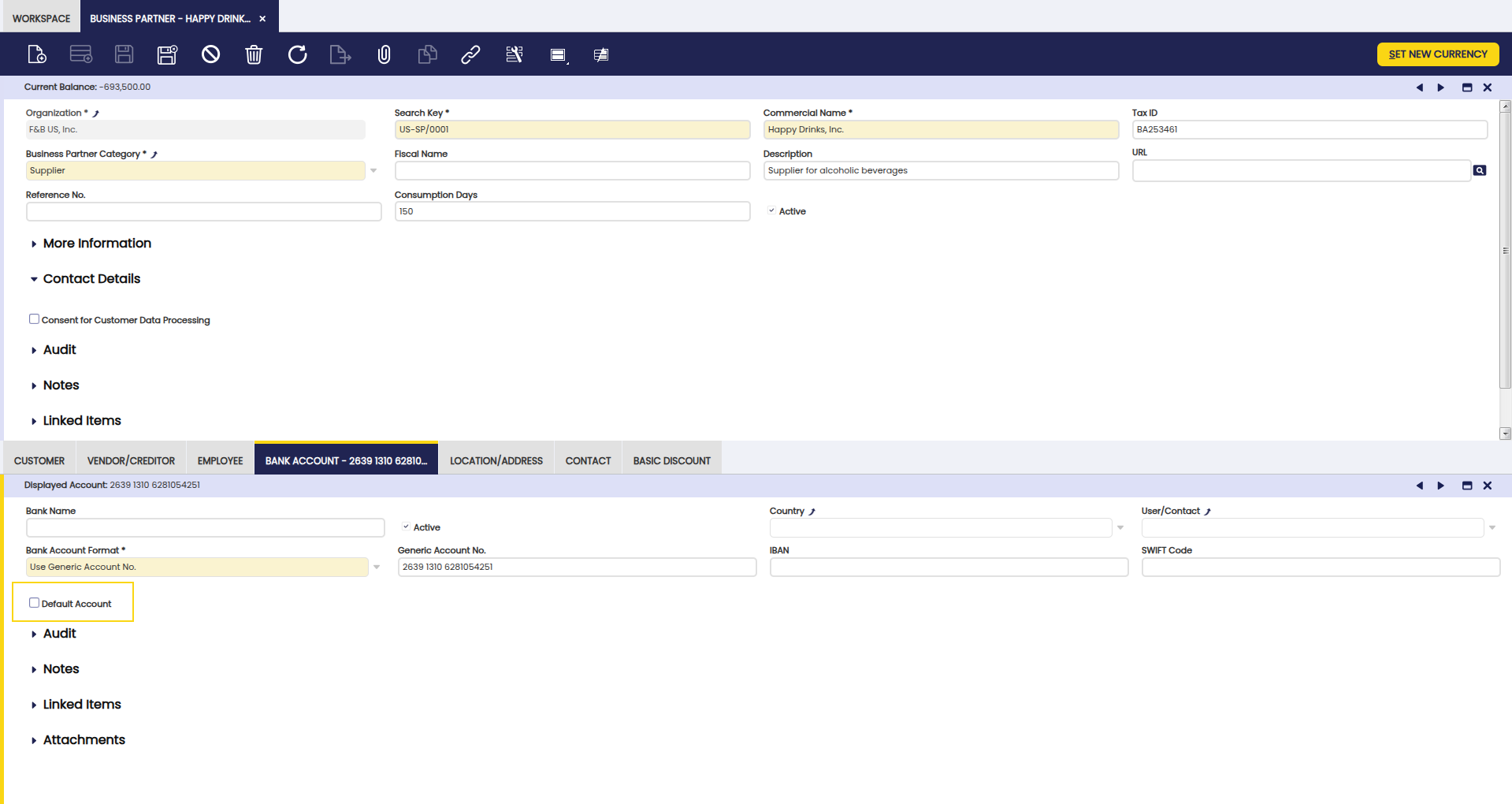
Business Partner - Location/Address
Application > Master Data Management > Business Partner
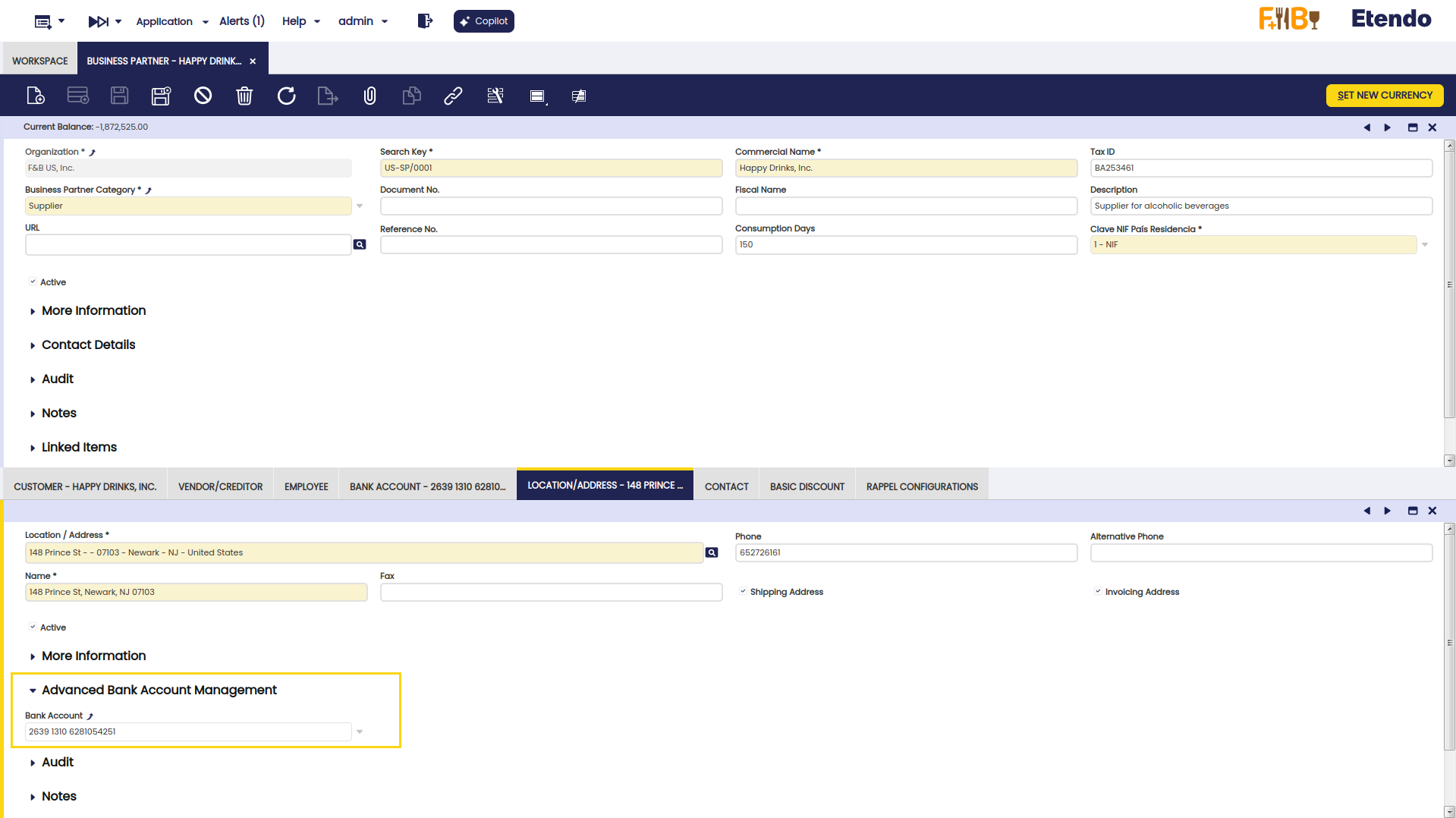
The Advanced Bank Account Management field is introduced in the Location/ Address tab of the Business Partner window to associate specific bank accounts to the different locations.
Info
In case of having both a default bank account and a location with a defined bank account, when generating a new document, the location bank account is prioritized over the default one.
Sales/Purchase Order windows
Application > Sales Management > Transactions > Sales Order
Application > Procurement Management > Transactions > Purchase Order
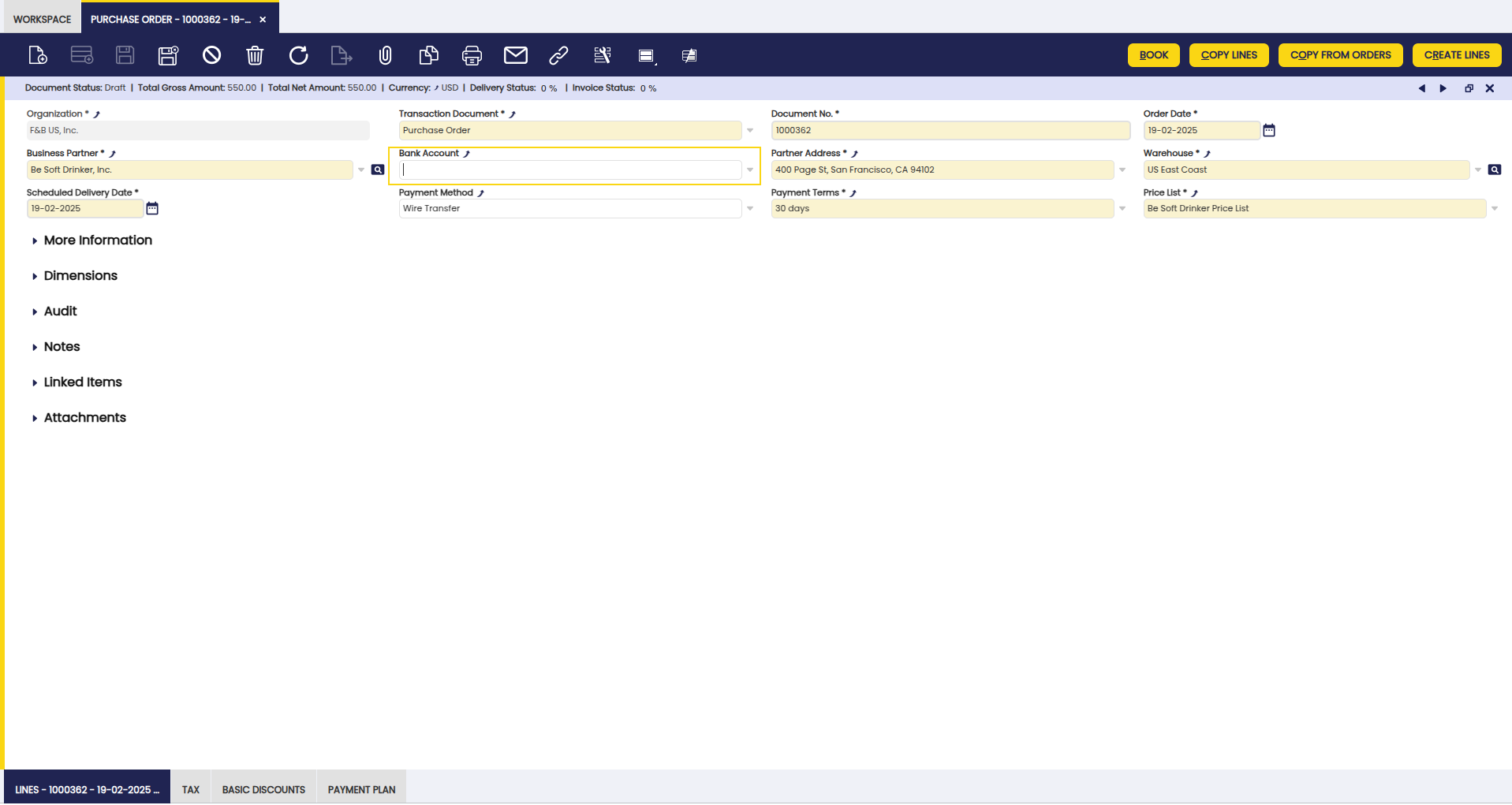
A Bank Account field has also been added header section of the Purchase and Sales Order windows.
This field is automatically filled based on the selected address. If a specific account is associated with the address, that account is used; if no account is configured, the default account is selected. In cases where neither option is configured, the field remains blank. Payment plans generated from these Purchase and Sales Orders now include the bank account information.
Add Payment button
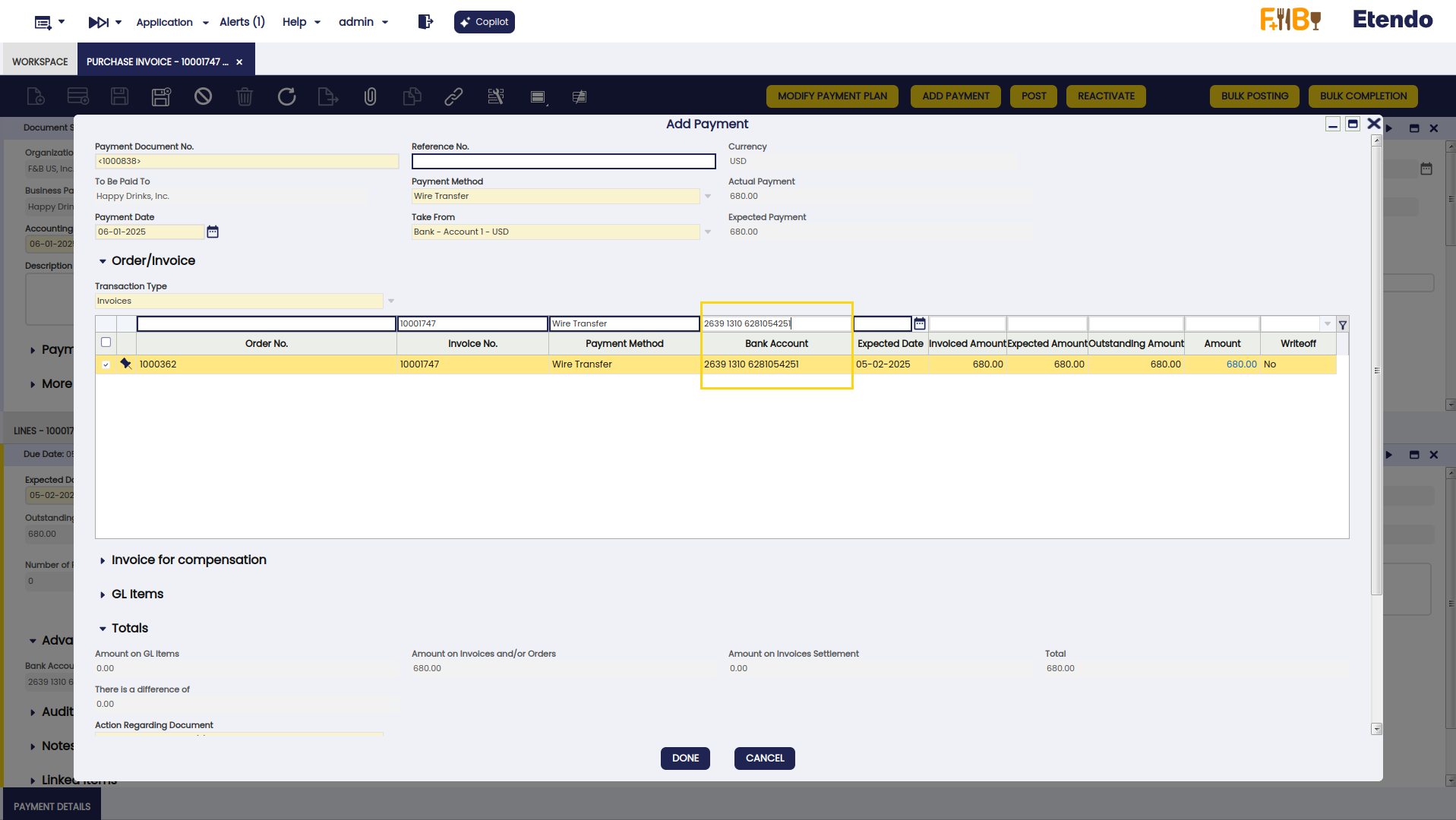
Furthermore, the Add Payment button has been enhanced to include a Bank Account field, allowing users to filter payments by bank account. This button is present in the Sales Invoice and Purchase invoice windows.
Sales/Purchase Invoice windows
Application > Sales Management > Transactions > Sales Invoice
Application > Procurement Management > Transactions > Purchase Invoice
Similarly, a Bank Account field has been added to the Purchase and Sales Invoice windows, which functions in the same manner as in orders. The field is auto-filled based on the selected address, using a specific account if associated, falling back to the default account if none is specified, or remaining blank otherwise. The payment plan inherits the bank account information from the header Additionally, invoices created from Purchase and Sales Orders inherit the bank account information from the respective orders.
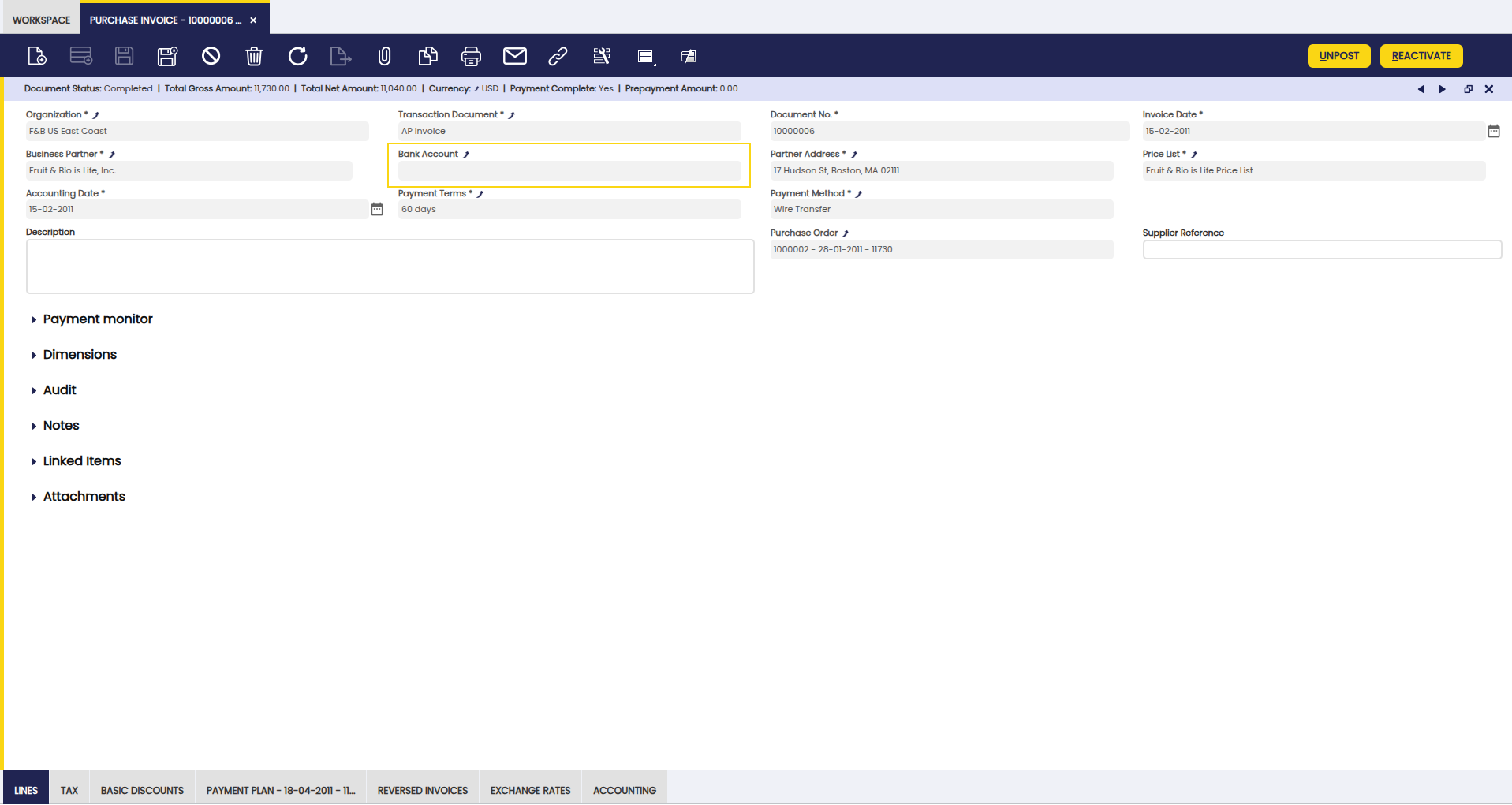
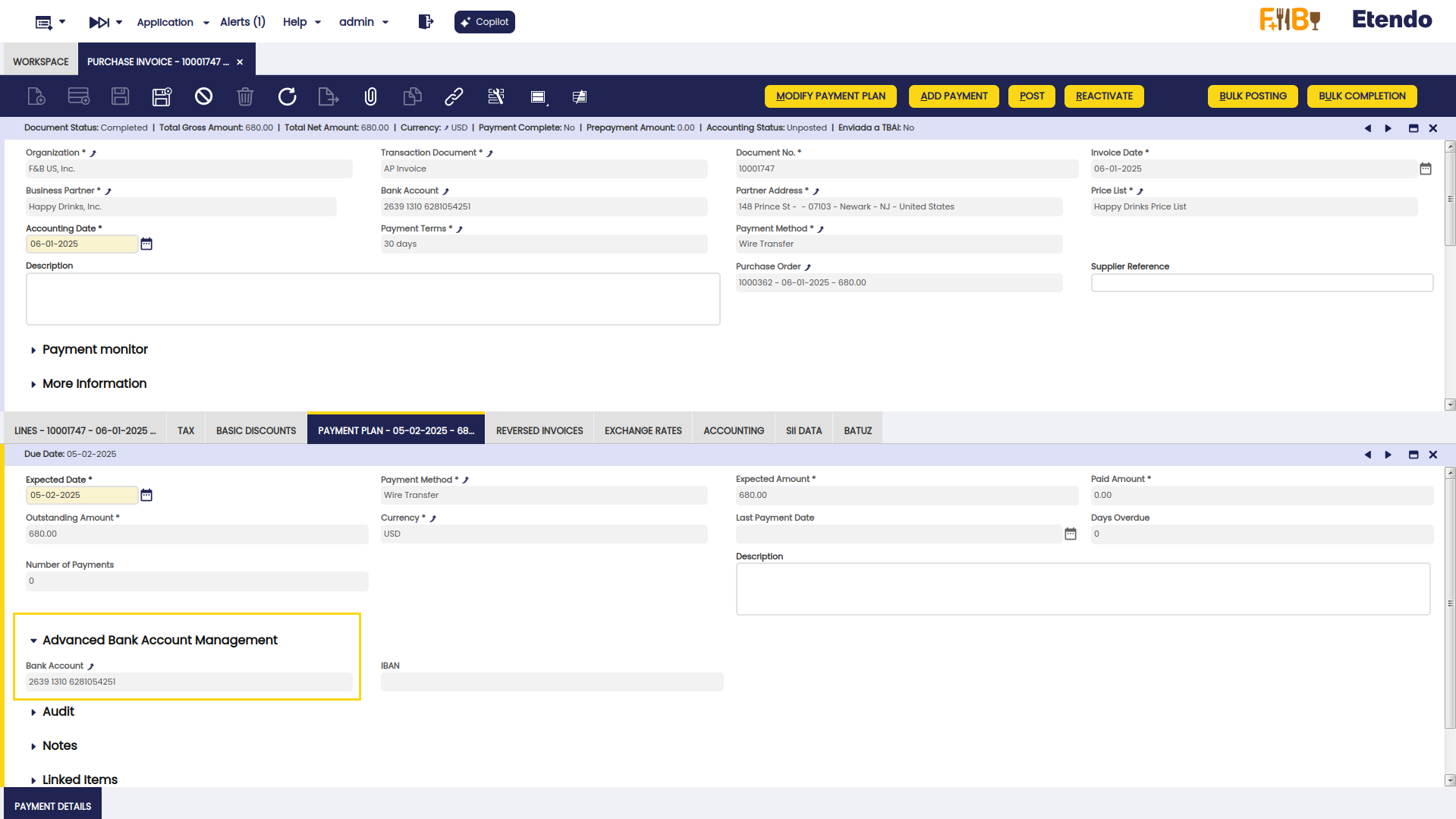
The Payment Plan in Sales Invoice and Purchase Invoice windows now displays the associated bank account information in the Payment Plan tab.
Add Payment button
Furthermore, the Add Payment button has been enhanced to include a Bank Account field, allowing users to filter payments by bank account. This button is present in the Sales Invoice and Purchase invoice windows.
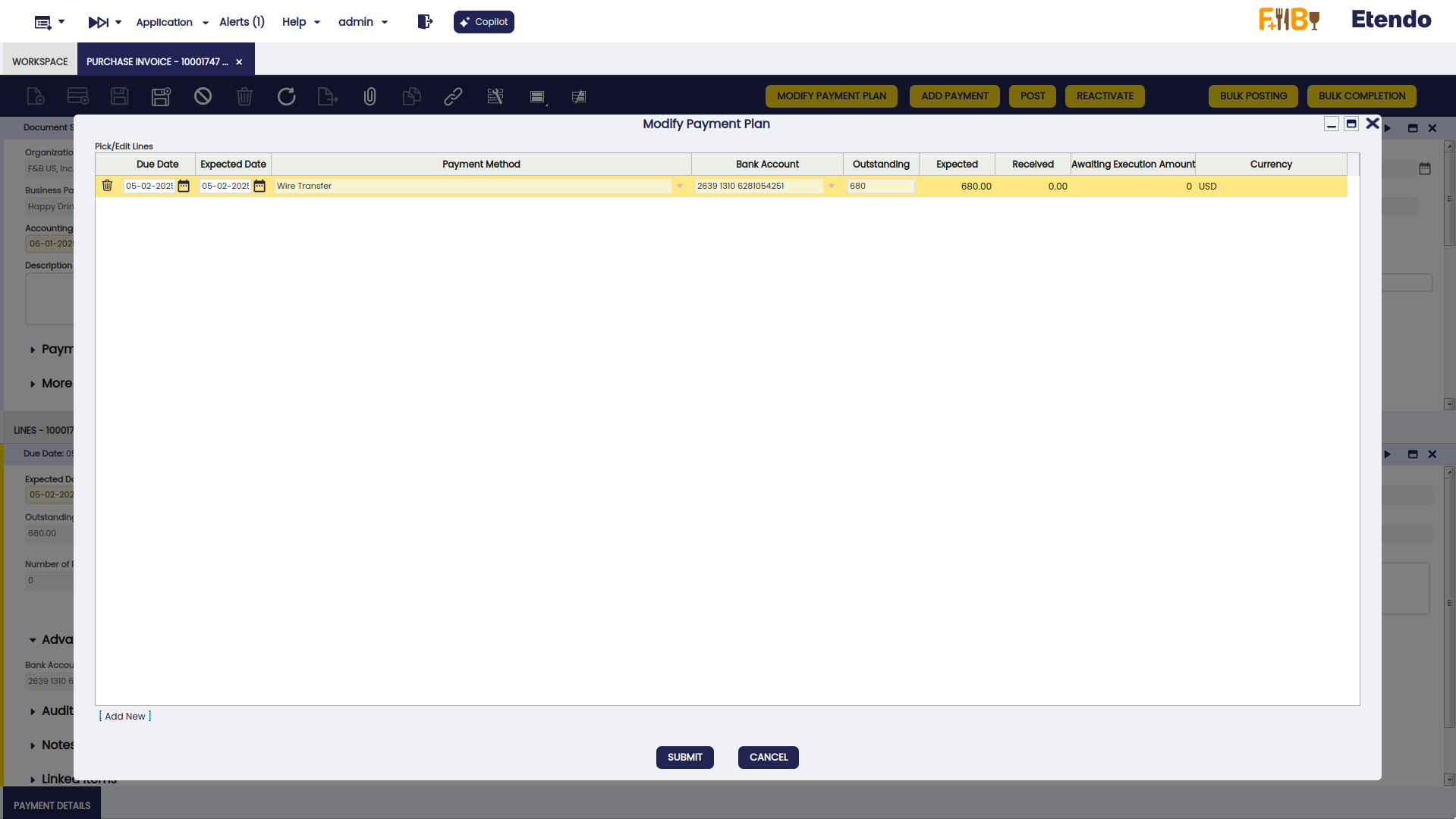
Modify Payment Plan button
A Modify Payment Plan button is found at Payment Plan tab level in both the Purchase and Sales Invoice windows. This function allows users to modify payment plans already created, adding or deleting payments, and even specifying the bank account for each payment plan record.
Warning
This button is only available when the payment plan has no associated payments.
Requires Bank Account (Payment Method)
Application > Financial Management > Payables and Receivables > Payment Method
Info
This feature is available from Financial Extensions 4.2.8 (Etendo 26) and 3.11.15 (Etendo 25) onwards.
The Requires Bank Account checkbox is available in the Defaults Payment OUT section of the Payment Method window. It defines whether Bank Account is mandatory on the payment plan lines that use that payment method when they are created or modified through Modify Payment Plan.
-
If Requires Bank Account is checked (for example, for Direct Debit, needed to later generate the SEPA Remittance), the line cannot be saved without a Bank Account, and the following message is shown:
The selected payment method requires a bank account. Fill in the Bank Account of the payment plan lines that use it.
-
If it is unchecked (for example, for Confirming or Transfer), the line can be saved without a Bank Account, and any other field (such as Expected Date) can be edited freely even if Bank Account is empty.
This validation is applied only to the lines being created or modified in the popup; existing untouched lines are never blocked by it.
Warning
The checkbox is unchecked by default on all payment methods, including Direct Debit. After upgrading, review the Payment Method configuration and check Requires Bank Account on every payment method that depends on it (e.g. Direct Debit) to keep the previous validation behavior.
Payment In /Payment Out windows
Application > Financial Management > Receivables and Payables > Transactions > Payment In / Payment Out
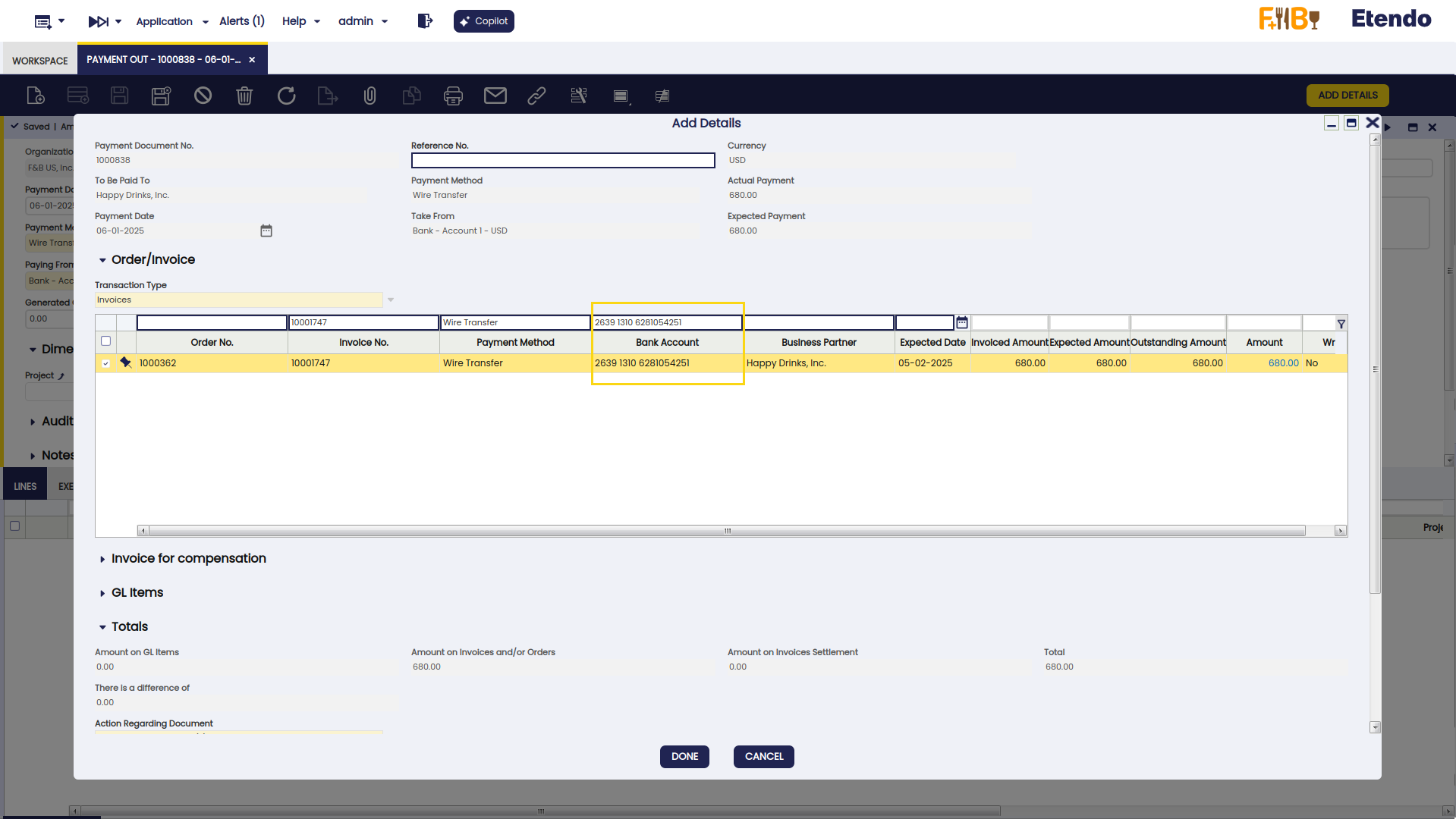
Add Details button
As in the case of the Add Payment button, the Add Details button has been enhanced to include a Bank Account field, allowing users to filter payments by bank account. This button is present in the Payment In and Payment Out windows.
This work is licensed under CC BY-SA 2.5 ES by Futit Services S.L.