Cost Center
Application > Financial Management > Accounting > Setup > Cost Center
Overview
A Cost Center is an accounting dimension used to classify and track expenses or revenues by organizational unit. When posting documents to the general ledger, cost centers allow you to assign transactions to specific areas of the business — such as departments, teams, or projects — enabling more detailed financial reporting and analysis.
The Cost Center window is where all cost centers for an organization are managed. From here, users can create, view, and maintain the cost centers available for use in accounting transactions.
Once created, cost centers are available as an accounting dimension in documents across the system — such as purchase invoices, sales invoices, and journal entries. After assigning cost centers to transactions, use accounting reports to classify and filter results by cost center.
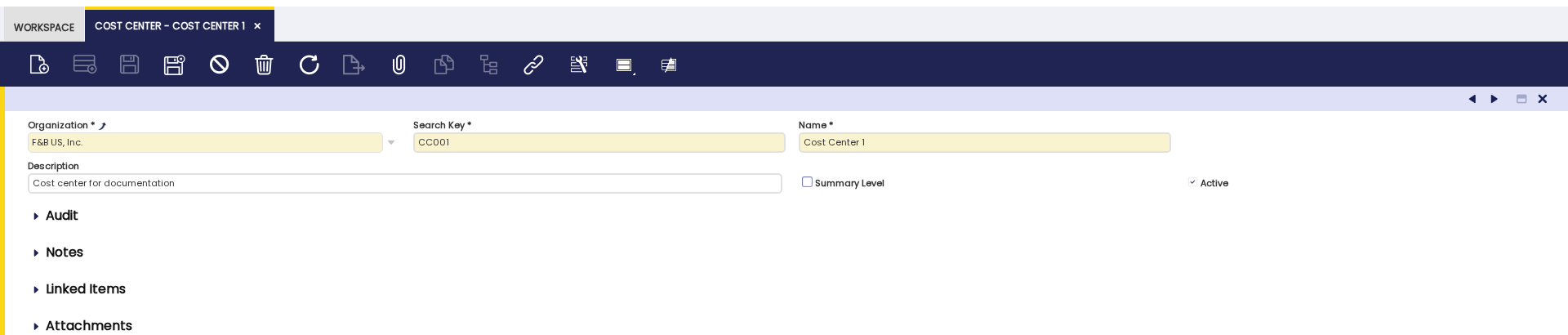
Creating a Cost Center
To create a new cost center:
- Navigate to
Financial Management>Accounting>Setup>Cost Center. - Click New to open a blank record.
-
Enter the following fields:
- Organization (required): Select the organization this cost center belongs to. Select
(*)to make the cost center available across all organizations in the system. - Search Key (required): A short, unique code to identify the cost center (e.g.,
CC-IT,CC-SALES). - Name (required): A descriptive name for the cost center (e.g., IT Department, Sales Team, Project Alpha).
- Description (optional): A brief explanation of what the cost center represents.
- Summary Level: Check this option to mark the cost center as a grouping node. A summary-level cost center does not hold transactions directly — it groups child cost centers for reporting purposes. See Cost Center Hierarchy for details.
- Organization (required): Select the organization this cost center belongs to. Select
-
Save the record.
Cost Center Hierarchy
Cost centers can be organized in a parent-child tree structure using the Summary Level flag. A summary-level cost center acts as a grouping node and does not hold transactions directly. It is used to aggregate the results of its child cost centers in reports.
Example: You can create a Finance Department cost center marked as Summary Level, and then create Accounts Payable and Accounts Receivable as child cost centers under it. Reports show the totals at each level, so you can see the financial activity of the whole Finance Department as well as each sub-area individually.
To set up the hierarchy, switch to the tree view in the Cost Center window. In this view, drag a cost center and drop it onto a Summary Level cost center to establish the parent-child relationship.
Related Setup
- General Ledger Configuration – Configure how accounting dimensions like cost centers are used in your ledger.
- Account Combination – Define how cost centers combine with accounts and other dimensions.
- ABC Activity – Another accounting dimension that can be used alongside cost centers.
This work is a derivative of Cost Center by Openbravo Wiki, used under CC BY-SA 2.5 ES. This work is licensed under CC BY-SA 2.5 by Etendo.