Customer Statement
Application > Financial Management > Accounting > Analysis Tools > Customer Statement
Info
This functionality is available starting from version 3.8.0 of the Financial Extensions Bundle, compatible with Etendo 25.1. To do that, follow the instructions from the marketplace: Financial Extensions Bundle. For more information about the available versions, core compatibility and new features, visit Financial Extensions - Release notes.
Warning
If you do not have the Financial Extensions Bundle, the report will remain in a legacy version with limited functionality.
Overview
The Customer Statement is a consolidated report that displays all transactions of a business partner posted to the ledger over a specified period. This report provides a complete financial history of the business relationship, showing debits, credits, and running balances for each transaction.
This report can be generated for business partners configured as:
- Customer: Displays customer-related transactions (sales invoices, payments received, etc.).
- Vendor: Displays vendor-related transactions (purchase invoices, payments made, etc.).
- Customer/Vendor: Displays all transactions for business partners with both roles.
The report aggregates transactions from various sources including:
- Sales Invoices / Purchase Invoices
- Payment In / Payment Out
- Financial Transactions
- Reconciliations
Warning
Only Posted transactions are included in the report. Completed but not posted transactions are not taken into consideration.
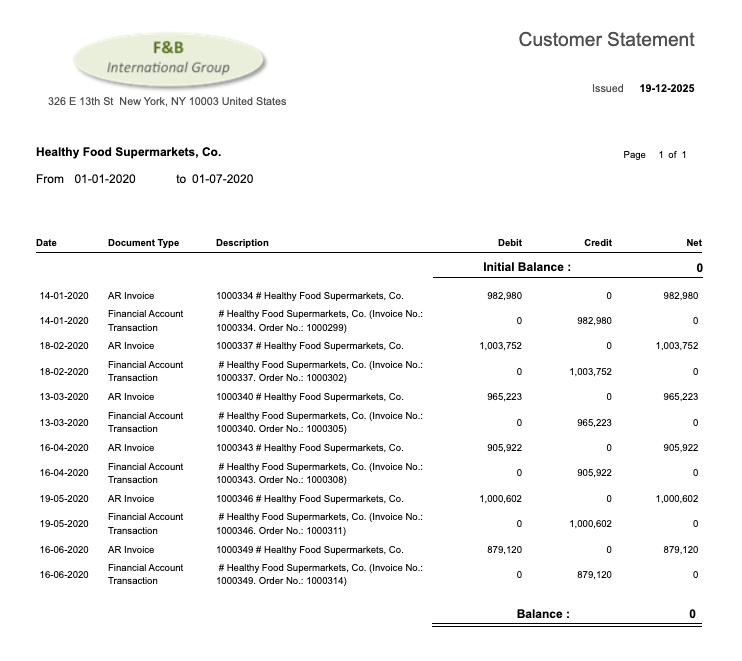
The Customer Statement provides the following information for each transaction:
- Document Number: Identification of the transaction.
- Accounting Date: Date when the transaction was posted.
- Document Type: Type of transaction (e.g., AR Invoice, AP Invoice, Financial Account Transaction).
- Debit/Credit: Financial amounts of each transaction.
- Net Balance: Accumulated balance calculated as [Debit - Credit] for each transaction, showing the running balance throughout the period.
Note
Negative amounts are highlighted by using brackets ( ).
Header
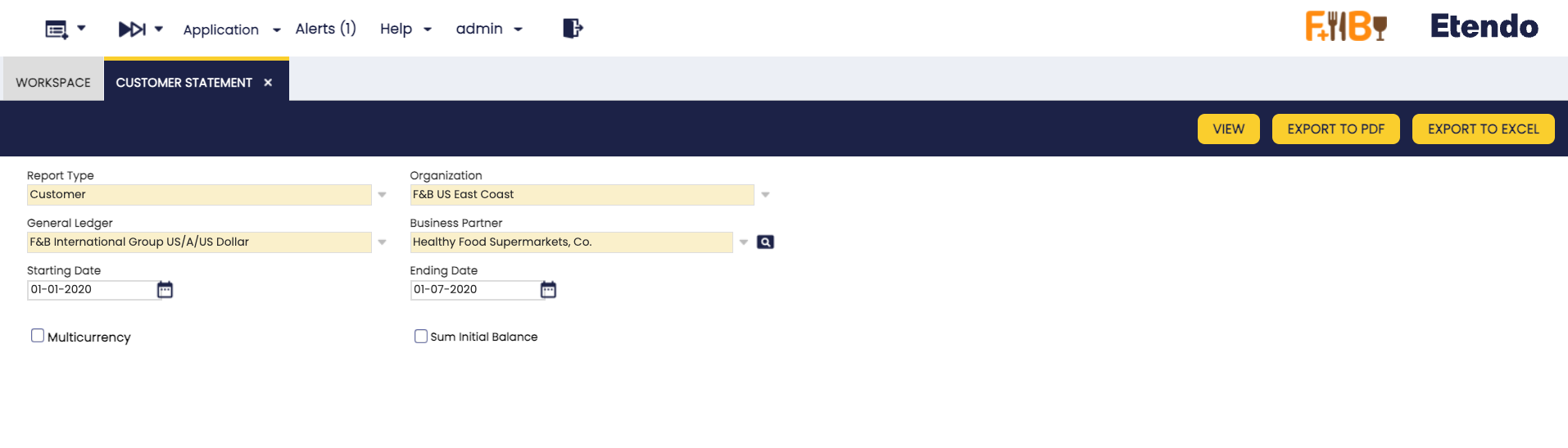
As shown in the image above, the following parameters can be configured:
- Report Type: Defines the type of report to generate. Options include:
- Customer: Displays customer-related transactions.
- Vendor: Displays vendor-related transactions.
- Customer/Vendor: Displays all transactions for business partners with both roles. The report shows vendor and customer transactions separately, dividing them into distinct sections.
- Organization: The organization for which the statement will be generated.
- General Ledger: The general ledger associated with the selected organization.
- Business Partner: The business partner (customer, vendor, or both) for which to generate the statement.
- Starting Date: Starting date of the period to include in the report.
- Ending Date: Ending date of the period to include in the report.
- Multicurrency:
- Unchecked (default): Does not group records by currency and displays all amounts in the General Ledger currency.
- Checked: Groups records by currency and displays original currency amounts. The report will be split by each different currency, each one with its initial and ending balance isolated from the rest.
- Sum Initial Balance:
- Unchecked (default): The report shows an Initial Balance at the beginning, then lists each transaction with its Net Balance. The Ending Balance equals the Initial Balance plus the final Net Balance.
- Checked: The Initial Balance is aggregated into each transaction's Net Balance, making the final Ending Balance equal to the last Net Balance shown.
Buttons
In the toolbar, you can find the following buttons to generate the report:
- View: Opens the report results in a new window for immediate visualization.
- Export to PDF: Generates a PDF version of the report that can be printed or stored.
- Export to Excel: Generates an Excel file of the report for further analysis or customization.
An example of the Customer Statement output:
This work is a derivative of Financial Management by Openbravo Wiki, used under CC BY-SA 2.5 ES. This work is licensed under CC BY-SA 2.5 by Etendo.