How to Configure Etendo Main UI
Overview
Etendo Main UI is a modern React/TypeScript-based user interface included in the base Etendo installation. It runs as a containerized Docker service alongside the Etendo instance and is started automatically with ./gradlew resources.up.
This guide covers manual configuration of the Main UI variables and the advanced development setup for contributors.
Info
To be able to include this functionality, the Platform Extensions Bundle must be installed. To do that, follow the instructions from the marketplace: Platform Extensions Bundle. For more information about the available versions, core compatibility and new features, visit Platform Extensions - Release notes.
Requirements
- Etendo project properly set up. See the Local Development or Server Installation guides.
- Docker version
26.0.0or higher - Docker Compose version
2.26.0or higher
Warning
Avoid installing Docker via Snap — its sandbox restrictions may prevent Etendo Docker containers from accessing host directories correctly. Install Docker following the official guide for your distribution.
Info
The Docker Management module, included as a dependency, manages the distribution of infrastructure within Etendo modules via Docker containers.
Client Access Token
Application > General Setup > Client > Client
A one-time encryption token must be configured for authentication. This token is required for the Main UI to start a session.
Note
Starting from Etendo 26.1, the SWS key is generated automatically during ./gradlew install — no manual action is needed for new installations. For earlier versions, or to rotate the key, use one of the following options (not both):
- From the command line:
./gradlew generate.sws.keys - From the UI: follow the steps below.
The following steps apply only if you need to generate or rotate the key manually:
- Access Etendo Classic as a
System Administrator. - Navigate to
Client>Secure Web Service Configurationtab. - Click Generate Key to create a token. The expiration time is in minutes; set to
0for no expiration.
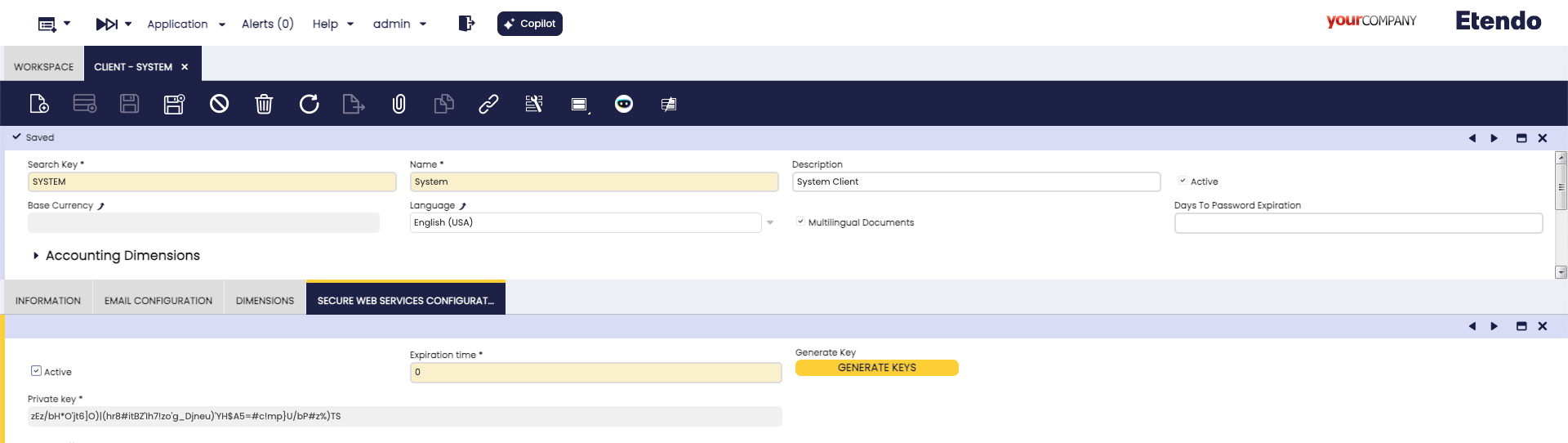
Configuration
Using the Interactive Setup
Run the interactive configuration assistant to set all required variables:
For a full walkthrough, see the How to Use the Interactive Setup guide.
Then start the Docker services:
Manual Configuration
Add the following variables to gradle.properties:
docker_com.etendoerp.mainui=true
etendo.classic.url=http://host.docker.internal:8080/etendo
etendo.classic.host=http://localhost:8080/etendo
authentication.class=com.etendoerp.etendorx.auth.SWSAuthenticationManager
ws.maxInactiveInterval=3600
next.public.app.url=http://localhost:3000
ui.port=3000
| Variable | Description | Local | Production |
|---|---|---|---|
docker_com.etendoerp.mainui |
Enables the Main UI Docker service. | true |
true |
etendo.classic.url |
Backend URL used by the Main UI server to connect to Etendo Classic. Use host.docker.internal when Main UI runs in Docker and Tomcat runs locally. |
http://host.docker.internal:8080/etendo |
https://your.backend.etendo.cloud/etendo |
etendo.classic.host |
Client-side URL the browser uses to make direct requests to Etendo Classic. | http://localhost:8080/etendo |
https://your-domain.com/etendo |
authentication.class |
Java class that manages authentication between Main UI and Etendo Classic. | com.etendoerp.etendorx.auth.SWSAuthenticationManager |
com.etendoerp.etendorx.auth.SWSAuthenticationManager |
ws.maxInactiveInterval |
Session duration in seconds for the Main UI WebSocket connection. Does not affect Etendo Classic session timeout. | 3600 |
3600 |
next.public.app.url |
Public URL where users access the Main UI. | http://localhost:3000 |
https://your.frontend.etendo.cloud |
ui.port |
Port on which the Main UI service listens inside the container. Must match the port referenced in next.public.app.url. |
3000 |
3000 |
Apply the configuration and start services:
host.docker.internal not resolving
On some Linux systems, host.docker.internal may not resolve correctly inside the container, causing connection errors even when the rest of the setup works. If this happens, find the actual host IP by running:
Use the IP returned by that command in place of host.docker.internal in etendo.classic.url. For example:
After updating gradle.properties, rebuild and restart the containers so the new value is picked up:
Access the Main UI
Once all services are running, the Main UI is available at:
| Environment | URL |
|---|---|
| Local | http://localhost:3000 |
| Production | https://<server-address>/ |
Advanced Configuration
This section is for developers who want to contribute to or customize the Main UI codebase directly.
Additional Requirements
- Node.js version
^18.0.0or higher - pnpm version
^9.15.2
Required Modules
Install the following modules in the modules/ directory:
cd modules
git clone git@github.com:etendosoftware/com.etendoerp.etendorx.git
git clone git@github.com:etendosoftware/com.etendoerp.openapi.git
git clone git@github.com:etendosoftware/com.etendoerp.metadata.git
git clone git@github.com:etendosoftware/com.etendoerp.metadata.template.git
Project Structure
com.etendorx.workspace-ui/
├── packages/
│   ├── api-client/          # API client for backend communication
│   ├── ComponentLibrary/    # Reusable UI components
│   └── MainUI/              # Main application
├── package.json
├── pnpm-workspace.yaml
└── README.md
Development Setup
-
Clone the Main UI development repository:
-
Install dependencies:
-
Create
packages/MainUI/.env.localand add the backend URL: -
Build required packages in order:
-
Start the development server:
The application is available at http://localhost:3000.
Development Commands
Root-level commands:
pnpm dev # Start Main UI development server
pnpm build # Build all packages
pnpm test # Run tests across all packages
pnpm lint # Lint all packages
pnpm lint:fix # Fix lint issues automatically
pnpm format # Format code across all packages
pnpm format:fix # Auto-fix formatting issues
pnpm clean # Clean all build artifacts
Per-package commands:
pnpm --filter @workspaceui/mainui dev
pnpm --filter @workspaceui/api-client build
pnpm --filter @workspaceui/componentlibrary build
pnpm --filter @workspaceui/api-client test
pnpm --filter @workspaceui/mainui lint
This work is licensed under CC BY-SA 2.5 ES by Futit Services S.L.