Goods Movement
Overview
Application > Warehouse Management > Transactions > Goods Movement
The Goods Movement window records and processes internal inventory movements between warehouses and storage bins (specific locations within a warehouse, such as a shelf or rack position — see Warehouse and Storage Bins). Use it to transfer products from one location to another and keep stock levels accurate across all warehouses. For an introduction to the recommended warehouse workflow, see Getting Started.
How to Record a Goods Movement
- Go to
Application>Warehouse Management>Transactions>Goods Movement. - Click New to create a record. The Name and Movement Date fields fill in automatically — update them if needed.
- Add the products to move. You have two options:
- One product at a time: go to the Lines tab, click New, and fill in the product, quantity, source Storage Bin, and New Storage Bin (destination).
- All products from one bin at once: click Move Storage Bin, select the source and destination bins, and confirm. The system adds one line per product automatically.
- Review the lines to confirm quantities and locations are correct.
- Click Process Movement. Stock levels update immediately.
Header
The header record holds the date, name, and organizational context for the movement. All fields are pre-filled when a new record is created.
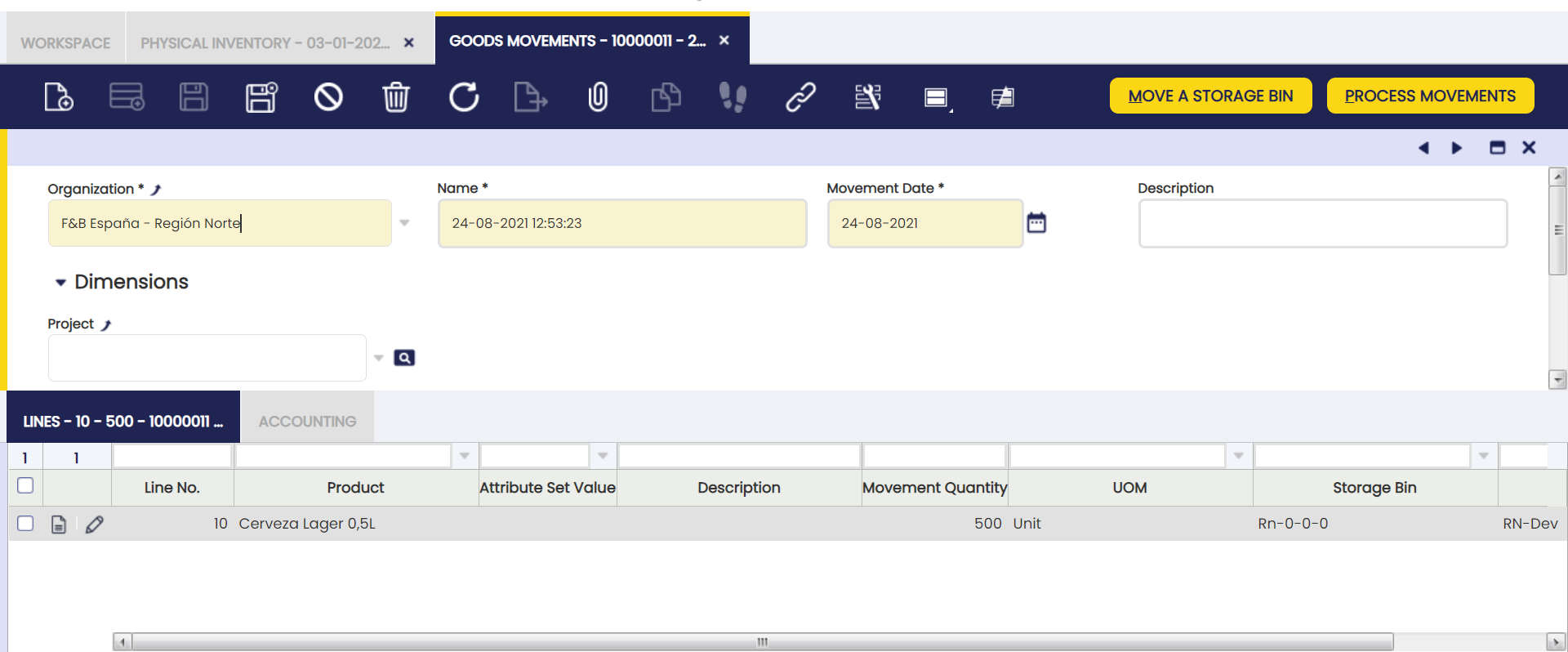
- Organization: The organization this goods movement belongs to. Pre-filled based on the user session.
- Name: The reference name for this goods movement. It appears in warehouse reports and in the general ledger, so use a meaningful name. Defaults to the current date.
- Movement Date: The date of the transfer. Defaults to today's date. This is the date the movement appears in your accounting records — confirm it is correct before processing.
- Description: Optional free-text field for notes about the movement.
- Project (under Dimensions): Optional field to associate this movement with a project for accounting and reporting purposes.
Lines
The Lines tab lists every product to move, along with its source location, destination, and quantity.
There are two ways to add lines (products to move between warehouses and storage bins):
- Add individual products in the Lines tab.
- Move all items from one bin to another using the Move Storage Bin button.
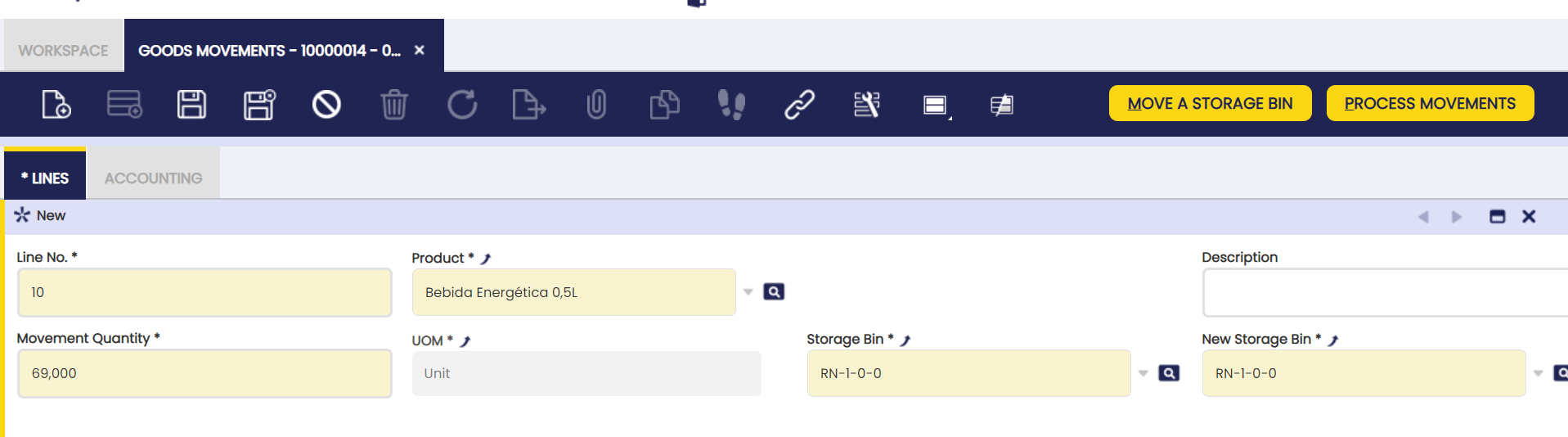
Some fields to note:
- Product: The item to move. Selecting a product automatically fills in the Storage Bin and Movement Quantity fields with the current stock data.
- Movement Quantity: The amount to move. Defaults to the total quantity of the product in the selected Storage Bin.
- Storage Bin: The location the products are taken from. Pre-filled based on the product selected. Change it if needed.
- New Storage Bin: The destination bin for the products.
- New Attribute Set Instance: You do not need to fill in this field — it updates automatically. It appears only when your warehouse uses container-tracking features (see Referenced Inventory).
To review the history of product movements, see Product Movements Report.
Buttons
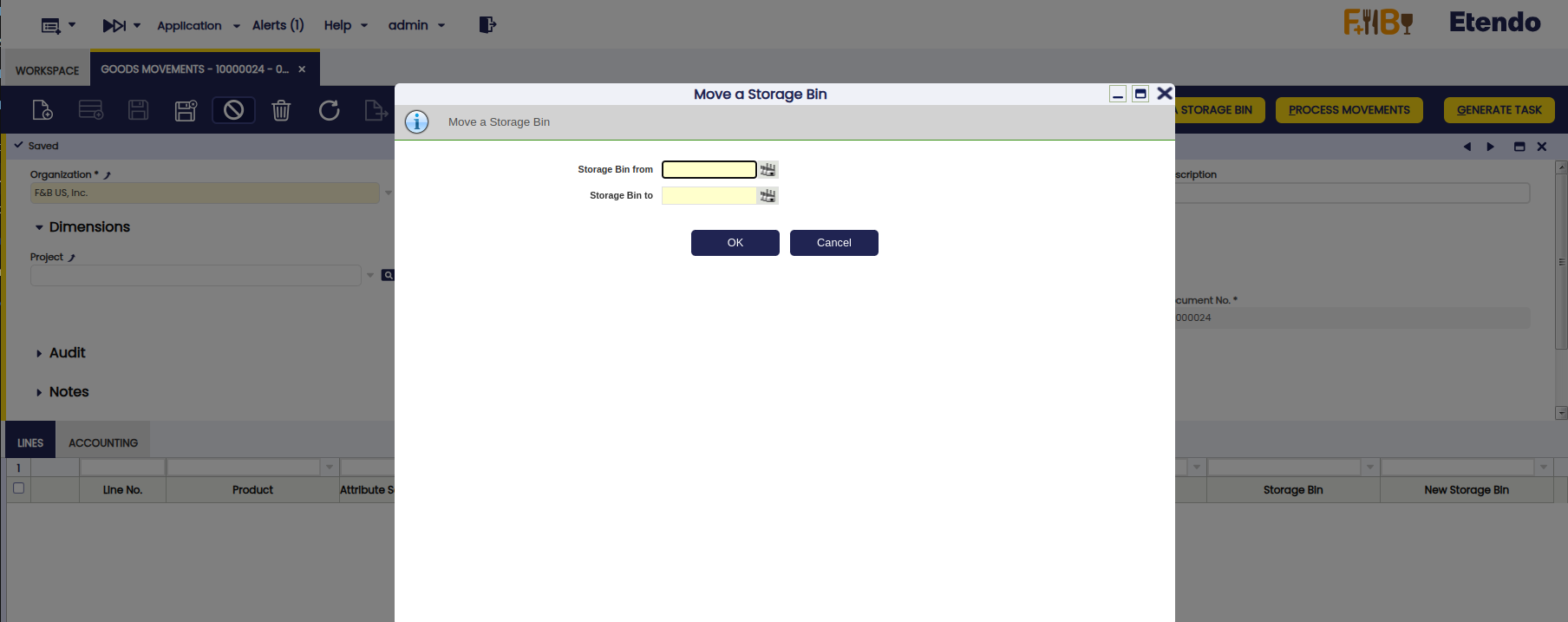
Move a Storage Bin
Use this button to move all products from one storage bin to another in a single action. When clicked, the system fills the Lines tab with every product found in the source bin. When Process Movement is clicked, the system moves all those products to the destination bin.
Generate Relocation Task
Info
To include this functionality, the Warehouse Extensions Bundle must be installed. Follow the instructions from the marketplace: Warehouse Extensions Bundle. For more information about available versions, core compatibility, and new features, visit Warehouse Extensions - Release notes.
Creates a relocation task from the Goods Movement document. The system reads the record and its lines and sends the movement data to Etendo Mobile. From there, a warehouse operator carries out the physical movement using the corresponding mobile application. When clicked, the automatic or manual assignment pop-up opens.
Info
For more information, visit Relocation Task.
Process Movement
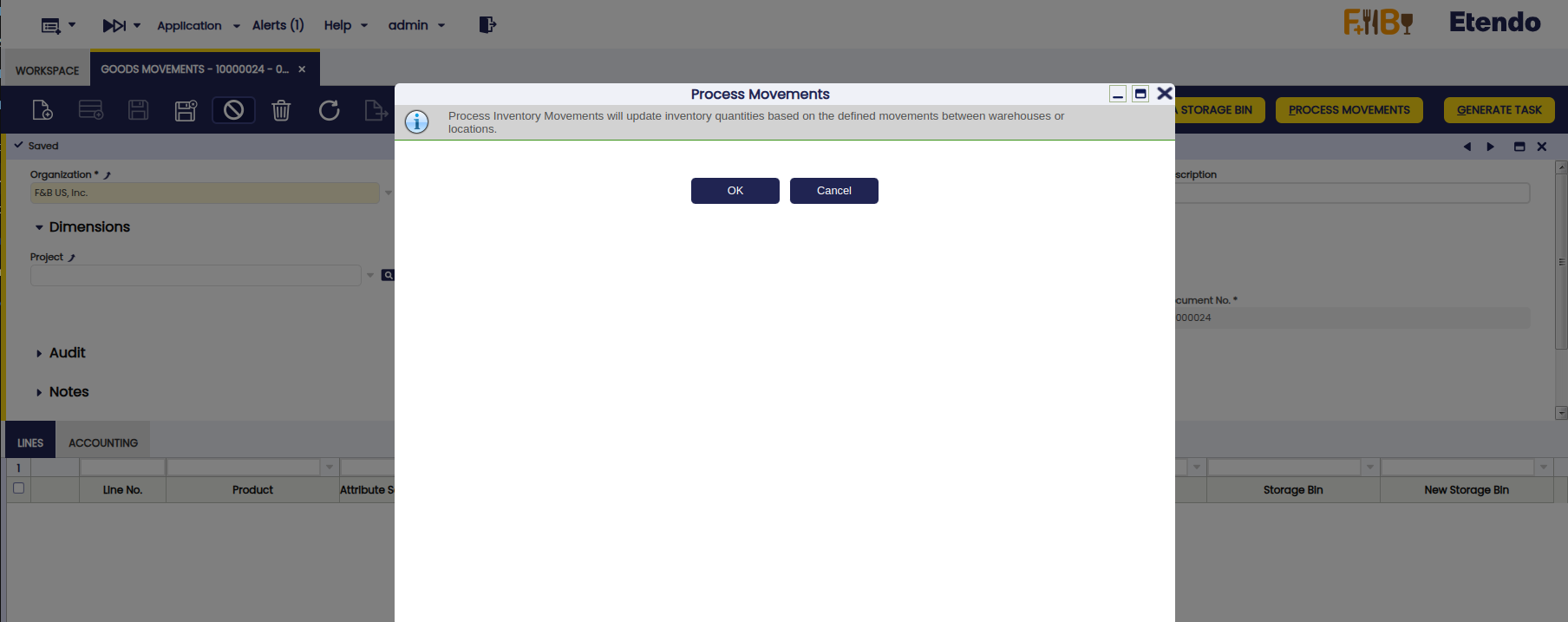
This button processes the Goods Movement document. The system validates the movement information and updates the stock in the corresponding locations.
To verify the resulting stock levels, see Stock Report or Material Transaction Report.
Accounting
Info
Before a Goods Movement can be posted to the ledger, it must be enabled in the general ledger configuration. If the Post button is unavailable, contact your system administrator and ask them to activate the Goods Movement table in the Active Tables tab of the organization's general ledger configuration.
Goods Movement posting creates the following accounting entries.
Posting record date: Movement Date.
| Account | Debit | Credit | Comment |
| Product Asset | Movement Line Cost Amount | One per Goods Movement Line | |
| Product Asset | Movement Line Cost Amount | One per Goods Movement Line |
Posting requires two things to be set up by your system administrator:
- A costing rule has been configured and approved for your company. See Costing Rule.
- The system's automated cost calculation has run since the movement was saved. See Costing Background Process.
If posting fails, contact your system administrator to confirm these are in place.
Once both conditions are met, the Goods Movement can be posted.
To review stock levels as of a specific date, see Stock History.
How to Reactivate Goods Movements
Info
To include this functionality, the Warehouse Extensions Bundle must be installed. Follow the instructions from the marketplace: Warehouse Extensions Bundle.
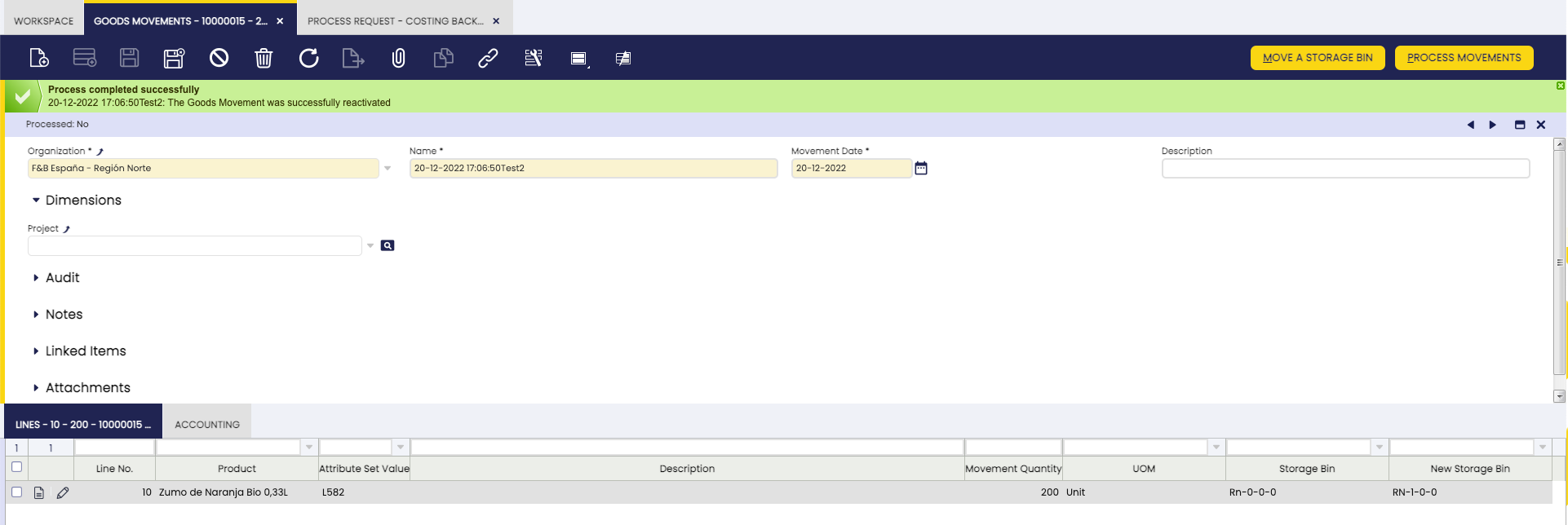
To correct a goods movement that has already been processed — for example, after an error is detected in the transferred quantities — reactivate it to make changes. From the Goods Movement window, select the corresponding document and click Reactivate.
Once the movement is successfully reactivated, the document status bar shows Not processed, confirming the reactivation was successful.
Warning
It is not possible to reactivate documents that include transactions with quantities exceeding the existing stock quantity for a product in a given storage bin. The only exception is when the storage bin is configured to allow shipments that exceed available stock (known as Over Issue). This setting is configured by your system administrator. For more information, visit Inventory Status.
Reactivating a processed movement may affect cost calculations. See Cost Adjustment for more information.
Bulk Posting
Info
To include this functionality, the Financial Extensions Bundle must be installed. Follow the instructions from the marketplace: Financial Extensions Bundle.
Use this option when you need to post a large number of movements to the accounting ledger in a single step, instead of processing each one individually.
Select the corresponding records and click Bulk posting. The accounting status of each record is shown in the status bar in form view, or in a column in grid view.
Info
For more information, visit the Bulk Posting module user guide.
This work is a derivative of Warehouse Management by Openbravo Wiki, used under CC BY-SA 2.5 ES. This work is licensed under CC BY-SA 2.5 by Etendo.