Payment Method
Application > Financial Management > Receivables and Payables > Setup > Payment Method
Overview
Payment Methods represent means of payment employed by your enterprise or by a business partner, such as:
- Cash
- Credit Card
- PayPal
- Cheque
- Direct Debit
- Standing Order
- Bank Transfer
- Note Payable
Each payment transaction is associated with a Payment Method. A payment method defines how a payment in/out is going to be managed within the receivables and payables Payment Cycle, and besides how it is going to be accounted.
Payment Methods are associated with Financial Accounts, so that payments can be registered in a bank or cashbook.
The payment methods which can be used within the payables and receivables management are the ones assigned to a Financial Account, therefore if any payment method configuration needs to be modified, it has to be done in the Payment Method tab of the financial account.
It is possible to associate multiple Payment Methods to a single Financial Account.
For instance, both checking and electronic payments may be associated with a single Financial Account as each payment method has its own configuration.
Payment Cycle
To better understand the configuration of a Payment Method, it is necessary to understand the flow of events within the payment cycle:
- Order: the sales order or purchase order is used in this process of payables and receivables management in the case of an advance payment:
- when the sales invoice or purchase invoice gets booked, the payment information can be generated for the order from either the Payment In window or the Payment Out window.
- Invoice: the purchase invoice generates a debt to a vendor and the sales invoice a debt-claim for a customer.
- Receipt or Payment: the registration of the transfer of money in or out before the transaction is confirmed in our bank account or cashbook.
- Financial Account update: the addition of the transaction in the Financial Account as a "Deposit" or as a "Withdrawal", related to the movement of the money in or out of our bank account or cashbook.
- Reconciliation: the confirmation of the movement of the money after receiving the bank statement or cash balance.
In the image below, a Simple Payment Workflow is shown:
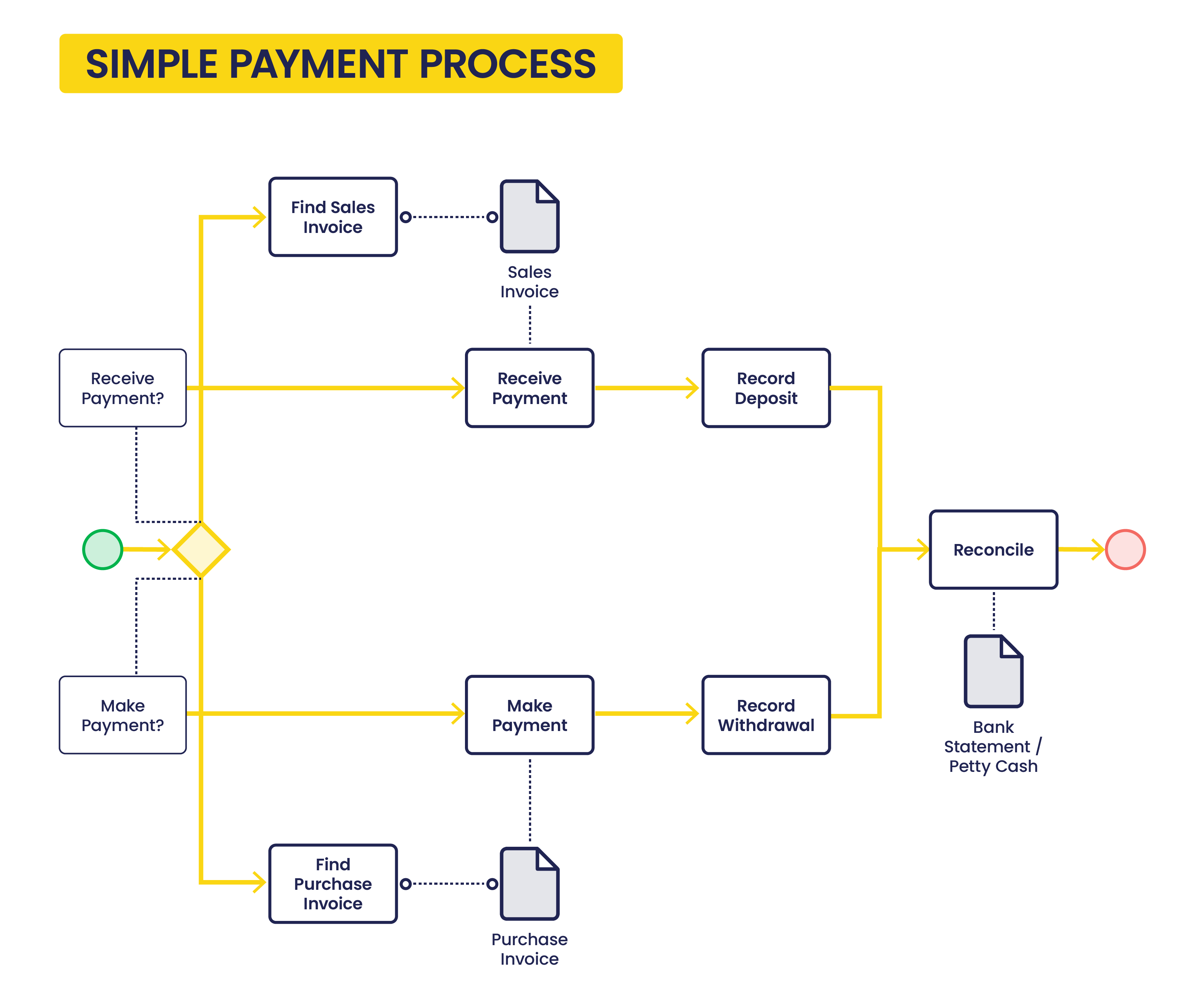
The way to create each payment stage in Etendo is described below:
First Stage:
A "Receipt" can be registered in:
- the Sales Invoice window by using the process button "Add Payment".
- and in the Payment In window by using the process button "Add details".
A "Payment" can be registered in:
- the Purchase Invoice window by using the process button "Add Payment".
- and in the Payment Out window by using the process button "Add Details".
Above payment stages can create an accounting event depending on the payment method accounting configuration.
- If it is configured to account at this stage, Receipts and Payments can be accounted in the Payment In / Payment Out window by using the process button "Post" or by running the accounting background process.
Second Stage:
A "Deposit" can be registered in:
- the Financial Account by using the process button "Add Transaction".
- and in the Payment In window by using the process button "Add details" and then the Action: "Process Received Payment(s) and Deposit"
A "Withdrawal" can be registered in:
- the Financial Account by using the process button "Add Transaction".
- and in the Payment Out window by using the process button "Add details" and then the action: "Process Made Payment(s) and Withdrawal"
Above payment stages can create an accounting event depending on the payment method accounting configuration.
- If it is configured to account at this stage, Deposits and Withdrawals can be accounted in the Financial Account window by using the process button "Post" or by running the accounting background process.
Third and final stage:
A "Reconciliation" can be registered in:
- the Reconciliation tab of the Financial Account window.
Above payment stage can create an accounting event depending on the payment method accounting configuration.
- If it is configured to account at this stage, Reconciliations can be accounted in the Reconciliation tab of the Financial Account window by using the process button "Post" or by running the accounting background process.
Payment Status
To better understand the configuration of the payment method, it is also necessary to understand the payment status related to the process steps.
During the whole Payment Cycle, the payment is defined by one status so the user knows the last step of the process that took place and the following step that should take place.
In the following explanation and diagram below, the different Payment Statuses are explained.
- Awaiting Payment: This status appears when a Receipt/Payment has been created in either the Payment In window or in the Payment Out window, but it has no details of what it is going to be received or paid.
- Awaiting Execution: This status appears when the Receipt/Payment has been created and processed and there is an automated execution process to be executed.
This is an optional status which will be skipped if:- the Payment Method is Manual
- or if the Payment Method is Automatic and it is not set as "Deferred".
- Payment Received/Made: This status appears when the Receipt/Payment has been completed and processed.
- Deposited/Withdrawn not Cleared: This status appears when the Receipt/Payment has been added to the Financial Account screen, therefore the corresponding Deposit/Withdrawal transaction has been created in the Financial Account.
- Payment Cleared: This status appears when the Deposit/Withdrawal reconciliation has been executed.
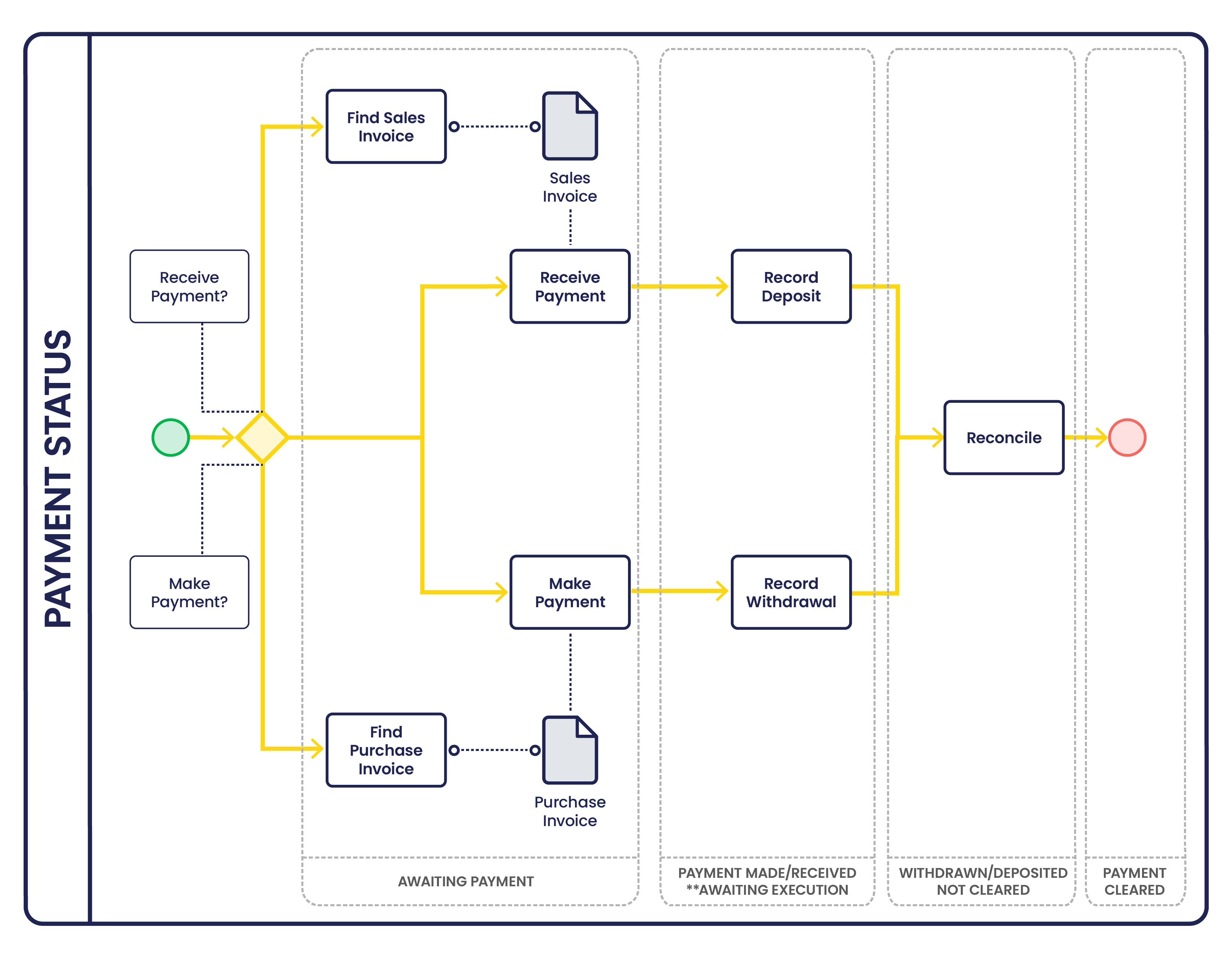
In more detail, the way those payment status change within the payables and receivables payment cycle is:
1. The Receipt of the money in or the Payment of the money out, before the transaction is confirmed on the bank account, changes the payment status to either:
- Awaiting Execution, if there is an execution process set up in the payment method used for the financial account
- or Payment Received in the case of a receipt of the money in
- or Payment Made in the case of a payment of money out.
If there is an execution process set up in the payment method, the extra action of executing that process changes the status from "Awaiting Execution" to either "Payment Received" or "Payment Made".
2. The Deposit of the payment in the financial account changes the payment status from "Payment Received" to "Deposited not Cleared"
and the Withdrawal of the payment from the financial account changes the payment status from "Payment Made" to "Withdrawn not Cleared".
3. The Clearing or reconciliation of the payments changes the payment status from either "Deposited not Cleared" or "Withdrawn not Cleared" to "Payment Cleared"
Payment Method
The image below shows the Payment Method window. That is the window where payment methods are configured.
However, payment methods are assigned to financial accounts, therefore, a different configuration of a given payment method can also be defined in the payment method tab of the financial account window.
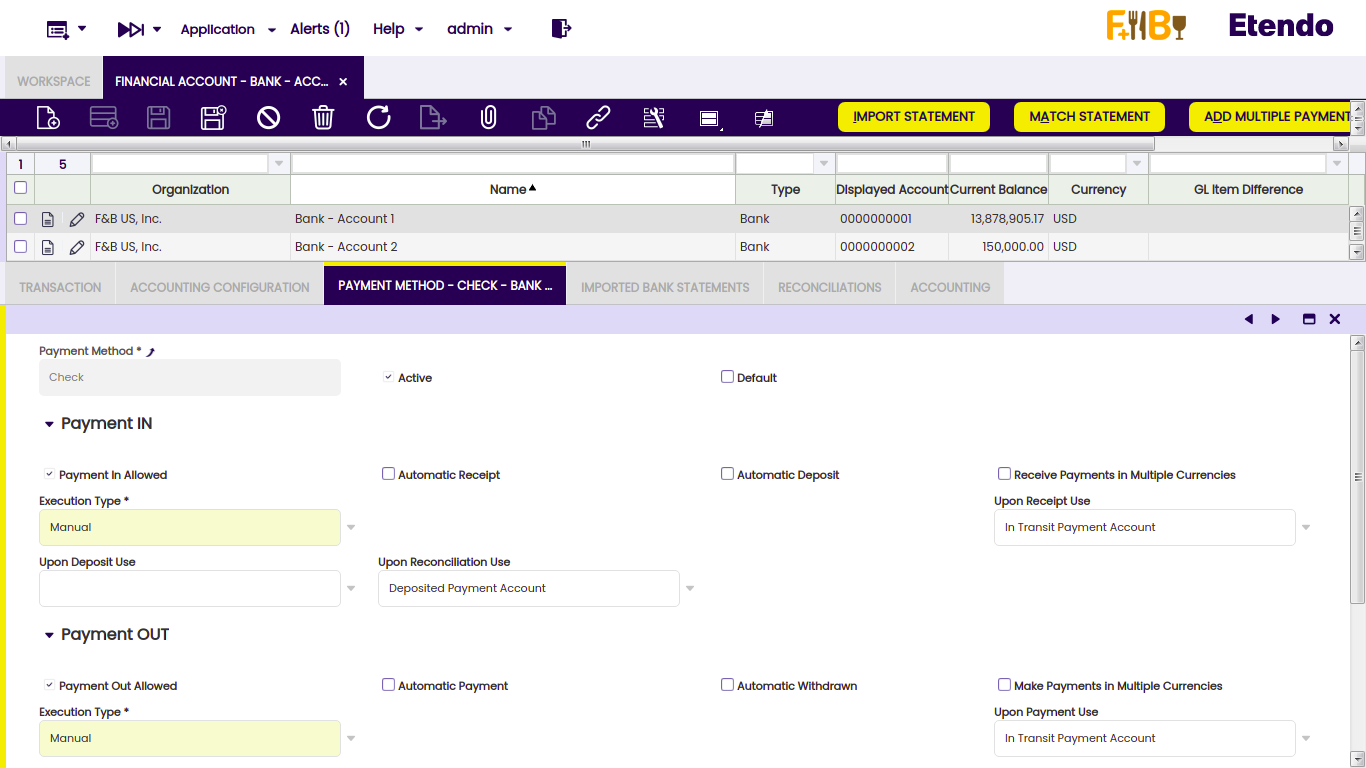
As a consequence, the same method of payment can have different configuration "versions" depending on the financial account it has been assigned to.
It is very important to remark that:
- the configuration of a payment method created in a financial account overwrites the "generic" configuration of that payment method while managing payments associated to that payment method in that financial account.
- even more, the payment methods which can be use:
- while issuing a sales invoice for instance
- or while assigning a by default payment method to a vendor
are the ones which are already assigned to a financial account.
In other words, it is not possible to use a payment method if it is not assigned to a financial account.
Finally, if reviewing the payment method assigned to a business partner is required, the steps to follow are:
- navigate to the financial account assigned to that business partner if any
- and then to the payment method tab of the financial account.
Payment Method configuration includes the features below:
- if it is going to be used for receiving payments and/or making payments
- if it implies a manual execution, for instance "Cash" or an automatic execution, for instance "Check"
- if it is going to automatically create the registration of the transfer of money before the transaction is confirmed on our bank account or cashbook.
- that is a "Receipt" in case of receiving a payment
- that is a "Payment" in case of making a payment
- if it is going to automatically add the transaction in the financial account related to the movement of the money in or out of our bank account or cashbook.
- that is a "Deposit" in case of receiving a payment
- that is a "Withdrawn" in case of making a payment
- if it allows the user to receive or make payments in other currencies than the financial account currency
- and finally, how the payment is going to be accounted.
Info
To learn more, visit the section Accounting Payment Workflow.
Payment Methods can be configured as explained below in detail:
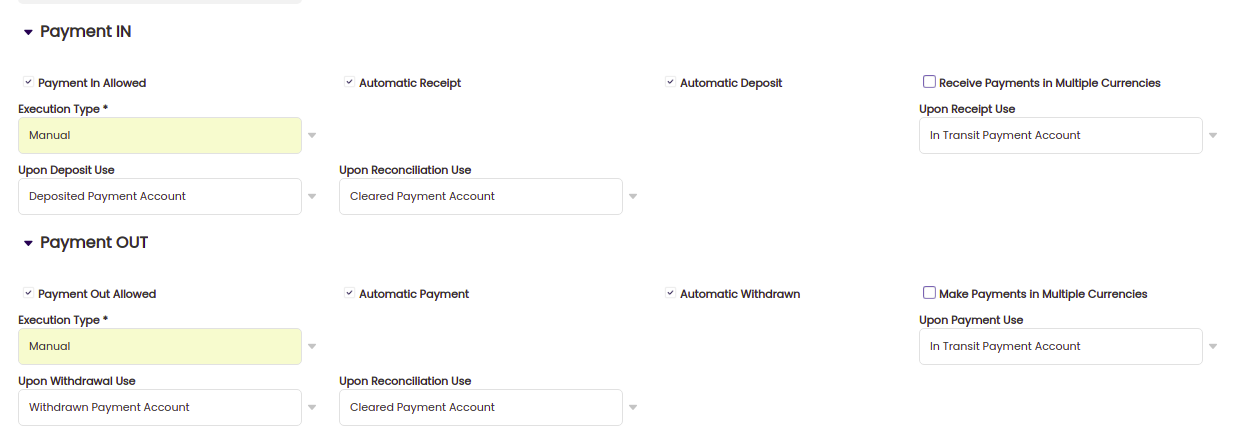
Payment Method configuration
Payment In Configuration:
- Payment In Allowed: If checked, the Payment Method is enabled to receive payments.
- Automatic Receipt: If checked, on completion of a Sales Invoice the payment is automatically received.
In order to use this option, the corresponding customer needs to have a "Financial Account" defined by default in the customer tab of the Business Partner window. The reason why is:- this check automatically creates a "Receipt" transaction in the Payment In window. A payment in requires a financial account.
- Automatic Deposit: If checked, on completion of the Receipt the payment is automatically deposited in the financial account.
In order to use this option, the corresponding customer needs to have a "Financial Account" defined by default in the customer tab of the Business Partner window. The reason why is:- this check automatically creates a "Deposit" transaction in the transaction tab of the financial account window. A deposit requires a financial account.
- Receive Payments in Multiple Currencies: If checked, it is possible to receive payments in other currencies than the Financial Account default currency.
- Above means that, for instance, a sales invoice in USD can be deposited in a Financial Account configured in EUR. To do so, the corresponding customers need to have a Sales Price List in USD assigned. The options are:
- Entering a given exchange rate while creating the payment in the Sales Invoice window, by using the Add Payment button.
- Selecting both USD currency and a given exchange rate, while manually receiving the payment in the Payment In window, or while manually creating the deposit of the payment in the transaction tab of the Financial Account window, by using the Add Transaction button and then the Add Payment In/Out button.
- Above means that, for instance, a sales invoice in USD can be deposited in a Financial Account configured in EUR. To do so, the corresponding customers need to have a Sales Price List in USD assigned. The options are:
- Execution Type. There are payments which might or might not require an additional step to be executed. Therefore, there are two execution types:
- Manual: this is the execution type by default, unless it is changed to "Automatic". This type implies the "Reception" of the payment as a manual event without the need of any additional system step. For example, payment by cash.
- Automatic: if the execution type is changed to "Automatic" Etendo allows the user to choose an "Execution Process, in other words the "Reception" of the payment requires to execute an additional step for instance the recording of a "Check Number".
There are three execution process available:- Simple Execution Process - this process does not require any action as it automatically changes the payment status from Awaiting Execution to Payment Received.
- Print Check simple process - this process shows a window which allows the user to enter a check number while processing the payment in the Payment In window, and changes the payment status from Awaiting Execution to Payment Made. The check number entered is saved as the "Reference Number" of the Payment.
- In case there are more than one payment and a given check number is entered, the process automatically saves as many consecutive check numbers as payments. Those numbers are also saved as "Reference Number" of the Payments.
- Leave as Credit - this process is just use Return Materials functionality as it allows the user to change a negative payment in/out into a positive credit for the business partner (customer/vendor).
- Deferred:
- If not checked the payment once processed is also automatically executed, this applies to "Simple Execution Process" where no additional action is needed.
- If checked, the payment is processed but it is not executed. It has to be manually executed once the payment gets an "Awaiting Execution" Payment Status in the Payment In window by using the button "Execute Payment". That applies to "Print Check simple process" where a check number needs to be entered for instance.
- Upon Receipt Use: Account to be used to account the payment Receipt.
- Would normally be either left blank if the financial transaction is going to be created later in the workflow or if it is not required any posting at this stage in the cycle, otherwise the "In Transit Payment Account" can be assigned to get that:
- the payment Receipt is posted in the "In Transit Payment IN Account" defined in the Accounting Configuration tab of the financial account window.
- Would normally be either left blank if the financial transaction is going to be created later in the workflow or if it is not required any posting at this stage in the cycle, otherwise the "In Transit Payment Account" can be assigned to get that:
- Upon Deposit Use: Account to be used to account the payment Deposit.
- Would normally be left blank if no financial transaction required for the Deposit event or if it is not required any posting at this stage, otherwise the "Deposited Payment Account" can be assigned to get that:
- the payment Deposit is posted in the "Deposit Account" defined in the Accounting Configuration tab of the financial account window.
- Would normally be left blank if no financial transaction required for the Deposit event or if it is not required any posting at this stage, otherwise the "Deposited Payment Account" can be assigned to get that:
- Upon Reconciliation Use: Account to be used to account payment Reconciliation.
- Would normally be set to the "Cleared Payment Account", but could be left blank if the payment Receipt or if the payment Deposit have already been posted earlier in the process. If it is set to "Cleared Payment Account":
- the payment Reconciliation is posted in the "Cleared Payment Account" defined in the Accounting Configuration tab of the financial account window.
- Would normally be set to the "Cleared Payment Account", but could be left blank if the payment Receipt or if the payment Deposit have already been posted earlier in the process. If it is set to "Cleared Payment Account":
Payment Out Configuration:
- Payment Out Allowed: If checked the Payment Method is enabled to make payments.
- Automatic Payment: If checked, on completion of a Purchase Invoice the payment is automatically received.
In order to use this option, the corresponding vendor needs to have a "Financial Account" defined by default in the vendor tab of the Business Partner window. The reason why is:- this check automatically creates a "Payment" transaction in the Payment Out window. A payment out requires a financial account.
- Automatic Withdrawn: If checked, on completion of the payment, the payment is automatically withdrawn from the financial account.
In order to use this option, the corresponding vendor needs to have a "Financial Account" defined by default in the vendor tab of the Business Partner window. The reason why is:- this check automatically creates a "Withdrawal" transaction in the transaction tab of the financial account window. A withdrawn requires a financial account.
- Make Payments in Multiple Currencies: If checked, it is possible to make payments in other currencies than the Financial Account default currency.
- The information above means that a purchase invoice in USD can be withdrawn in a Financial Account configured in EUROS, for instance. In order to use this option, the corresponding vendor needs to have a Purchase Price List in USD assigned.
- It will be possible to enter a given exchange rate while creating the payment out in the Purchase Invoice window, by using the "Add Payment" button.
- It will be possible to select both USD currency and a given exchange rate, while "manually" making the payment out in the Payment Out window, or while "manually" creating the withdrawn of the payment out in the transaction tab of the financial account window, by using the "Add Transaction" button and then the "Add Payment In/Out" button.
- Execution Type. Same as above but for the payments made.
- Upon Payment Use: Account to be used to account the payment.
- Would normally be either left blank if the financial transaction is going to be created later in the workflow or if it is not required any posting at this stage in the cycle, otherwise the "In Transit Payment Account" can be assigned to get that:
- the payment is posted in the "In Transit Payment OUT Account" defined in the Accounting Configuration tab of the financial account window.
- Would normally be either left blank if the financial transaction is going to be created later in the workflow or if it is not required any posting at this stage in the cycle, otherwise the "In Transit Payment Account" can be assigned to get that:
- Upon Withdrawal Use: Account to be used to account the payment Withdrawal.
- Would normally be left blank if no financial transaction required for the Withdrawal event or if it is not required any posting at this stage, otherwise the "Withdrawal Payment Account" can be assigned to get that:
- the payment Withdrawal is posted in the "Withdrawal Account" defined in the Accounting Configuration tab of the financial account window.
- Would normally be left blank if no financial transaction required for the Withdrawal event or if it is not required any posting at this stage, otherwise the "Withdrawal Payment Account" can be assigned to get that:
- Upon Reconciliation Use: Account to be used to account payment Reconciliation.
- Would normally be set to the "Cleared Payment Account", but could be left blank if the payment or if the withdrawal have already been posted earlier in the process. If it is set to "Cleared Payment Account":
- the payment Reconciliation is posted in the "Cleared Payment Account" defined in the Accounting Configuration tab of the financial account window.
- Would normally be set to the "Cleared Payment Account", but could be left blank if the payment or if the withdrawal have already been posted earlier in the process. If it is set to "Cleared Payment Account":
One of the key features allowed by the payment method configuration is to get that two of the three payment cycle stages can be automated:
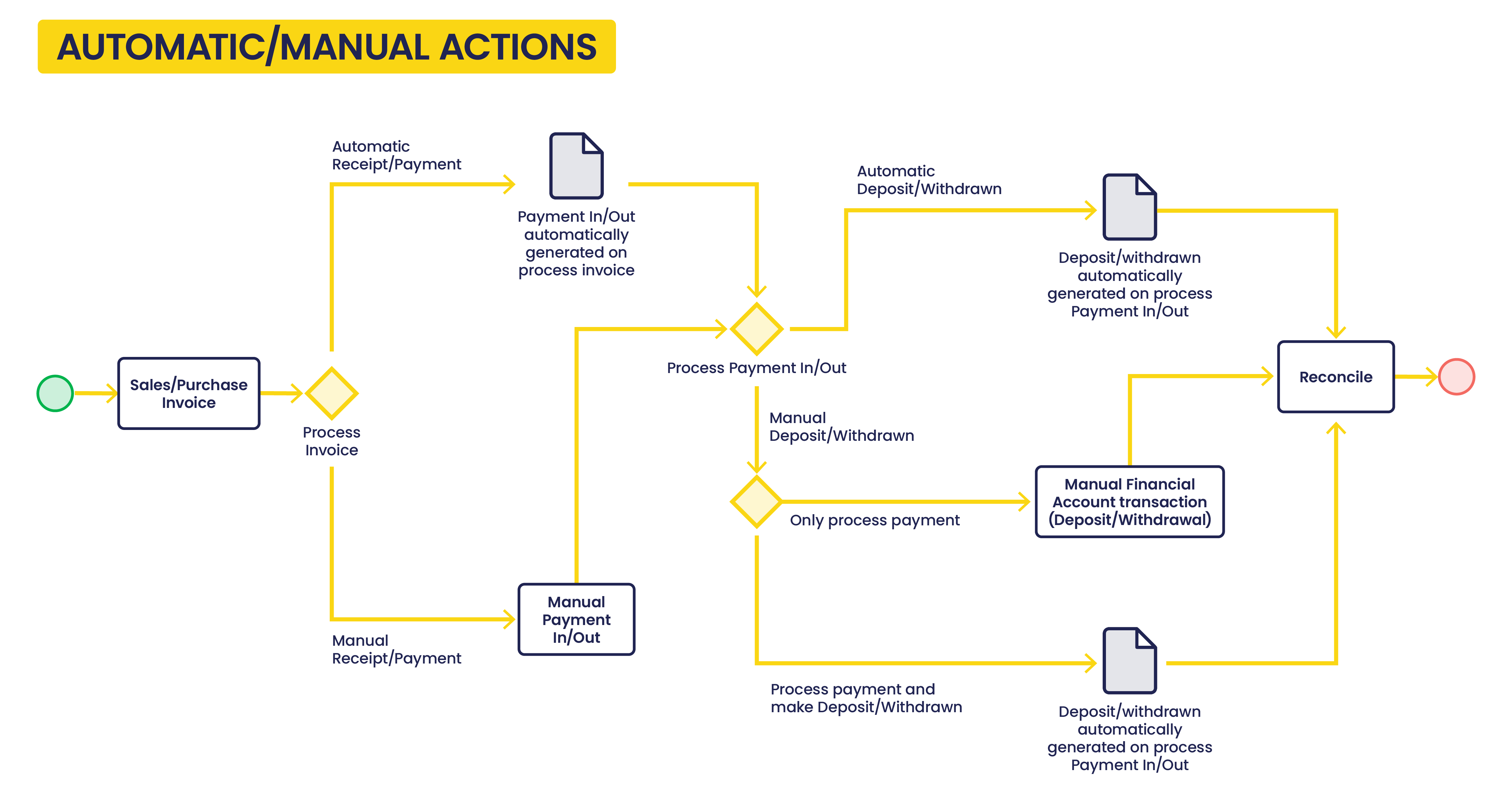
As shown in the image above, if the Automatic Receipt/Payment and Automatic Deposit/Withdrawn are selected, the manual actions to execute are:
- the creation and booking of the sales/purchase invoice
- the payment in/out reconciliation in the financial account
because, the Payment In/Out as well as the Deposit/Withdrawn transactions are automatically created.
If the Automatic Receipt/Payment and Automatic Deposit/Withdrawn are NOT selected, the manual actions to execute are:
- the creation and booking of the sales/purchase invoice
- the creation of the Payment In/Out
- and the creation of the Deposit/Withdrawal transaction in the financial account, unless the action "Process Made Payment(s) and Withdrawal" or "Process Received Payment(s) and Deposit" are selected while processing the payment.
Accounting Payment Workflow
Etendo allows a flexible payment accounting process, that means that a payment associated with a given payment method can be posted or not in any of its Payment Cycle stages.
As already described a payment received from a customer goes through below stages:
- Step 1 - the "Receipt" of the payment
- Step 2 - the "Deposit" of the Receipt in the Financial Account
- Step 3 - and finally the "Reconciliation" of the Deposit once the bank statement has been received.
Analogue situation happens while making a payment to a vendor:
- Step 1 - the "Payment"
- Step 2 - the "Withdrawal" of the payment from the Financial Account
- Step 3 - and finally the "Reconciliation" of the Withdrawal once the bank statement has been received.
For each step, it is possible to specify the default account for the receivables and payables cycles independently.
Each financial account needs to have at least one default account for both the receivables and payables cycle at either step 1, step 2 or step 3.
Both on the payables and receivables side, the first step containing an account represents the moment in which the supplier liability or customer receivables are cancelled.
For instance, if the Receive Payment Account is empty and you specify a Deposit Account, the customer receivables is cancelled at the moment of the deposit, not at the time of recording of the payment.
Any subsequent step having an account would offset the account in the previous step with the account in that step to represent the diminishing of the risk.
In other words, each of the stages can be posted in the windows/tabs where those are created if there is a value defined in the "Upon...Use" fields.
For instance:
- if for a payment method the value "In Transit Payment Account" is selected in the field "Upon Receipt Use" that means that:
- the receipt of the payment can be posted in the Payment In window by using the process button "Post".
- the customer receivable is going to be cancelled by the "In Transit Payment IN Account" defined in the accounting configuration tab of the financial account window.
- if for a payment method the value "Deposited Payment Account" is selected in the field "Upon Deposit Use" that means that:
- the deposit of the payment can be posted in the Transaction tab of the financial account window by using the process button "Post".
- the payment receipt is going to be cancelled by the "Deposit Account" defined in the accounting configuration tab of the financial account window.
- if for a payment method the value "Cleared Payment Account" is selected in the field "Upon Clearing use"
- that means that the reconciliation of the deposit can be posted in the Reconciliation tab of the financial account window by using the process button "Post".
- the deposit of the payment is going to be cancelled by the "Cleared Payment Account" defined in the accounting configuration tab of the financial account window.
Note
If any account is left empty, it implies that the process button "Post" is shown as "Post: Disable for accounting" in the corresponding window.
This work is a derivative of Financial Management by Openbravo Wiki, used under CC BY-SA 2.5 ES. This work is licensed under CC BY-SA 2.5 by Etendo.