Product Characteristic
Product Characteristic
Application > Master Data Management > Product Setup > Product Characteristic
Overview
Product Characteristic can be defined to complete the definition of a product using variants.
Product Characteristics are attributes that can be added to the product definition to extend the description of each product. Examples of Characteristics are Size, Color, Quality, Shape or Weight. These characteristics can be used later to filter or search products.
Once the definition of the characteristics is created, these can be assigned to a product and then create other products or SKU based on this Generic Product and its characteristics. This is a generic product where common attributes like tax or prices are defined. By default, products inherit all the attributes of the Generic Product such as taxes, prices, etc. They can be overridden on each product. Generic products cannot be purchased or sold or used in any document.
For example, the Generic product Shirts Summer Season 2013 by My Provider implements the Characteristics Size and Color as variants. This Generic Product will have as Product Variant each combination of Color and Size.
Characteristic
Characteristic Definition
Field to take into account:
- Variant: When it is marked, it will explode/create combinations with its values. If it is not marked, it will not create combinations with other characteristics. For example:
- Characteristic Color: Variant marked with value Blue and White
- Characteristic Size: Variant marked with value M and L
- Characteristic Fashion line: Variant is not marked with value Sport, Classic, Vintage
- Explode Configuration Tab: Flag available on Variant Characteristics. When it is checked, the values of the selected variant characteristic are automatically inserted in the Characteristic Configuration tab when the variant is assigned to a generic product. If it is not checked, the values must be added manually.
These three characteristics are assigned to the product in this way:
- Color: Blue, White
- Size: M,L
- Fashion line: Sport
It will create four variants/products and for all of them with the characteristic Sport. We can say that a characteristic that is not a variant is like a tag that is added to each new product.

Value
Each of the values of a characteristic.

Fields to be into account:
- Name: Value
- Code: To be used later when creating the variant. It will put in the Search Key field
- Summary level: It is allowed to create a tree structure. For example, if the characteristic is color and for the same value(i.e Green) there are different references depending on the supplier:
Button Add Products
The " Add Products" button is shown when a product characteristic value is NOT a "Variant", therefore it can be assigned to any product.
It does not update current values. That is why the button only shows products where the characteristic is not assigned to.
- Scenario 1:
- Product A has the characteristic Color (defined as variant) with values White, Pink, Blue and Black
- After creating the product variants, the user creates the non-variant characteristic Fashion line: Women, Men
- Non-variant characteristic can be assigned to the product in Product window by using Update Characteristics process button.
- Scenario 2:
- Not variant product characteristic is created in Product Characteristic window as "Variant" = No.
- Once a product characteristic has been entered in "Value" tab, a process button "Add Products" is shown.
- "Add Products" button opens a pick/execute window where any product or set of products can be related to that product characteristic value.
Subset
A subset is a collection of values of a Product Characteristic.
Subset feature is a powerful functionality that allows the user to share the same characteristics for different purposes. For example, lots of colors and sizes can be created for different products:
- Color:
- Green
- Gray
- White
- Blue
- Yellow
- Red
- Orange
But finally you have different products, for example t-shirts and pants:Subsets:
- Pants
- Green
- White
- Gray
- Blue
- T-shirts
- Green
- White
- Orange
- Blue
The aim of this feature is to avoid having duplicate values (blue, blue, green, green) because of different purposes. With this subset when selecting a product that is a pant, for example, instead of selecting the characteristic Color you select the subset Pants. This way, instead of retrieving seven values, it will retrieve just four. Another advantage of doing this is when searching for variants instead of having blue two times (and you would not know if the blue is for pants or t-shirts), you will have blue one time. So when searching for variants which have the characteristics Blue, the system will retrieve pants and t-shirts.
Subset Value
Each of the values of the product characteristic assigned to the subset.
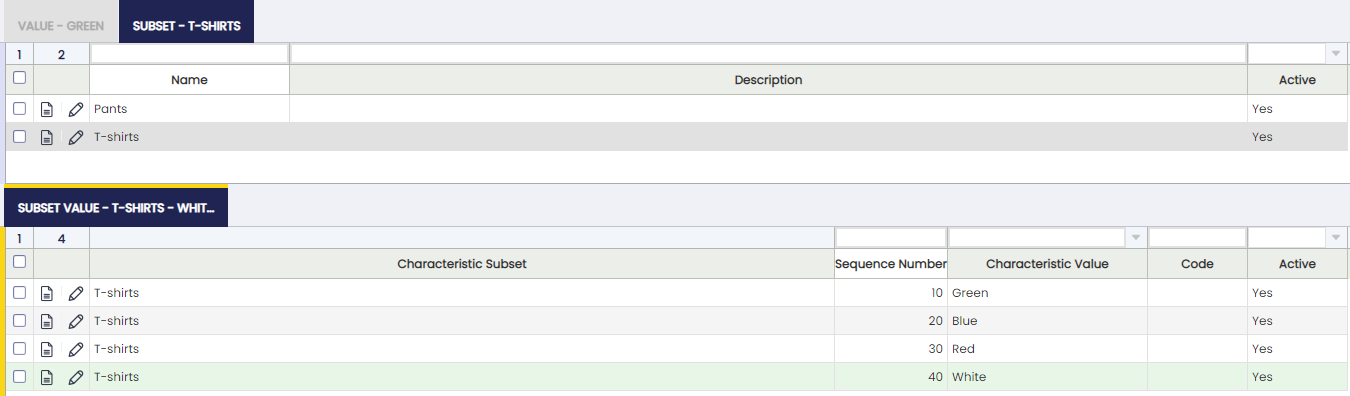
- Sequence number: To order the way of seeing the values
- Name: Value. Notice that only values from the characteristic can be selected.
- Code: If it is filled, it will overwrite the code setup in the characteristic
Filtering
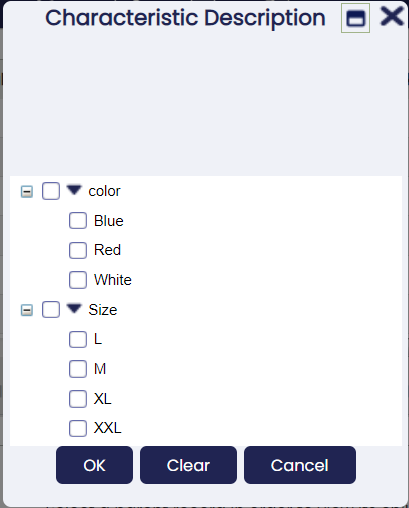
Fields based on columns whose reference is Product Characteristics can be filtered in grid assisted with a popup where the tree of available characteristics is displayed.
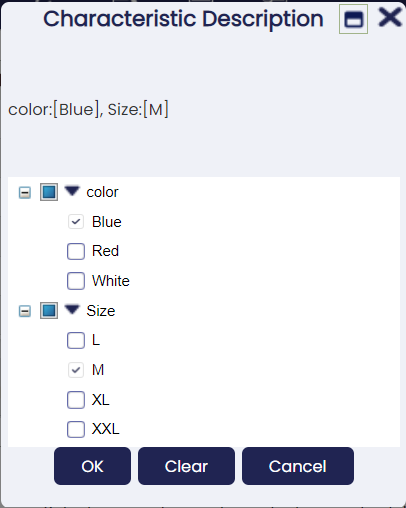
Info
The characteristics available in this popup are limited to the ones applicable to data filtered in the grid where it is displayed with the current filtering criteria for the rest of the fields.
Configuration
Product Characteristics is ready to be used out of the box.
Anyway, some new features can be displayed as well with some simple configuration options (these changes need to be exported to the template).
Improving product selector
You can select between the different product characteristics using the product selector. There you have a column showing product characteristics description (See image).

That is not the case when selecting from the suggestion box. There, just product names are used. Taking into account that the product with the characteristics share the name, it becomes impossible to distinguish one from another (See image).
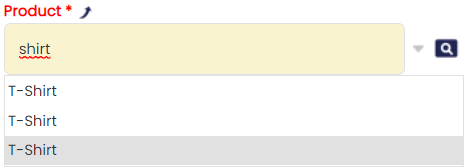
User experience in this case would be completely different if products could be identified from the suggestion box (See image).

This can be easily improved by enabling some options of the selector.
Follow these simple steps to enable this configuration, and please do not forget to export those changes to your template.
- Log as System Administrator
- Go To Tables and Columns and select C_OrderLine
- Go to lines tab and select product (M_Product_ID)
- Navigate to selector (see image)

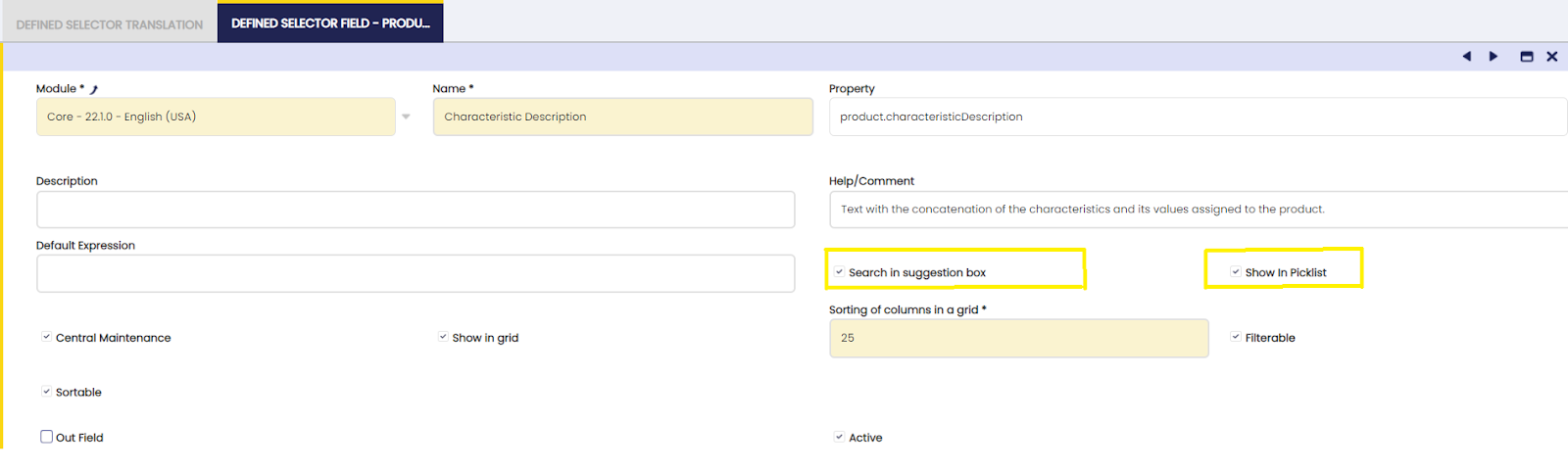
- Go to Defined Selector tab and then to Defined Selector field tab and select Characteristics Description field.
- Edit and flag "Search in suggestion box" and "Show in Picklist" check boxes (See image)
- Last point would be to export these changes to the template. This is really important to avoid problems in future update processes and to keep these changes after the update.