Physical Inventory
Application > Warehouse Management > Transactions > Physical Inventory
Overview
The Physical Inventory window allows you to record and process goods count operations in Etendo. Use it to compare physical stock counts against system quantities and detect discrepancies. Adjust stock levels accordingly.
Header
Create an inventory count to check or update stock quantities.
Fill in or confirm the fields below before adding products to the count list.
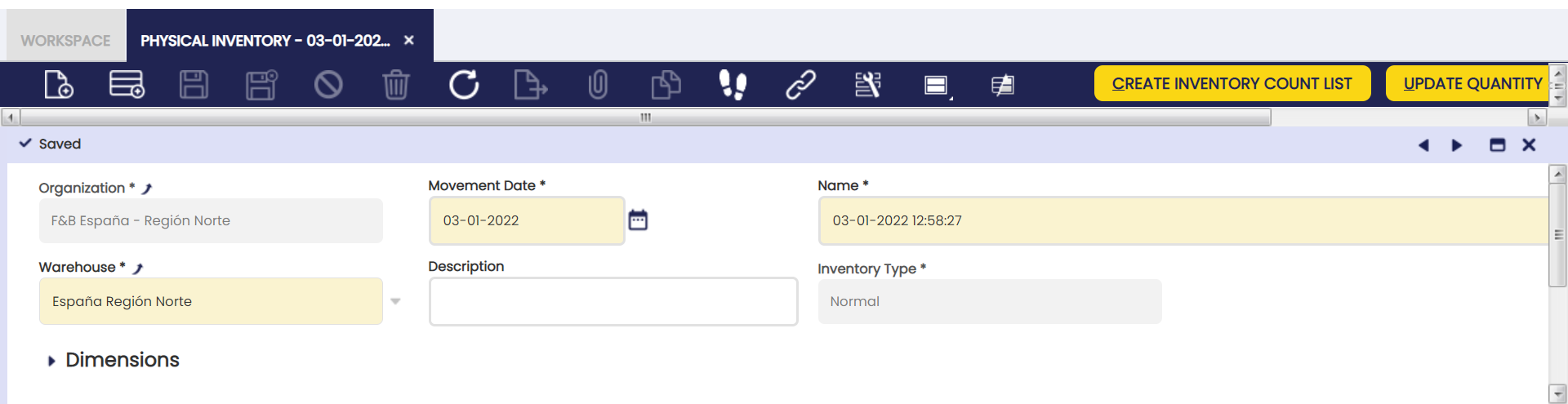
All fields are pre-filled automatically when a new record is created.
Fields to note:
- Name: Use this field to reference the physical movement in warehouse reports and in the general ledger. Use a meaningful name.
-
Movement Date: Date of the physical inventory movement. Defaults to the current date.
Etendo uses this date in the general ledger posting record of the Physical Inventory document. This applies when your company has accounting configured and the inventory is posted after processing. If posting does not apply to your setup, contact your finance team.
Process Inventory Count always uses the current date to update stock, not this field.Warning
Only change this date when certain that no stock movements exist from the point the inventory was created. Changing it otherwise may cause accounting mismatches.
-
Warehouse: The warehouse in which the physical inventory takes place. Defaults to the warehouse set in your user preferences. Change it if you are counting in a different warehouse.
Buttons
Create Inventory Count List
Available when the document status is Processed: No.
The Create Inventory Count List process can be executed more than once for the same physical inventory. Lines are created automatically by the process. Update them manually after creation if needed. The Create Inventory Count List filter dialog has the following parameters:
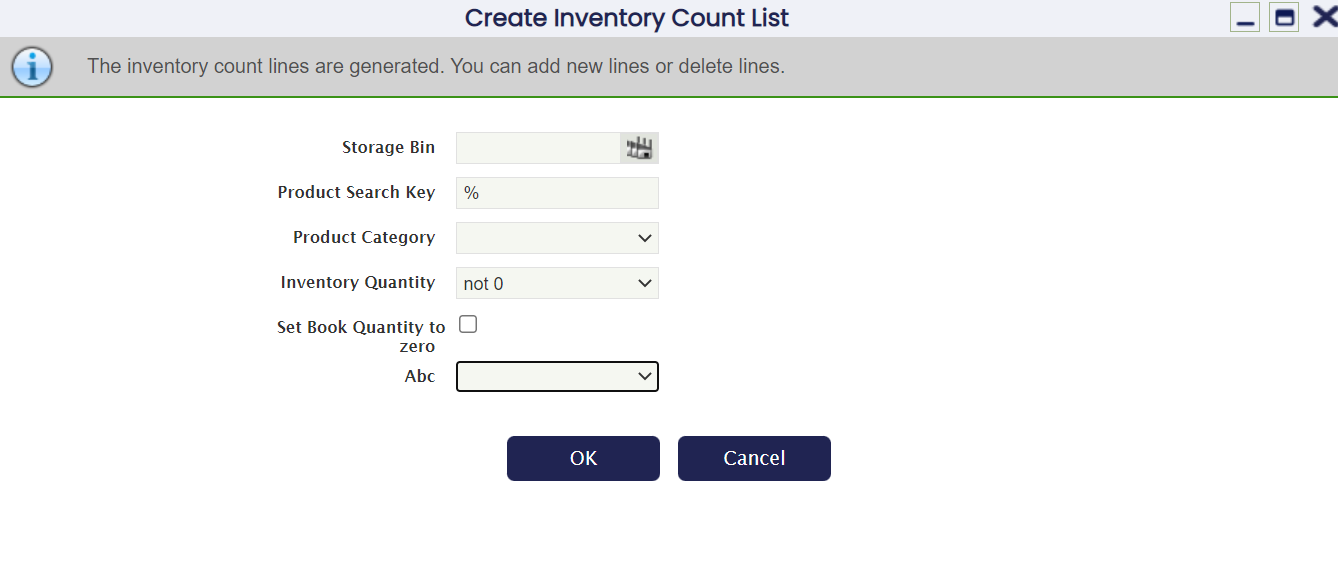
Fields to note:
- Storage Bin: Filters the list to show only products in this storage bin.
- Product Category: Filters the list to show only products in this category. Leave empty to include all categories.
- Inventory quantity: Filters products based on actual stock quantities. The options available are:
empty- Shows all products regardless of their quantity.0- Shows only products with 0 quantity in stock.<0- Shows only products with a negative quantity in stock.>0- Shows only products with a positive quantity in stock.not 0- Shows only products with a quantity in stock different from 0.
- Set Book Quantity to Zero: Select this checkbox to have the counting team record quantities from scratch, without seeing what the system currently shows. This is called a blind count and prevents bias in the count results. Leave it unselected to display the system's current quantity as a starting point for corrections if the physical count differs.
- ABC: Filters the list to show only products in a specific priority group: A = most valuable or fastest-moving products, B = medium priority, C = low priority. Leave this field empty to include all products when the product group is unknown. See Pareto Product Report.
Update Quantity
Available when the document status is Processed: No.
Updates the Book Quantity field with the latest product quantity from Etendo. Use this when time has passed between generating the count list and the actual physical count, and quantities may have changed.
Process Inventory Count
Available when the document status is Processed: No. After execution, the document status changes to Processed: Yes.
Finishes the Physical Inventory count process once all corrections are entered, and updates the stock.
Post
Available when the document status is Processed: Yes. After execution, the Accounting Status changes from Unposted to Posted.
Posts the inventory count to the general ledger once it has been processed. For details on what Etendo posts to the general ledger, see Accounting.
Lines
Lines are entered into the physical inventory document in two ways:
- Automatically, by running Create Inventory Count List to generate lines for all products in the warehouse and storage bins that match the filter conditions.
- Manually, line by line for specific products. Use this when only some products need updating.
The Lines tab lets you add or edit individual products in the inventory count list. It represents the count list for a given warehouse.
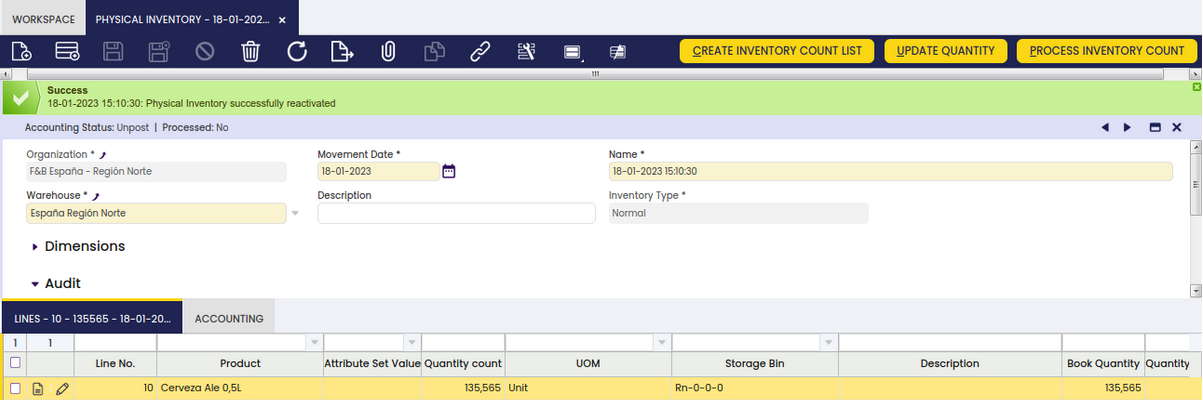
Fields to note:
- Attribute Set Value: Identifies the specific variant of the product, such as a lot number, serial number, or size, if the product is tracked that way.
- Quantity Count: The actual quantity counted on the warehouse floor for this product in the listed storage bin.
- UOM: The unit of measure for the product.
- Storage Bin: The storage bin where the product is located.
- Description: An optional description for the line.
- Book Quantity: The quantity the system currently shows for this product in the listed storage bin.
- Quantity Order Book: Quantity of this product already committed to open purchase or sales orders in this storage bin. This quantity is not available for free use.
Accounting
A physical inventory can only be posted to the ledger when there is a difference between Quantity Count and Book Quantity for a product. When the values match, there is nothing to post.
For instance, a product whose Quantity Count is 6700 units at a given date, while Book Quantity in Etendo is 6000 units.
Before posting, two system-level requirements need to be in place. These are normally configured by your system administrator:
- A Costing Rule must be validated and active for the legal entity of this physical inventory. This rule defines how product costs are calculated.
- The Costing Background Process must have run after the inventory was processed. This job calculates the cost of the inventory movement.
If the Post button is unavailable or returns an error, the cost has not been calculated yet. Contact your system administrator to verify that the costing rule is active and that the background process has run.
Click Post to have Etendo create the following accounting entries automatically. No manual input is required. Etendo calculates the amounts as the difference between the quantity counted and the book quantity, multiplied by the unit cost of the product.
Physical Inventory posting creates the following accounting entries if inventory increases:
| Account | Debit | Credit |
| Product Asset | (Quantity Count - Book Quantity) * Cost of the Product | |
| Warehouse Differences | (Quantity Count - Book Quantity) * Cost of the Product |
Physical Inventory posting creates the following accounting entries if inventory decreases:
| Account | Debit | Credit |
| Warehouse Differences | (Quantity Count - Book Quantity) * Cost of the Product | |
| Product Asset | (Quantity Count - Book Quantity) * Cost of the Product |
Reactivating a Physical Inventory
Info
To be able to include this functionality, the Warehouse Extensions Bundle must be installed. To do that, follow the instructions from the marketplace: Warehouse Extensions Bundle. For more information about the available versions, core compatibility and new features, visit Warehouse Extensions - Release notes.
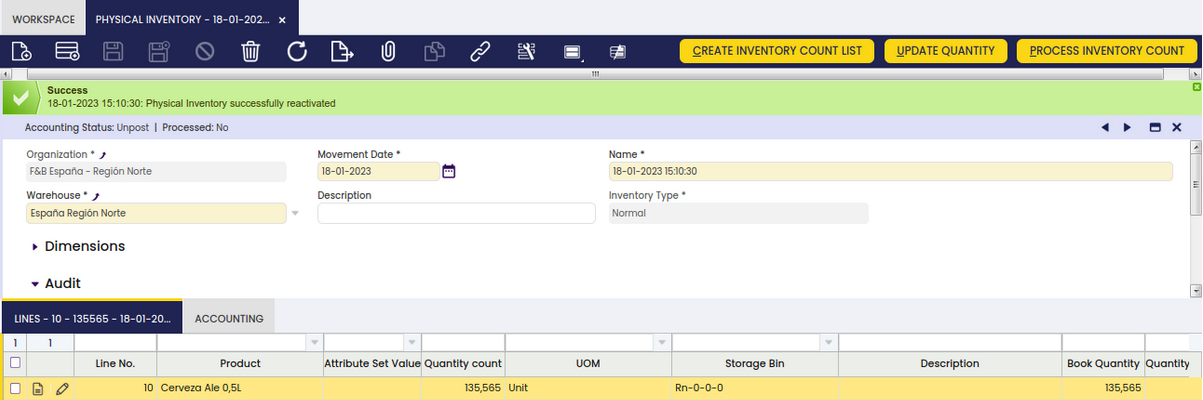
To correct a physical inventory that has already been processed — for example, after a counting error is detected — reactivate it to make changes. From the Physical Inventory window, select the corresponding document and click Reactivate.
Once the inventory is reactivated, the document status bar shows Not processed.
Warning
It is not possible to reactivate documents that include transactions with quantities exceeding the existing stock quantity for a certain product in a certain storage bin. The only exception is when the storage bin is configured to allow Over Issue — a setting that permits stock levels to go below zero. If you are blocked from reactivating and are unsure whether Over Issue applies to your storage bin, contact your system administrator. For more information, visit Storage Bin.
Bulk Posting
Info
To be able to include this functionality, the Financial Extensions Bundle must be installed. To do that, follow the instructions from the marketplace: Financial Extensions Bundle.
Bulk Posting allows you to post or reverse the accounting entries for multiple inventory documents at the same time. Select the records you want to process, then click Bulk posting. You can check the posting status of each record in the status bar (when viewing a single record) or in the Status column (when viewing the list of records).
Info
For more information, visit the Bulk Posting module user guide.
This work is a derivative of Warehouse Management by Openbravo Wiki, used under CC BY-SA 2.5 ES. This work is licensed under CC BY-SA 2.5 by Etendo.