Bank Integration with Salt Edge
Javapackage: com.etendoerp.psd2.bank.integration
Javapackage: com.etendoerp.psd2.bank.integration.template
Before you begin
This module requires the Financial Extensions Bundle to be installed in your Etendo environment. If you are unsure whether it is installed, contact your system administrator before proceeding. For installation instructions, visit the marketplace: Financial Extensions Bundle. For available versions and core compatibility, visit Financial Extensions - Release notes.
Overview
This page explains how to connect bank accounts to Etendo so that transactions are imported automatically and outgoing payments can be initiated directly from the system. It is intended for finance and accounting staff who perform bank reconciliations and vendor payment runs, and for administrators who perform the initial setup.
The module provides two main capabilities, both powered by Salt Edge — an Open Banking platform that acts as a secure intermediary between Etendo and banking institutions, compliant with the PSD2 directive.
-
AIS (Account Information Service): Securely connect bank accounts and automatically download transactions for reconciliation.
- PIS (Payment Initiation Service): Initiate vendor payments directly from Etendo, with authorization handled through the bank.flowchart LR A([Connect bank account]) --> B[Grant permissions] B --> C[Download transactions] C --> D([Bank statement ready<br/>for reconciliation ✅])flowchart LR A([Create Payment OUT]) --> B[Generate bank payment] B --> C[Authorize at bank portal] C --> D[Check payment status] D --> E([Payment executed ✅])
| AIS | PIS | |
|---|---|---|
| Automated transaction import | Direct payment initiation | |
| Multiple banks simultaneously | SEPA, FPS, and DOMESTIC templates | |
| Bank credentials never stored in Etendo | Authorization handled by the bank |
Prerequisites
Confirm the following before using the Bank Integration functionality:
- Server Configuration: Your system administrator has configured the application URL
context.urlin the Etendo server and run the setup process. Contact your IT team or implementation partner to confirm this is done. - Salt Edge API Key: Your organization has a Salt Edge API Key. Contact Etendo Support to request it.
- Client Configuration: The API Key is configured once at the Client level (detailed in the Setup section below).
- Financial Accounts: The Financial Accounts that will be linked to your bank accounts exist in Etendo.
Setup
1. Configure Salt Edge API Key
Application > General Setup > Client
As an Administrator:
- Open the Client window and select your Client.
-
In the Bank Integration field group, enter the Api Key provided by Support Service.
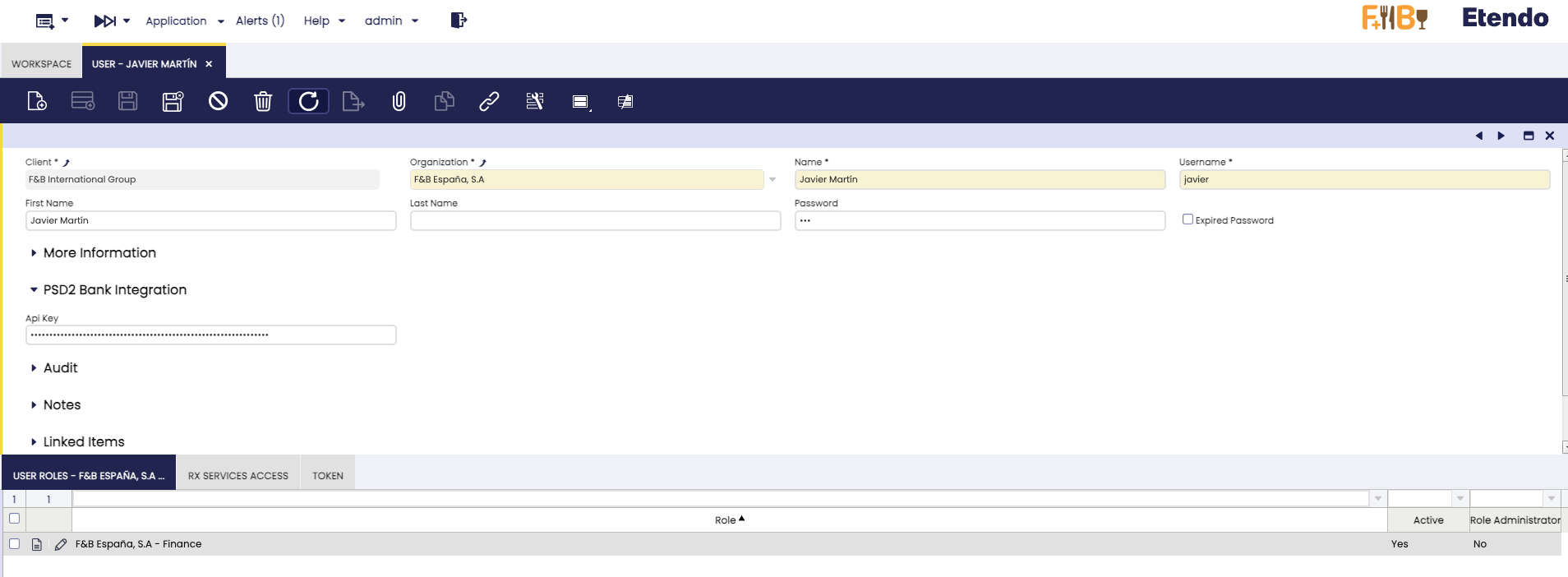
Info
The API Key is configured once per Client and shared by every user of that Client, including scheduled processes.
Button and Field Visibility
All Bank Integration buttons and fields are only visible when the current Client has an API Key configured. This includes:
- In the Financial Account window: the Connect Account button, Get Bank Statement button, Bank Provider selector, Import From Date, Import To Date, and Statement Grouping fields.
- In the Payment OUT window: the Generate Bank Payment button.
If you do not see these elements, verify that the Client has a valid API Key configured in the Client window.
2. Configure Financial Accounts
Financial Management > Receivables and Payables > Transactions > Financial Account
The module supports financial accounts of type Bank and Card. The fields described below apply equally to both types.
For each financial account you want to synchronize with a bank, open it and fill in the following fields in the Bank Integration tab:
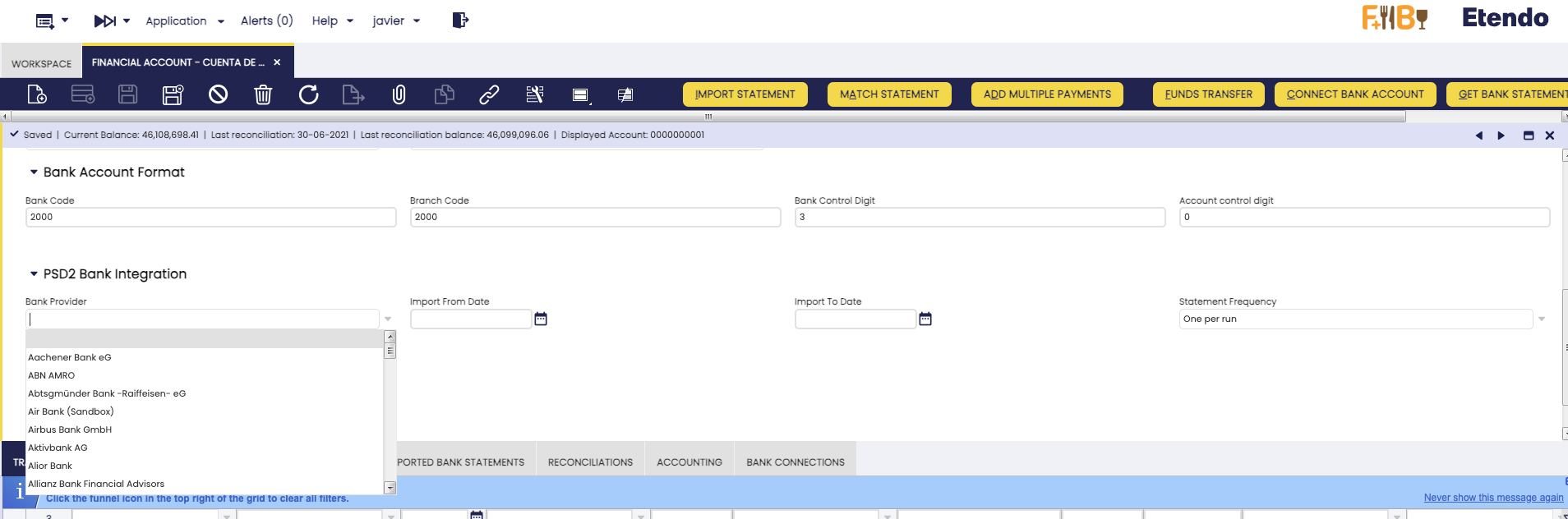
- Bank Provider: The bank associated with this account. If set, the bank selection step is skipped when connecting (AIS) or initiating payments (PIS). Leave empty to select the bank manually each time — once you successfully connect, the system automatically fills this field with the bank you connected to. The provider list must be synchronized first — see Step 3.
- Import From Date: Start date for importing transactions. If left empty, the system uses the last imported bank statement date. Set this only for the initial import (e.g., beginning of fiscal year) — leave it empty afterward so imports continue automatically from where they left off.
- Import To Date: End date for importing transactions. If left empty, the system uses today's date. Leave it empty in normal operation. Also leave it empty so the automatic Get Bank Statements process includes this account — if a date is set, the process skips that account on every scheduled run.
- Statement Grouping: Controls how imported transactions are grouped into bank statements: Within 1 day (default) groups transactions from the same day into a single statement; New statement each run creates a new statement on every import; Within 7 days and Within 30 days group transactions into a single statement per week or per month respectively, reactivating it if already processed. Use a wider grouping when importing frequently to reduce the total number of statements.
3. Synchronize Bank Providers
Financial Management > Receivables and Payables > Setup > Bank Integration > Synchronize Bank Providers
Run this process once during initial setup. Re-run it on demand if a bank provider does not appear in the list or you want to verify whether a specific bank is supported by Salt Edge. Execute the process from the menu above — no specific user is required.
Info
This step is required before assigning a Bank Provider to a financial account or initiating payments.
Bank Connection Flow (AIS)
Connect a Bank or Card Account
Once the Client's API Key is configured and the financial account dates are set:
Tip
Enter the IBAN field on your Financial Account before connecting, if you already know it. For Bank accounts, the system attempts to complete this field automatically from the data returned by the bank when it is empty — see step 4 below for details.
-
Open the Financial Account (Bank or Card type) you want to connect and click the Connect Account button. A Salt Edge connection widget opens in a popup window — search for your bank in the list of supported banks and select it to continue.
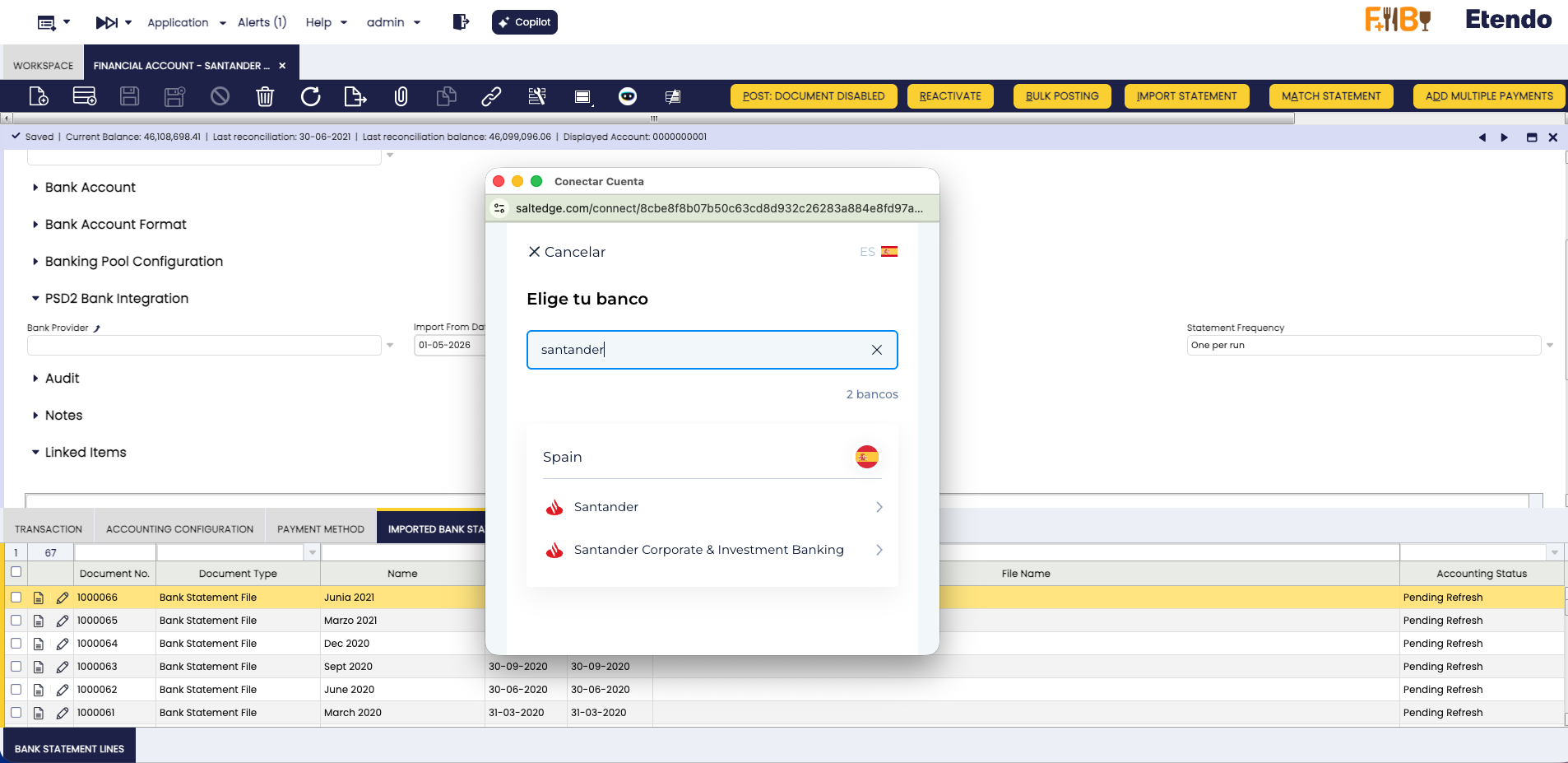
Info
If you have assigned a Bank Provider to the Financial Account (see Setup - Step 2), the bank selection step is skipped automatically and you will be taken directly to your bank's authentication page.
-
Authorize the connection: your bank will ask you to confirm permission for Salt Edge to access your account information.
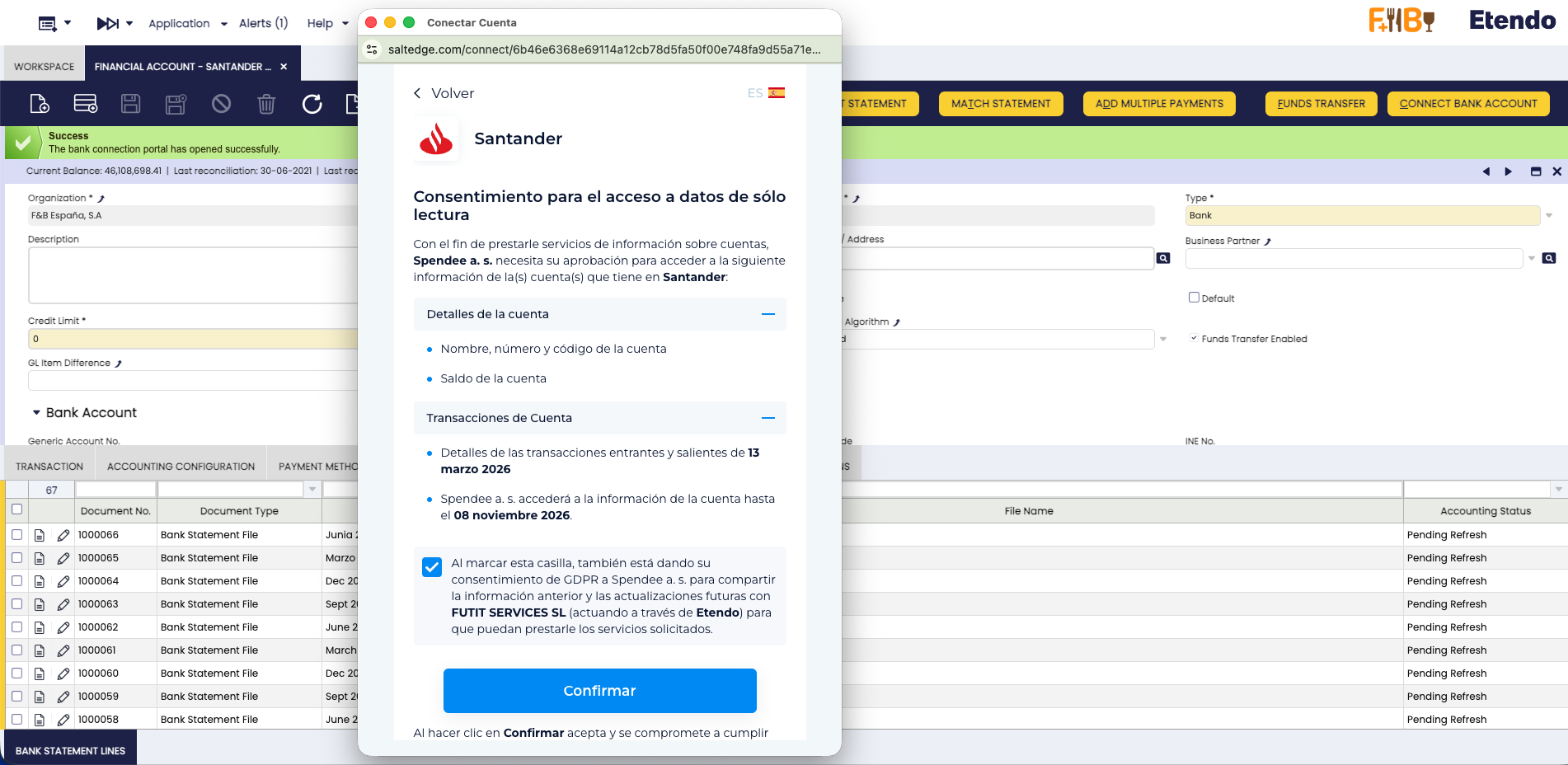
Review the permissions, confirm, and you will be redirected to your bank's login page. Log in with your bank credentials (username, password, and any additional authentication required by your bank).
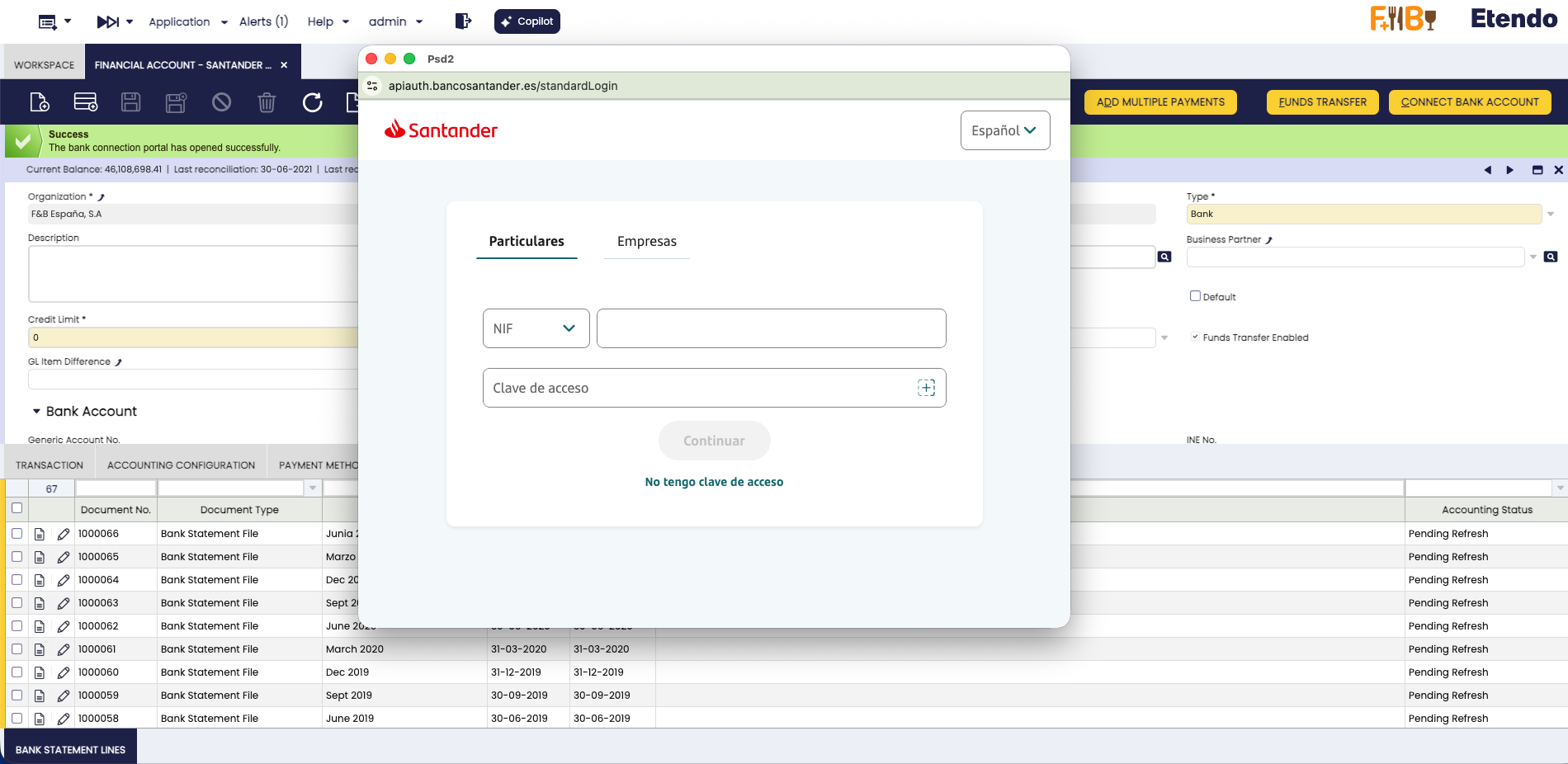
Important Security Note
- Your bank credentials are entered directly on your bank's website, not in Etendo
- Salt Edge never stores your bank credentials
- Etendo never has access to your bank username or password
-
Select the account to connect.
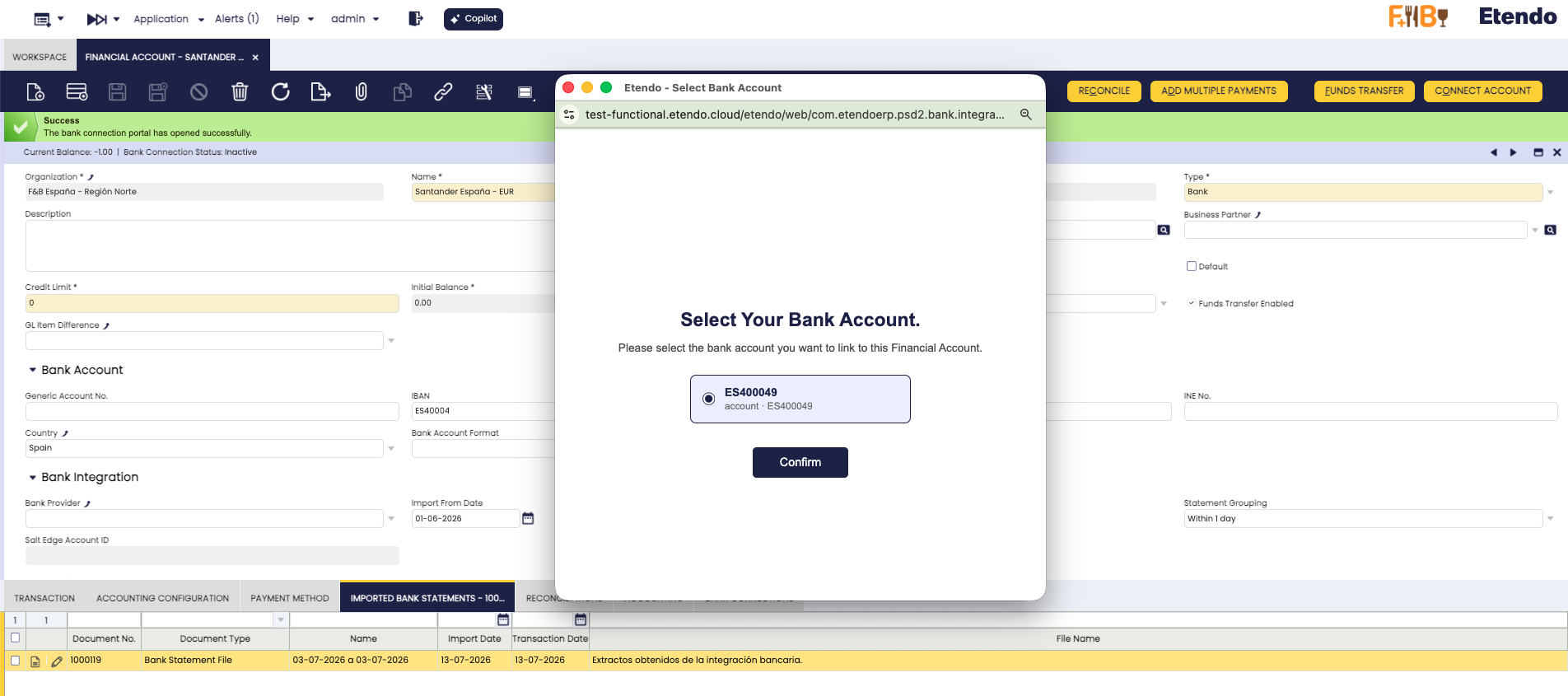
After a successful login, Salt Edge returns the accounts it finds for that bank connection. Etendo always shows a Select Your Bank Account screen so you confirm which one to link to this Financial Account.
The list only shows candidate accounts that match the Type of the Financial Account you are connecting (bank accounts for a Bank Financial Account, credit cards for a Card Financial Account), and each option shows the account or card name together with its IBAN or masked card number so you can identify the correct one. Select an option and click Confirm.
Warning
The process stops with an explanatory message if the system cannot find a valid account to link. This happens, for example, when no candidate account matches the expected type, when the currency does not match, or when every candidate account is already linked to another Financial Account. Resolve the issue and try again.
-
After you confirm the account, Etendo completes the connection differently depending on the Financial Account Type:
- If the IBAN field is empty, the system completes it automatically with the IBAN returned by the bank.
- Before saving it, the system validates that the IBAN is valid (checksum) and that its country code matches the Country already configured on the Financial Account. If Country is empty, the system completes it automatically from the IBAN.
- If this validation fails, the connection still completes, but a warning message indicates that the IBAN could not be completed automatically. Enter it manually afterward.
- If the Financial Account already has a manually entered IBAN that does not match the account you selected, the system blocks the connection with a conflict error. Verify which IBAN is correct and resolve the discrepancy before continuing.
- The system automatically completes the masked card number returned by the bank, for example
•••• •••• •••• 1285.
-
A success page confirms the connection. The system automatically synchronizes your bank account — connection details appear in the Bank Connections tab.
Importing Transactions
There are two ways to import bank transactions:
Option 1: Manual Import (Single Account)
For importing transactions on-demand for specific accounts:
-
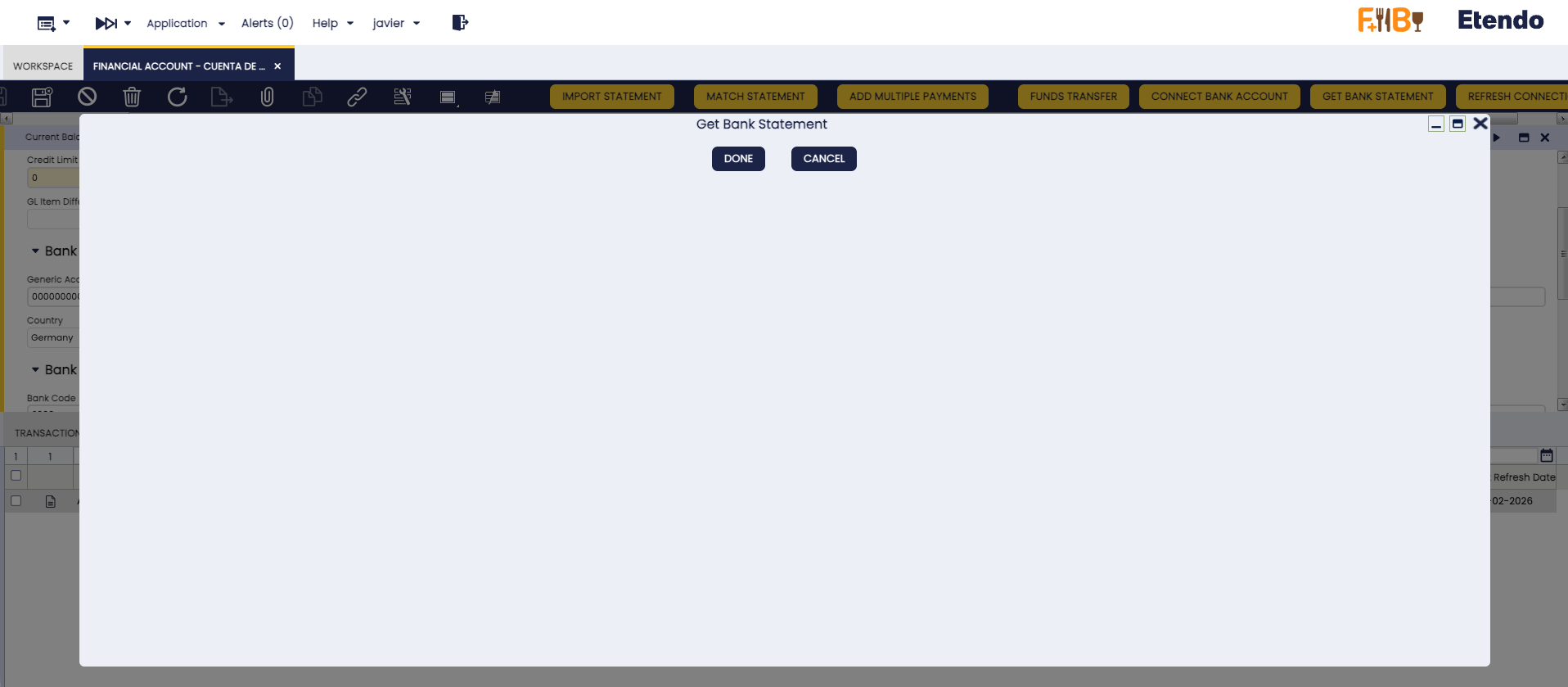
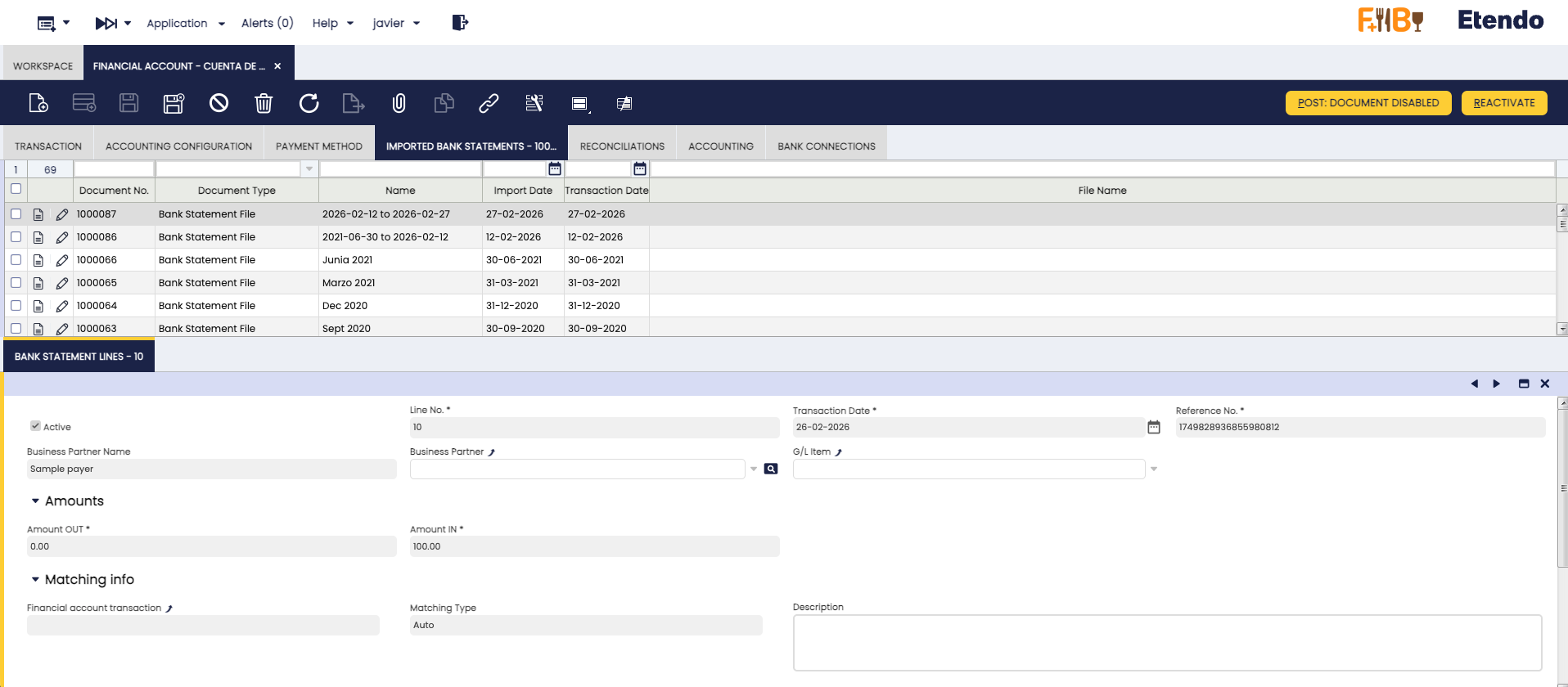
Open the Financial Account window, select one or more financial accounts, and click the Get Bank Statement button (singular — imports only the selected account(s)).
-
The system connects to the bank, retrieves transactions within the configured date range. It then creates or updates bank statements — naming each one after the actual date range (earliest to latest transaction date) of the imported batch and creates the corresponding bank statement lines.
Note
Etendo retrieves the full available transaction history from the connection and filters it locally using the Import From Date and Import To Date fields. This does not change the expected result — these fields continue to define what gets imported.
Posted vs. pending transactions
Only transactions the bank has already posted are imported. Transactions still pending at the bank are excluded and will be picked up in a later import once the bank confirms them — this can take anywhere from a few hours to several days depending on the bank, so the most recent movements may not appear immediately after connecting or after a Get Bank Statement run.
-
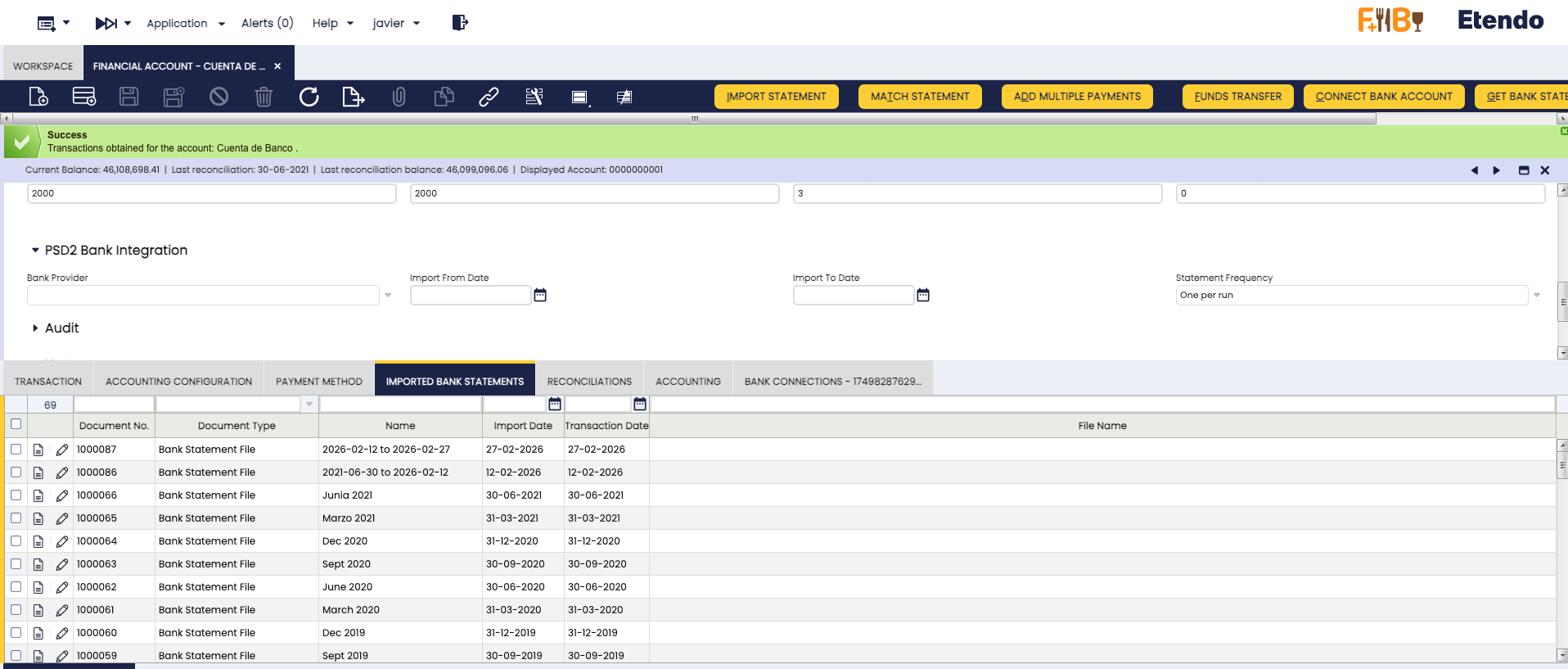
A summary message shows the result: whether the import completed successfully, whether no new transactions were found, or whether an error occurred.
Tip
Use this option when you need to immediately import transactions for specific accounts or when you want to review the import results right away.
Option 2: Automatic Import (Scheduled Process)
For regular, automated imports across all connected accounts:
General Setup > Process Scheduling > Process Request
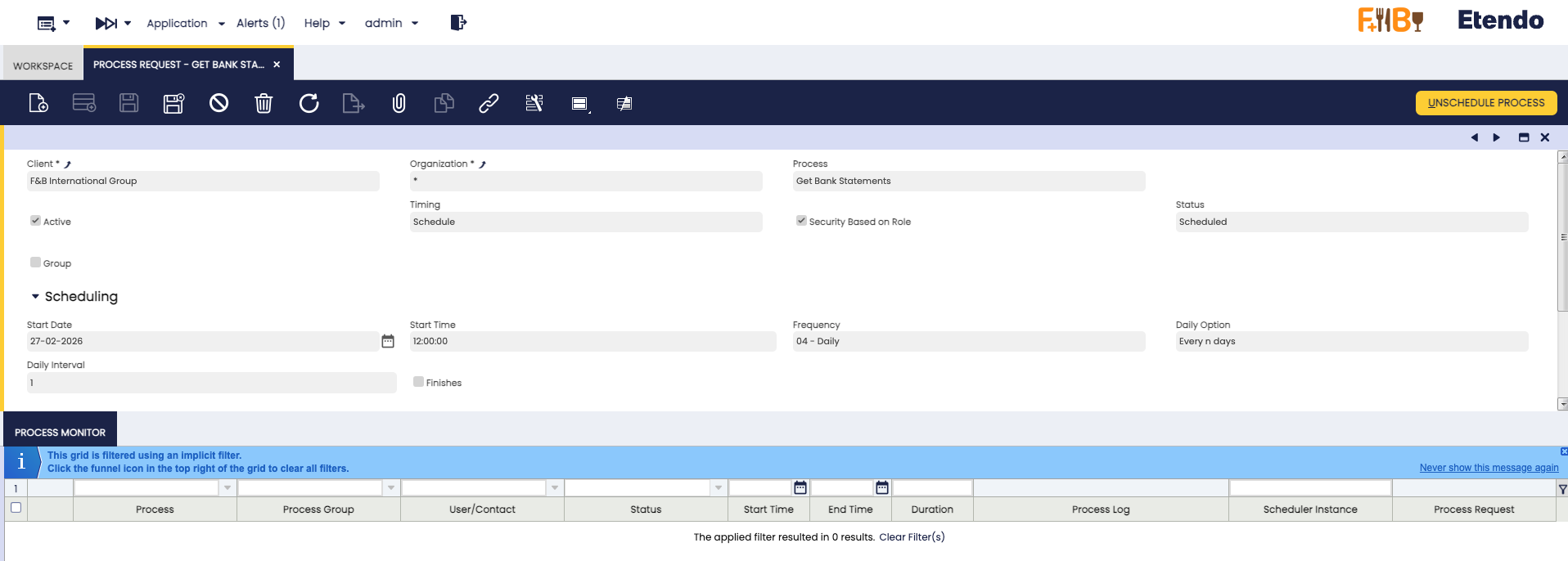
- Click New to create a process request, select Get Bank Statements (plural — runs automatically for all connected accounts, unlike the manual Get Bank Statement button in Option 1) in the Process field, and set the Timing field to the frequency you need (for example, Daily).
-
Save the record. The process runs automatically at the chosen interval and imports new transactions for all connected accounts.
Info
Recommended Schedule:
- Run once a day, since transaction availability depends on each bank's update frequency.
- Consider your bank's update frequency and your business needs.
Per-account log detail
Each run of Get Bank Statements logs an entry for every account processed in that run, whether or not it had activity, linked to the Financial Account it belongs to. Review the Bank Integration Logs window (see Monitoring and Logs) to check this detail account by account — open the JSON Info field of each entry for the full detail.
Connection Management
Financial Management > Receivables and Payables > Transactions > Financial Account
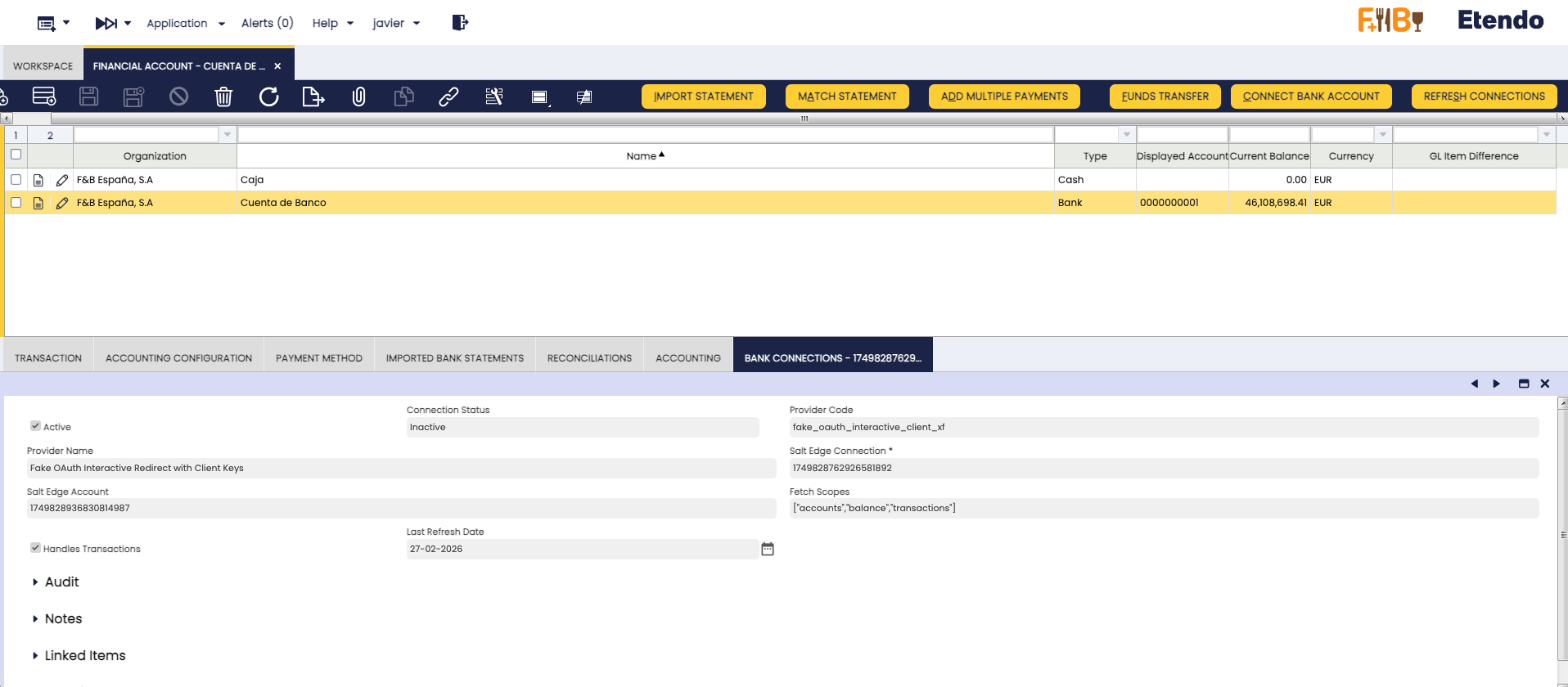
To view all your bank connections, open the Financial Account window and go to the Bank Connections tab.
Connection Status
Bank connections can be Active, Inactive, or Disabled (e.g., when authentication expires).
| Status | What to do |
|---|---|
| Active | No action needed — the connection is working normally. |
| Inactive | Reconnect when ready — see Reconnecting a Bank Connection. |
| Disabled | See Reconnecting a Bank Connection or Common Issues and Solutions. |
Disconnecting a Bank Connection
Etendo offers two ways to disconnect a bank connection: a simple disconnection that keeps the connection history, and a permanent deletion that removes it entirely.
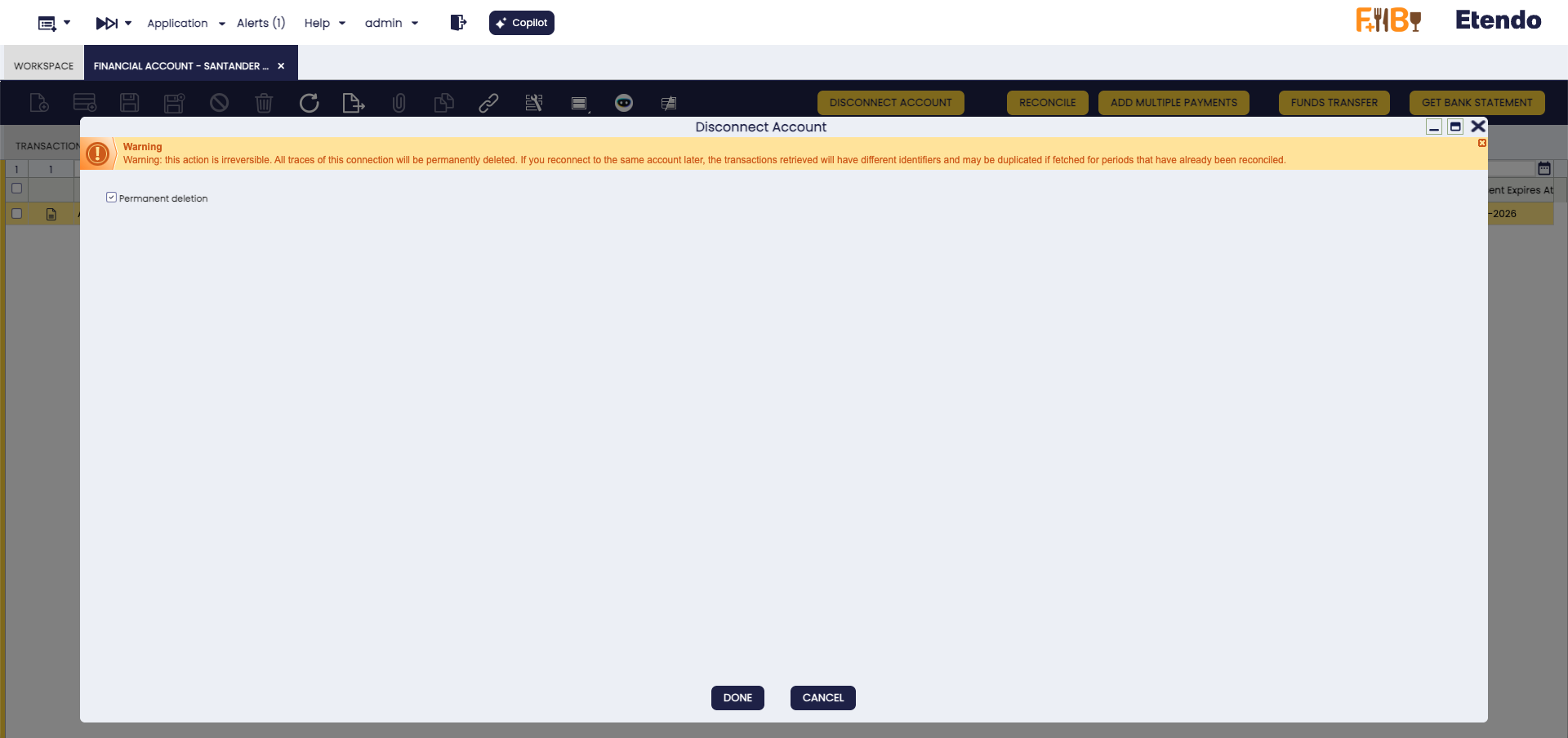
Open the Financial Account window, go to the Bank Connections tab, and select the connection you want to disconnect. Click the Disconnect Account button. A Disconnect Account dialog opens with a Permanent deletion checkbox.
Option 1: Simple Disconnection
Leave the Permanent deletion checkbox unchecked and click DONE. The connection status changes to Inactive and no data is deleted. Reconnect the same account later at any time (see Reconnecting a Bank Connection) to restore the connection and keep its existing transaction history.
Option 2: Permanent Deletion
Check the Permanent deletion checkbox and click DONE.
Warning
Important:
- This action is irreversible.
- All traces of the connection are permanently deleted from both Etendo and Salt Edge.
- If you reconnect the same account later, the retrieved transactions have different identifiers and may be duplicated if you import periods that were already reconciled.
Info
In both cases, existing pending transactions already imported are not affected, and no new transactions can be imported from the connection until you reconnect it.
After disconnection, verify the result in the Bank Connections tab: the connection shows as Inactive for a simple disconnection, or no longer appears in the list for a permanent deletion.
Reconnecting a Bank Connection
If a connection shows as Inactive or Disabled, open the Financial Account — the Reconnect Account button appears in the window's top toolbar. Click it to re-authenticate with your bank and restore the connection to Active. You'll go through the same bank authorization, login, and account selection steps described above (see steps 2–4 in Connect a Bank or Card Account).
Bank Payment Initiation (PIS)
In addition to importing bank transactions (AIS), this module allows you to initiate bank payments directly from Etendo. When you create a Payment OUT record in Etendo, you can send it to your bank for authorization and execution — all without leaving Etendo.
How Bank Payments Work
The payment initiation flow works as follows:
- Create a Payment OUT record in Etendo as usual and click the Generate Bank Payment button. A form appears with pre-filled values (amount, creditor, template, etc.).
- Review and confirm — a bank authorization popup opens where you authorize the payment in your bank's secure environment.
- The payment status is tracked automatically in Etendo.
Payment Templates
The system supports three payment templates, which determine the format and required information for the payment:
| Template | Currency | Required Fields | Use Case |
|---|---|---|---|
| SEPA | EUR only | Creditor IBAN | Eurozone bank transfers |
| FPS | GBP only | Sort Code + Account Number | UK Faster Payments |
| DOMESTIC | Any | At least one of: IBAN, BBAN, or Account Number | Other domestic transfers |
Note
The template is automatically selected based on the payment's currency, as shown in the table above. Change it manually in the form if needed.
Required Configuration
Before generating bank payments, make sure the payment method assigned to the financial account is configured correctly.
Financial Management > Receivables and Payables > Transactions > Financial Account
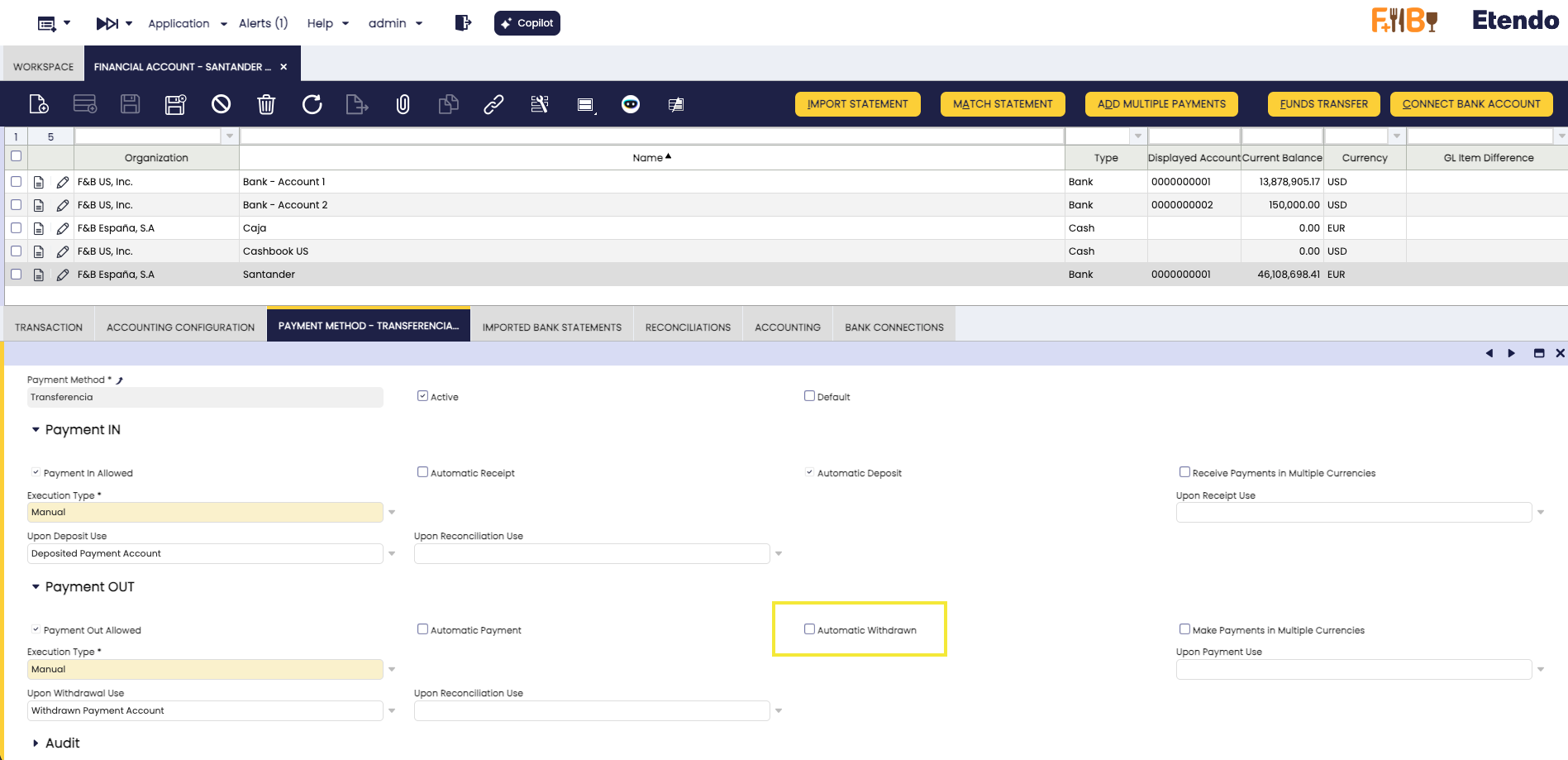
- Open the Financial Account linked to the bank connection, go to the Payment Method tab, and select the payment method used for bank transfers.
-
In the Payment OUT section, make sure Automatic Withdrawn is disabled (unchecked). This lets the payment be created without being executed automatically, so you can execute it later from the Generate Bank Payment button.
-
Make sure the Wire Transfer checkbox is enabled for this payment method — if it is disabled, the Generate Bank Payment button does not appear when creating payments. You can enable it globally in the Payment Method window, or as an override in this same Payment Method tab of the Financial Account.
Warning
The Generate Bank Payment button only appears when Automatic Withdrawn is disabled and Wire Transfer is enabled (globally or as an override on this Financial Account). If either condition is not met, the button does not appear on the Payment OUT record.
Generating a Bank Payment
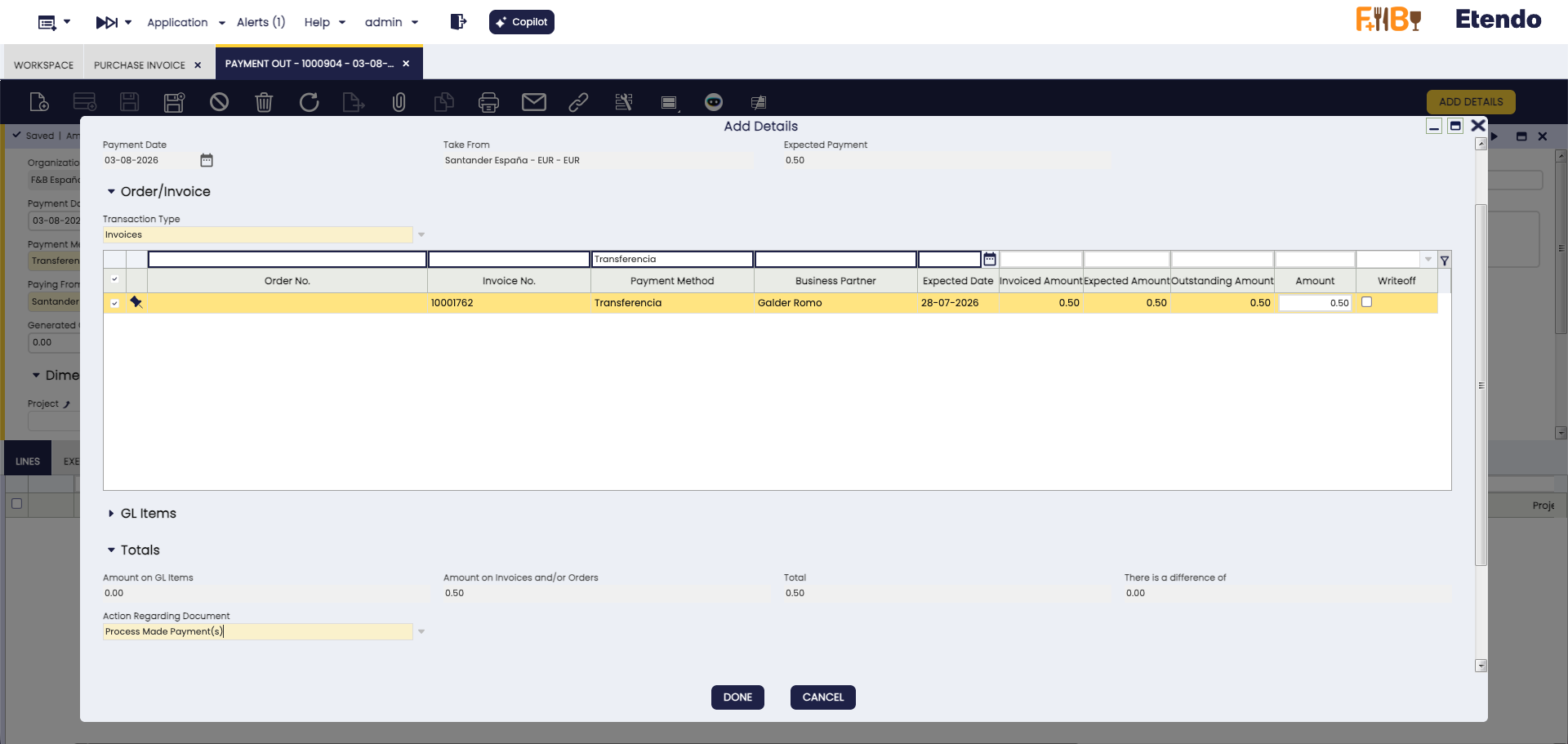
You can create the payment from a Purchase Invoice ( Application > Procurement Management > Transactions > Purchase Invoice) or directly from a Payment OUT ( Financial Management > Receivables and Payables > Payment OUT). In both cases, when you add the payment you select the amount and, in Action Regarding Document, choose Process Made Payment(s).
-
Add the payment and select the amount to pay. In Action Regarding Document, select Process Made Payment(s).
Info
Process Made Payment(s) processes the payment without executing it, which makes the Generate Bank Payment button appear on the record.
-
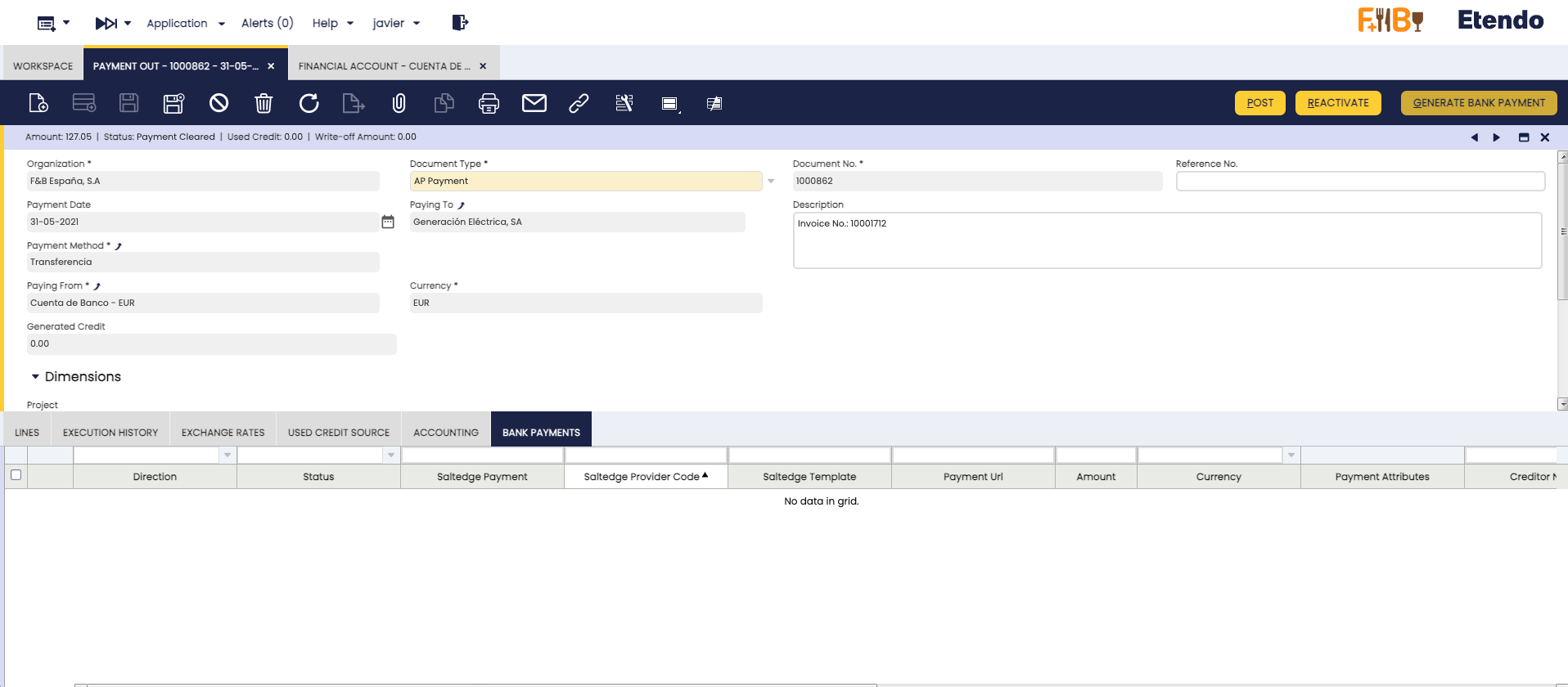
Open the resulting Payment OUT record and click the Generate Bank Payment button.
-
A process form appears with the following pre-filled fields:
Field Default Value Description Template Based on currency Payment template (SEPA, FPS, or DOMESTIC) End-to-End Document number Unique reference for the payment (max 35 characters) Creditor Name Business Partner name Name of the payment beneficiary Amount Payment amount Amount to transfer Currency Payment currency Currency of the transfer Description Payment description Description of the payment Creditor IBAN Business Partner's IBAN Required for SEPA and optionally for DOMESTIC Creditor Account Number Business Partner's account Required for FPS, optional for DOMESTIC 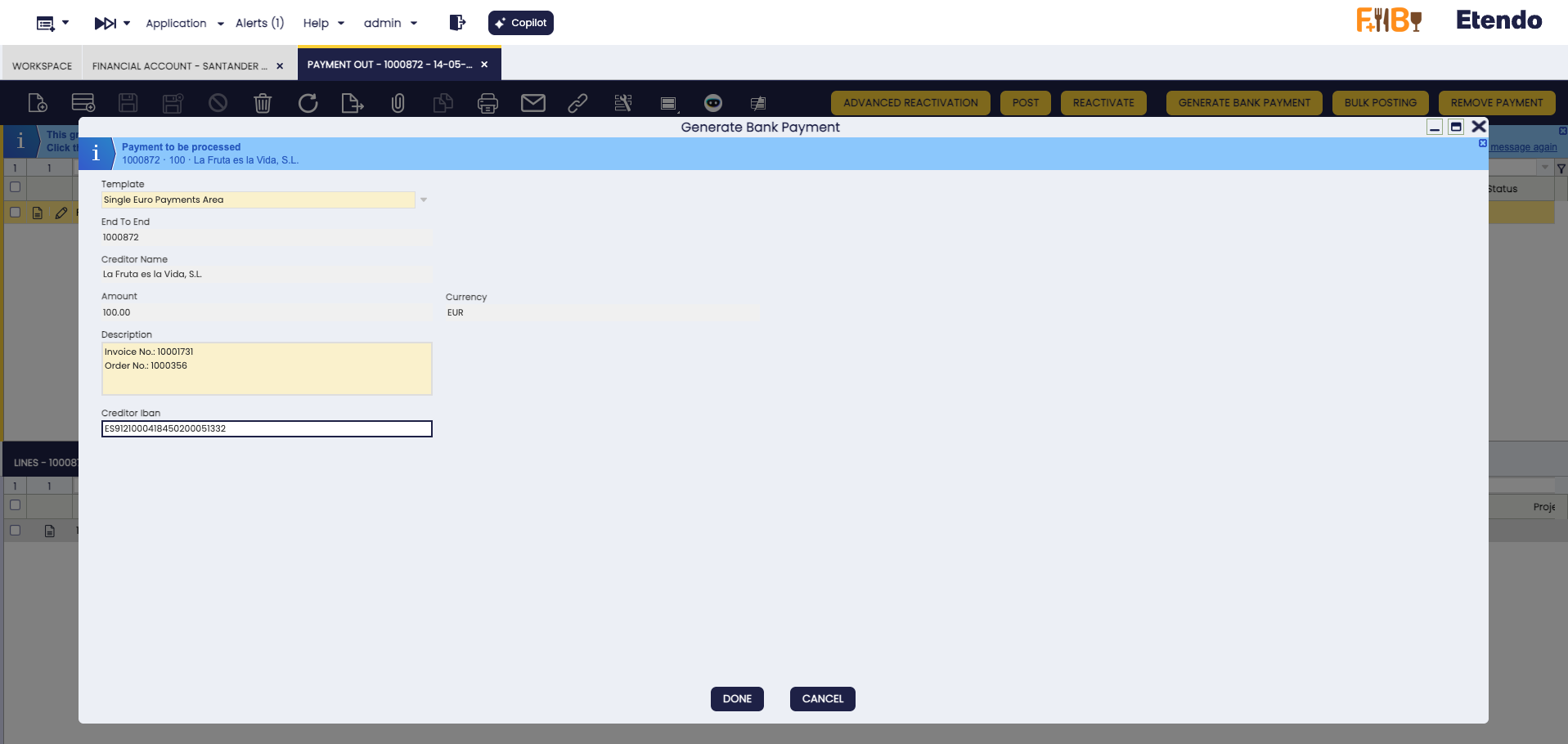
Tip
The form values are automatically calculated from the Payment and Business Partner data. Make sure your Business Partners have their bank account information (IBAN or account number) configured for the best experience.
-
Review the values and click Done to initiate the payment. A bank authorization popup opens where you must authorize the payment with your bank.
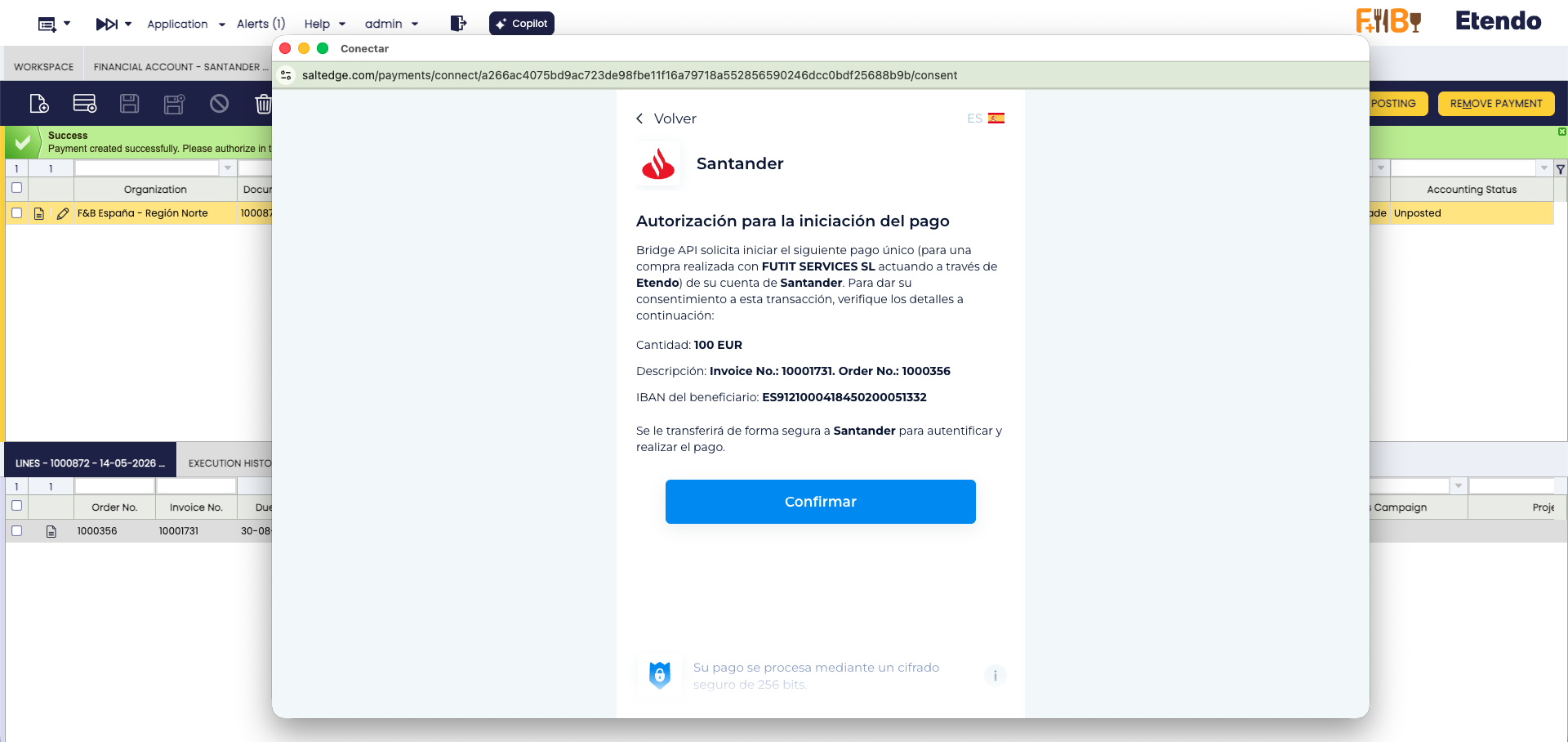
Warning
Do not close the popup until you have completed the authorization process with your bank. The payment cannot proceed without your authorization.
-
After completing authorization, you will see a confirmation page indicating that the payment has been registered. Close the popup and return to Etendo — the payment status will be updated automatically.
Viewing Bank Payments
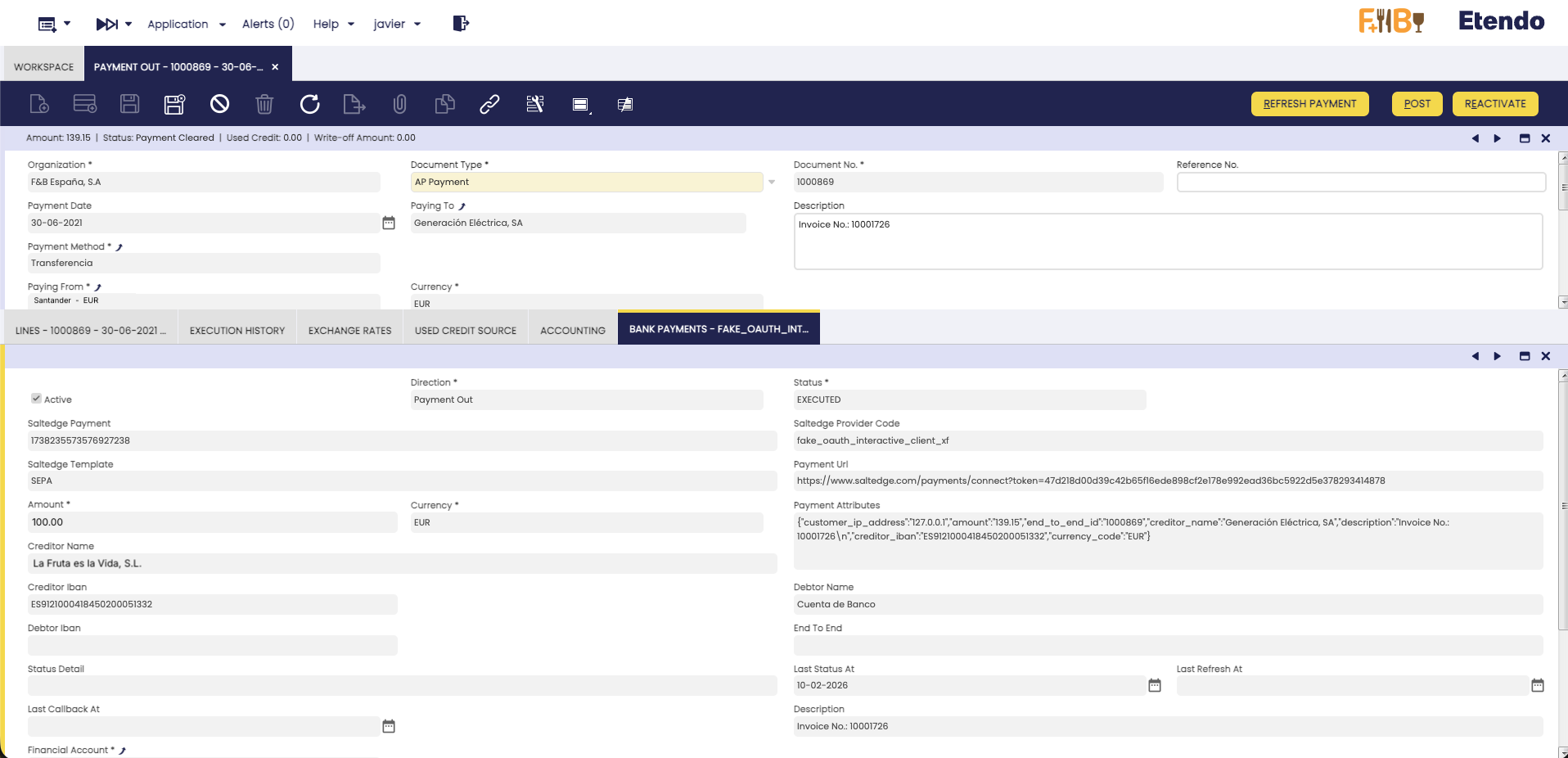
All initiated bank payments are tracked in the Bank Payments tab of the Payment OUT record ( Financial Management > Receivables and Payables > Payment OUT). Each entry shows the Status, Amount, Currency, Creditor Name and Creditor IBAN, plus the Debtor Name and Debtor IBAN (your own Financial Account) and the linked Account. Use Refresh Payment to check the latest status on demand.
Refreshing Payment Status
Payment status is updated automatically through two mechanisms:
Automatic Updates
Salt Edge sends automatic status notifications to Etendo whenever the payment status changes at the bank. These updates are processed immediately and the payment record is updated in real-time.
Manual Refresh
If you want to check the latest status immediately:
Go to the Bank Payments tab, select one or more payment records, and click the Refresh Payment button.
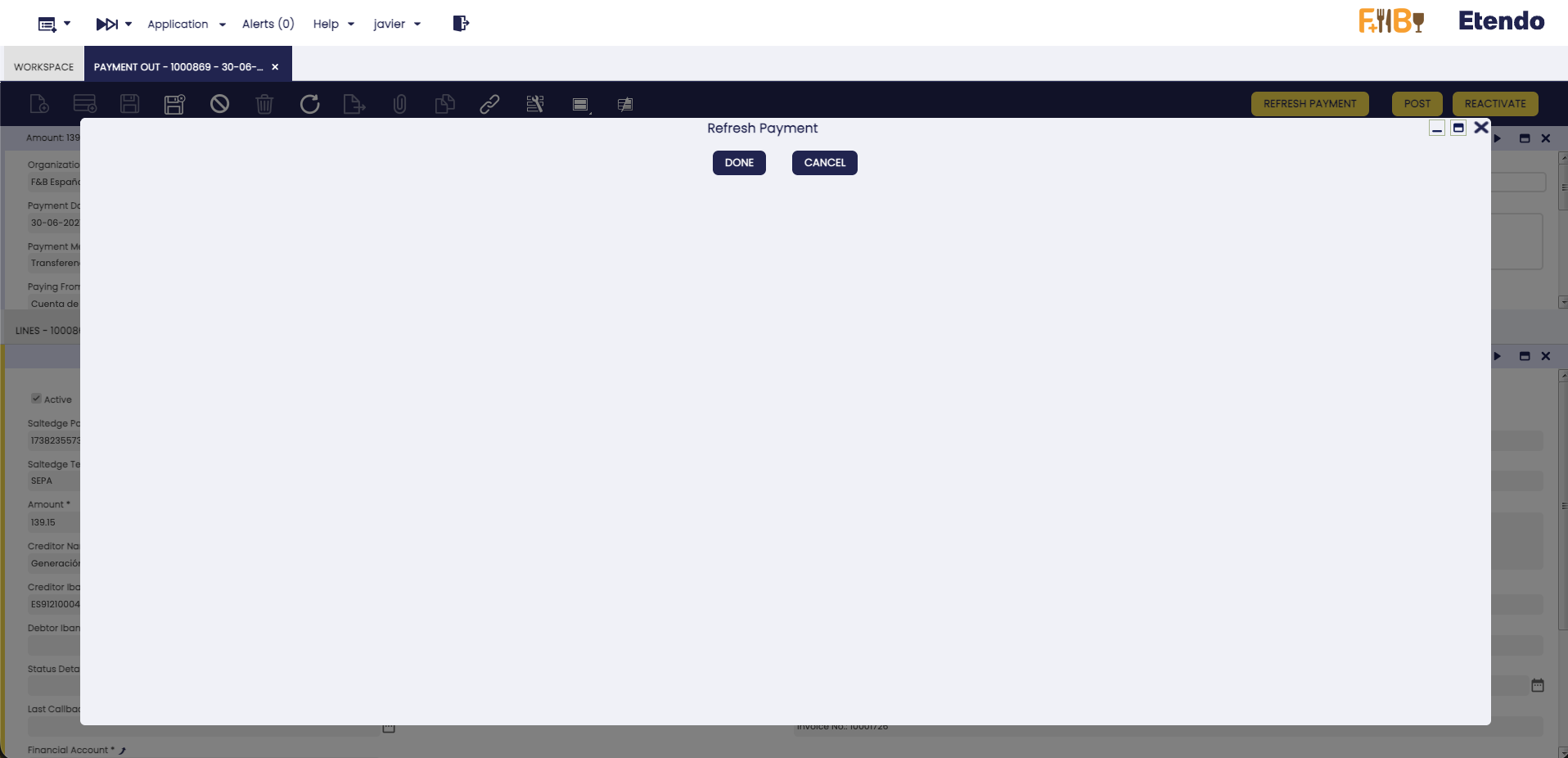
The system queries the bank for the current status and updates the record.
Tip
Use manual refresh when you want to verify the current status of a payment without waiting for the next automatic update.
Scheduled Automatic Refresh
The Refresh Pending Payments process runs every 10 minutes by default and acts as a safety net in case an automatic update is missed. To adjust the frequency, create a new Process Request for this process and unschedule the system-imported entry ( General Setup > Process Scheduling > Process Request).
Common Issues and Solutions
Connection and API Key
No API Key Available
- Ensure the Client has the Salt Edge API Key configured.
- Check that the API Key is correct and active.
Invalid or expired API Key
- Your API Key has expired or is no longer valid.
- Contact your Etendo administrator or Etendo Support to obtain a new API Key.
- Update the API Key in the Client window (Api Key field, in the Bank Integration field group).
Could not get redirect link
- The bank connection service may be temporarily unavailable.
- Try again in a few minutes. Contact support if the issue persists.
No new transactions found
- Check your Import From/To Date configuration.
- Verify that there are new transactions in your bank account and that the date range covers the expected period.
- Remember that transactions still pending at the bank are not imported yet — see Posted vs. pending transactions. Wait for the bank to confirm them and run Get Bank Statement again.
Requested date exceeds the bank's maximum supported history
- Each Bank Provider has a maximum historical range it can actually provide (Max Fetch Interval). If the Import From Date configured on the Financial Account is older than what the bank supports, the import result includes a warning stating that the requested date exceeds the maximum supported by that bank.
- This warning is informational only — no action is required. The bank has no further history available.
- The system already imports the maximum history it can retrieve, starting from the oldest date the bank supports.
Rate limit or service temporarily unavailable
- The system has exceeded the allowed number of API requests, or Salt Edge is undergoing maintenance.
- These errors are transient — wait a few minutes and try again. Scheduled processes retry automatically.
Connection Status shows Disabled
A connection may show as Disabled due to authentication expiration, communication errors with Salt Edge, or temporary bank unavailability.
- Execute Get Bank Statements again to see if the issue persists.
- If still Disabled, click Reconnect Account in the Financial Account toolbar (see Reconnecting a Bank Connection).
Payment Initiation
Template Required / Creditor Name Required
- The payment template could not be determined, or the Business Partner name is missing.
- Ensure the payment has a valid currency and a Business Partner with a valid name assigned.
IBAN Required for SEPA
- SEPA payments require the creditor's IBAN.
- Configure the Business Partner's bank account with a valid IBAN.
SEPA Requires EUR / FPS Requires GBP / Sort Code or Account Number Required for FPS
- SEPA payments only use EUR; FPS only uses GBP and requires both sort code and account number.
- Check the payment currency, switch to the DOMESTIC template if needed, and verify the Business Partner's bank account details.
Payment status stuck in Initiated or Authorizing
- The user may not have completed the authorization at the bank.
- Click Refresh Payment to check the latest status. If the issue persists, contact Etendo Support with the payment details.
Bank authorization popup was blocked / Payment Not Found after returning from bank
- Your browser may have blocked the popup — allow popups for the Etendo site and try again.
- If the redirect failed, check the Bank Payments tab. The payment may have been processed correctly and the status updated automatically shortly after.
Getting support
Before contacting support, check the Bank Integration Logs window for error details, verify your API Key, and try the Reconnect Account button for connection issues. When contacting Etendo Support, include the error message, relevant log entries (including JSON Info), the financial account affected, and the date and time of the issue.
Monitoring and Logs
The module provides two dedicated windows for monitoring integration activity.
Bank Integration Logs
Financial Management > Receivables and Payables > Setup > Bank Integration > Bank Integration Logs
Displays all activity and error logs generated by the integration. Each entry includes:
| Field | Description |
|---|---|
| Financial Account | The financial account associated with the event. |
| Execution Day | The date and time when the event occurred. |
| Status | The result of the operation (Success, Error, etc.). |
| Source | The process that generated the log (e.g., Transactions, Consents, Generate Payment). |
| Log | A human-readable description of the event, when available. This field may appear empty for some entries — rely on JSON Info in that case. |
| JSON Info | The raw API response. This is the authoritative source of detail for troubleshooting and support. |
Info
Log entries are kept for 90 days and older entries are purged automatically. Export or copy the relevant JSON Info before that window closes if you need to keep a record for support or audit purposes.
Tip
Filter by Financial Account and sort by Execution Day descending to quickly find the most recent events.
Bank Provider
Financial Management > Receivables and Payables > Setup > Bank Integration > Bank Provider
Lists all banks available through Salt Edge. Each entry shows the Provider Code and Provider Name.
Additional Resources
This work is licensed under CC BY-SA 2.5 ES by Futit Services S.L.