Financial Account
Application > Financial Management > Receivables and Payables > Transactions > Financial Account
Overview
A Financial Account represents an account at a financial institution such as a bank account, a credit card issuer, an electronic payment service, as well as a cash or petty cash register.
Etendo allows the user to create as many Financial Accounts as required by the organization in the financial account window which therefore is used to record monetary transactions such as invoice payments, bank fees, credit card charges, etc.
Payment obligations and amounts due from customers are created in the Purchase and Sales invoice windows. Collections from customers and payments to suppliers for these invoices, however, are normally recorded in the Financial Account window or in the Payment In and Payment Out windows.
Warning
It is very important to properly define every parameter of each Financial Account. During your Financial Account setup process, you will need information like: the bank account information, the payment methods allowed, the bank account currency/ies, the accounting information, etc.
Account
The Financial Account window contains essential information such as the bank account number and allows the user to perform a set of processes such as to add deposit or withdrawal transactions to the financial account or to import and match a bank statement file.
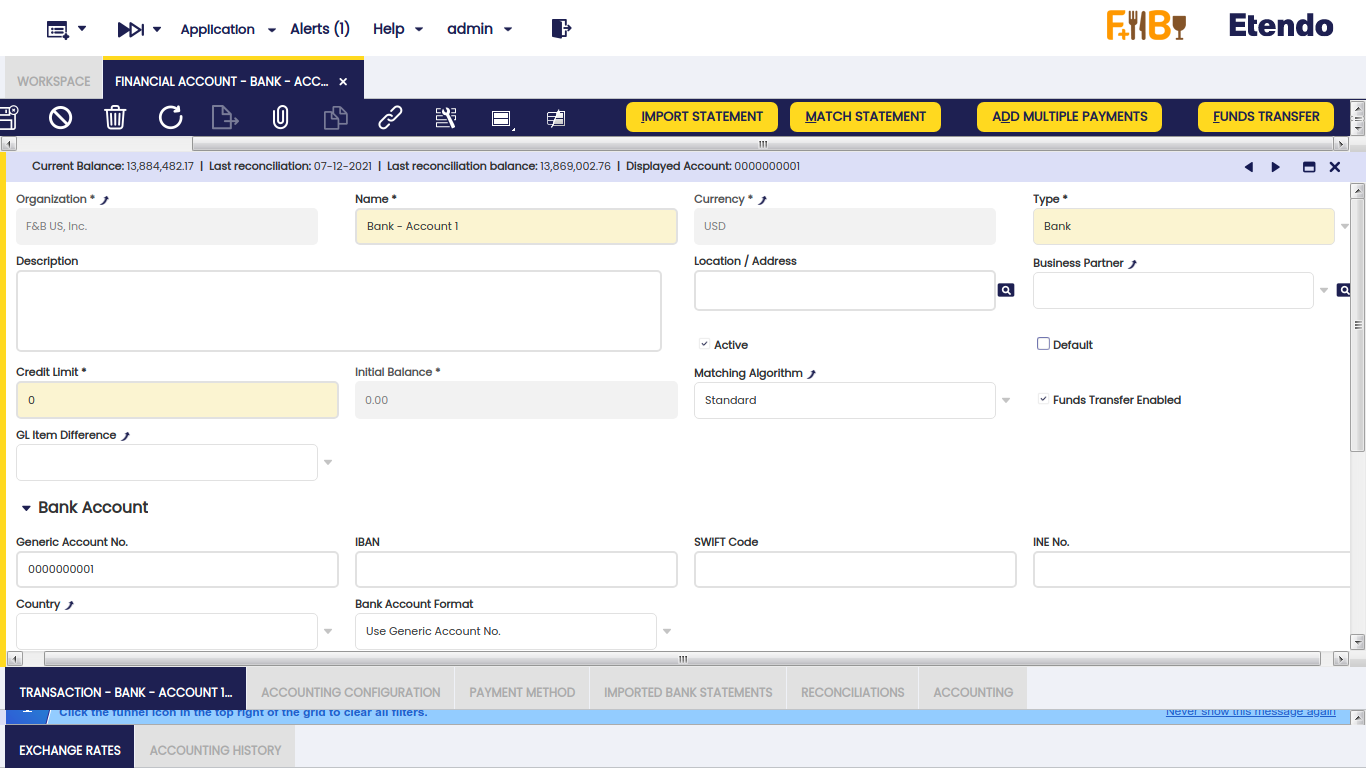
The essential financial account information to be filled in the top section of the financial account window is:
- The Name and a Description of the account.
- The Currency of the account.
- The account Type: There are two account types: Bank and Cash.
Depending on the type selected, the required information to enter changes. There is no need to fill in the bank account information if the account type selected is "Cash".
It is possible to define additional account types by extending the List Financial Account Type. - Whether this is the Default account to be used in transactions or not. When invoices, orders and other documents including a Financial Account are created, this will be the one shown by default.
- The Business Partner associated to this bank account. For example, the Financial Institution holding the account. This information is used for accounting purposes. Location address related to the business partner is just visual information, loaded when the business partner is selected.
- The Initial Balance: In most cases, the business is already up and running at the time Etendo is implemented. This field allows the user to initialize the initial balance of each Financial Account by providing the real balance of the cash / bank account as it was on a date of the last reconciliation. Later on, this field value is used as a Starting / Beginning Balance in the first reconciliation of this Financial Account in Etendo. This field is only editable when creating the Financial Account.
- The Current Balance: is the balance of the Financial Account as per Etendo records. It is calculated as the sum of the Initial Balance and every Financial Account transaction. This field is placed in the Status Bar.
- The Matching Algorithm to be used during the reconciliation process.
- If no matching algorithm is selected in that field, it is not possible to import and then match a bank statement file but to Reconcile the account transactions.
- If a matching algorithm such as the Standard matching algorithm is selected that allows the user to use the Import Statement process. This process allows the user to import data from a file to the Imported Bank Statements tab, and then use the Match Statement process to match the account transactions with the imported bank statement lines. This matching algorithm supports "G/L item transactions" recognition.
- There is another algorithm delivered as a module named Advanced Matching Algorithm. This module allows Imported Bank Statement lines to be matched not only with the existing financial account transactions but also with payments, invoices or orders. If no transaction document of that type is found, it registers a credit payment for the Business Partners to be used later on. This matching algorithm supports the automatic creation of payments and financial account transactions (deposits and withdrawals), including the creation of "G/L item transactions".
- The Funds Transfer Enabled is used to enable/show funds transfer button process. By default, every financial account is set as enabled.
The next section Bank Account is visible only for accounts of the type Bank and are used to specify the bank account number. This section includes information such as:
- The Generic Account No - a generic account number to identify the bank account can be introduced here. This field must be mandatory set in case either the Use Generic Accoun No. or Use SWIFT + Generic Account No. is selected at the "Bank Account Format" field.
- The IBAN - The International Bank Account Number (IBAN) is an international standard for numbering bank accounts.
The IBAN consists of a two letter ISO 3166-1 country code, followed by two check digits, and up to thirty alphanumeric characters for the domestic bank account number, called the BBAN (Basic Bank Account Number). This field must be mandatory set in case the Use IBAN option is selected at the "Bank Account Format" field. The IBAN code will be automatically validated when inserting/updating the record, taking into account the rules for the country bank defined. - The SWIFT Code - Corresponds to the ISO 9362 international bank code identifier. It must be mandatory set in case the Use SWIFT + Generic Account No. option is selected at the "Bank Account Format" field.
- Country - you can select a country from the list to specify if the bank account is a domestic bank account or a foreign bank account.
- Bank Account Format - List that contains all the possible values for generating the Displayed Account Number, which will be later on used by other reports or processes to get the account identifier. Possible values are:
- Use Generic Account No.
- Use IBAN
- or Use SWIFT + Generic Account No.
Info
Note that other options can be added by other modules that extend the supported Bank Account Format.
More information section can include information such as:
- The Type Write-off Limit field, which allows the user to define different type of write-off limits for a financial account.
This field is displayed when the "Write-off limit" property value is set to "Y" in the Preference window. - The only option currently available is "Amount"
-
And the Write-off Limit Value for the Write-off limit in a payment. When the type selected is Amount, the value holds the amount on financial account currency.
This field is displayed when the "Write-off limit" property value is set to "Y" in the Preference window.Let's take for instance the setup of a "Write-off Limit" amount of 1,00 $ for a given financial account.
While registering a customer's payment in the Add Payment window, the system will not allow the user to write off an amount above the write-off limit amount defined.
The same applies to supplier's payments created by using the Add Payment window or the Payment Proposal feature.
Buttons
Add Multiple Payments
The "Add Multiple Payments" process button allows the user to create and process financial account transactions by selecting several payments at the same time.
The payments shown for selection are the ones having a payment status equal to "Payment Made" or "Payment Received", therefore payments having an "Awaiting Execution" payment status for instance will not be shown for selection.
By default, the payments shown are the ones originally defined for this financial account. However, the user can remove this filter to show and select payments from other financial accounts.
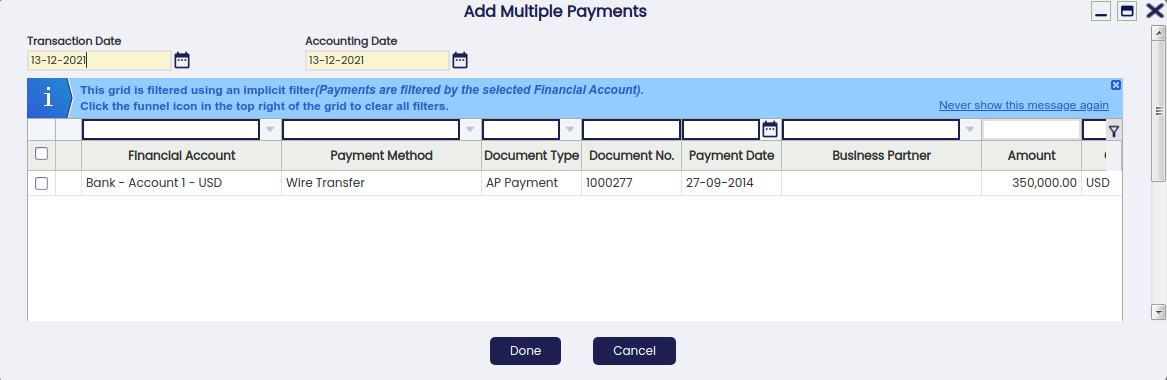
Only actions to take are entering a "Transaction Date" and selecting as many payments as required at once.
Payments selected are then listed as either:
- "BP Deposit" transactions, in the case of "Payments Received"
- or "BP Withdrawal" transactions, in the case of "Payments Made"
in the "Transaction" tab of the Financial Account.
All those new transactions are created as already "processed", therefore can either be "reactivated" if required or finally "post" to the ledger if applicable.
Reconcile
The header process button "Reconcile" is shown for those financial accounts which do not have a matching algorithm assigned.
That button opens the "Reconciliation" window.
The reconciliation window has three main parts:
- the top section which includes overall information such as the financial account being reconciled, the date of the statement to reconcile, the beginning balance (or financial account "Initial Balance") and the ending balance as a result of the reconciliation. The ending balance is the last reconciliation balance of the financial account.
- the middle section which includes a list of the transactions pending to be reconciled, therefore marked as "Cleared" "No" in the financial account, transaction tab.
- and the bottom section which includes overall balance information as well as three process buttons "Save", "Reconcile" and "Cancel".
The "Beginning Balance" + the amounts "Received In" - the amounts "Paid Out" need to be equal to the "Ending Balance".
You can either enter the ending balance or what the statement says and then select the transactions paid out/received in or the other way around.
Info
It is possible to create a "G/L item" transaction in case there are some minor differences between what the statements say and the recorded transactions pending to be reconciled.
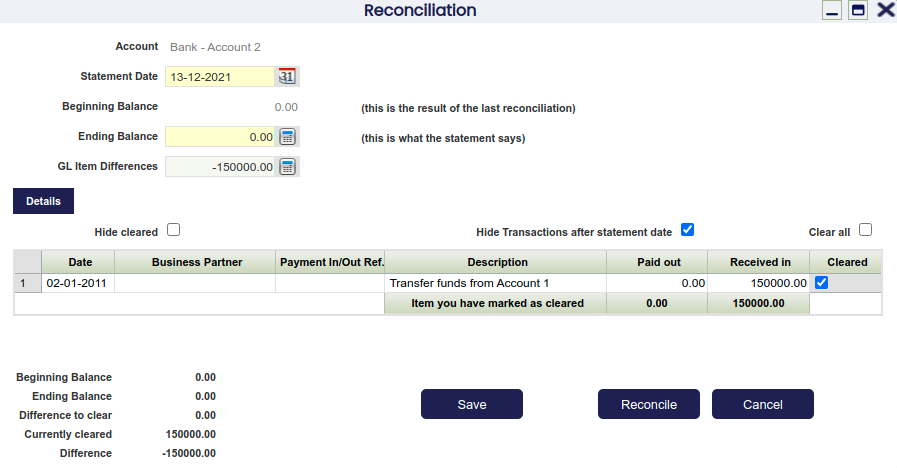
The "Save" process button saves a "Draft" of the reconciliation in the Reconciliations tab of the financial account and marks the transaction/s selected as "Cleared" as also "Cleared" in the financial account, transaction tab.
It is always possible to reopen a saved reconciliation and modify whatever it is needed.
Info
Note that there can only be one reconciliation in draft status in a financial account.
The "Reconcile" process button reconciles the transactions marked as cleared, therefore the reconciliation is processed and its status changes to "Completed".
Finally, the "Cancel" process button just closes the reconciliation window and removes the ending balance entered, if any.
Import Statement
The header process button Import Statement is shown for those financial accounts which have a matching algorithm assigned. This process button allows the user to import a bank statement which therefore is saved in the Imported Bank Statements tab of the financial account, and in the Bank Statement Lines sub-tab.
Info
Etendo currently delivers the Standard matching algorithm. The behavior of the standard matching algorithm is explained in the next section "Match Statement".
Info
Etendo allows the user to import a bank statement if an Import Bank File Format module has been previously installed.
Etendo currently delivers below listed import bank file modules:
- OFX Bank Statement Format
- CSV Generic Bank Statement Importer
- WePay CSV Importer
- and the Spanish one Cuaderno 43
Depending on the module installed for this purpose, it will be possible to import bank statement files in OFX format or CSV format among others.
The "Import Statement" process button opens the "Import Bank File" window.
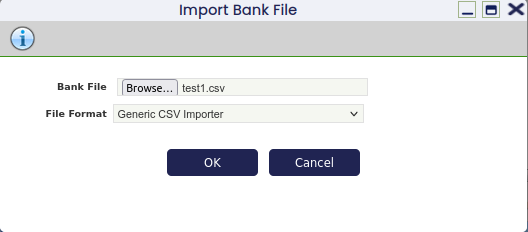
This window allows to:
- select a bank statement file
- and select the file format of the selected bank statement file to import.
Match Statement
Once a bank statement file has been imported, the button "Match Statement" opens a new window where the imported bank statement lines and the existing financial transactions are displayed. By default, there is an implicit filter which hides the bank statement lines that are already matched.
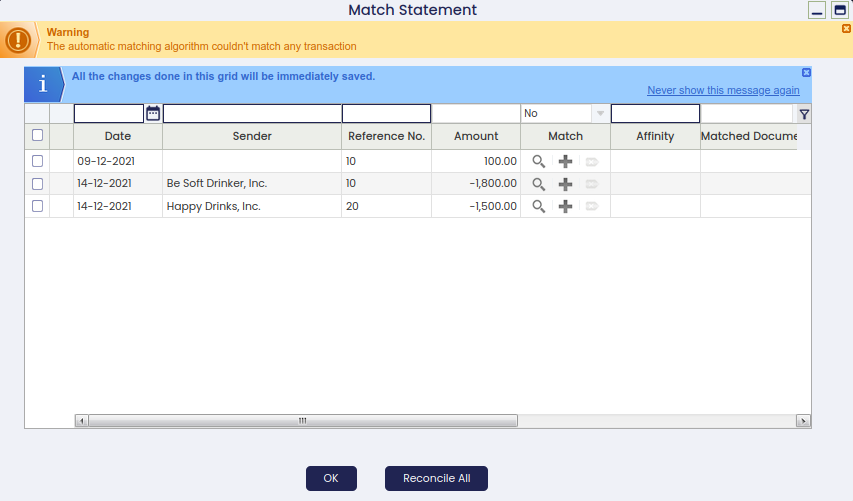
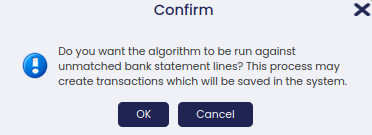
Before opening the window, a pop up is shown, asking whether the algorithm should run against unmatched bank statement lines or not. If so, the algorithm will try to find a match for all the unmatched bank statement lines. If not, the matching window will open and the user should do the matches manually.
This window has two column groups divided by the Match column.
- Imported Bank Statement Lines on the left side. This section list the bank statement deposits and the payments
- Date: that is the date of the movement made in the bank account.
- Business Partner: that is the business partner reported into the bank statement line.
- Reference No.: that is the reference of the bank statement, if any.
- Amount: that is the amount reported into the bank statement line, subtracting the Amount OUT from the Amount IN
- Transaction in Etendo on the right side. This section lists the financial account transactions which match the bank statement lines:
- Match: it provides 3 buttons to operate with the bank statement lines (explained later on). Besides, the column can be used to filter by the matching status (Yes to show cleared lines, No to show not cleared lines).
- Affinity: when the matching is automatically done by the Matching Algorithm, this field shows the affinity level of the match. If the user manually associates a transaction, this field is empty. The affinity is higher when the matching criteria are the same in both, the financial account transaction and the bank statement line.
- Matching Type: the type of matching
- Transaction Date: that is the date when the transaction was created in the financial account.
- Transaction Business Partner: that is the business partner of the transaction.
- Transaction Amount: that is the amount of the transaction, subtraction the Withdrawal Amount from the Deposit Amount
As already mentioned, the matching algorithm available is the "Standard matching algorithm".
The Standard matching algorithm can be configured to match by different set of criteria:
- Match BP Name: This option makes the matching strong if the business partner name of the bank statement line and the business partner of the transaction matches.
- Match Transaction Date: This option makes the matching strong if the transaction date of the bank statement line and date of the transaction matches.
- Match Reference: This option makes the matching strong if the reference of the bank statement line and the reference of the transaction matches.
All the criteria above can be selected, or just some of them.
Info
Not matched transactions can be matched manually.
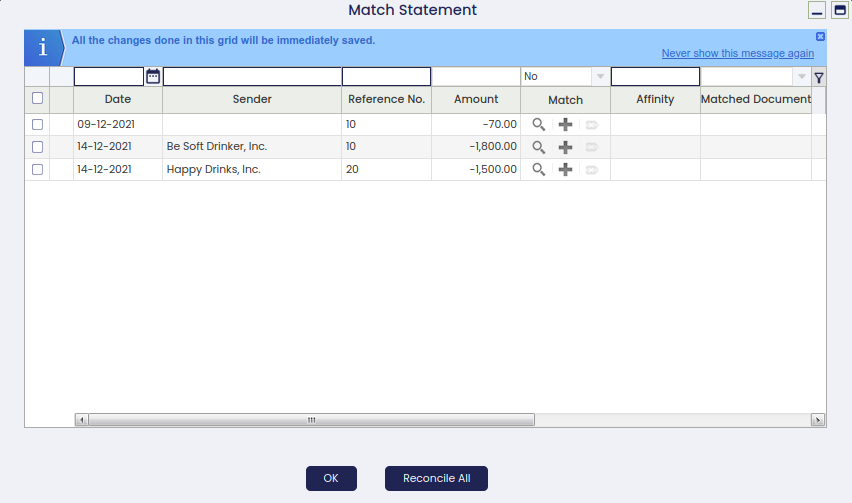
Let us take for instance the starting situation shown below where there are three bank statement lines which do not match:
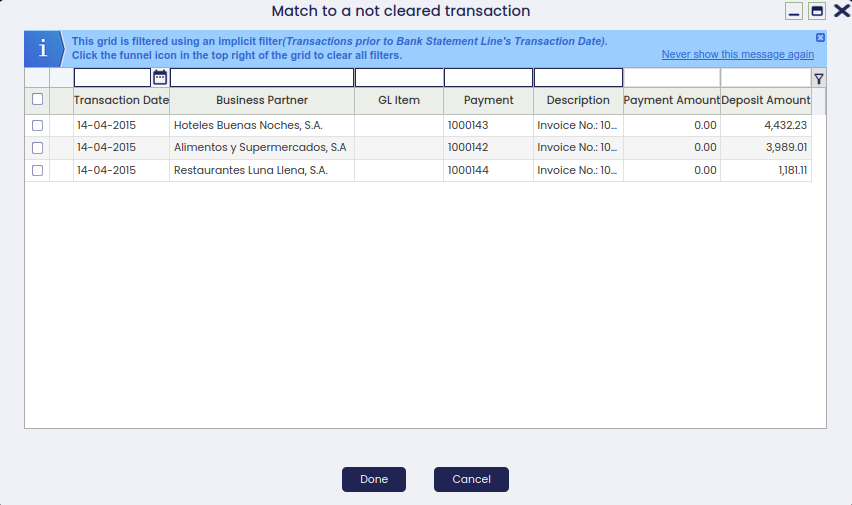
- the "magnifying glass" icon helps to search transactions to match as it opens a new window which shows the financial account transactions registered the same day as the bank statement line or before. Several transactions can be selected at the same time to match with a single bank statement line. In that case, the system automatically splits the original bank statement line as many times as transactions are selected.
Back to our example, there is no transaction which matches the second transaction of the bank statement file (the one with an amount equal to 1.500,00). If there was a match, it could be selected by using as well the "magnifying glass" icon.
- the "+" icon helps to add transactions to the financial account (and even create a payment to deposit or withdraw from the financial account) as it opens the "Add Transaction" window.
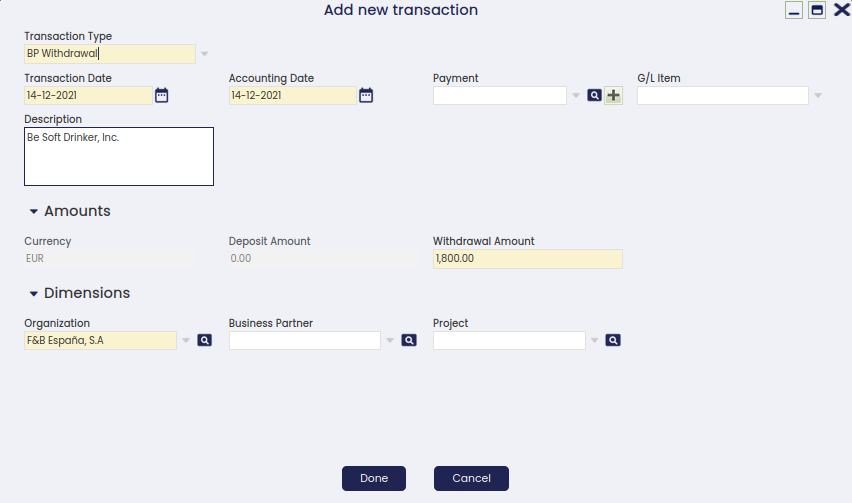
The image above shows that there was a "Received In" transaction pending to be created in the financial account. Once created it is matched.
Back to our example the current situation is shown in the image below:
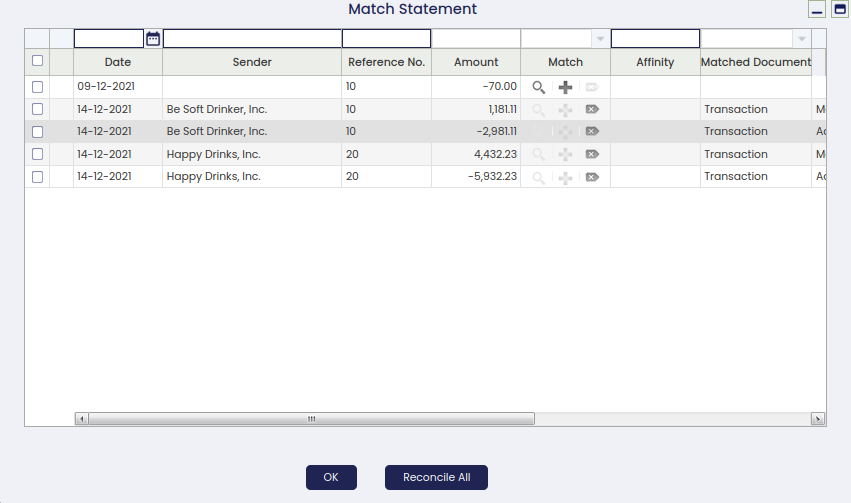
There is only one transaction pending to be matched. The "magnifying glass" icon helps again to search for transactions to match.
If a transaction that almost matches is selected, Etendo shows a message which informs that the transactions do not fully match therefore a partial match can be performed. The user can set the 'Match Statement: hide partial match confirmation popup' to Y for the Financial Account window to hide this confirmation message in the future.
Info
This last option will require to log out and log in.
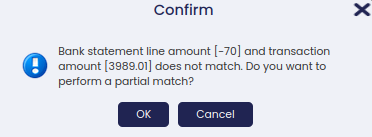
This action matches the bank statement line and creates a new line pending to be matched for the difference.
- the ICON "unmatch" icon unmatches the transaction linked to the individual record. The user can also select multiple records and unmatch all of them in a batch using the Unmatch Selected button.
The user is able to force both reactivating and processing reconciliations in case some mistake was made, to permit reactivating old reconciliations to be able to correct that data.
This should not be the standard procedure, as there should be an exercise of reviewing data before validating/processing a reconciliation. In any case, errors happen and to be able to solve the situation without a big impact for the user, there are now these two buttons as advanced features.
Info
This process will impact starting and ending balance of subsequent documents whenever ending balance changes for the reconciliation being edited.
Funds Transfer
The Funds Transfer functionality in the Financial Account window enables the movement of money between two different financial accounts within an organization. This action is typically used for internal transfers, such as moving funds from a bank account to a petty cash account, or between different currency accounts.
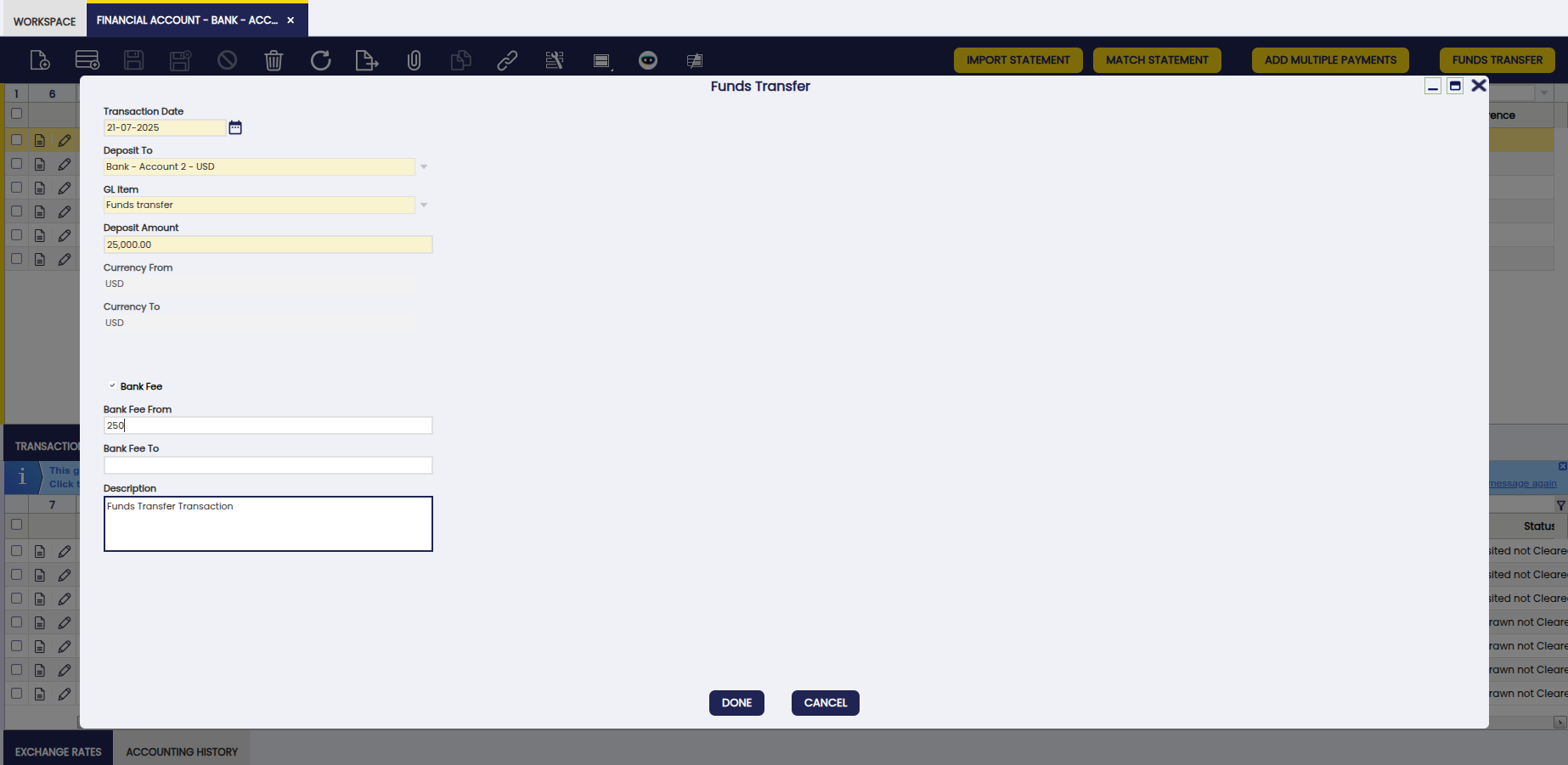
Fields to note:
- Transaction date: It is mandatory. This date is used for the records that this process creates. Transaction and accounting date
- Deposit to: This dropdown displays all the financial accounts that belong to the organization tree of the financial account that is selected and that have the Funds Transfer flag enabled.
- G/L item: Default value is set from Default G/L Item for Funds Transfer configured in Financial Account's organization or its parent organization. The user can overwrite this parameter. This dropdown is displayed with all the G/L Items that belong to the org tree of the financial account that is selected.
- Deposit amount: Mandatory.
- Currency from: Not editable. Currency of the financial account selected.
- Currency to: Not editable. Currency of the financial account to.
- Multiple Rate By: The conversion rate from one currency to another:
- It is null by default
- It is shown just when currencies are different
- In case the user leaves this value as null the system uses the conversion rate configured in the system for that date. If there is nothing defined then an error is shown.
- Bank fee: The fee charged by the bank from/to where the transaction originated/was received. Not marked by default. When checked, two more fields are shown:
- Bank fee from: To enter the corresponding fee amount.
- Bank fee to: To enter the corresponding fee amount.
- Description: Description is set as Funds Transfer Transaction by default. The user can overwrite the description if needed.
Tabs
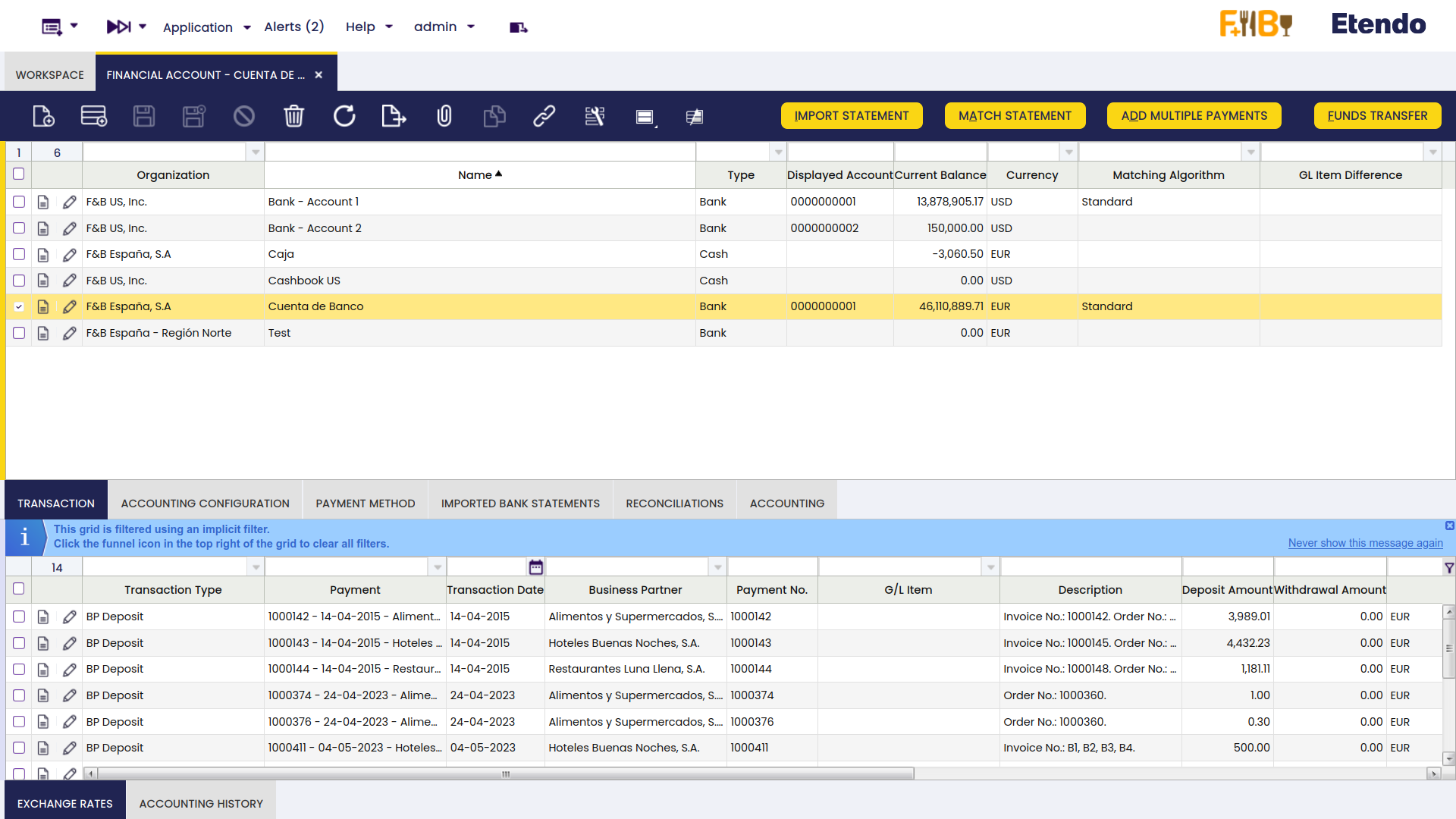
Transaction
The transactions of a financial account can be of two types:
- Deposit transactions in the case of receiving whatever document type (invoice, order, G/L item or fee) payment in
- or Withdrawal transactions in the case of making a payment out of whatever document type (invoice, order, G/L item or fee)
Those two transaction types can be created in three ways:
-
automatically, if the payment method used to pay a document (and assigned to a given financial account) is configured to get that:
- the supplier's payments once processed in the Payment Out window are automatically withdrawn from the financial account
- the customer's payments once processed in the Payment In window are automatically deposited in the financial account.
- or the "G/L Item Payments" once created in a G/L Journal are automatically either deposited to/withdrawn from the financial account.
-
in a batch, by adding several payments as transactions through the Add Multiple Payments process window
-
or manually, by creating a new record in the transaction tab of the financial account window.
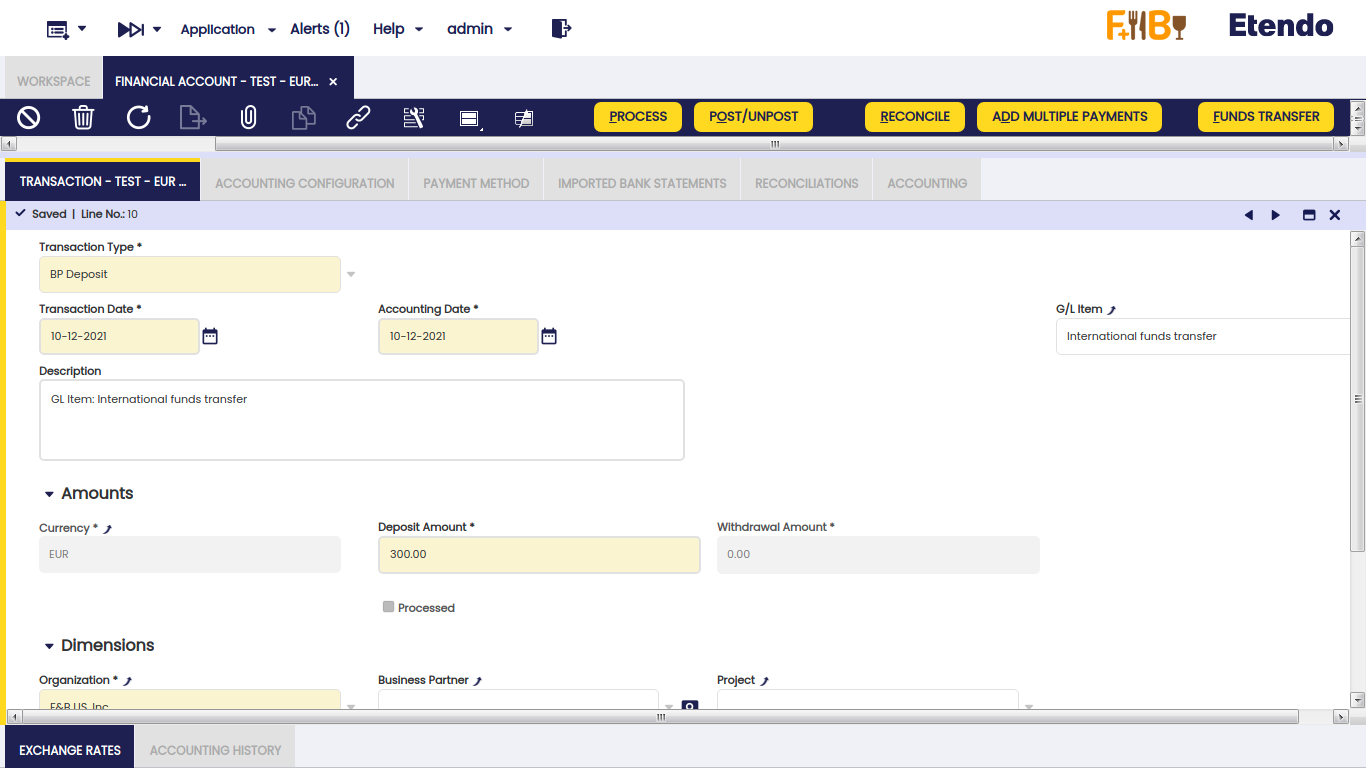
- Fields to note in the transaction tab:
- Transaction Type: The Transaction Type indicates the type of transaction to be submitted. The transaction tab also allows the user to create a "Deposit" or a "Withdrawal" transactions based on a "G/L Item" transaction type or on a "Payment".
- Bank fee
- BP Deposit
- BP Withdrawal
- Transaction Date: The Transaction Date field defines the date of the transaction being processed.
- Accounting Date: The date this transaction is recorded for in the general ledger.
- Payment: Payment selector.
- G/L Item: General ledger item selector.
- Currency: Indicates the currency to be used when processing this document.
- Deposit Amount: amount in the case of receiving a payment.
- Withdrawal Amount: amount in the case of making a payment.
- Dimensions: Organization, Business partner and Project information.
- Foreign Amount: Only shown in grid view. This column is populated if the payment was received or made in a currency different from the financial account currency.
-
Foreign Currency: Only shown in grid view. This column is populated if the payment was received or made in a currency different from the financial account currency.
Info
It is possible to allow the user either to receive or make payments in multiple currencies (foreign currency), while configuring the payment methods assigned to a given financial account. For more information about this option, visit Payment Method.
- Transaction Type: The Transaction Type indicates the type of transaction to be submitted. The transaction tab also allows the user to create a "Deposit" or a "Withdrawal" transactions based on a "G/L Item" transaction type or on a "Payment".
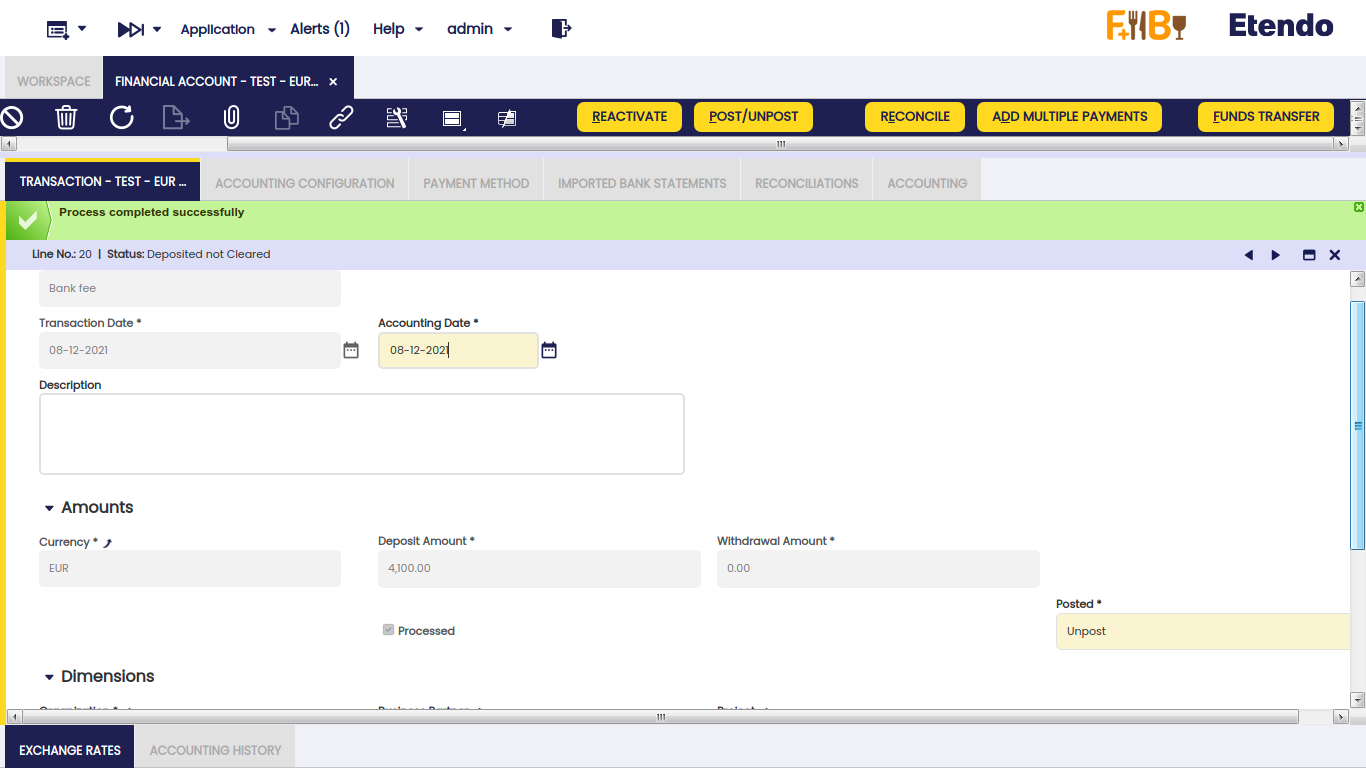
-
If creating a Bank Fee is necessary, select Bank Fee in Transaction Type dropdown, enter a transaction and accounting date and the amount either received in or paid out.
-
Then save and process the transaction.
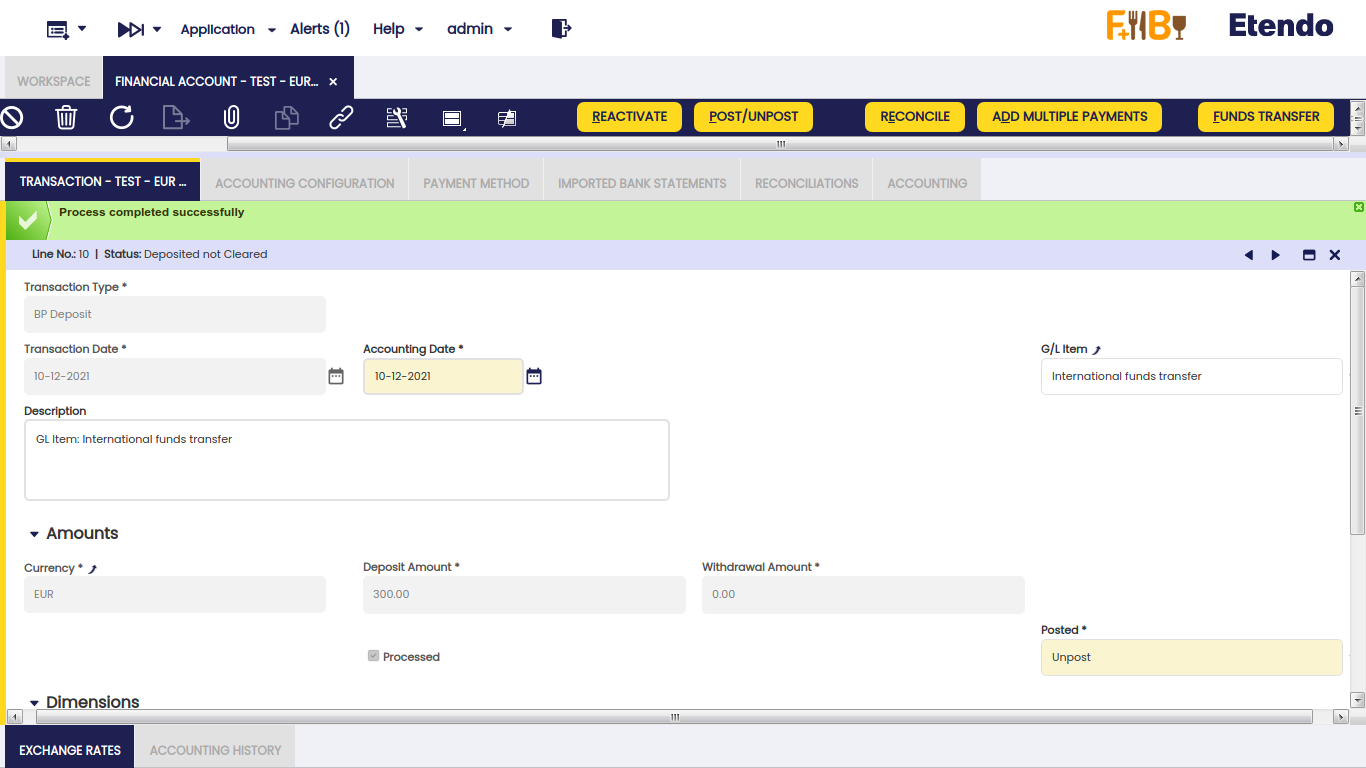
To create a new G/L item transaction, select BP Deposit or BP Withdrawal in transaction type and select the G/L Item in the G/L item dropdown, enter a transaction and accounting date, select a G/L Item, enter the amount either received in or paid out and save and process the transaction.
If the user needs to create a new payment transaction, it is allowed to select a created payment or create a new payment from the payment selector.
-
If the payment is created, the user should choose the payment in the payment selector.
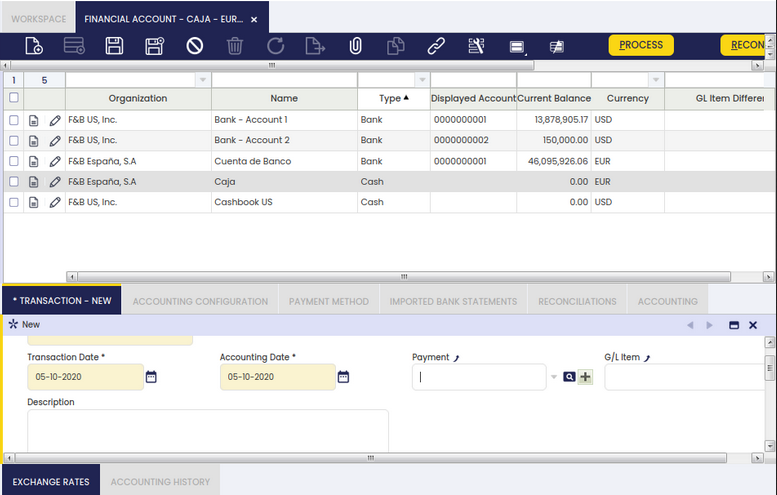
Description and amount fields in the transaction tab will be automatically filled and to complete the transaction it is necessary to save and process.
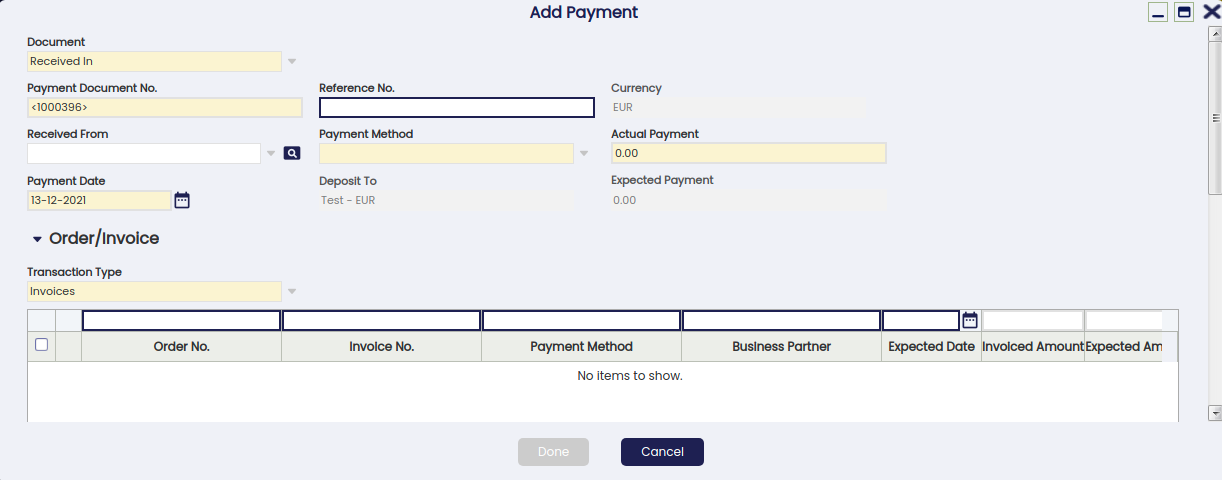
If creating a payment deposit transaction is necessary, the user should click '+' button' in the payment selector and an add payment popup will be opened. "Received In" needs to be selected in the field "Document".
This window allows to:
- select already created and processed payments
- use the field "Received From" to narrow down the searching of documents to pay
- use the business partner's "Available Credit" if any, selecting the credit in credit grid
- enter the "Actual Payment" amount received
- enter a "Payment Date"
- select the "Transaction Type" to pay
- use some other filters such as the Order or Invoice "Document No." or the "Amount From/To"
- and finally to enter a "G/L Item Payment" if needed, by adding "GL Items" in a GL item grid.
Last step is to process the just created payment and get it deposited in the financial account.
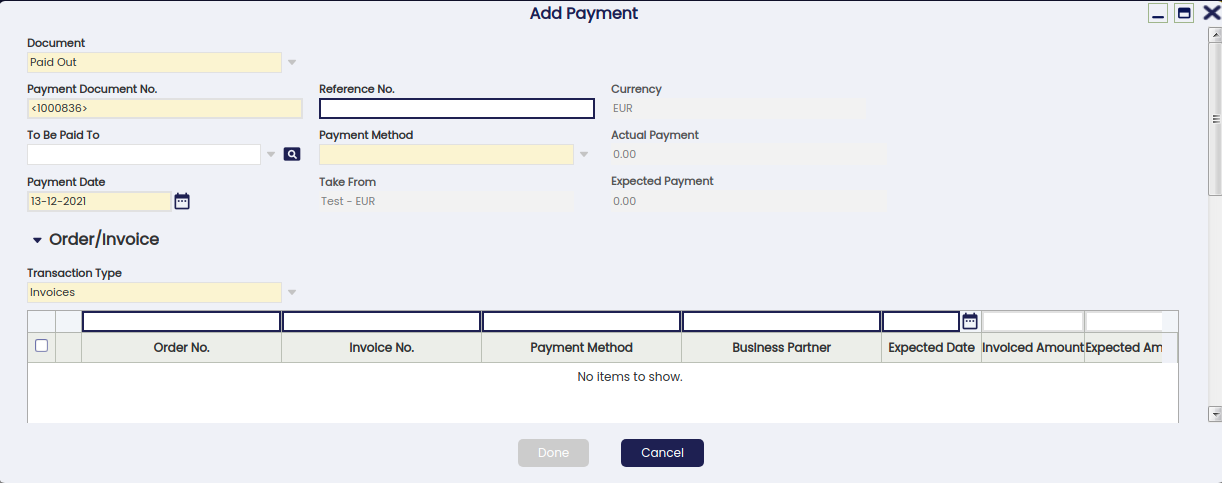
If creating a payment withdrawal transaction is necessary, the user should click '+' button' in the payment selector and an add payment popup will be opened. In the add payment popup, the option "Paid Out" needs to be selected in the field "Document". This window allows the user to:
- select already created and processed payments
- use the field "To Be Paid To" in order to narrow down the searching of documents to pay
- use the business partner's "Available Credit" if any, selecting the credit in credit grid
- enter a "Payment Date"
- select the "Transaction Type" to pay
- use some other filters such as the Order or Invoice "Document No." or the "Amount From/To"
- and finally to enter a "G/L Item Payment" if needed, by adding "GL Items" in a GL item grid.
Last step is to process the just created payment and get it deposited in the financial account.
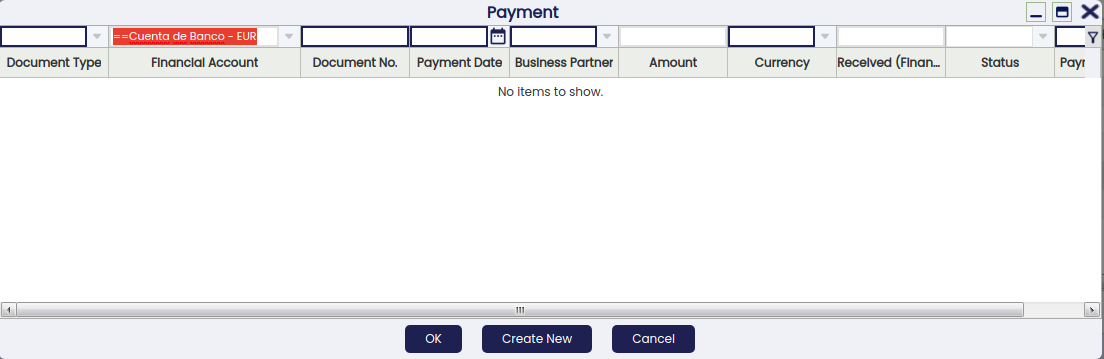
Payment selector has applied an explicit filter (current financial account)
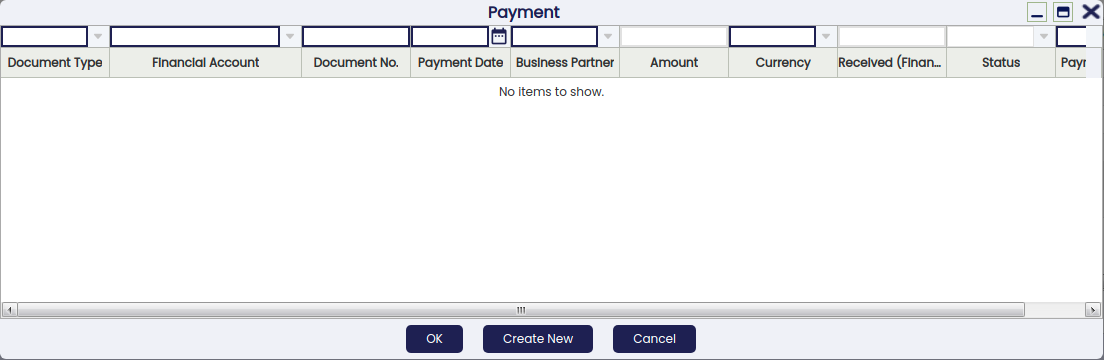
It is possible to add payments for alternative financial accounts by clicking the funnel icon to clear the filters.
Exchange Rates
This subtab allows the user to define an exchange rate to use while posting the financial account transaction to the ledger whenever the currency of the financial account is not the same as the general ledger currency.
Accounting History
This subtab shows the accounting history of a given transaction.

As shown in the image above, this tab shows the general ledger entries created while posting/unposting a given transaction to the ledger.
Accounting Configuration
The accounting configuration tab is used to define the accounts of a General Ledger to use while posting transactions such as a bank fee or a deposit.
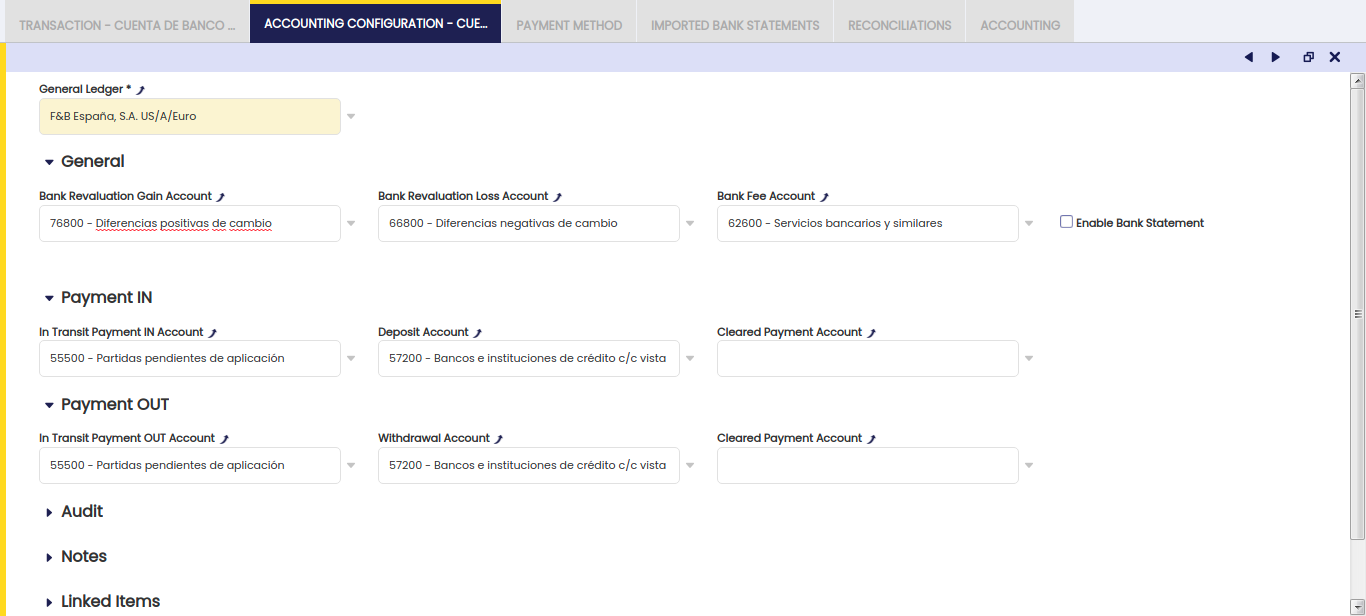
As shown in the image above, the accounts listed below can be configured for a financial account and general ledger.
General section:
- Bank Revaluation Gain Account, this account is used to credit/debit an exchange rate gain:
- The gain corresponding to an exchange rate decreased while making a payment is credited in this account.
- The gain corresponding to an exchange rate increase while receiving a payment is credited in this account.
Info
Remember that it is possible to receive payments and to make payments in a currency different to the financial account currency.
In case of a "Cash" Financial Account type, the ledger account used to credit an exchange rate gain is the "Bank Revaluation Gain" account of the Defaults tab of the General Ledger Configuration.
- Bank Revaluation Loss Account used to debit/credit an exchange rate loss :
- The loss corresponding to an exchange rate increase while making a payment is debited in this account.
- The loss corresponding to an exchange rate decrease while receiving a payment is debited in this account.
In case of a "Cash" Financial Account type, the ledger account used to credit an exchange rate gain is the "Bank Revaluation Loss" account of the Defaults tab of the General Ledger Configuration.
- Bank Fee Account used to debit/credit fee expenses/revenues
The checkbox Enable Bank Statement allows the user to post Bank Statements. If selected, two additional fields are shown:
- Bank Asset Account
- Bank Transitory Account
As a bank statement posting is a transitory posting until the transactions have been finally cleared, the "Bank Transitory Account" must be the same account as the one used upon clearing.
As soon as a "Bank Transitory Account" is defined, the system shows a warning stating that "When posting Bank Statements, the Bank Transitory Account should match the account used upon clearing for all payment methods in order to ensure properly balanced accounting. Do you want to propagate this value to all payment methods?"
- If the end-user presses (YES), the system fills-in the Bank Transitory Account selected in the field "Cleared Payment Account" of the "Payment IN" and "Payment OUT" sections.
Payment IN / Payment OUT sections:
These sections of the accounting configuration tab are closely related to another tab of the financial account window, the Payment Method tab.
The Payment Method tab allows the user to define which step of the payment workflow can be posted to the ledger. That can be defined for each payment method assigned to the financial account
The "Accounting Configuration" tab allows the user to select the ledger accounts to use while posting in transit payments in/out, deposit/withdrawal transactions or reconciliations linked to a given payment method.
It is important to remark that:
- None of the fields of the "Payment In" and "Payment Out" section are mandatory, as the accounting process can be different depending on the payment method configuration.
- However, if any of those fields is "empty" for instance the "Deposit Account", while it has been configured for a given payment method assigned to the financial account that the "Deposit" transaction needs to be posted, the posting process will generate an error.
More in detail:
Payment In section:
- In Transit Payment Account - This is the account which would be used in the first step, when the receipt of the payment is registered in the "Payment In" window.
The Payment Method used should have the value "In Transit Payment Account" defined in the field "Upon Receipt use". - Deposited Payment Account - This is the account which would be used to post the second phase that is the "Deposit" of the receipt in the Financial Account. The Payment Method used should have the value "Deposited Payment Account" defined in the field "Upon Deposit use".
- Cleared Payment Account - This is the account which would be used to post the third step that is the reconciliation of the deposit. The payment method used should have the value ""Cleared Payment Account" defined in the field "Upon Reconciliation use".
Payment out section:
- In Transit Payment Account - This is the account which would be used in the first step, when the payment is made in the "Payment Out" window. The Payment Method used should have the value "In Transit Payment Account" defined in the field "Upon Payment use".
- Withdrawal Payment Account - This is the account which would be used to post the second phase that is the "Withdrawal" of the payment in the Financial Account. The Payment Method used should have the value "Withdrawal Payment Account" defined in the field "Upon Withdrawal use".
- Cleared Payment Account - This is the account which would be used to post the third step that is the reconciliation of the withdrawal. The Payment Method used should have the value "Cleared Payment Account" defined in the field "Upon Reconciliation use".
Payment Method
This tab lists all the payment methods assigned to the financial account. A payment can either be deposited in or withdrawn from the financial account if the payment method used is assigned to the financial account.
Every Financial Account can have more than one payment method assigned, payment methods such as "Check", "Wire Transfer", "Cash".
The fact of assigning a payment method or a set of payment methods to a given financial account means that it is possible to manage through a given financial account only those payments linked to any of the payment methods assigned to that financial account.
Payment Methods are created and configured in the Payment Method window. Once created and configured, there can be assigned to a financial account in this tab. The way to do that is:
- Click the 'Payment Method' tab of the financial account
- Create a new record
- From the 'Payment Method' drop down list, select a payment.
- This action automatically populates the default configuration of the payment method.
- Change the default configuration if required
- Any change to that configuration does not change the default configuration of the payment method because it only applies to the way that payment method is going to behave while being used for the financial account selected.
In this tab, there is the advanced feature (hidden by default) called invoice paid status control, this functionality provides a configuration option to be able to decide which status for each payment determines whether an invoice is paid or not.
- Invoice paid status combo: Sets the state from which is considered an invoice as paid.
This combo can be set at payment method level (payment in and payment out) in each financial account. By default this combo is set as payment received or payment made, therefore we get the usual behavior of Etendo.
Info
For additional information about payment method configuration, visit the Payment Method article.
Imported Bank Statements
The tab lists the imported bank statement files as well as the bank statements created manually.

There are key fields to note:
- Document No.: that is the imported bank statement number which is provided by the corresponding document sequence.
- Document Type: that is the "Bank Statement File" document category (not "Bank Statement").
- Name: that is the name given by Etendo which is a combination of the transaction dates and the amount in/out difference.
- Import Date: that is the date when the file was imported.
- Transaction Date: that is the date to use while posting the bank statement to the ledger.
- File name: that is the name of the file imported
An imported bank statement file can be "Reactivated" as once imported it gets processed automatically.
Once reactivated, the bank statement header information as well as the bank statement lines can be changed as required.
Once done, the bank statement can be Processed once again.
A Bank statement can be posted if that is enabled in the accounting configuration tab of the financial account.
Info
If the user is not able to import a bank statement file, it is also possible to create bank statements and bank statement lines manually.
Bank Statement Lines
This tab lists all the lines of a bank statement.
There are key fields to note:
- Business Partner Name: this field shows the name of the business partner in the bank statement lines
- Business Partner: this field shows the business partner found in Etendo by the matching algorithm, if any
- G/L Item: this field allows to manually enter a G/L Item if it is well known that a bank statement line is related to a G/L transaction. Etendo will recall that a bank statement line text was related to a given G/L transaction next time that a bank statement file is imported.
The G/L item entered here will then be used by the matching algorithm while matching up the bank statement lines with the financial account transactions. - Amount OUT: that is the charged amount of the bank statement line
- Amount IN: that is the received amount of the bank statement line
- Financial Account Transaction: that is the financial account transaction once matched with the bank statement line, it may be empty when no matching transaction has been found
- Matching type: that can be "Manual" or "Automatic" depending on who did the math, either the matching algorithm used or the user.
Reconciliations
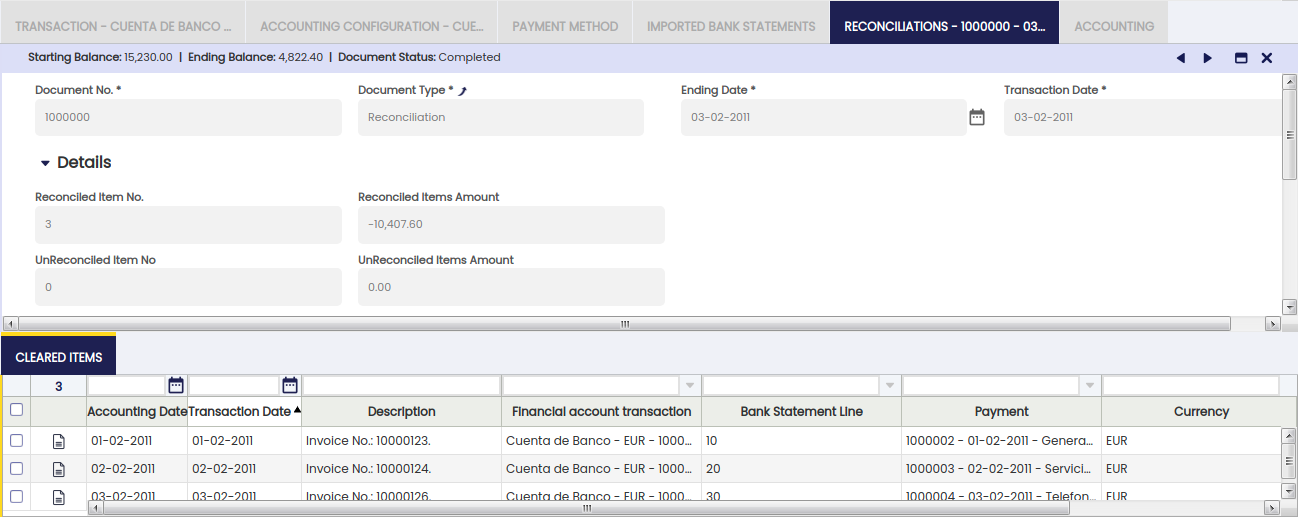
The reconciliation tab shows the reconciliations created manually if no matching algorithm is assigned to the financial account as well as the ones created while matching an imported bank statement file otherwise.
Manual Reconciliations
- As already explained, the process button Reconcile allows the user to manually reconcile existing financial account transactions in the "Reconciliation" window.
- Each reconciliation of that type once saved is also saved in this tab in "Draft" status until it is finally reconciled in the "Reconciliation" window therefore, its status changes to "Completed".
- It is possible to "Reactivate" a reconciliation of that type, therefore it can be changed in the "Reconciliation" window and be reconciled from that window once more.
Automatic Reconciliations
- In the same way, once a bank statement file has been imported, the bank statement lines can be automatically reconciled in the "Match using imported Bank Statement Lines" window accessible from the process button Match Statement.
- Each reconciliation of that type once saved is also saved in this tab in "Draft" status until it is finally reconciled in the "Match using imported Bank Statement Lines" window therefore, its status changes to "Completed".
- It is possible to "Reactivate" a reconciliation of that type, therefore it can be changed in the "Match using imported Bank Statement Lines" window and be reconciled from that window once more.
Reconciliations Posting
A Reconciliation of any type can be posted if the Payment Method used while creating the payment to be reconciled allows the user to do so once assigned to the financial account. If that is not the case, Etendo shows a warning : "Document disabled for accounting".
A "Deposit Reconciliation" posting looks like:
a. if the Payment Received was NOT posted in the "Payment In" window and the Deposit Transaction was also NOT posted in the "Financial Account" window:
| Account | Debit | Credit |
| Upon Reconciliation Use the "Cleared Payment Account" (i.e) | Payment amount | |
| Customer Receivables | Payment amount |
b. if the Payment Received was posted in the "Payment In" window and the Deposit Transaction was NOT posted in the "Financial Account" window:
| Account | Debit | Credit |
| Upon Reconciliation Use the "Cleared Payment Account" (i.e) | Payment amount | |
| Upon Receipt Use the "In Transit Payment IN Account" (i.e) | Payment amount |
c. if the Payment Received was posted in the "Payment In" window or not and the Deposit Transaction was posted in the "Financial Account" window:
| Account | Debit | Credit |
| Upon Reconciliation Use the "Cleared Payment Account" (i.e) | Payment amount | |
| Upon Deposit Use the "Deposit Account" (i.e) | Payment amount |
Info
Each posting will be different when the amount comes partially or totally from a debt classified as doubtful. In that case, the posting will be as explained in the Doubtful Debt Run page.
A "Withdrawal Reconciliation" posting looks like:
a. if the Payment Made was NOT posted in the "Payment Out" window and the Withdrawal transactions was also NOT posted in the Financial Account window:
| Account | Debit | Credit |
| Vendor Liability | Payment amount | |
| Upon Reconciliation Use the "Cleared Payment Account" (i.e) | Payment amount |
b. if the Payment Made was posted in the "Payment Out" window and the Withdrawal transactions was NOT posted in the Financial Account window:
| Account | Debit | Credit |
| Upon Payment Use the "In Transit Payment OUT Account" (i.e) | Payment amount | |
| Upon Reconciliation Use the "Cleared Payment Account" (i.e) | Payment amount |
c. if the Payment Made was posted in the "Payment Out" window or not and the Withdrawal transactions was posted in the Financial Account window:
| Account | Debit | Credit |
| upon Withdrawal Use the "Withdrawal Account" (i.e) | Payment amount | |
| Upon Reconciliation Use the "Cleared Payment Account" (i.e) | Payment amount |
Reconciliations Reporting
Additionally there are two reports which shows information about each reconciliation, those reports can be run from the process buttons:
- Reconciliations Details
- Reconciliation Summary
Cleared Items
This tab shows the transactions cleared or set as matched in a reconciliation.
As soon as either a manual or an automatic reconciliation is "Saved" in "Draft" status in the Reconciliations tab, this sub-tab allows to see the transactions cleared in the Reconciliation window or match against a bank statement line in the Mach Using imported Bank Statement Lines window.
It is not possible to remove the cleared items from this sub-tab but from either the "Reconciliation" window or the "Mach Using imported Bank Statement Lines" window whenever the reconciliation has been "reactivated".
Cleared item sub-tab allows to see below information:
- the financial account transaction reconciled
- the payment reconciled
- the description of the transaction reconciled for instance "Invoice No:..."
- and either the Deposit Amount or the Withdrawal Amount of the cleared transaction.
Accounting
The accounting tab is a read-only tab which shows every financial account transaction posting.
Payment Removal
The aim of this functionality is to delete and reactivate payments in an agile and easy way. Also, it allows eliminating and reactivating bank transactions and reconciliations.
Info
To be able to include this functionality, the Financial Extensions Bundle must be installed. To do that, follow the instructions from the marketplace: Financial Extensions Bundle. For more information about the available versions, core compatibility and new features, visit Financial Extensions - Release notes.
Transactions
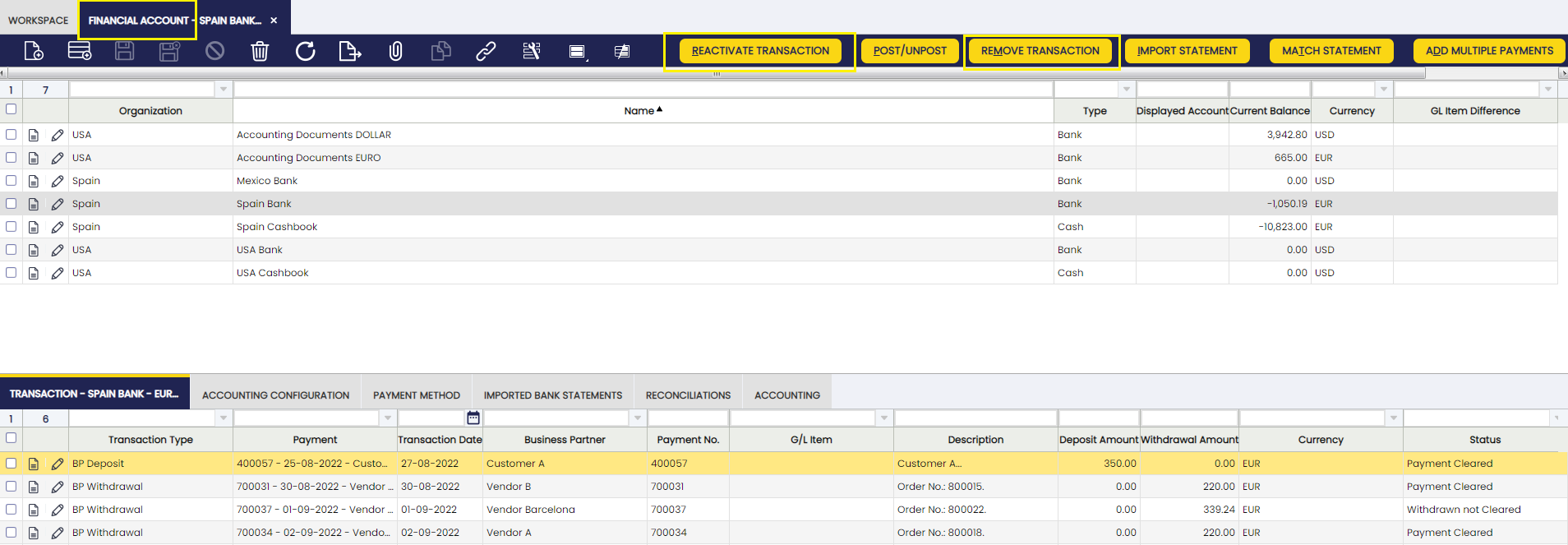
From this window, it is possible to delete and reactivate the transactions included in a financial account.
Payments can be found in this instance in Withdrawn not cleared, Deposited not cleared and Payment cleared status, in the latter case the payment is already reconciled, and therefore related to a bank reconciliation and a bank statement.
To remove a transaction, select the corresponding record in the Transaction tab and then click on the Remove Transaction button. If the payment is in Deposited not cleared or Withdrawn not cleared status, the process removes the transaction from the financial account, and the payment returns to its previous status. If the status is Payment cleared, the process also removes the related reconciliation line and also the related bank statement line.
Note that:
If the reconciliation is completed and the rest of the existing reconciliations are also completed, then the reconciliation in question is reopened to remove the matching reconciliation line and closed again. If the reconciliation is completed and there is a reconciliation in Draft status, the draft reconciliation will be closed, the corresponding reconciliation is reactivated, the corresponding reconciliation line is deleted, it will be closed again and the one in Draft status will be reactivated.
To reactivate a transaction, select the corresponding record in the Transaction tab and then click on the Reactivate Transaction button. If the payment is in Deposited not cleared or Withdrawn not cleared status, the payment returns to its previous status but will remain associated to the financial account. If the status is Payment cleared, the process also deletes the related reconciliation line and also the related bank statement line.
Consider the following cases:
- If the reconciliation is completed and the rest of the existing reconciliations are completed, then the reconciliation in question will be reopened to delete the relevant reconciliation line and closed again.
- If the reconciliation is completed and there is a reconciliation in Draft status, the draft reconciliation is closed, the corresponding reconciliation is reactivated, the corresponding reconciliation line is deleted, it will be closed again and the one in Draft status will be reactivated.
Reconciliations
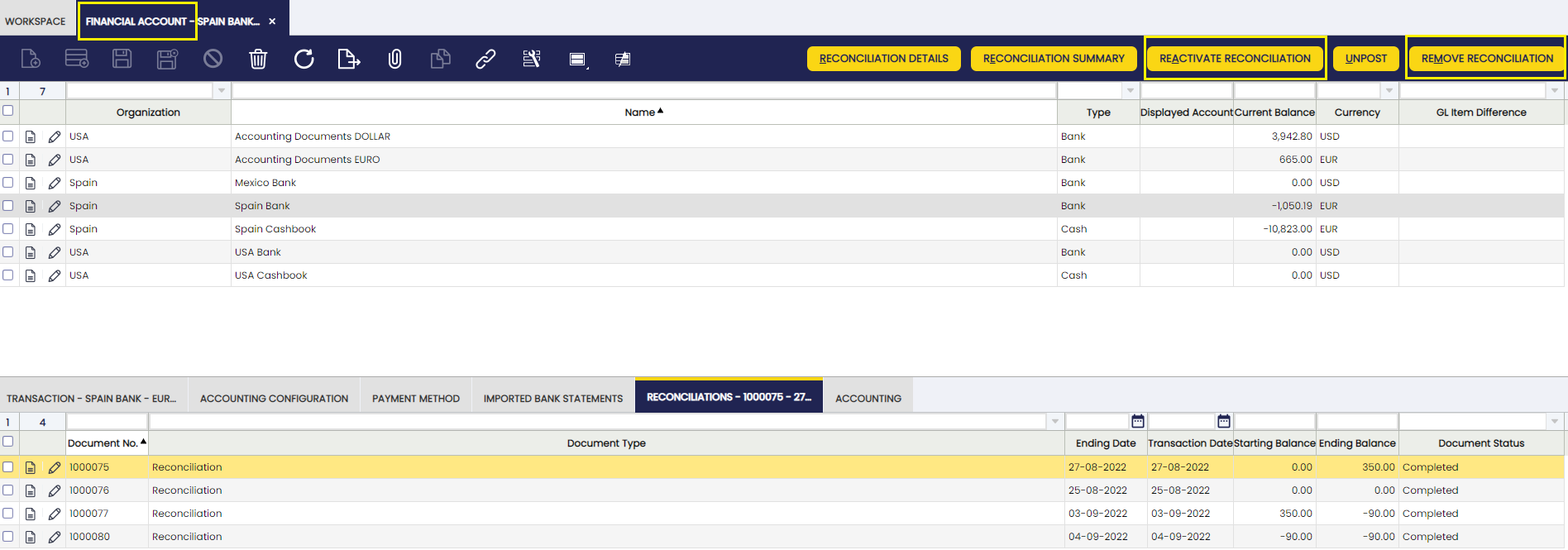
It is possible to delete and reactivate bank reconciliations.
The following situations can be possible:
- Delete a reconciliation in Completed or Draft status: in this case the corresponding reconciliation is deleted, the bank statement lines associated with it and the payments reconciled in it change their status to Deposited not cleared or Withdrawn not cleared.
- Reactivate a reconciliation in Completed status. The other existing reconciliations are also in Completed status: in this case the reconciliation is reactivated and its status returned to Draft.
- Reactivate a reconciliation in Completed status. There is another reconciliation in Draft status: in this case, the reconciliation in Draft status is completed first and the selected reconciliation is reactivated and its new status will be : Draft.
Bulk Posting
Info
To be able to include this functionality, the Financial Extensions Bundle must be installed. To do that, follow the instructions from the marketplace: Financial Extensions Bundle. For more information about the available versions, core compatibility and new features, visit Financial Extensions - Release notes.
The Bulk Posting functionality allows the user to post or unpost multiple records by selecting the corresponding records and clicking the Bulk posting button. In the case of the "Financial Account" window, this option can be used in three tabs: Transaction, Imported Bank Statements and Reconciliations.
Also, the Accounting Status of the record/s is shown in the status bar, in form view, or in a column, in grid view.
Info
For more information, visit the Bulk Posting module user guide.
Advanced Business Partner Settlement
Info
To be able to include this functionality, the Financial Extensions Bundle must be installed. To do that, follow the instructions from the marketplace: Financial Extensions Bundle. For more information about the available versions, core compatibility and new features, visit Financial Extensions - Release notes.
Etendo allows performing a settlement from a bank reconciliation. From the Financial Account window, once the bank statements are already imported and processed, the user is able to select the bank statement from the financial account and match it with the invoice to be paid by clicking on the Match Statement button.
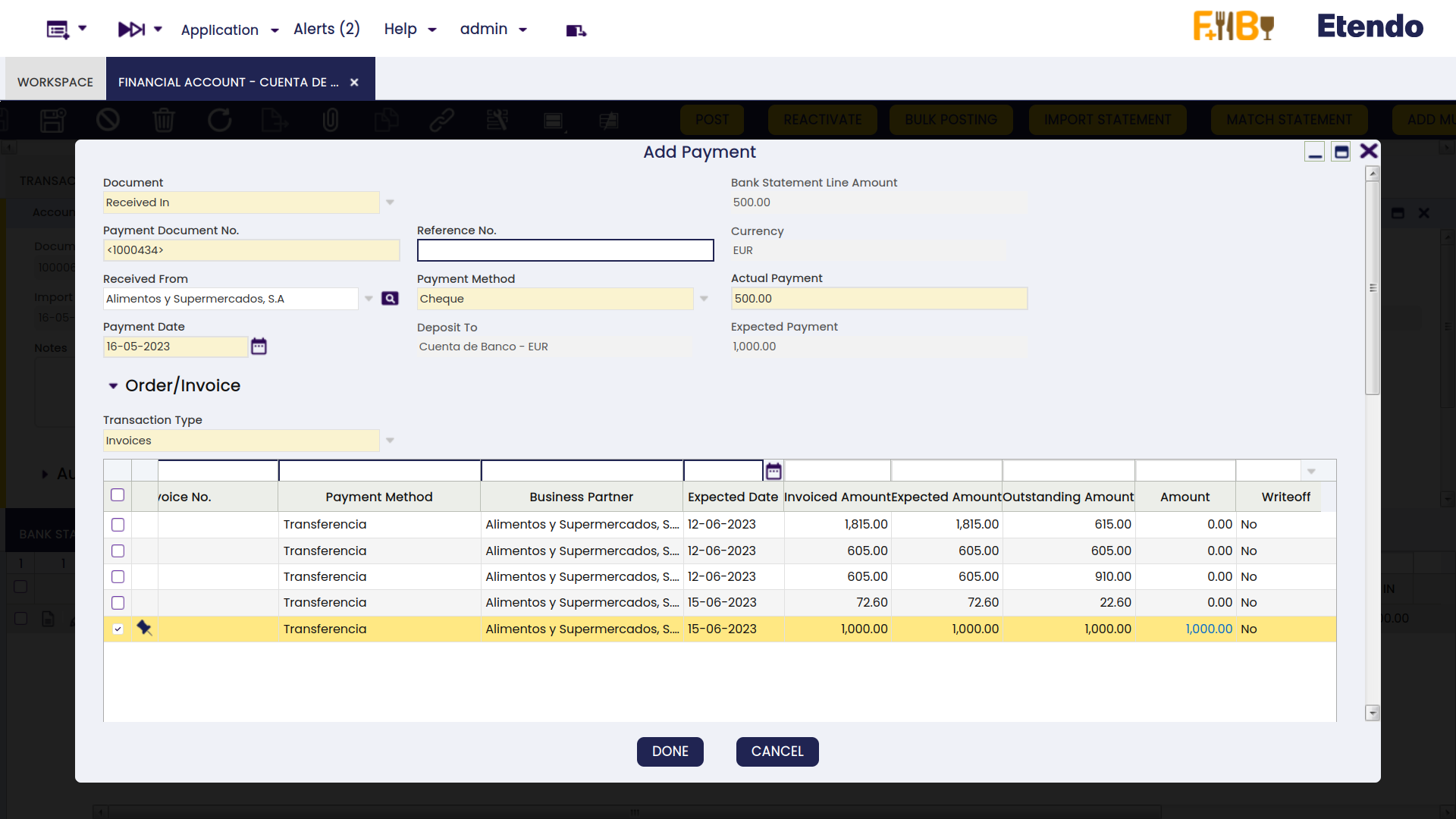
In the pop-up window, Etendo shows a list of invoices to be settled each one with its corresponding invoice number, here the user is able to select the corresponding invoice to net with its Actual Payment amount to be paid.
From the Invoice From Compensation tab, the user selects the invoice that will be used to pay (either sales or purchase, depending on the invoice previously chosen) and sets the needed amount from the invoice to be netted.
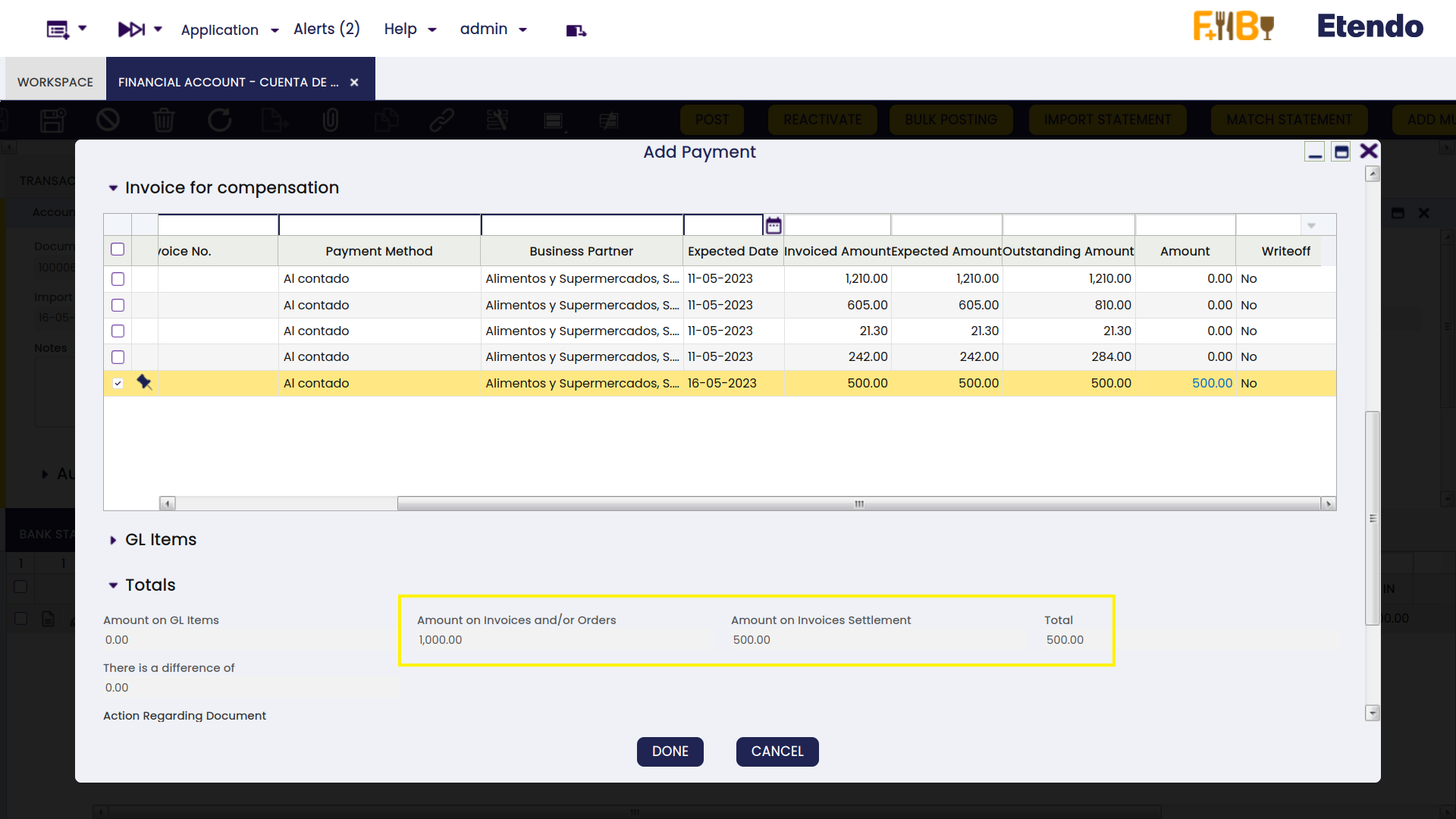
After clicking the Done button, Etendo opens another pop-up window to show the information for the new settlement to be created for the user to confirm the details by clicking Done.
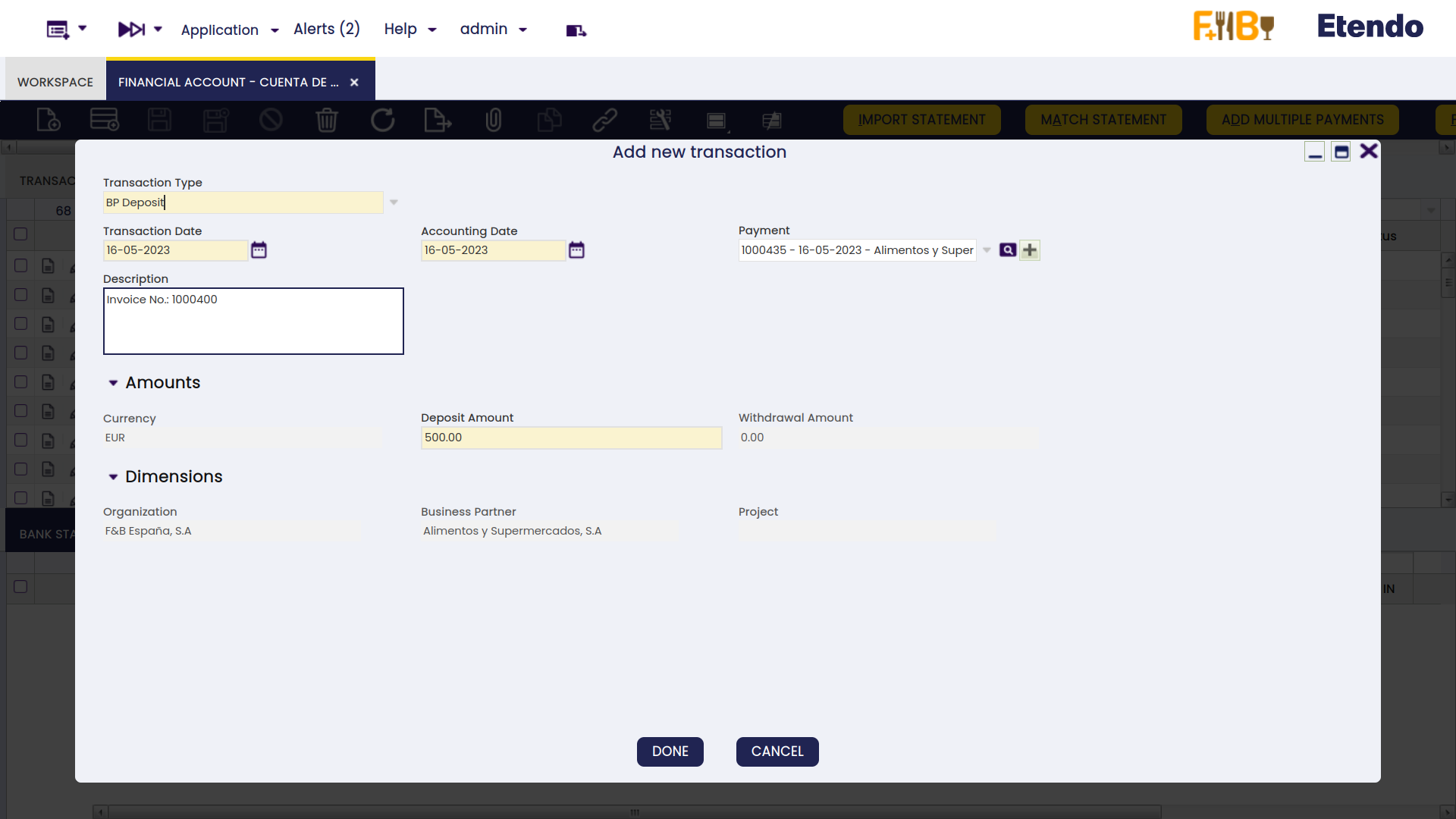
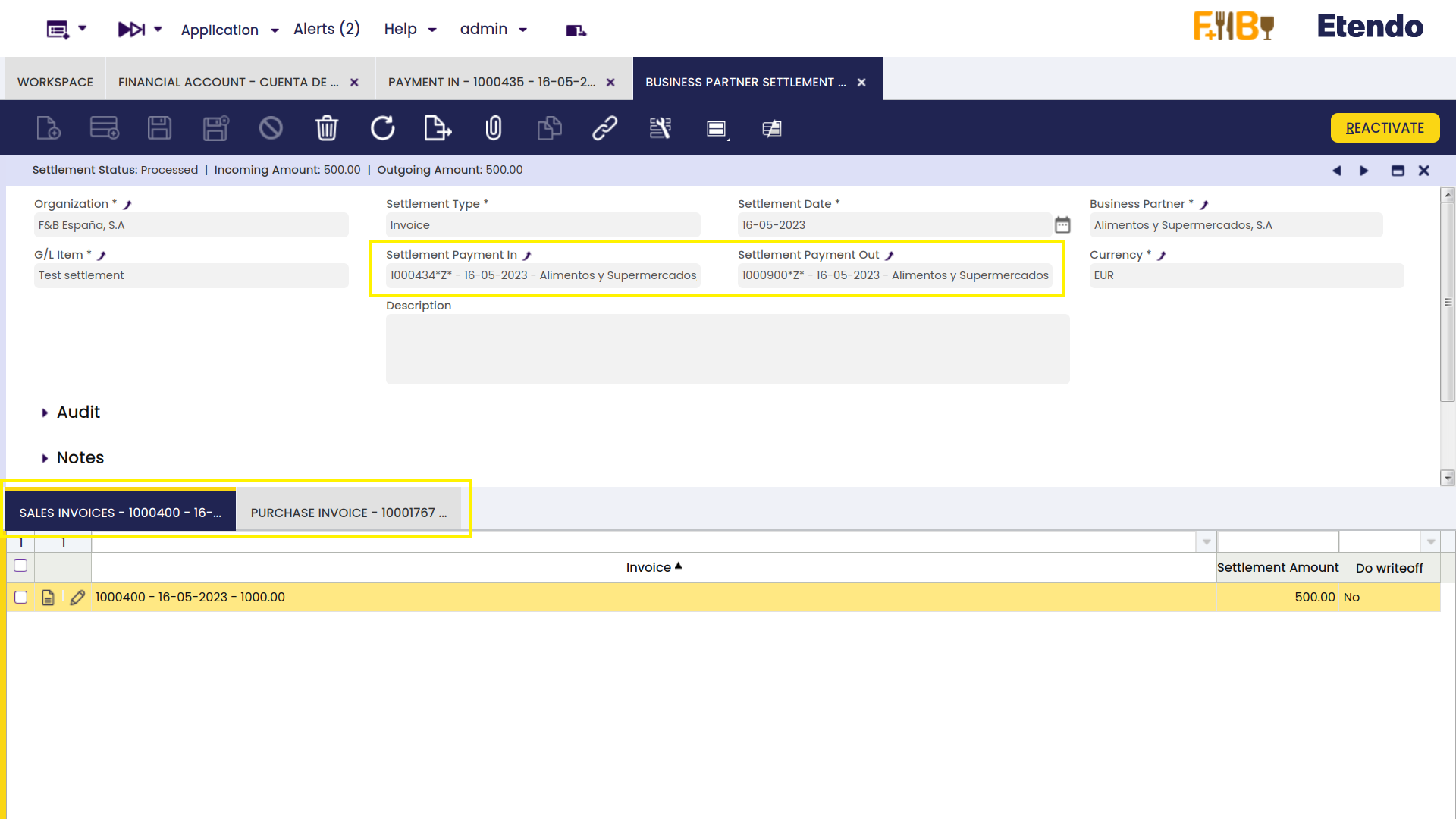
The settlement record (payment in and payment out) is also registered in the Business Partner Settlement window where a line for the invoice (sales and purchase) used to net will be shown.
Info
For more information, visit the Business Partner Settlement Module - User Guide.
This work is a derivative of Financial Management by Openbravo Wiki, used under CC BY-SA 2.5 ES. This work is licensed under CC BY-SA 2.5 by Etendo.