Tax Category
Application > Financial Management > Accounting > Setup > Tax Category
Overview
A Tax Category is used to group products or services that share the same tax treatment. Since not all items have the same tax rate (standard, reduced, or exempt), tax categories help organize these differences and ensure taxes are applied automatically and correctly during transactions.
Each product or service must be assigned to one tax category in the Product window, and tax rates are also linked to categories. When a transaction is created, Etendo only considers the tax rates associated with the selected category, reducing manual intervention and preventing errors.
Additional factors, such as the Business Partner tax category and tax rate configuration, help the system determine the final applicable tax.
How Tax Categories Work
The tax determination process follows this logic:
- Product's Tax Category defines which tax rates are available
- Business Partner's Tax Category (optional) further filters applicable tax rates
- Tax Rate Configuration determines the final tax percentage based on additional criteria (location, document type, etc.)
- Automatic Selection occurs when creating orders or invoices, but can always be manually overridden
This structure allows for flexible tax management while maintaining consistency across the system.
Header
You can create as many tax categories as needed to organize different tax treatments in your system. Each category will be linked to specific tax rates and assigned to products. The Header tab defines the main information of the tax category.
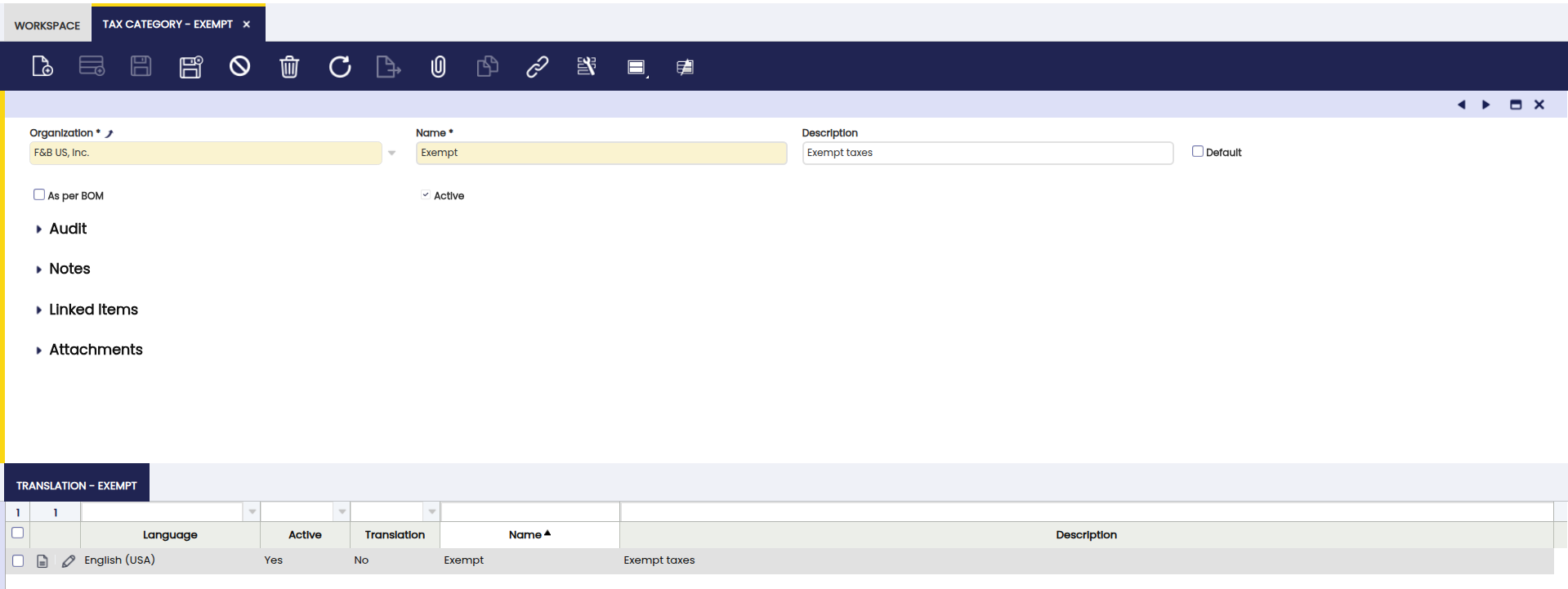
Fields to note:
- Name: A descriptive name to identify the tax category (e.g., "Standard VAT", "Reduced VAT", "Exempt").
- Description of the Tax Category: Optional explanation of the category's purpose or usage scenarios. This helps other users understand when to use this category.
- Default: When checked, this tax category will be automatically selected as the default value when creating new products or configuring tax rates.
-
As per BOM (Bill of Materials): When enabled, the tax is calculated proportionally based on the components in the product's Bill of Materials rather than a single rate.
Info
If the tax category is flagged as As per BOM, it indicates that products with this category will use the products included in its Bill of Materials list to calculate proportionally the taxes. In this case, only one Tax Rate has to be configured for this tax category flagged as Summary level.
Use case example: A bundled product containing items with different tax rates (e.g., a gift basket with food at 10% and non-food items at 21%) can use this feature to calculate taxes proportionally based on each component's value and tax rate.
After Creating Tax Categories
Once created, tax categories must be:
- Linked to tax rates in the Tax Rate window - Each tax rate must belong to at least one tax category
- Assigned to products in the Product window - Each product must have one tax category
- Optionally assigned to business partners via Business Partner Tax Category to restrict applicable taxes for specific customers or vendors
Translation
The Translation tab allows you to provide translated names and descriptions for tax categories in multiple languages. This is useful for multinational organizations where users work in different languages.
When a user logs in with a specific language preference, they will see the tax category names in their language, ensuring clarity and reducing confusion when selecting tax categories during transaction entry.
Common Use Cases
When to Create Multiple Tax Categories
You should create different tax categories when:
- Products have different tax rates: Standard (21%), reduced (10%), super-reduced (4%), or exempt (0%)
- Different tax types apply: VAT, sales tax, excise tax, or special duties
- Industry-specific tax rules exist: Real estate transactions, agricultural regime, financial services
- Cross-border sales: Domestic vs. export products (taxable vs. zero-rated)
- Regulatory requirements: Separating reportable vs. non-reportable items for tax authorities (e.g., SII in Spain)
Where Tax Categories Are Used
Tax categories appear throughout the system:
| Window/Process | Usage |
|---|---|
| Product | Each product must be assigned one tax category |
| Tax Rate | Each tax rate must be linked to at least one tax category |
| Business Partner Tax Category | Optional tax category assignment to restrict applicable taxes for specific customers/vendors |
| Sales Orders/Invoices | Tax categories determine which tax rates are available for selection |
| Purchase Orders/Invoices | Tax categories filter applicable taxes based on product and vendor configuration |
| G/L Item | Required when enabling G/L items for financial invoices with tax implications |
Example
A company sells different types of items with varying tax rates:
| Item Type | Tax Rate | Tax Category |
|---|---|---|
| Electronics | 21% | Standard VAT |
| Food | 10% | Reduced VAT |
| Books | 0% | Exempt |
Setup Steps:
-
Create three tax categories:
- Name: "Standard VAT" → For products with standard tax rate
- Name: "Reduced VAT" → For products with reduced tax rate
- Name: "Exempt" → For tax-exempt products
-
Configure tax rates in the Tax Rate window:
- Create a 21% tax rate and link it to the "Standard VAT" category
- Create a 10% tax rate and link it to the "Reduced VAT" category
- Create a 0% tax rate and link it to the "Exempt" category
-
Assign products to categories in the Product window:
- Product "Laptop" → Tax Category: "Standard VAT"
- Product "Bread" → Tax Category: "Reduced VAT"
- Product "Novel Book" → Tax Category: "Exempt"
Result in Transactions:
When creating a sales order or invoice:
- Adding "Laptop" → Etendo automatically applies 21% tax (from Standard VAT category)
- Adding "Bread" → Etendo automatically applies 10% tax (from Reduced VAT category)
- Adding "Novel Book" → Etendo automatically applies 0% tax (from Exempt category)
This structure helps centralize tax logic, ensures accurate tax calculation, and simplifies tax maintenance across the system. If tax rates change (e.g., standard VAT increases from 21% to 23%), you only need to update the tax rate configuration—all products linked to that category will automatically use the new rate.
This work is a derivative of Tax Category by Openbravo Wiki, used under CC BY-SA 2.5 ES. This work is licensed under CC BY-SA 2.5 by Etendo.