Document Type
Application > Financial Management > Accounting > Setup > Document Type
Overview
Each document type in Etendo refers to a business transaction such as purchase orders, shipments or sales invoices, among others. Etendo includes a complete set of standard Document Types needed for the application to work properly.
This set is bundled into two reference datasets:
- Standard document types for orders, invoices, etc. and settings - Core - English (USA)
- Document types and default algorithm for bank statement auto matching - Advanced Payables
Info
These datasets can be imported into the application during its initial setup using Initial Client Setup or Initial Organization Setup processes. Or if the application is already up and running, these datasets or their updates can be installed using Enterprise Module Management window.
The complete list of standard document types is the following:
| Document Type Name | Document Category | Business Transaction |
| AP CreditMemo | AP Credit Memo | Purchase Credit Memo |
| AP Invoice | AP Invoice | Purchase Invoice |
| AR CreditMemo | AR Credit Memo | Sales Credit Memo |
| AR Invoice | AR Invoice | Sales Invoice |
| Return Material Sales Invoice | AR Return Material Invoice | Return Material Sales Invoice |
| Reversed Sales Invoice | AR Invoice | Reversed Sales Invoice |
| MM Receipt | Material Receipt | Goods Receipt |
| RTV Shipment | Material Receipt | Return to Vendor Shipment |
| MM Shipment | Material Delivery | Goods Shipment |
| RFC Receipt | Material Delivery | Return from Customer receipt |
| Purchase Order | Purchase Order | Purchase Order |
| RTV Order | Purchase Order | Return to Vendor |
| Quotation | Sales Order | Sales Quotation |
| RFC Order | Sales Order | Return from Customer Sales Order |
| POS Order | Sales Order | Point of Sales Order |
| Warehouse Order | Sales Order | Warehouse Order |
| Standard Order | Sales Order | Sales Order |
| AP Payment | AP Payment | Payment Out |
| AR Receipt | AR Receipt | Payment In |
| Financial Account Transaction | Financial Account Transaction | Financial Account Transaction |
| Bank Statement File | Bank Statement File | Bank Statement |
| Payment Proposal | AP Payment Proposal | Payment Proposal |
| Reconciliation | Reconciliation | Reconciliation |
| Doubtful Debts | Doubtful Debt | Doubtful Debt |
| Cost Adjustment | Cost Adjustment | Cost Adjustment |
| Landed Cost | Landed Cost | Landed Cost |
| Landed Cost Cost | Landed Cost Cost | Landed Cost Cost |
| Inventory Amount Update | Inventory Amount Update | Inventory Amount Update |
Important
New document types could be added to the list above. If that is the case, an updated version of the Reference Data containing the new document types will be provided by Etendo in new versions. That newly created Reference Data will have to be applied to the corresponding Organization in the Enterprise Module Management. It is also possible to manually create new document types, but this process should be done by an advanced user, as explained below.
Advanced User Guide
Header
The Document Type window allows advanced users to configure how each document type is going to behave in terms of accounting and sequencing among others.
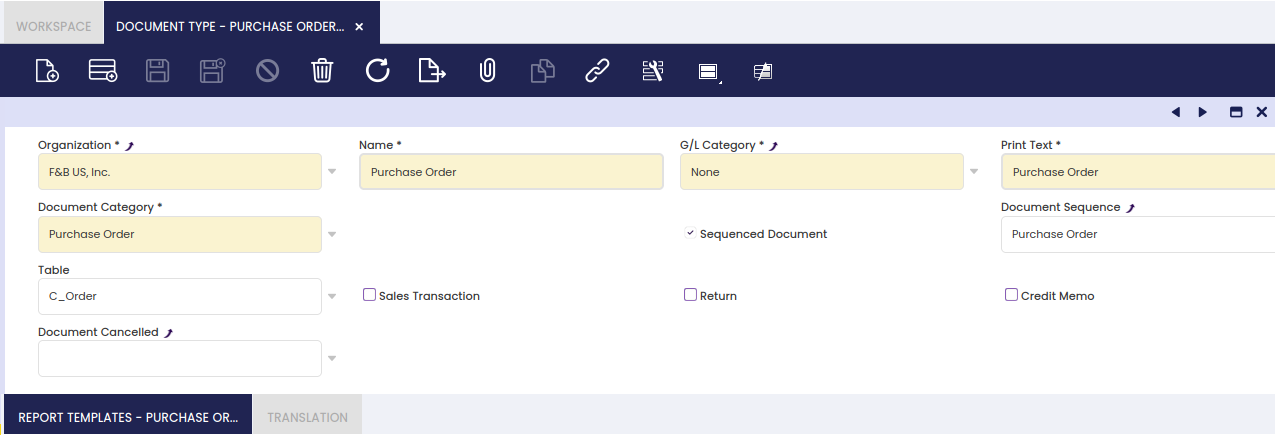
Fields to note:
- An Organization is a unit of your client or legal entity.
- The Name of the document.
- The G/L Category is an optional, user defined method of grouping journal lines.
- The Print Text which is the name of the document to be printed.
- A Document Category is the document base type that identifies a document. Multiple document types may share a single document category.
-
The SSO Sub Type indicates the type of sales order this document refers to.
Info
This field only appears when the Document Category is Sales Order.
The selection made here will determine which documents will be generated when an order is processed and which documents must be generated manually or in batches. The following outlines this process.
- The Standard Order option generates just the Order document when the order is processed. The Delivery Note, Invoice and Receipt must be generated via other processes.
- The Warehouse Order option generates the Order and Delivery Note. The Invoice and Receipt must be generated via other processes.
- The On Credit Order option generates the Order, Delivery Note and Invoice. The Receipt must be generated via other processes.
-
The Sequenced Document flag could be disabled or enabled if it is required to either
- manually number a document type
- or automatically number a document type according to a given document sequence.
-
The Document Sequence indicates the sequencing rule to use for this document type.
Info
This field is only displayed when the Sequenced Document checkbox is selected.
-
The Table indicates the table to which the document type corresponds.
- The Sales Transaction checkbox indicates if this item is a Sales Transaction. If not checked, by default the item refers to a Purchase transaction.
- The Return checkbox indicates if the document is of reversal type. Documents with this flag enable using negative quantities.
-
The Credit Memo checkbox is enabled by default for Credit Memo document types such as AR Credit Memo and AP Credit Memo:
-
Credit Memo document types are also reverse or cancelled documents type however, those behave differently than return document types, for instance:
- they generate invoices with positive invoiced quantity/ies
-
therefore, the posting is always opposite to the invoices one, regardless the Allow Negative checkbox setup:
Account Debit Credit Comments Customer Receivables Line Net Amount One per invoice line Tax Debit Tax Amount One per tax line Product Revenue Total Gross Amount One per invoice
-
-
Document Cancelled, if any, is the document to use for voiding a given document type.
For instance, a Reversed Sales Invoice document type can be set as the document canceled of an AR Invoice, therefore that one will be the one to use while voiding an AR Invoice (or sales invoice).
- A Reversed Sales Invoice document type is also an AR Invoice document type, but it can have a different sequencing by just linking it to a different document sequence.
-
besides, it is set as a Return document type, which means that:
- it generates a negative sales invoice with a negative invoiced quantity/ies
- therefore, the posting will be opposite to the sales invoice one, as described below, in case Allow Negative checkbox is enabled and in case it is not:
Account Debit Credit Comments Customer Receivables (-) Line Net Amount One per invoice line Tax Debit (-) Tax Amount One per tax line Product Revenue (-) Total Gross Amount One per invoice Account Debit Credit Comments Customer Receivables Line Net Amount One per invoice line Tax Debit Tax Amount One per tax line Product Revenue Total Gross Amount One per invoice
-
The Active checkbox can be used to activate or deactivate this document type.
-
The Default checkbox indicates if this record is to be used as a default value.
Info
The following fields are only displayed when the selected document category is Sales Order.
-
The Document Type for Invoice field indicates the document type that will be used when an invoice is generated from this sales document. It allows to define the document (i.e. Return Material Sales Invoice) to use while creating a Sales Order from a Return Material Document Type, like Return From Customer.
- The Document Type for Order field allows the user to define for the Quotation Document Type the document (i.e Standard Order) to use while creating a sales order from a sales quotation.
- The Document Type for Shipments field indicates the document type that will be used when a shipment is generated from this sales document.
- The Document Type for Simplified Invoice field indicates the document type that will be used when a simplified invoice is generated from this sales document.
- The Document Type for Aggregated Invoice indicates the document type that will be used when an aggregated invoice is generated from this sales document.
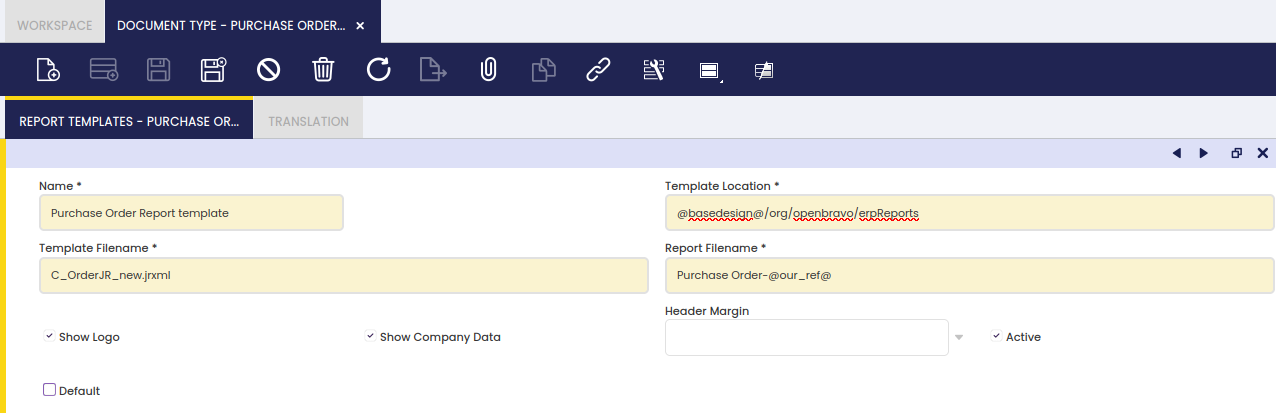
Report Templates
The Report Templates tab allows the user to configure a different aspect for the printables related to each document type by setting up Jasper .jrxml templates.
Info
By default, these templates are included in the datasets mentioned in the overview.
It is possible to print document types such as Goods Shipments or Sales Invoices by using the Print action button, which can be found in the corresponding window toolbar.
In Etendo, every document suitable to be printed is linked to a standard report template.
If necessary, report templates can be customized and even new ones can be created and therefore linked to a given document type.
Warning
Even though this option is available in this functional tab, this configuration must be done by a developer.
Email Definitions
The Email Definitions tab supports the creation of as many email templates as required, depending on the language to be used for sending the documents by email. Documents can be sent by email by using the action button Email which can be found in the corresponding toolbar.
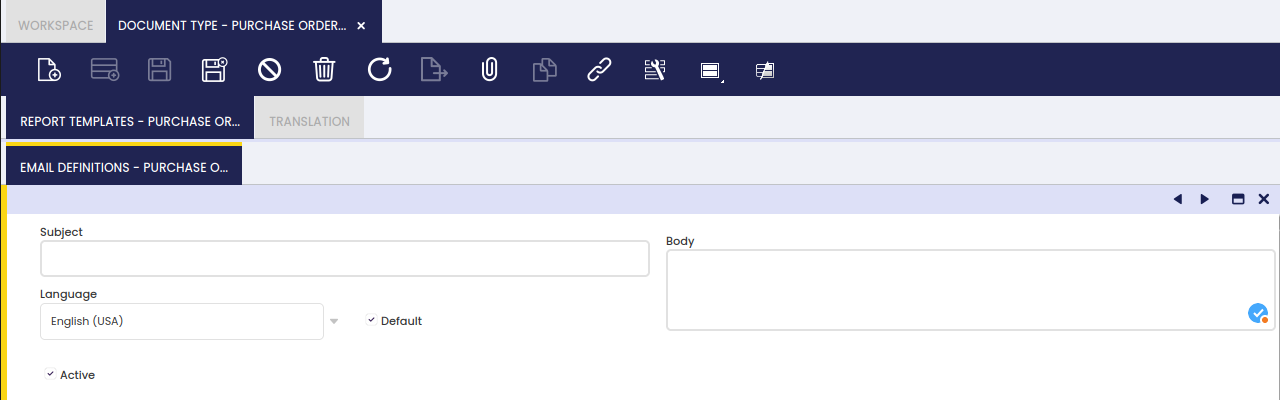
As shown in the image above, it is possible to define:
-
A Subject template to be populated with real data every time a given document is sent by email.
For instance:
New Invoice (@our_ref@)will turn into New Invoice (SI/2589) where SI/2589 is the number of the invoice sent by email. -
A Body template to be populated with real data every time a given document is sent by email.
For instance:
Dear @cus_nam@, Find attached the invoice @our_ref@ corresponding to the products you received from F&B International Group.will turn Dear Healthly Food Supermarkets Co., Find attached the invoice SI/2589 corresponding to the products you received from F&B International Group.
Here is the list of possible tags:
@cus_ref@: The document reference of the customer.@our_ref@: The reference of the document.@cus_nam@: The name of the customer.@sal_nam@: The name of the sales representative.@bp_nam@: The Business Partner name.@doc_date@: The document date.@doc_desc@: The document description.@doc_nextduedate@: The next due date (if document has associated any payment plan).@doc_lastduedate@: The last due date (if document has associated any payment plan).
Translation
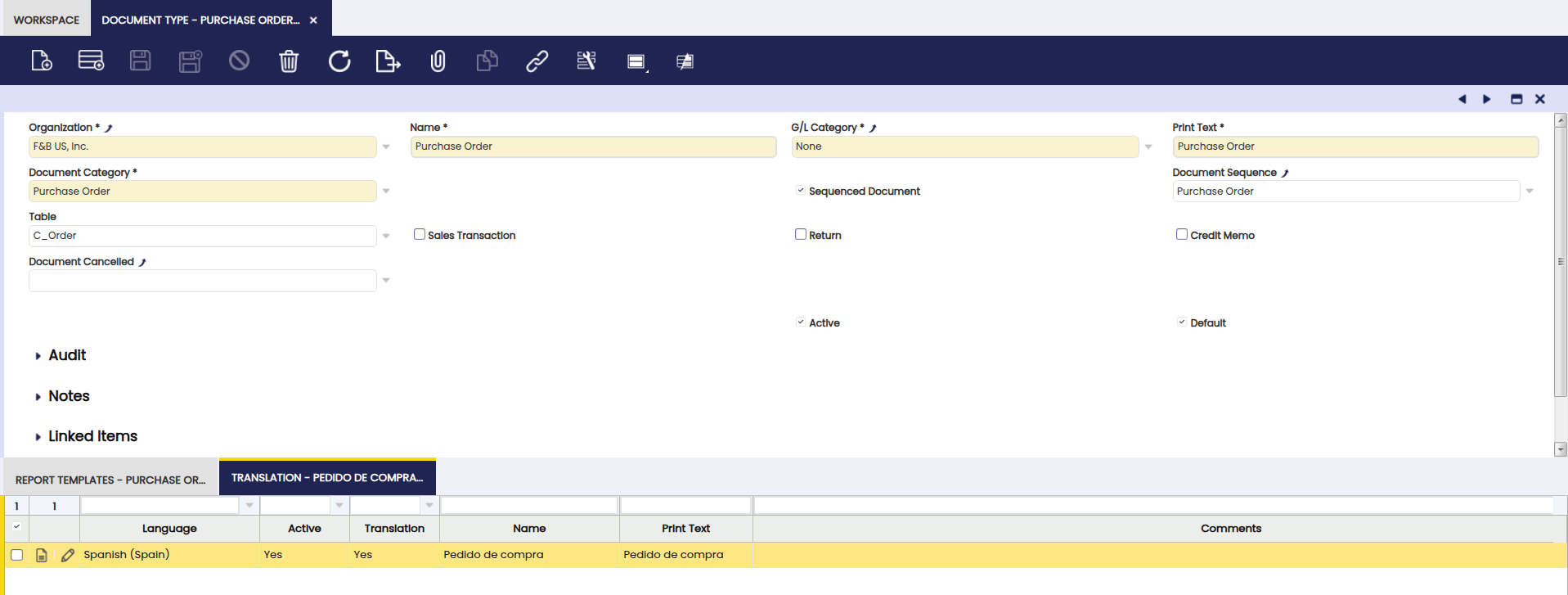
In this tab, document types can be translated to any language required. To do this, create a new record and fill the corresponding fields, as shown below.
This work is a derivative of Document Type by Openbravo Wiki, used under CC BY-SA 2.5 ES. This work is licensed under CC BY-SA 2.5 by Etendo.