How to create and work with bulk tasks for Copilot
Overview
This article explains how to create and work with bulk tasks for Copilot. This is useful when you want to create multiple tasks at once and execute them in the background with Copilot.
Concept and Use Cases
When you need to make use of an AI agent to perform tasks with a high volume of iterations, it will be limited in the amount it can handle and its speed. Then the concept of Bulk tasks is born, which consists of storing requests in a window of the Tasks module.
Warning
It is necessary to consider that these tasks must be isolated from each other. That is, they do not need information from each other. For example, when loading data from an excel file, each row will be executed separately.
These requests can be executed manually or be processed in a background process already included in the Copilot module.
Add Copilot Tasks
The Etendo Copilot module includes:
- Add Copilot Task Button: This button in the
Taskswindow allows you to send a CSV/XLSX/ZIP file to create bulk tasks. - Bulk Task Creator: This agent is configured with the Task Creator Tool to create bulk tasks based on a zip file or a CSV/XLSX file. This agent can be added to a supervisor agent to chain with other agents.
In both options, the requirements are the same:
- CSV/XLSX/ZIP file: The file that contains the data to be processed.
- Question: The description or request that will be used as the task base. For the case of the agent
Bulk Task Creator, it will be in charge of reforming the task to convert it to singular tasks. But for the other options, it is necessary to provide the task base in singular form. - Execution Group: Optional group. If not set, it uses the conversation ID. It is used to identify the tasks that belong to the same group.
- Task Type: Optional task type ID. If not set, it auto-creates one named "Copilot". It is used to identify the type of task.
- Status: Optional status ID. Defaults to "Pending". It is used to identify the status of the task. After the task is processed, the status will be updated to
Completed. - Agent: The agent that will process the tasks. If the agent is not specified, will be selected the agent that used the tool. For the case of the agent
Bulk task creator, it will be selected the supervisor agent that contains it. - Groupby: Optional parameter. A list of column names (or a comma-separated string) to group rows by their values. When specified, rows with the same values in these columns will be grouped into a single task, with the data passed as a JSON array. This is useful for processing related records together (e.g., all order lines for the same document). If not specified, each row becomes a separate task.
- Preview: Optional boolean parameter. When set to
true, the tool will return a preview of how the tasks would be created without actually creating them. This is useful for validating the task structure before creating a large number of tasks.
Info
When the tasks are created, the tasks will be created one per row in the case of CSV/XLSX files (unless groupby is used), one per file in the case of ZIP files, and one per file in the case of other files. The task request will be in the following format:
- Without groupby:
BASE_TASK - [FILE_NAME/ROW DATA] - With groupby:
BASE_TASK - [JSON array with grouped rows]
Example
For example, if you have a CSV file with the following data:
SKU,Description,Category,Price
33601251,FAN 38*30 NATURAL FIBER,Others,6100
33600292,BOTTLE OPENER,Others,10500
33600139,RUBBER BATH MAT,Decoration,3900
33600228,TREE,Plants,11500
33600739,ROUND METAL BUCKET,Others,9000
33600356,BAG 14X7X15,Others,1000
33600337,PIANO MUSIC BOX,Decoration,12000
And the objective is to insert these products in Etendo. For this example we will use the Data Initialization Supervisor agent that contains the Product Generator agent that can create products in Etendo. The steps to create the bulk tasks are:
Using the Add Copilot Task button
- Go to the Tasks window.
-
Click on the
Add Copilot Taskbutton. That will open a window to set the parameters for the bulk tasks.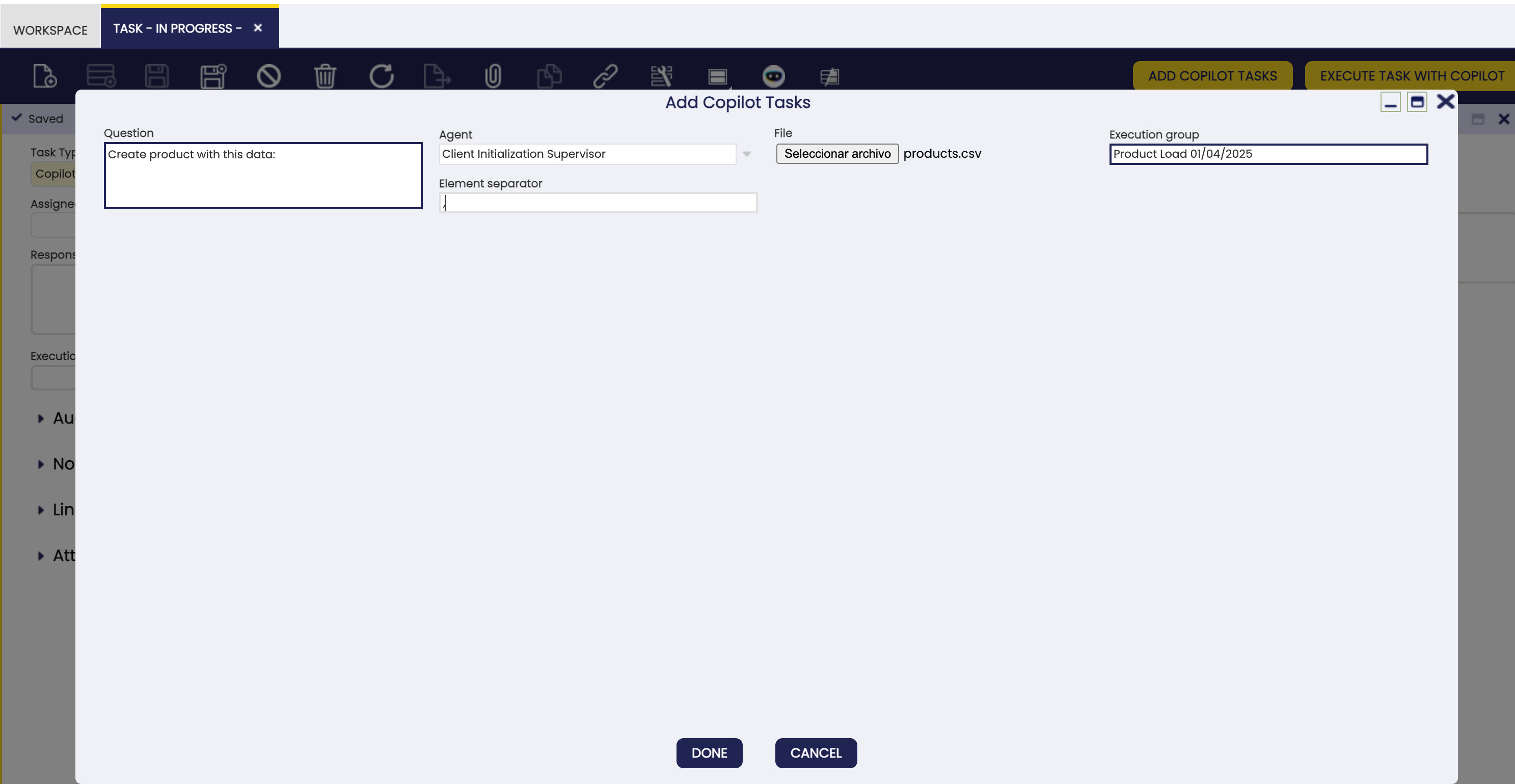
- Set the Question parameter with the description of the task, in singular form, that will be used as the task base. For example,
Create product with this data:. - Select the Agent. In this case, select the
Data Initialization Supervisoragent. - Select the File to be processed. In this case, select the CSV file with the products data.
- Set an identifier for the Execution Group. For example,
Product Load 01/04/2025. This can be used to identify the tasks that belong to the same group. - Set an Element separator. This is the character that will be used to separate the data from the file CSV. For example,
,or;.
- Set the Question parameter with the description of the task, in singular form, that will be used as the task base. For example,
-
Click on
Donebutton. And the tasks will be created.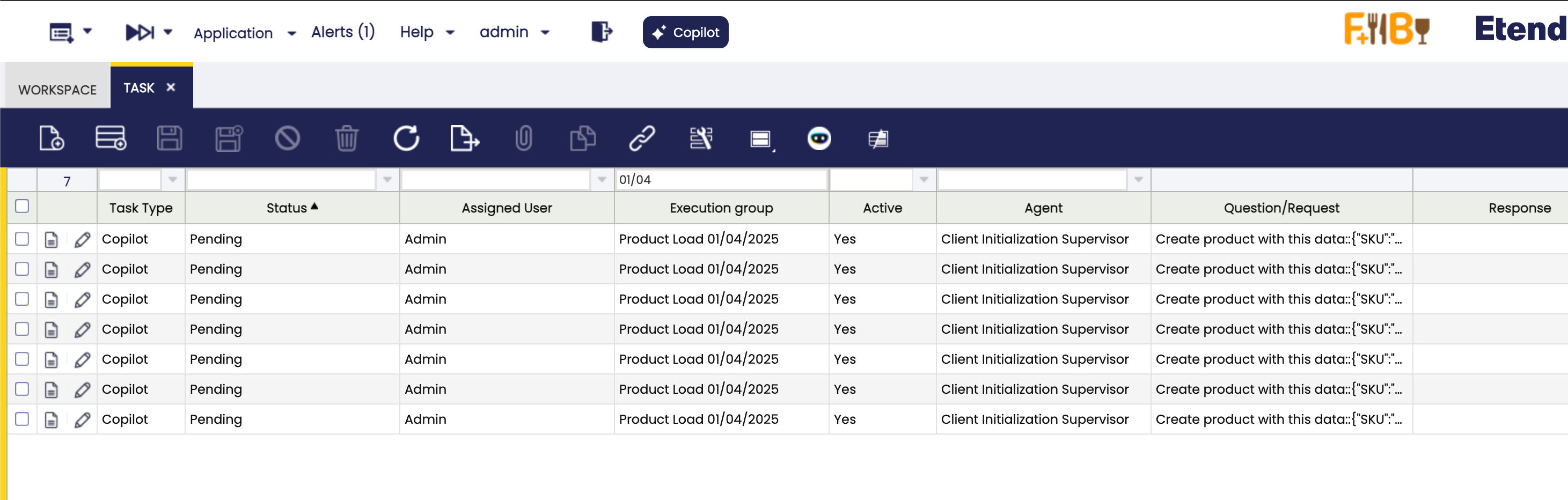
Using the Task Creator Tool in an agent
- Go to the agent that contains the
Task Creator Tool. - Open a conversation with the agent.
- Attach to the conversation the CSV file with the products data.
-
Send some request like:
Create bulk tasks for the attached file.
- Question/request: "Create product with this data:".
- The group id is 'Product Load 01/04/2025'.
- The agent ID is 'A9E0861E88B1460A98CAF55DCB2BEE82'.
- Not indicate task type and status, to use the defaults.
Info
This use of the
Task Creator Toolis an example, the agent can have assumptions or simplifications that can change the way to use it. This can be done customizing the agent prompt. -
The agent will create the tasks based on the file data using the
Task Creator Tool.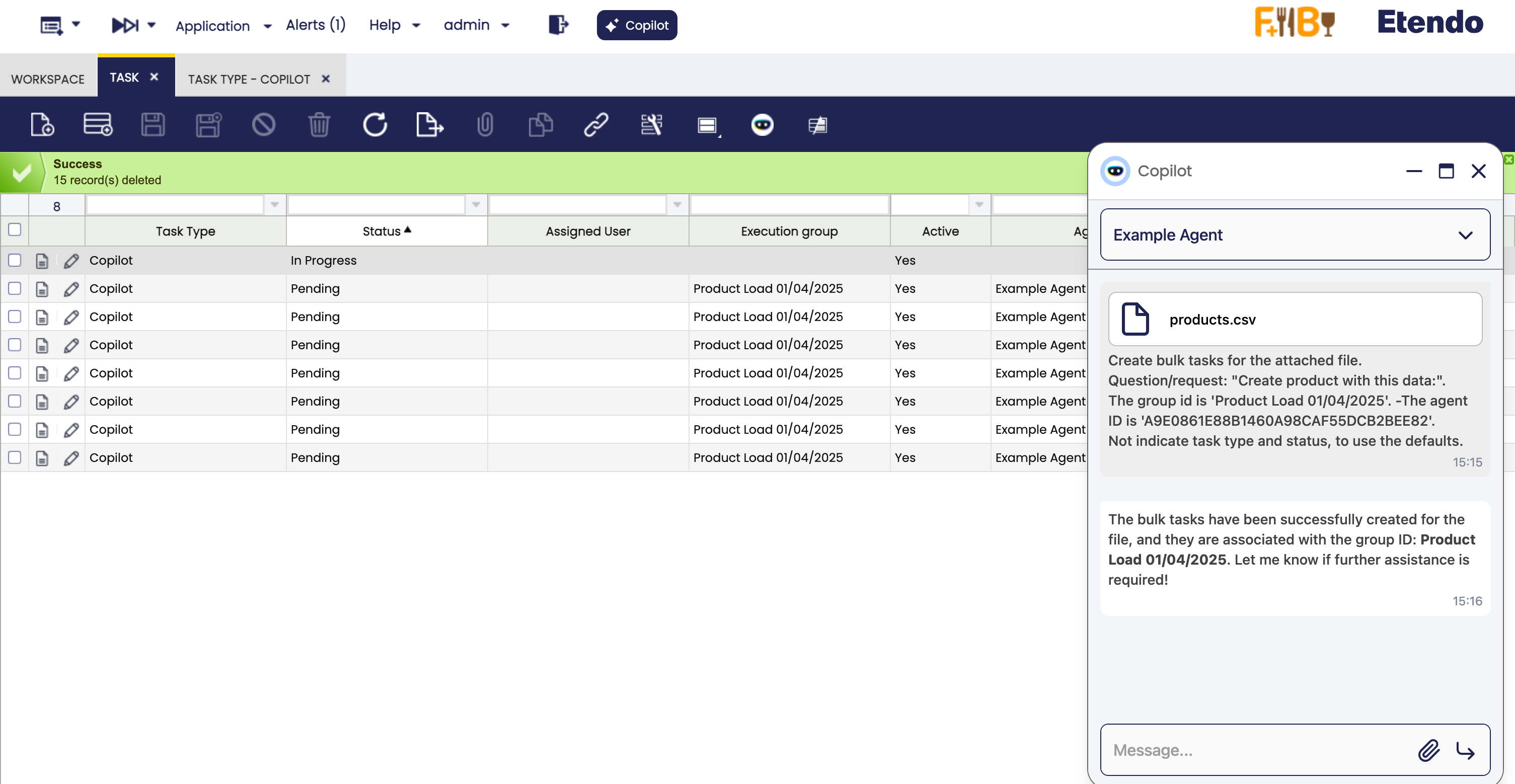
Using the Bulk Task Creator agent
This agent knows how to use the Task Creator Tool strategically, converting the request into singular tasks. The steps to create the bulk tasks are:
- Add the
Bulk Task Creatoragent to a supervisor agent. In this case, we will use theData Initialization Supervisoragent that contains theProduct Generatoragent. - Open a conversation with the supervisor agent.
- Attach to the conversation the CSV file with the products data.
-
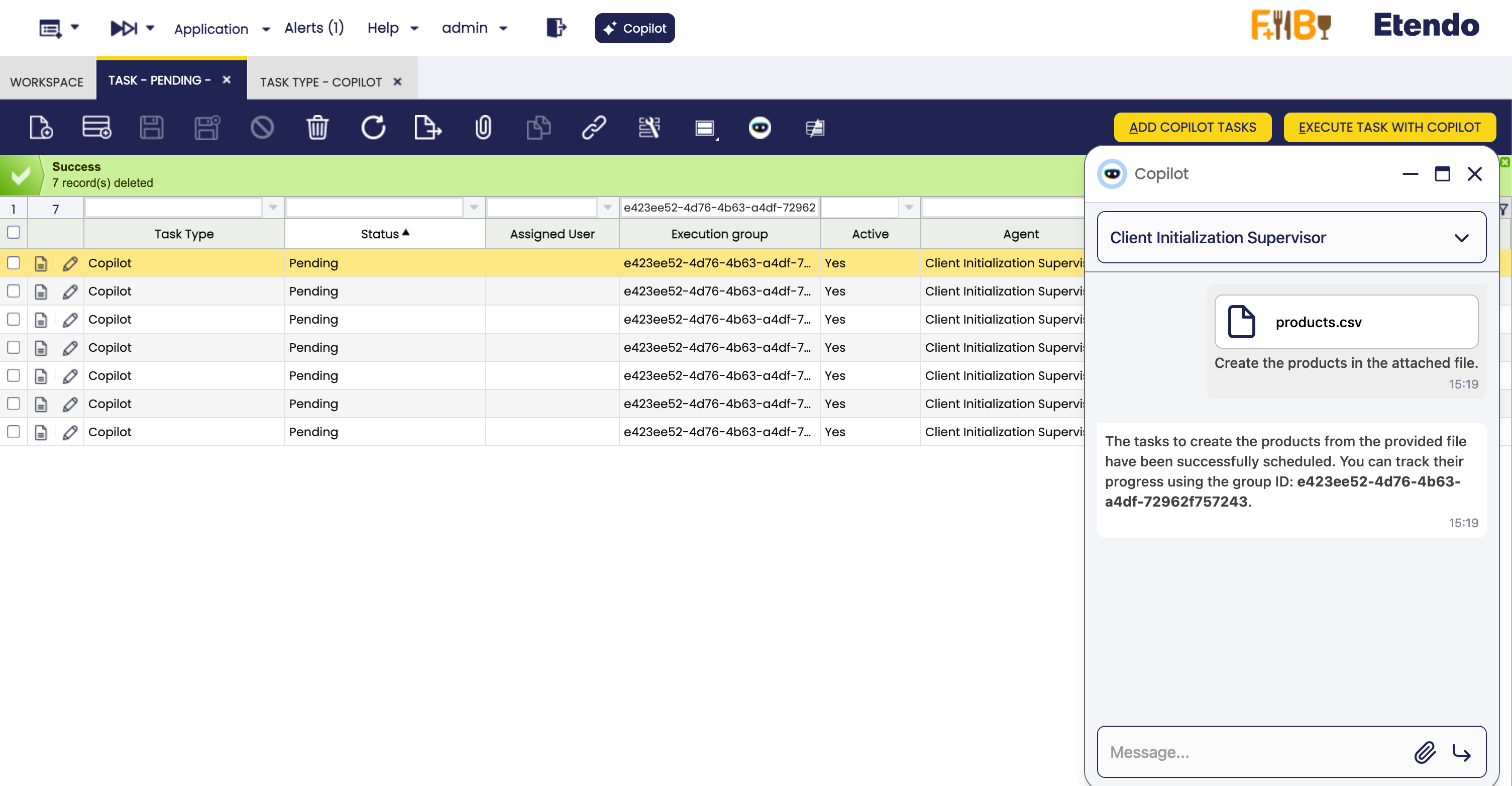
Send some request like:
-
The supervisor agent will delegate the task to the
Bulk Task Creatoragent that will create the tasks based on the file data and then process it.
Advanced Options: Grouping Related Data
When working with data that has relationships between rows (such as order lines belonging to the same order, or invoice items for the same invoice), you can use the groupby parameter to create one task per group instead of one task per row.
When to Use Groupby
Use the groupby parameter when:
- Related records should be processed together: For example, all lines of a sales order should be processed as a single order creation task.
- Context from multiple rows is needed: When the AI agent needs to see all related data at once to make better decisions.
- Reducing task overhead: Instead of creating hundreds of individual tasks, you can create fewer tasks with grouped data.
Groupby Example: Order Lines
Suppose you have an Excel file with order lines data:
DocumentNo,Product,Quantity,Price
ORD-001,Laptop,2,1200
ORD-001,Mouse,2,25
ORD-002,Keyboard,5,80
ORD-002,Monitor,3,350
Without groupby, this would create 4 separate tasks (one per row). With groupby, you can group by DocumentNo to create 2 tasks (one per order).
Using the Task Creator Tool with groupby:
Create bulk tasks for the attached file.
- Question: "Create a sales order with these lines:"
- Group by: DocumentNo
- The group id is 'Order Load December 2025'
- The agent ID is 'A9E0861E88B1460A98CAF55DCB2BEE82'
This will create 2 tasks:
- Task 1:
Create a sales order with these lines: - [{"DocumentNo": "ORD-001", "Product": "Laptop", "Quantity": 2, "Price": 1200}, {"DocumentNo": "ORD-001", "Product": "Mouse", "Quantity": 2, "Price": 25}] - Task 2:
Create a sales order with these lines: - [{"DocumentNo": "ORD-002", "Product": "Keyboard", "Quantity": 5, "Price": 80}, {"DocumentNo": "ORD-002", "Product": "Monitor", "Quantity": 3, "Price": 350}]
Each task now contains a JSON array with all the lines for that specific order, allowing the agent to process the complete order in a single execution.
Preview Mode
Before creating a large number of tasks, you can use the preview parameter to validate the task structure:
Create bulk tasks for the attached file in preview mode.
- Question: "Create product with this data:"
- Preview: true
- The agent ID is 'A9E0861E88B1460A98CAF55DCB2BEE82'
The tool will return a preview showing how many tasks would be created and their structure, without actually creating them in the database.
How to Process Copilot tasks
The tasks can be processed in two ways:
-
Manual processing: The user can process the tasks manually in the
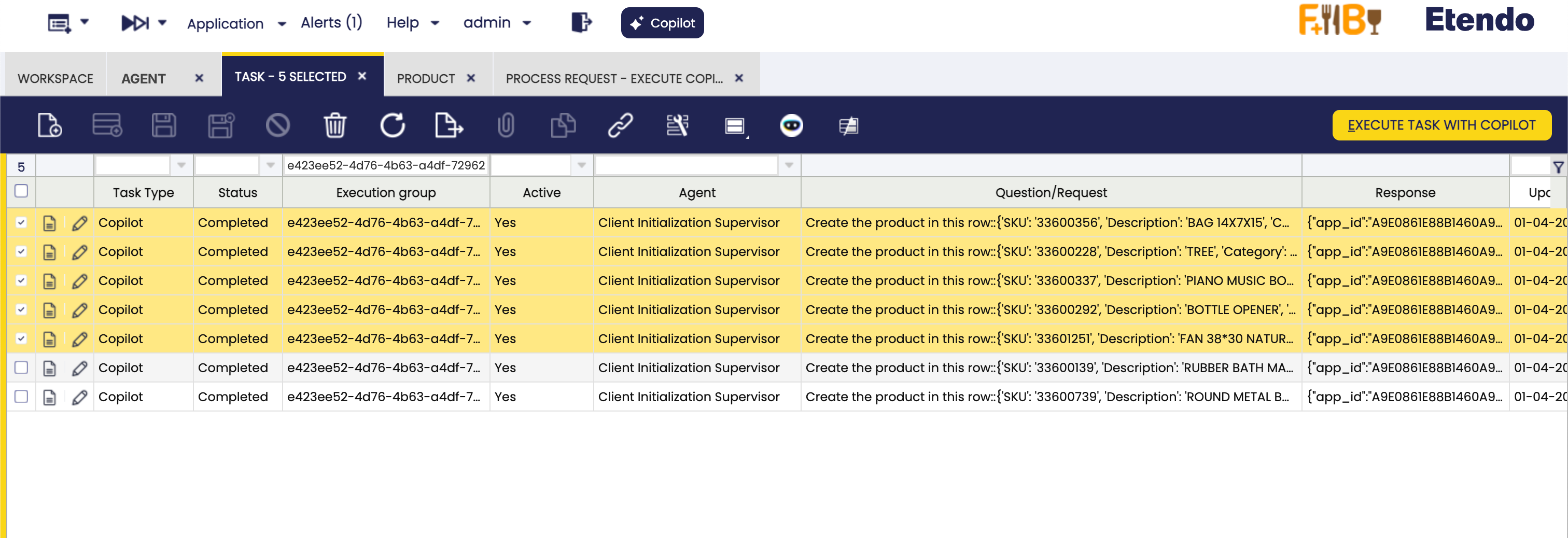
Taskswindow. Select the tasks to be processed and click on theEXECUTE TASK WITH COPILOTbutton. After the task is processed, the status will be updated toCompletedand the result will be shown in theResponsefield. -
Background processing: The tasks can be processed automatically in the background. Go to
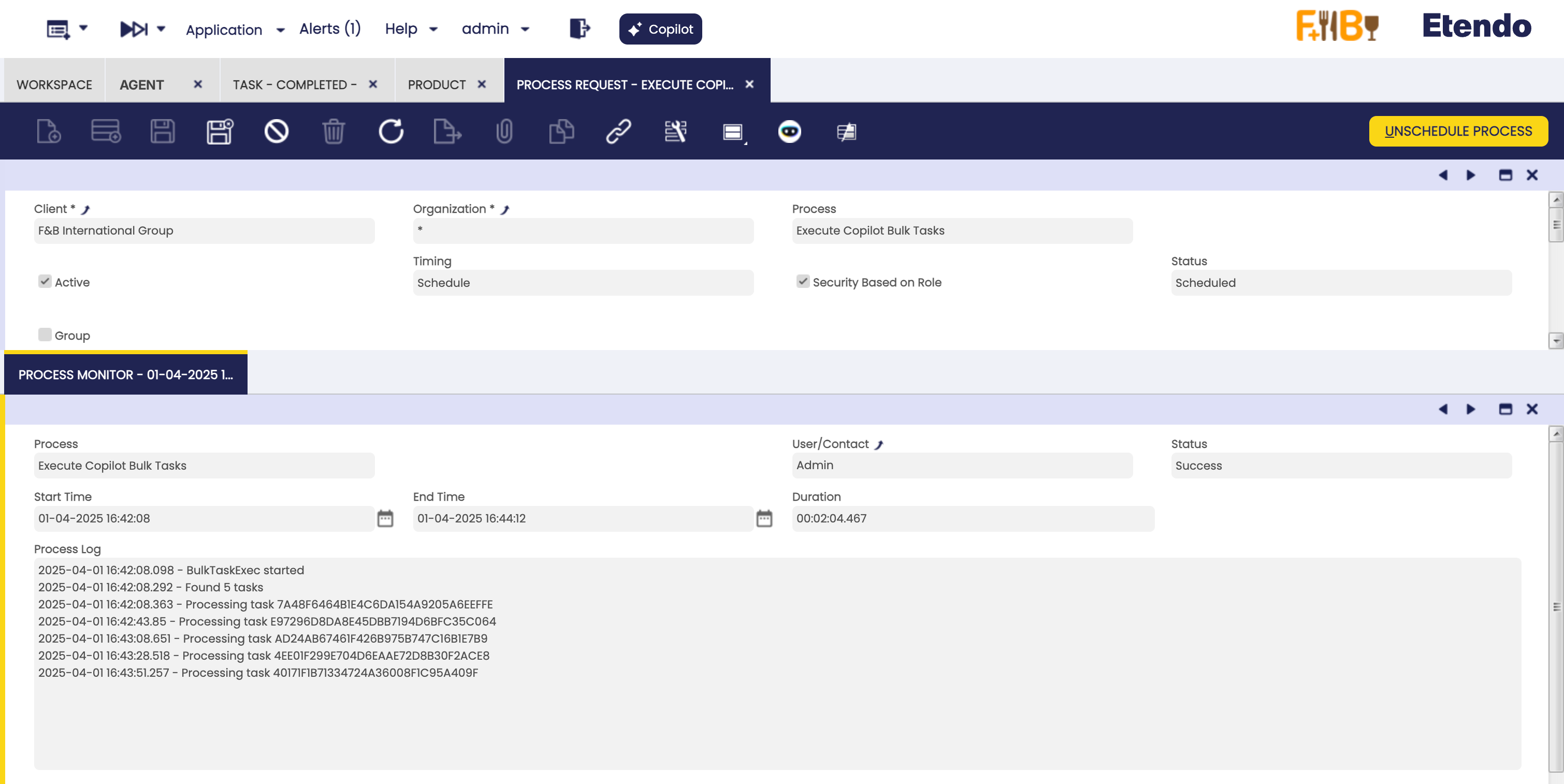
Process Requestwindow to schedule the background process calledExecute Copilot Bulk Tasks. In each execution, the process will take 10 tasks to process, so it is necessary to execute the process multiple times to process all the tasks.
After the task is processed, the status will be updated to Completed and the result will be shown in the Response field. Additionally, the complete agent response will be stored in the RAW Response field, and the Conversation ID field will contain the identifier of the conversation with the agent.
Example
For example, we will process few tasks created in the previous example, in the manual way
- Go to the
Taskswindow. - Select the tasks to be processed.
- Click on the
EXECUTE TASK WITH COPILOTbutton.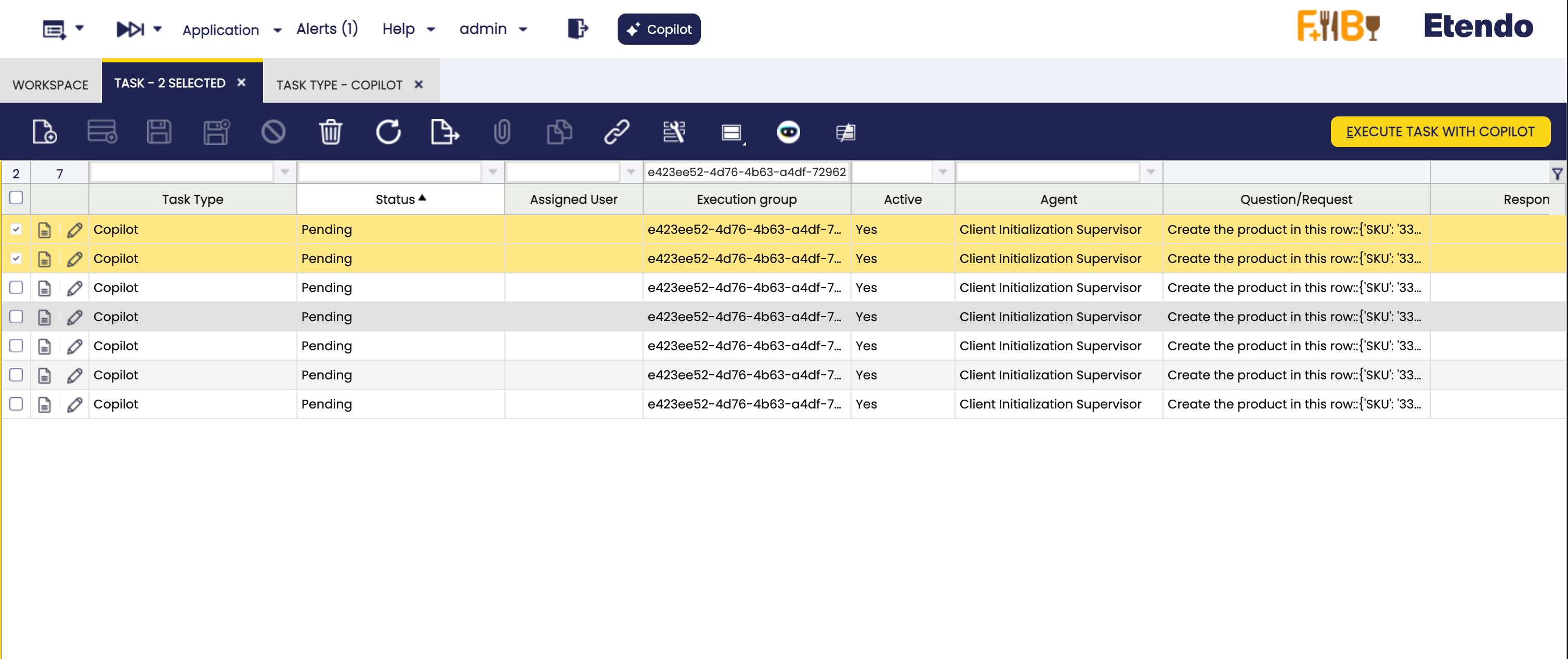
- The tasks will be processed and the status will be updated to
Completed.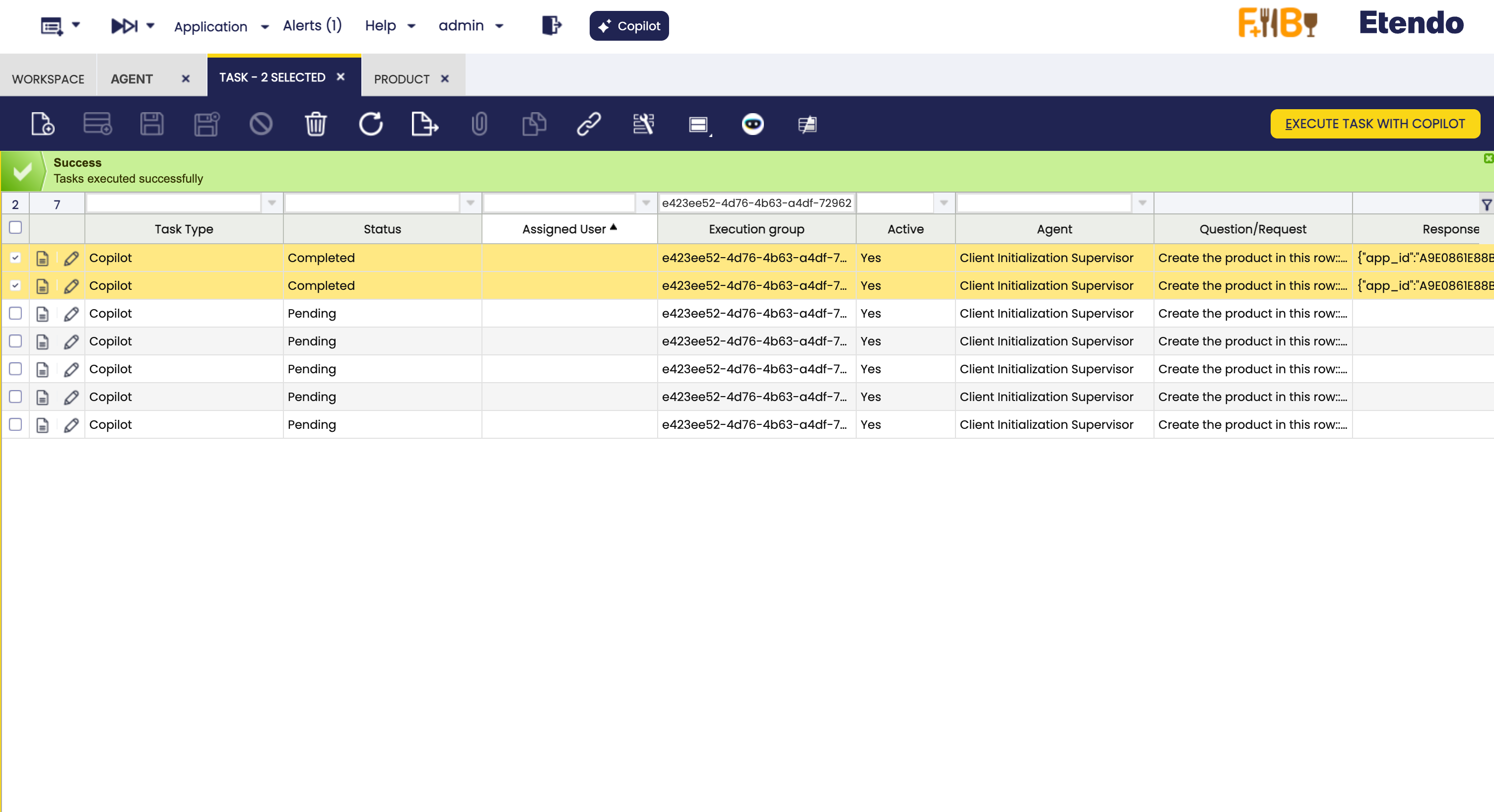
- In the field
Responsewill be shown the result of the task. The complete agent response is available in theRAW Responsefield, and theConversation IDfield contains the identifier of the agent conversation.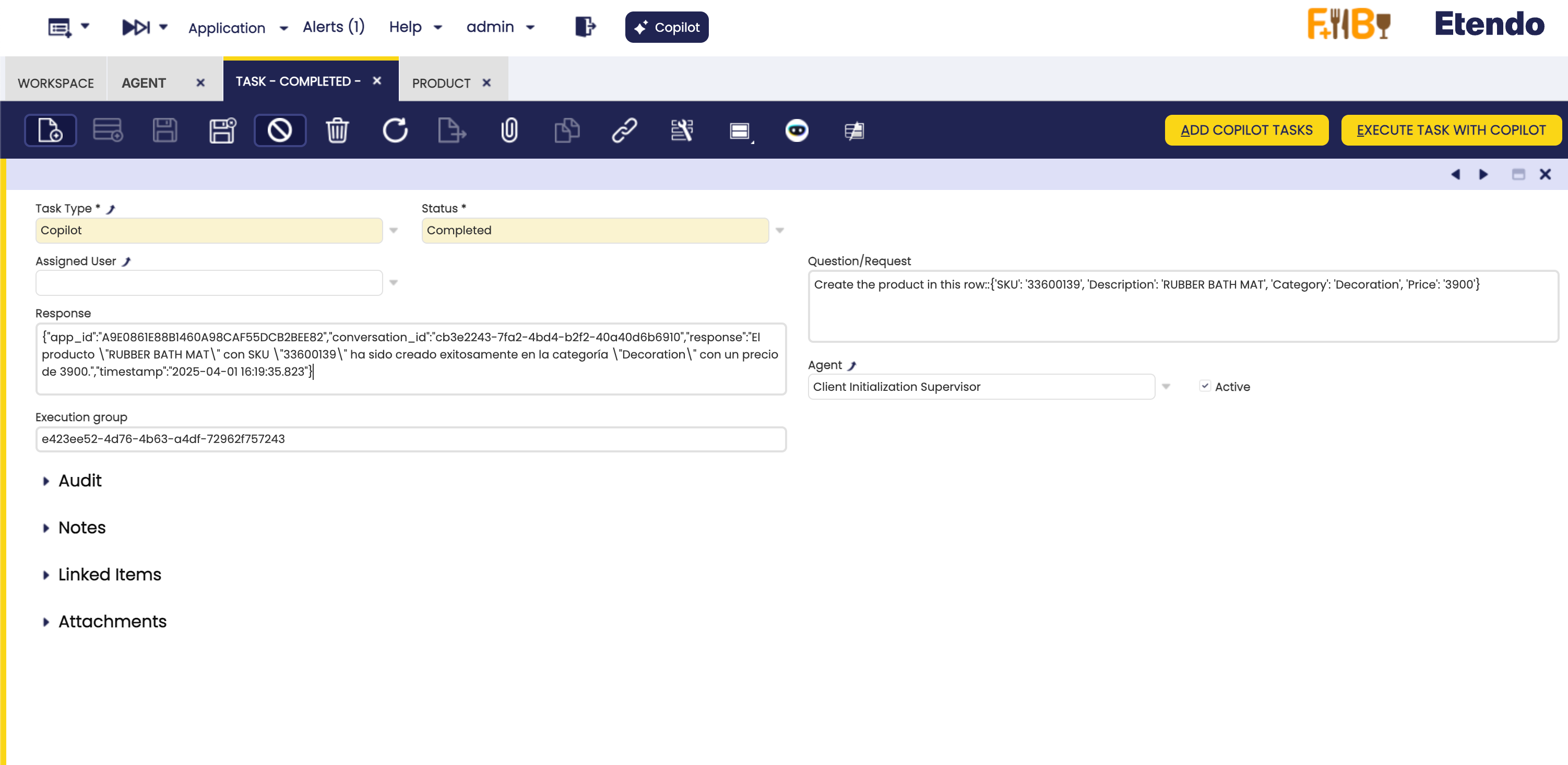
For the remaining tasks, we will schedule the background process to process them.
- Go to the
Process Requestwindow. - Create a record selecting the
Execute Copilot Bulk Tasksprocess. It is recommended to schedule the process to be executed from time to time, depending on the specific need. For this case, we will do it every 10 minutes.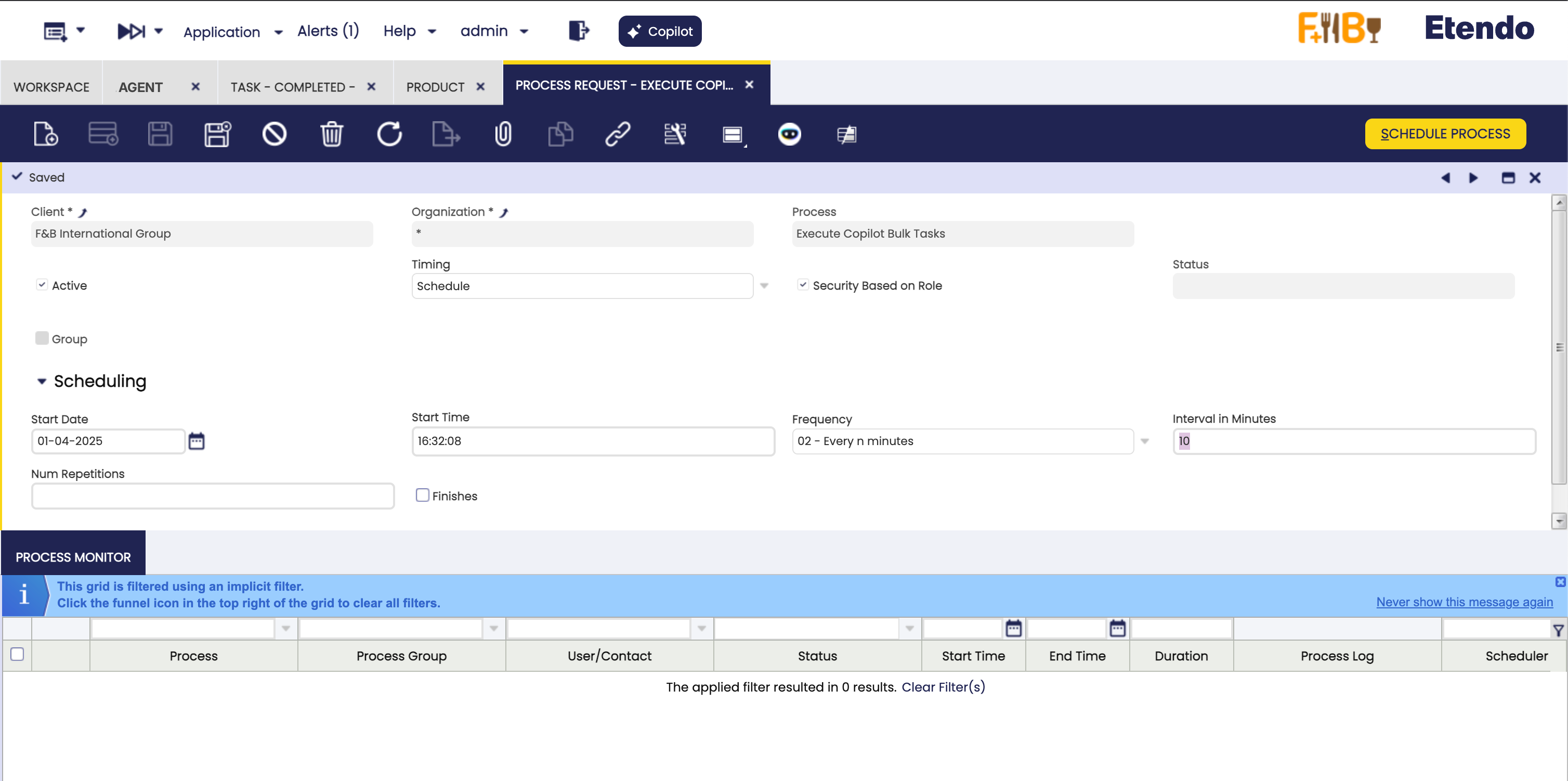
- Click in the button
Schedule Process. - The process will be scheduled and will process the tasks in the background.
- The tasks selected are the tasks executed:
This work is licensed under CC BY-SA 2.5 ES by Futit Services S.L..