Optical Character Recognition (OCR) Tool
Javapackage: com.etendoerp.copilot.toolpack
Overview
The Optical Character Recognition (OCR) Tool is an advanced tool that extracts structured data from images and PDF documents. It uses vision AI models to recognize and extract text, with support for automatic reference template matching, structured output schemas, and multi-provider configuration.
Key Features:
- Automatic Reference Matching: Searches for similar reference templates in the agent's vector database to guide extraction with visual markers
- Structured Output Schemas: Supports predefined schemas (testdocument, etc.) and extensible custom schemas
- Multi-format Support: JPEG, PNG, WebP, GIF, and multi-page PDF files
- Multi-provider Support: Compatible with OpenAI (GPT-4o, GPT-5-mini) and Gemini models
- Advanced Configuration: Per-agent model configuration, PDF quality control, and threshold filtering
Info
To be able to include this functionality, the Copilot Extensions Bundle must be installed. To do that, follow the instructions from the marketplace: Copilot Extensions Bundle. For more information about the available versions, core compatibility and new features, visit Copilot Extensions - Release notes.
Functionality
This tool automates the process of text extraction from image-based files or PDFs. This can be particularly useful for tasks such as document digitization, data extraction, and content analysis.
The advanced features of the OCR Tool allow it to leverage reference templates and structured output schemas, enhancing the accuracy and consistency of the extracted data.
When the tool is invoked, it processes the provided image or PDF file, searches for similar reference templates if available, and extracts the relevant information based on the specified question or instructions.
Threshold Filtering: The tool can filter reference templates based on a configurable similarity threshold (configured in the gradle.properties file), like a minimum match score. This ensures that only closely matching references are used for extraction, improving accuracy. This threshold can be disabled if needed, allowing the tool to always use the best match found regardless of similarity level.
Using this tool consists of the following actions:
-
Receiving Parameters:
The tool receives an input object that contains the following parameters:
-
path (required): The absolute or relative path of the image or PDF file to be processed. The file must exist in the local file system.
-
question (required): A contextual question or instructions specifying the information to be extracted from the image. Be precise about the data fields needed (e.g., 'Extract invoice number, date, total amount, and vendor name'). Clear instructions improve extraction accuracy.
-
structured_output (optional): Specify a schema name to use structured output format (e.g., 'testdocument'). Available schemas are loaded from
tools/schemas/directory. When specified, the response will follow the predefined schema structure. Leave empty for unstructured JSON extraction. -
scale (optional): PDF render scale factor (e.g., 2.0 = ~200 DPI, 3.0 = ~300 DPI). Higher values yield better quality but larger size and slower processing. Default: 2.0.
-
disable_threshold_filter (optional): Default:
false. Whentrue, ignore the configured similarity threshold and return the most similar reference found in the agent database (disables threshold filtering). In other words, the tool will always use the best match found, regardless of how different it might be from the original document. -
force_structured_output_compat (optional): Default:
false. Modifies the communication method for structured output requests. By default it's false (uses native structured output system). Whentrue(or automatically for models starting with 'gpt-5'), it changes how the structured input is sent to the LLM by bypassing the native structured-output wrapper and embedding the schema JSON directly into the system prompt. This ensures compatibility with older agents, specific model requirements, or for resolving compatibility issues. Use only when necessary.
Tip
To learn how to optimize the results of this tool, check the How to Improve OCR Recognition guide.
-
-
Obtaining the File: The tool retrieves the file specified in the path parameter. It verifies the existence of the file and ensures it is in a supported format (
JPEG,JPG,PNG,WEBP,GIF,PDF). -
PDF Conversion: If the input file is a
PDF, it is converted to an image format (JPEG) using the pypdfium2 library. Each page of thePDFis rendered as a separate image. -
Image Conversion: Other image formats are processed directly or converted to
JPEGif necessary. -
Image Processing: The image is processed using a Vision AI model (OpenAI GPT or Google Gemini, depending on configuration). This model interprets the text within the image and extracts the relevant information based on the provided question.
-
Returning the Result: The tool returns a JSON object containing the extracted information from the image or PDF.
Advanced Features
Automatic Reference Template Matching
The OCR Tool includes an intelligent reference system that automatically searches for similar document templates in the agent's vector database. When a similar reference is found, it guides the extraction process by indicating which data fields to extract.
How it works:
- When processing a document, the tool searches the agent's vector database (ChromaDB) for similar reference images.
- Reference images contain visual markers (red boxes) highlighting the relevant data fields to extract.
- The tool uses the reference as a template to prioritize and extract the same fields from the current document.
- This significantly improves extraction accuracy for documents with consistent layouts (invoices, receipts, forms).
Managing Reference Images:
- Upload reference images to the agent's knowledge base as you would normally do with any other document.
- Reference images should have visual markers (typically red boxes) indicating the data fields
- Each agent maintains its own vector database of reference templates
- The similarity threshold can be controlled or disabled using the
disable_threshold_filterparameter
When to use references:
- Processing invoices, receipts, or forms with consistent layouts.
- When you need to extract specific fields repeatedly from similar documents.
- To improve extraction accuracy by providing visual guidance.
Regulating Similarity Threshold:
The similarity threshold determines how closely a document must match a reference template to be used. This is controlled via a property in the gradle.properties file:
- Property:
copilot.reference.similarity.threshold - Metric: Uses L2 distance (lower values are stricter, higher values are more flexible).
- Recommended Range:
0.15to0.30.
Default Behavior (Out of the box):
By default, the tool is configured to be highly permissive:
- If the
copilot.reference.similarity.thresholdproperty is not set, the tool does not apply any distance filtering. - It will automatically search for the most similar reference in the database and always use the best match found, regardless of how different it might be from the original document.
- This ensures that if you have only one reference template, the tool will always try to use it.
How to specify or disable the threshold:
- To specify a threshold: Set the
copilot.reference.similarity.thresholdproperty in thegradle.propertiesfile to a float value (e.g.,0.20). This will prevent the tool from using references that are too different. - To disable threshold filtering: If you have a threshold configured but want to ignore it for a specific request, set the
disable_threshold_filterparameter totruein the tool input. This will force the tool to use the most similar reference found, even if it's not a close match. This can be done by instructing the agent to disable the threshold in its prompt. The agent will then pass the parameter to the tool.
Structured Output Schemas
The tool supports predefined schemas that enforce a specific output structure. This is useful when you need consistent data formats for downstream processing.
Available schemas:
Schemas are stored in the tools/schemas/ directory and can be extended with custom schemas. In Copilot Extensions are included an example schema:
- testdocument: Comprehensive test document schema with various field types (dates, amounts, line items, address, etc.)
- Custom schemas can be added by creating new schema files in the schemas directory
Tip
To learn how to create and use custom structured output schemas, check the How to Improve OCR Recognition guide.
Usage:
{
    "path": "/home/user/document.pdf",
    "question": "Extract the information from this document",
    "structured_output": "testdocument"
}
The tool will return data following the exact structure defined in the schema, ensuring consistency across all extractions.
Compatibility mode:
For older models or agents that don't support native structured output, use the force_structured_output_compat parameter. This changes how the structured input is sent to the LLM by embedding the schema JSON directly into the system prompt:
{
    "path": "/home/user/document.pdf",
    "question": "Extract the information from this document",
    "structured_output": "testdocument",
    "force_structured_output_compat": true
}
Multi-Provider Configuration
The OCR Tool supports multiple AI providers with flexible configuration options:
Supported Providers:
- OpenAI: Models like
gpt-4o,gpt-5-mini(default:openai/gpt-5-mini) - Gemini: Google's Gemini vision models
Configuration methods (in priority order):
-
Global configuration (gradle.properties): Set
copilot.ocrtool.modelto configure the model globally for all agents. This property acts as a global override; if it is defined, the tool will use this model for all OCR requests, bypassing any per-agent configuration.To configure it, add the property to your
The tool automatically infers the provider based on how the model name starts (e.g., models starting withgradle.propertiesfile specifying the model name:geminiwill use the Gemini provider, otherwise OpenAI is used). -
Per-agent configuration: Configure the model in the Skills and Tools tab of the Agent window using the Model field. The model must be specified using the format
provider/modelname(e.g.,openai/gpt-4o,google/gemini-1.5-pro). This allows different agents to use different models for the same tool. -
Default: If no configuration is provided, uses
openai/gpt-5-miniwith OpenAI provider
Provider detection:
The provider is automatically detected based on the model name:
- Models starting with gemini use Gemini provider
- Otherwise, the OpenAI provider is used by default
PDF Quality Control
For PDF documents, you can control the rendering quality using the scale parameter:
Scale values:
2.0: ~200 DPI (default) - Good balance between quality and performance3.0: ~300 DPI - Higher quality, recommended for documents with small text4.0: ~400 DPI - Maximum quality, slower processing and larger memory usage
Example:
Considerations:
- Higher scale values produce better OCR accuracy for small or complex text
- Increases processing time and memory consumption
- Choose based on your document's text size and complexity
Performance Optimizations
The tool includes several optimizations for better performance:
- In-memory processing: Images and
PDFsare converted toBase64directly in memory without disk I/O - Efficient PDF rendering: Uses pypdfium2 for fast PDF-to-image conversion
- Automatic cleanup: Temporary files are automatically removed after processing
- Parallel page processing: Multi-page
PDFsare processed efficiently
Usage Example
Requesting text recognition from an image/pdf
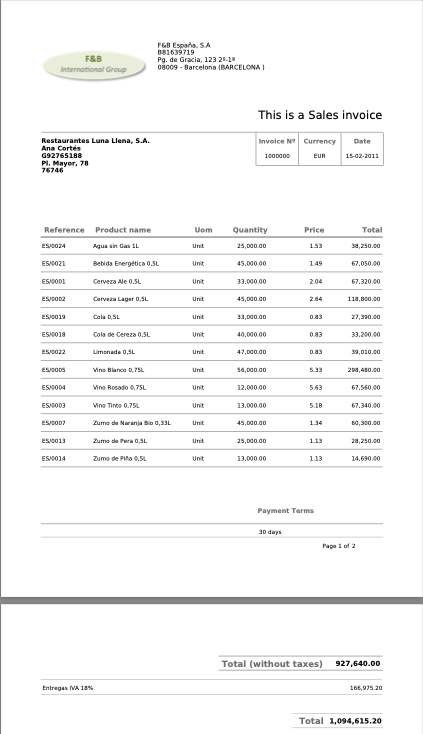
Suppose you have an image at /home/user/invoice.png and you want to extract invoice information:
The following is an example image of an invoice:
-
Use the tool as follows:
-
Input:
-
Output:
Output Json{ "company": { "name": "F&B España, S.A.", "tax_id": "B-1579173", "address": "Pg. de Gracia, 123 2-1ª", "city": "08009 - Barcelona (BARCELONA)" }, "invoice": { "title": "This is a Sales invoice", "number": "1000000", "currency": "EUR", "date": "15-02-2011" }, "customer": { "name": "Restaurantes Luna Llena, S.A.", "contact": "Ana Cortes", "phone": "092765188", "address": "Pl. Mayor, 78", "postal_code": "76764" }, "items": [ { "reference": "ES0024", "product_name": "Agua sin Gas 1L", "uom": "Unit", "quantity": 25000, "price": 1.13, "total": 28250.00 }, { "reference": "ES0021", "product_name": "Bebida Energética 0,5L", "uom": "Unit", "quantity": 45000, "price": 1.49, "total": 67050.00 }, { "reference": "ES1000", "product_name": "Cerveza Ale 0,5L", "uom": "Unit", "quantity": 33000, "price": 2.48, "total": 81840.00 }, { "reference": "ES1002", "product_name": "Cerveza Lager 0,5L", "uom": "Unit", "quantity": 45000, "price": 2.64, "total": 118800.00 }, { "reference": "ES0030", "product_name": "Cola de Cereza 0,5L", "uom": "Unit", "quantity": 40000, "price": 0.83, "total": 33200.00 }, { "reference": "ES0032", "product_name": "Limonada 0,5L", "uom": "Unit", "quantity": 40000, "price": 0.83, "total": 33200.00 }, { "reference": "ES0023", "product_name": "Vino Blanco 0,75L", "uom": "Unit", "quantity": 36000, "price": 3.05, "total": 109800.00 }, { "reference": "ES0025", "product_name": "Vino Rosado 0,75L", "uom": "Unit", "quantity": 36000, "price": 5.83, "total": 209880.00 }, { "reference": "ES1004", "product_name": "Vino Tinto 0,75L", "uom": "Unit", "quantity": 36000, "price": 5.07, "total": 182520.00 }, { "reference": "ES0037", "product_name": "Zumo de Naranja 0,5L", "uom": "Unit", "quantity": 45000, "price": 1.13, "total": 50850.00 }, { "reference": "ES1014", "product_name": "Zumo de Piña 0,5L", "uom": "Unit", "quantity": 33000, "price": 1.13, "total": 37390.00 } ], "payment_terms": "30 days", "totals": { "subtotal": 927640.00, "tax": { "rate": "IVA 18%", "amount": 166975.20 }, "total": 1094615.20 } }
-
Advanced Usage: Structured Output with Reference
Suppose you have uploaded a reference document image to your agent's vector database, and now you want to extract data with a predefined schema:
-
Use the tool with structured output:
-
Input:
-
The tool will:
- Search for a similar reference document in the vector database
- Use the reference's visual markers to guide extraction
- Render the PDF at 300 DPI for better quality
- Return data following the
testdocumentschema structure
-
Output:
{
    "document_id": "DOC-12345",
    "document_number": "TX-2024-001",
    "title": "Shipping Manifest",
    "status": "pending",
    "priority": "high",
    "creation_date": "2024-12-16",
    "owner": {
        "name": "Jane Smith",
        "email": "jane@example.com"
    },
    "line_items": [
        {
            "line_number": 1,
            "item_code": "PROD-A",
            "description": "Product A",
            "quantity": 10,
            "unit_price": 50.00,
            "line_total": 500.00
        }
    ],
    "is_active": true,
    "version": 1
}
-
Usage with Custom Model Configuration
You can configure a specific model for OCR processing in multiple ways:
Option 1: Using the gradle.properties file (global configuration)
Open the gradle.properties file and set the following property to specify the model for all agents:
Option 2: Using the Agent window (per-agent configuration)
- Open the Agent window in Etendo Classic
- Go to the Skills and Tools tab
- Select the OCR Tool from the list
- In the Model field, specify the model using the format
provider/modelname: - For OpenAI:
openai/gpt-4ooropenai/gpt-5-mini - For Gemini:
google/gemini-1.5-pro - If left empty, the tool will use the default model (
openai/gpt-5-mini)
This allows you to use different models for different agents depending on their specific needs (e.g., high accuracy for invoices vs. speed for receipts).
Result Chaining
Note
Remember that the result of the tool can be used in other tools, for example, you can use the result of the OCR Tool in a tool that writes the information in a database or sends it to a web service.
This work is licensed under CC BY-SA 2.5 ES by Futit Services S.L.