How to implement Create New In Selector
IMPORTANT: THIS IS A BETA VERSION
This page is under active development and may contain unstable or incomplete features. Use it at your own risk.

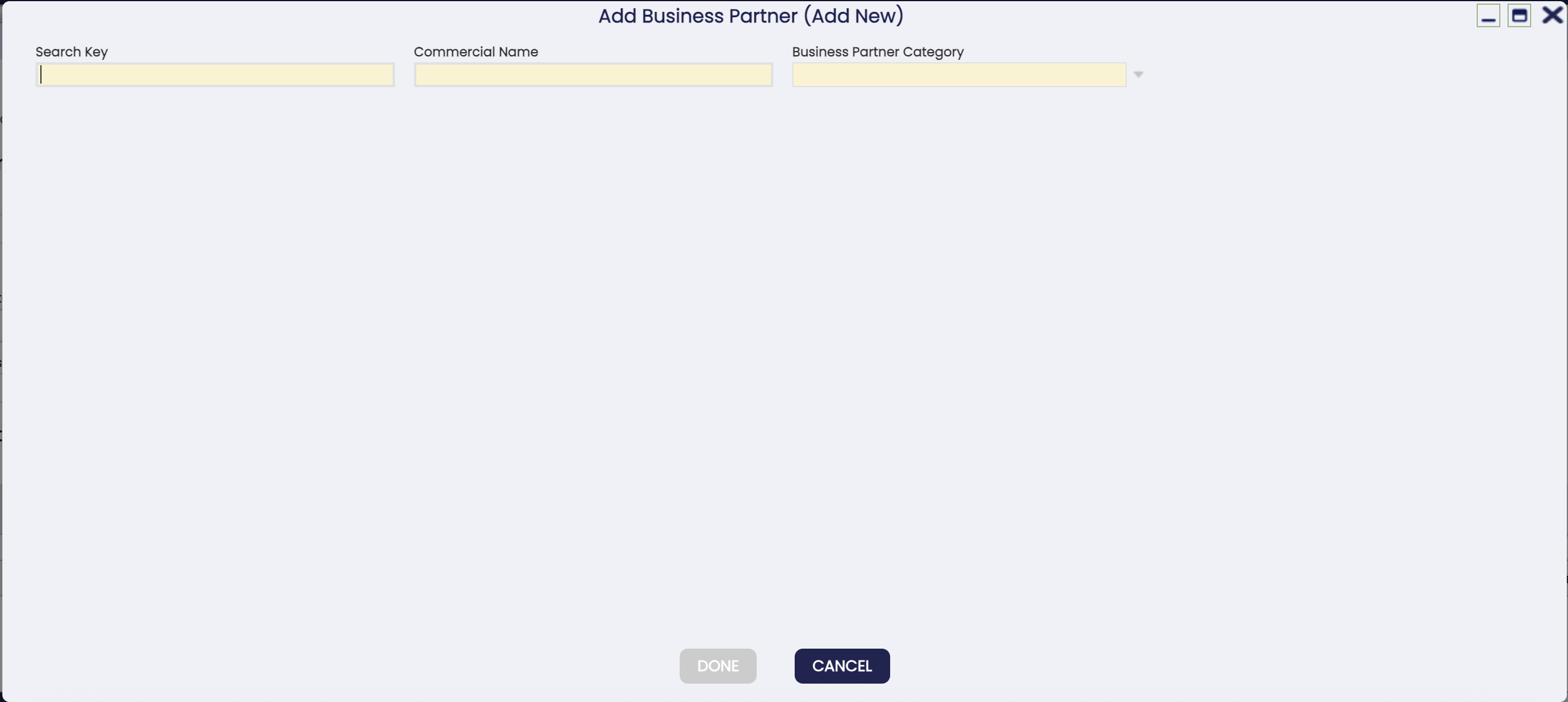
The module org.openbravo.platform.features implements an example selector called Business Partner (Add New) in the Sales Order window.
Let us review step by step how this selector has been built, focusing in the steps that this project implements.
-
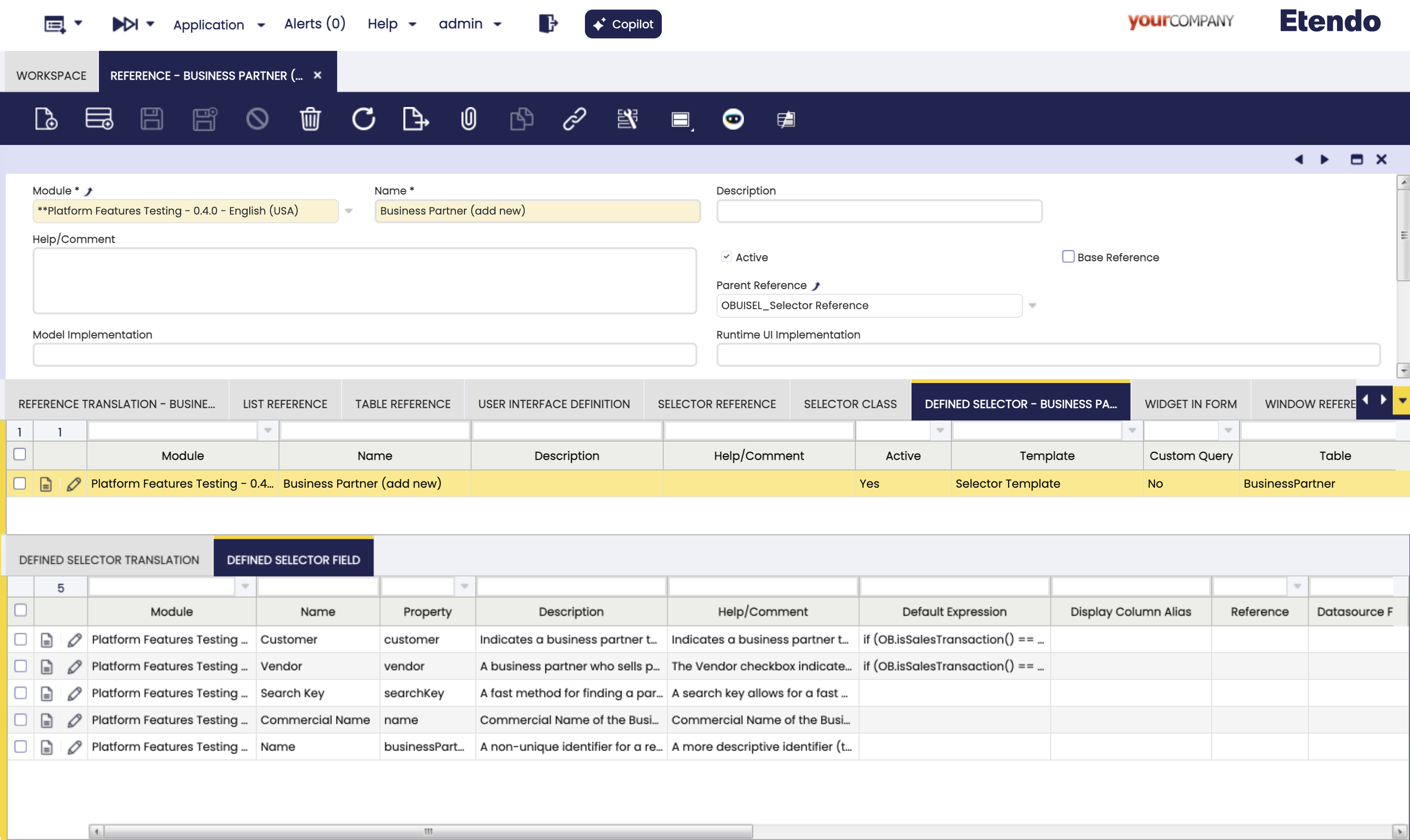
Create a new Business Partner selector. This is the one where the process will be attached. Here it is an example:
-
Create a new Business Partner Category Selector. This will be used inside the process. Here it is an example:
-
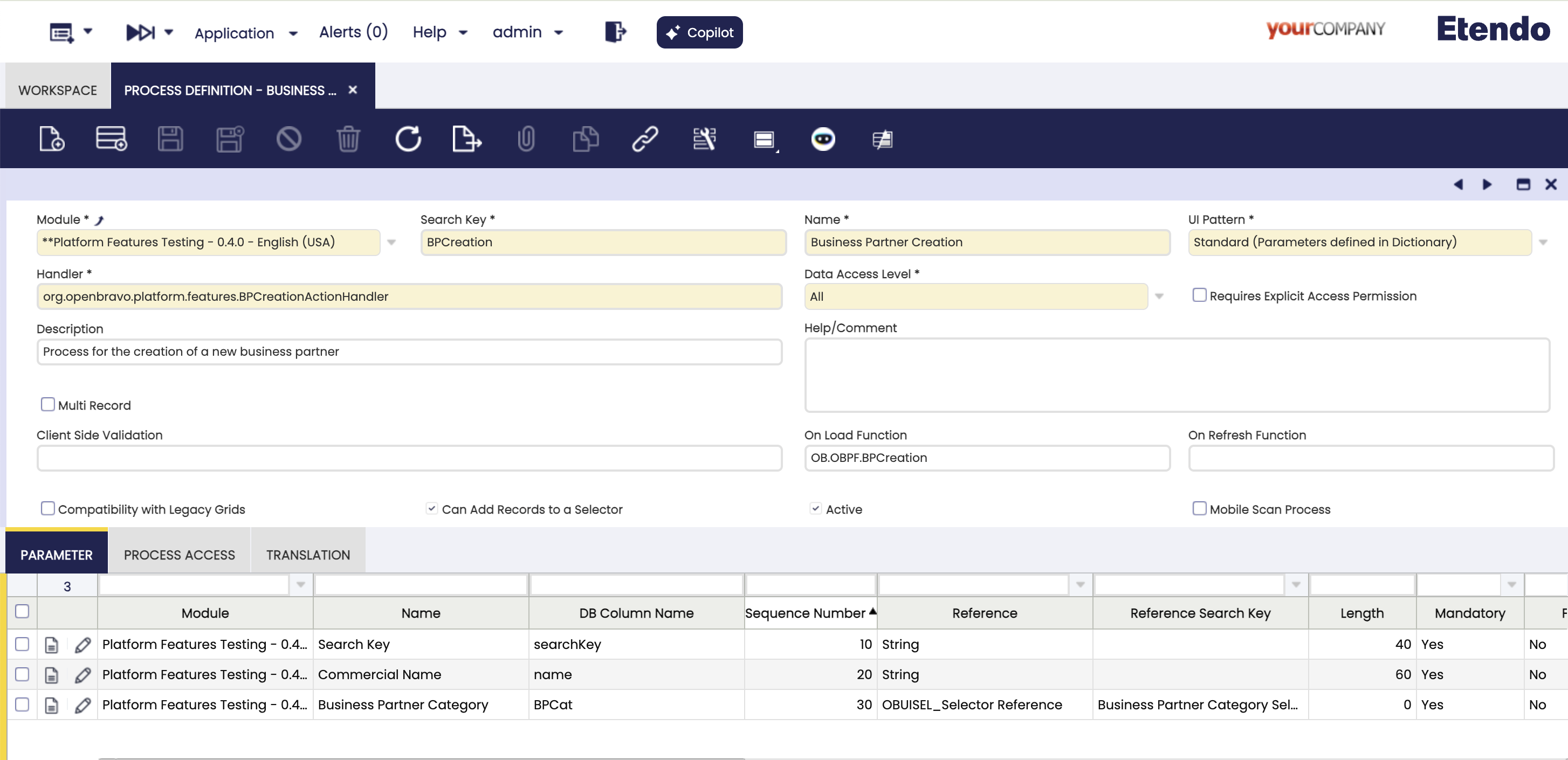
Create the Business Partner Creation process. This process will be in charge of:
- Handle, in case that exists, the current written value in the selector input or in the selector filters in the popup.
- Do the creation of the new Business Partner record
- Add and select the created Business Partner in the selector form item
-
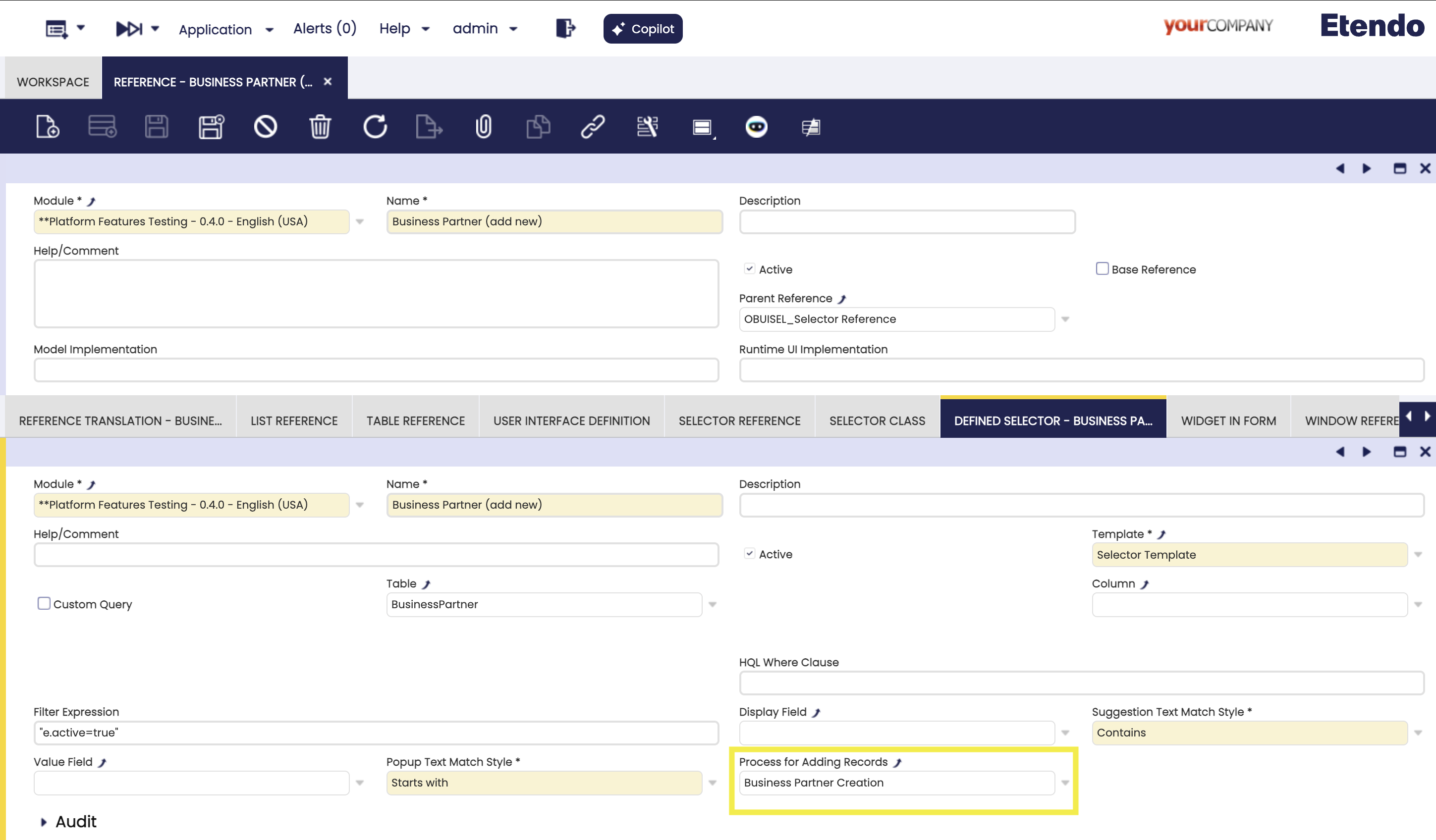
After the creation of this process, in the previously created Business Partner selector, this process should be selected in the Process for Adding Records combo box.
-
Inside the Business Partner Creation process, the On Load Function will be in charge of handling, in case that exists, the current written content in the selector input or in the selector filters in the popup. This content will be shown in the process form in each corresponding field. Here it is an example:
OB.OBPF.BPCreation = function (processWindow) {
    var i, j, theFormItems;
    if (!processWindow || !processWindow.enteredValues || !processWindow.theForm || !processWindow.theForm.items) {
        return;
    }
    theFormItems = processWindow.theForm.items;
    for (i = 0; i < theFormItems.length; i++) {
        for (j = 0; j < processWindow.enteredValues.length; j++) {
                if (processWindow.enteredValues[j][theFormItems[i].name]) {
                theFormItems[i].setValue(processWindow.enteredValues[j][theFormItems[i].name]);
                theFormItems[i].validate();
            }
        }
    }
};
Since in this case the name of the form items equals the name of the selector columns, there is an iterative logic to match each
enteredValuewith each form item of the process. -
Inside the Business Partner Creation process, the
Handlerwill be in charge of the creation of the new Business Partner record. Also it should select this created record in the selector.public class BPCreationActionHandler extends BaseProcessActionHandler { private static final Logger log = Logger.getLogger(BPCreationActionHandler.class); @Override protected JSONObject doExecute(Map<String, Object> parameters, String content) { JSONObject result = new JSONObject(); OBContext.setAdminMode(); try { result.put("refreshParent", false); String clientId = OBContext.getOBContext().getCurrentOrganization().getId(); String orgId = OBContext.getOBContext().getCurrentClient().getId(); JSONObject request = new JSONObject(content); if (request.has("inpadClientId")) { clientId = request.getString("inpadClientId"); } if (request.has("inpadOrgId")) { orgId = request.getString("inpadOrgId"); } JSONObject params = request.getJSONObject("_params"); String searchKey = params.getString("searchKey"); String name = params.getString("name"); String bpCategoryId = params.getString("BPCat"); BusinessPartner bp = OBProvider.getInstance().get(BusinessPartner.class); bp.setClient(OBDal.getInstance().get(Client.class, clientId)); bp.setOrganization(OBDal.getInstance().get(Organization.class, orgId)); bp.setSearchKey(searchKey); bp.setName(name); bp.setBusinessPartnerCategory(OBDal.getInstance().get(Category.class, bpCategoryId)); OBDal.getInstance().save(bp); OBDal.getInstance().flush(); JSONObject setSelectorValueFromRecord = new JSONObject(); JSONObject record = new JSONObject(); JSONObject responseActions = new JSONObject(); record.put("value", bp.getId()); record.put("map", bp.getIdentifier()); setSelectorValueFromRecord.put("record", record); responseActions.put("setSelectorValueFromRecord", setSelectorValueFromRecord); result.put("responseActions", responseActions); } catch (JSONException e) { log.error("Error in process", e); } catch (Exception e) { try { Throwable ex = DbUtility.getUnderlyingSQLException(e); String message = OBMessageUtils.translateError(ex.getMessage()).getMessage(); JSONObject msg = new JSONObject(); JSONObject responseActions = new JSONObject(); msg.put("msgType", "error"); msg.put("msgTitle", "Error"); msg.put("msgText", message); msg.put("force", true); responseActions.put("showMsgInProcessView", msg); result.put("responseActions", responseActions); result.put("retryExecution", true); } catch (JSONException ex) { log.error("Error in process", e); } } finally { OBContext.restorePreviousMode(); } return result; } }Here with the
params.getString, the entered values in the form are obtained and then set in thebp(Business Partner). After the instance is saved, therecordis built and returned, with theidasvalueand theidentifierasmap. There is also some logic to catch errors and show them as a message.
This work is a derivative of How to implement Create New In Selectors by Openbravo Wiki, used under CC BY-SA 2.5 ES. This work is licensed under CC BY-SA 2.5 by Etendo.