How to Create a Report with iReport
IMPORTANT: THIS IS A BETA VERSION
This page is under active development and may contain unstable or incomplete features. Use it at your own risk.
Overview
The goal of this section is to describe the steps required to create a new report in Etendo. The example explained is a simple report with a list of products.
Setting up iReport
You need to download iReport, a graphical tool that allows you create and modify JasperReports templates (.jrxml files).
- Download iReport 4.0.1
- On Linux: just download the
.tar.gzor.zipfile and uncompress it, execute the binary - On Windows: Download and execute the
.exefile
Configuring iReport
Some properties of iReport need to be modified in order to work properly. You need to make sure:
- You modified the JasperReport property
net.sf.jasperreports.awt.ignore.missing.fontand set it to true - Not use any Scriplet class
- Use Java as default expression language
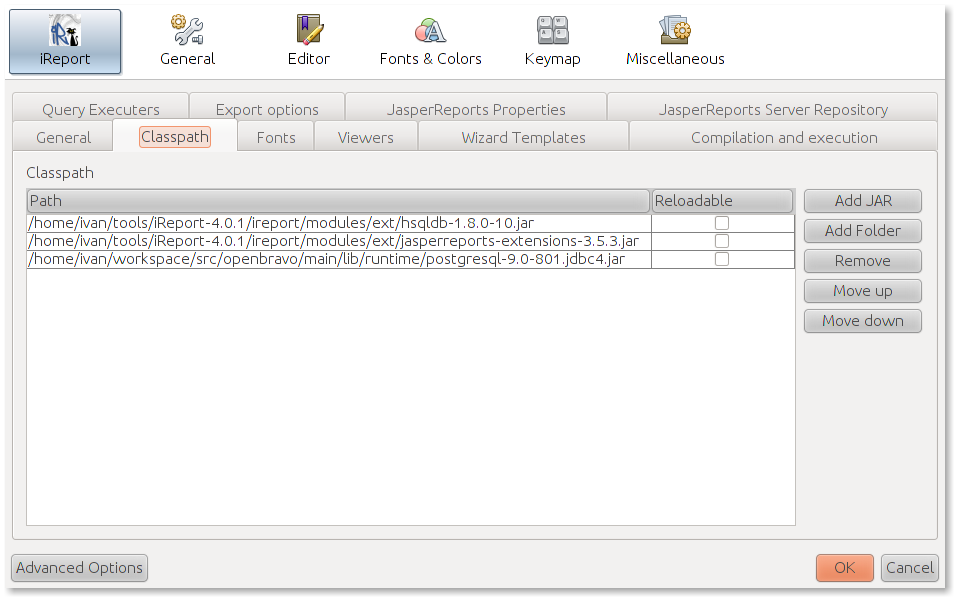
Setting up Classpath
- Open from the menu options:
Tools>Options - Move to Classpath tab
- Click Add Jar button
- Go to your Etendo sources folder. Under lib/runtime folder, search for postgresqljdbc.jar and pick it.
- Click OK
Defining a Database Connection
- Click the Report Datasources icon

- Click New
- Pick Database JDBC Connection and click Next
-
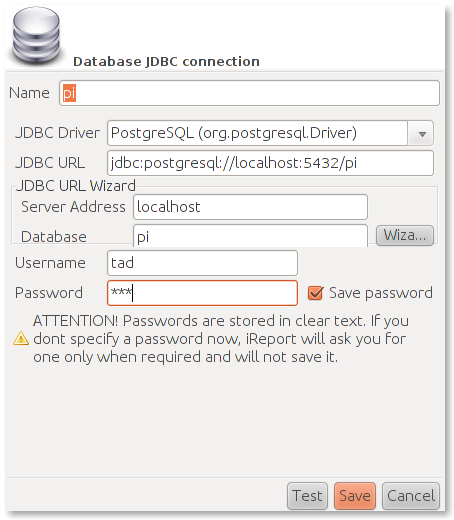
Fill all the fields:
- Name: etendo (or any name you like, e.g. pi)
- JDBC Driver: PostgreSQL (
org.postgresql.Driver) - Server Address: your database server address, e.g. localhost
- Database: pi (or the name of your database)
- Username: tad (you can check your username/password in
gradle.propertiesconfiguration file) - Password: tad
-
Click Wizard button to generate the JDBC URL
- Test your connection
- Save
Creating the Template
- Go to File > New
- Pick Report
-
Click Launch Report Wizard

-
Define a Report Name.
-
Define the File Location. Notice that your
.jrxmltemplate must be placed under the src folder of your module. More information on the project folder structure. A common convention is to place your reports in aad_reportsfolder, e.g.modules/org.your.java.package/src/org/your/java/package/ad_reports. This is a convention, not a requirement, but you need to remember where you placed your template.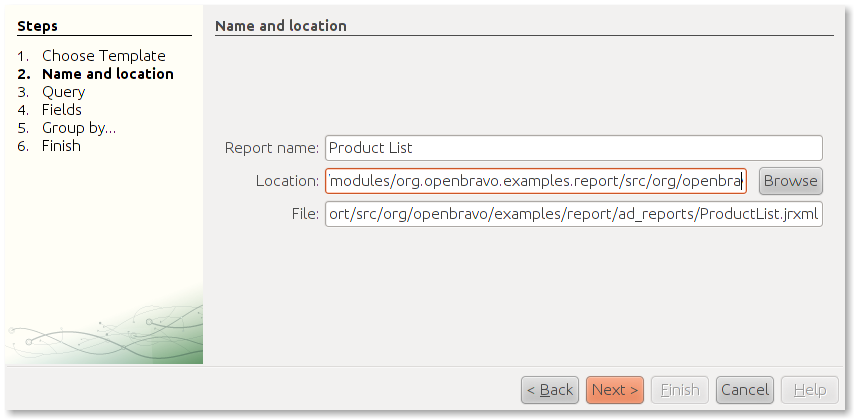
-
Define the query to extract the data
- Pick the report datasource previously defined
-
The products are stored in the M_Product table
9. Click Next
-
iReport defines the fields based on your query
-
Pick all the fields and click Next

-
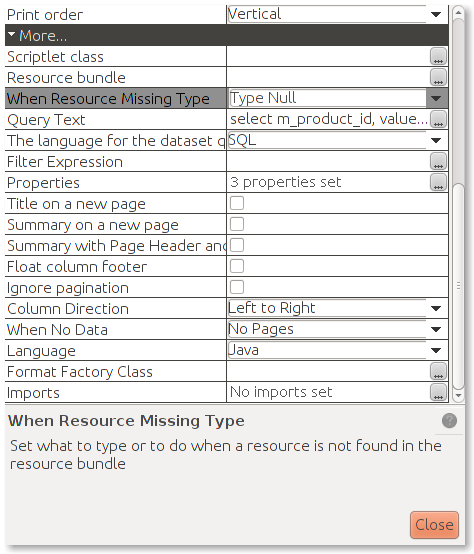
Remember to clear the Scriptlet class and modify the Language for expressions
- Go to Window > Report Inspector
-
In the report properties in the right, scroll down to More section:
- Clear the Scriptlet class
- Choose Java as Language
-
Save your changes
-
Put a static text as report title:
Product List - Place the fields in the Detail band and a title in the Column Header band
-
Save your changes

-
Click the Preview button to get a report preview

Note
It is recommended to use Dejavu fonts in jasper reports because these fonts support most of the characters in almost all languages. Besides, Dejavu typography is the family of fonts that Etendo included in jasperreports-fonts library.
Registering the Report in Application Dictionary
Creating the Report
-
Using the quick-launch, under the System Administrator role, open: Report and Process window
- You can find it in the menu:
Application Dictionary>Report and Process
- You can find it in the menu:
-
Create a new record
-
Fill all required fields
- Module: Pick your module
- Search Key: SMPLRProductList (Is a best practice to start with your module's DB_Prefix)
- Name: Product List
- Data Access Level: Client/Organization
- UI Pattern: Standard
- Jasper Report: Check
-
JR Template name :
@basedesign@is a constant that you must use always, after that, starting with a slash you need to write the path to your jrxml template.
Note
Report checkbox must be unchecked.
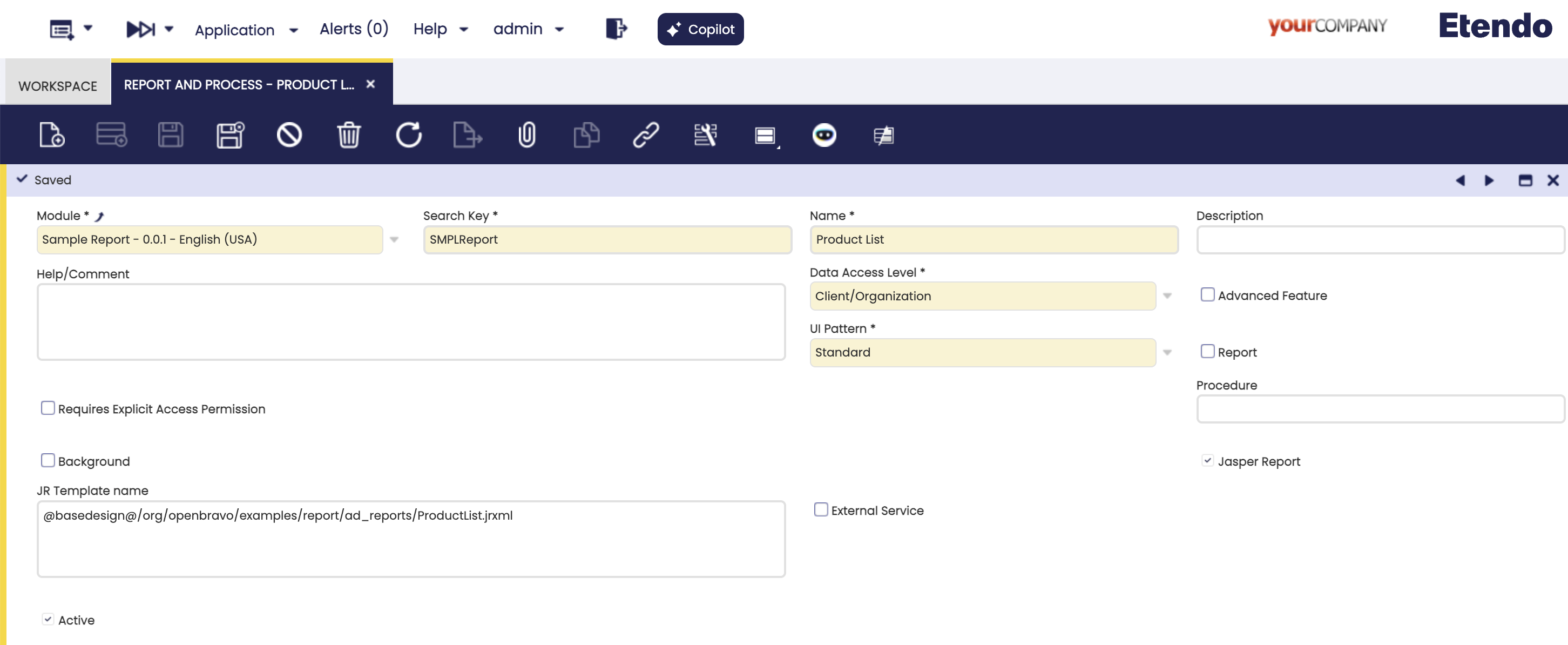
Creating the Menu record
- Using the System Administrator role, open the Menu window
- Create a new record
-
Fill all required fields:
- Module: Your module
- Name: Name of the menu entry (Product List)
- Description: You must enter a description. Although is not mark as required, it is for this type of reports
- Action: Pick Process
- Process: Pick your process (Product List)
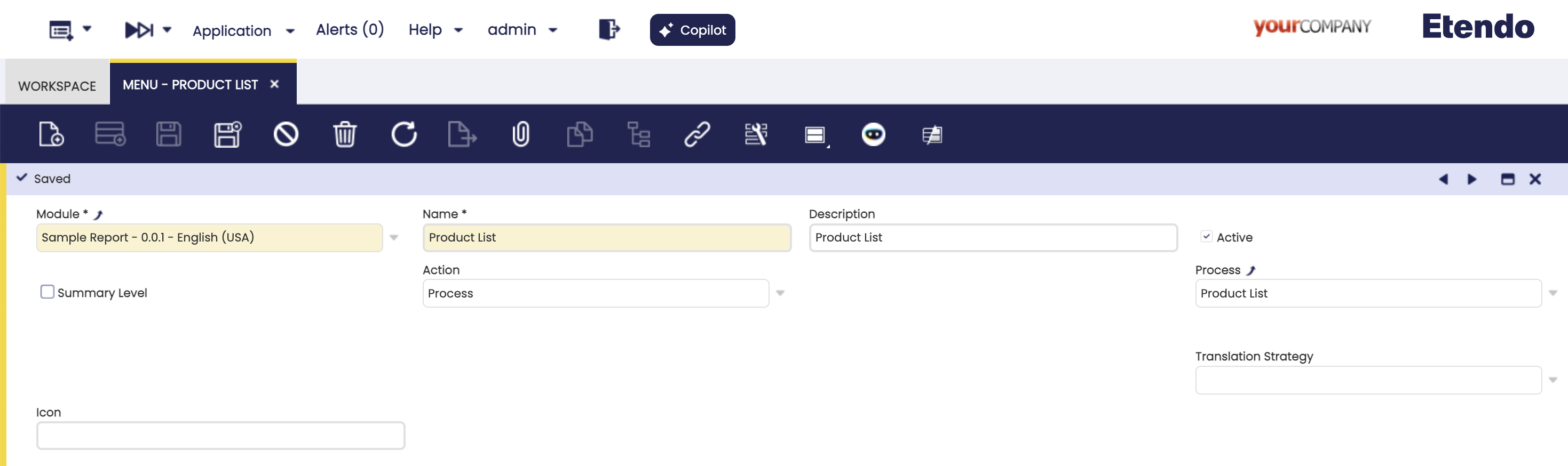
Compiling
After you have registered the report and menu entry in the Application Dictionary, you need to compile to generated the the necessary code.
shell Title="Terminal"
./gradlew  smartbuild --info
Once the compilation has completed, refresh your Eclipse project, and restart your Tomcat server.
Testing the Report
If you have completed all the steps, you should be able to open your Product List report form the quick-launch, or menu entry.

Creating a Report Using a Process Definition
It is possible to create a report using a process definition. For more information, visit How to Create a Report using Process Definition.
This work is a derivative of How to Create a Report with iReports by Openbravo Wiki, used under CC BY-SA 2.5 ES. This work is licensed under CC BY-SA 2.5 by Etendo.