How to Create a Report using Process Definition
Overview
This section explains how to add a new Report using a Process Definition and create a menu entry to invoke it.
Info
For background information, visit:
Example Module
This section is supported by an example module which includes the simple report described in this document. The report is named Product Simple Report and prints in PDF a list of products that can be filtered by Product Category.
The code of the example module can be downloaded from the repository com.etendoerp.client.application.examples.
Report Definition in Application Dictionary
Process Definition
Application > Application Dictionary > Process Definition
As a System Administrator role, create a new record in Process Definition window. Fields to consider:
-
UI Pattern: Set
Report (Using JR Templates). This value will display the Report Definition tab. -
Action Handler: If none is set when the UI Pattern is selected, the
org.openbravo.client.application.report.BaseReportActionHandleris set.
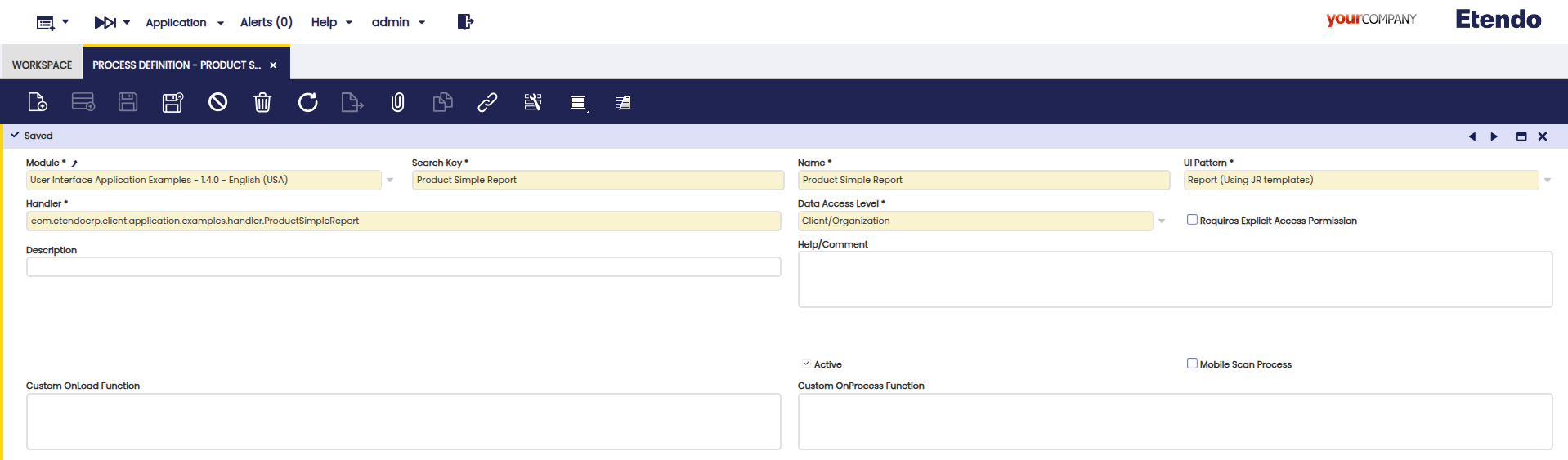
The BaseReportActionHandler is the default action handler to use in reports. In case you desire to make some Java validations or include some extra parameters that are not defined in the Process Definition parameters tab it is possible to use a custom Action Handler that extends the BaseReportActionHandler.
Parameter Definition
In the Parameter tab are added all the parameters that are needed to filter the results of the report. Their values are handled by the BaseReportActionHandler and sent to Jasper Reports as parameters. These parameters need to be defined in the JR template with the same name as the column name.
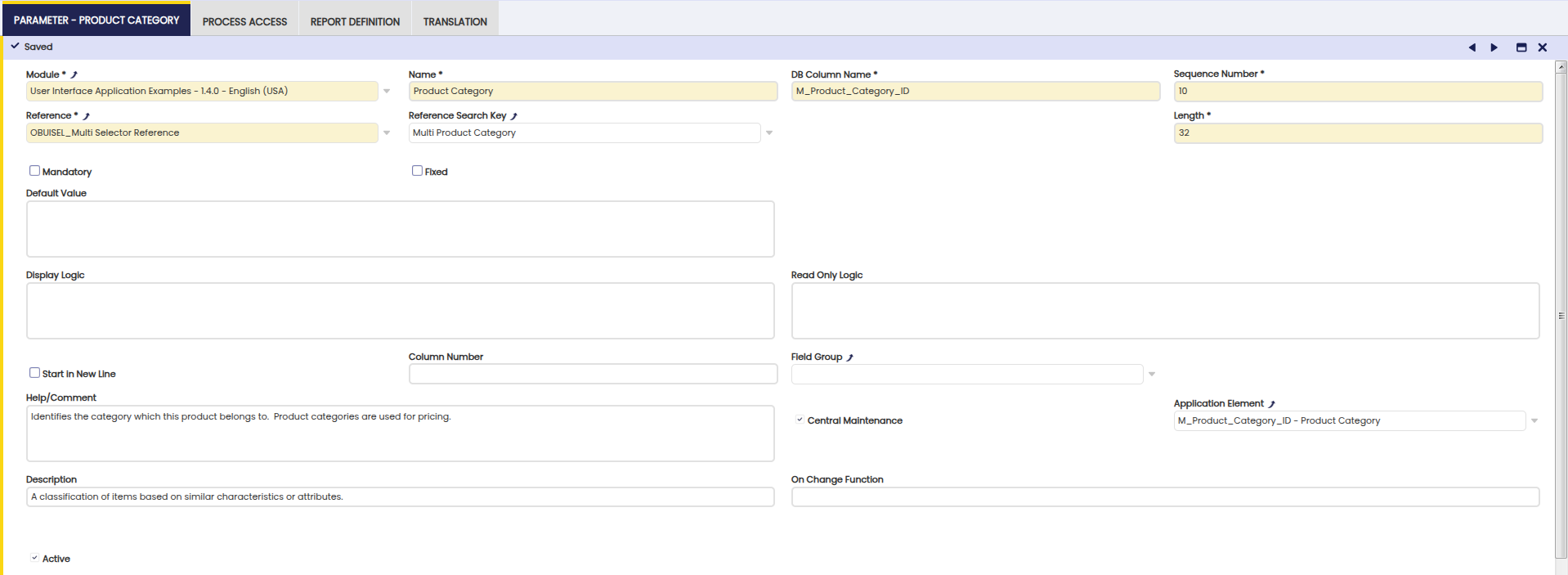

When the filter parameter is a Selector reference the value is sent as a JSONOBject that includes 2 keys:
- value with the id of the selected
BaseOBObjectto be used in the SQL query - identifier with the readable identifier that can be used to print in the report the filter values.
In case of Multiple Selectors the JSONObject includes 4 keys:
- values with a
JSONArrayincluding all the selected ids. - identifiers with a
JSONArrayincluding all the identifiers. - strValues with a comma separated String with all the selected ids that can be used in a SQL
INclause. - strIdentifiers with a comma separated String with all the selected identifiers.
In the Jasper Template, the parameter has to be defined using the class org.codehaus.jettison.json.JSONObject . In the example, it is set a Product Category multiple selector. As this parameter is optional, the filter is included in the query using an auxiliary parameter (AUX_Product_category).
The auxiliary parameter has a default expression that returns " 1 = 1 " when there is no category selected and the corresponding where clause when some categories are selected:
("".equals($P{M_Product_Category_ID}.getString("strValues"))) ? " 1 = 1 " : " pc.m_product_category_id IN ("+$P{M_Product_Category_ID}.getString("strValues")+")"
This parameter is then included in the query using the $P!{} notation to replace it with the parameter value instead of using SQL Parameters.
FROM m_product p
    JOIN m_product_category pc ON p.m_product_category_id = pc.m_product_category_id
WHERE $P!{AUX_Product_category}
    AND p.ad_client_id = $P{Current_Client_ID}
The identifiers can be shown in a Text field with the following Expression:


The BaseReportActionHandler and the ReportingUtils class used to generate the report includes some additional parameters that can be used in the template:
- SUBREPORT_DIR: The path where the main template is located. Useful to set the paths of the subreports.
- jasper_process: A
org.openbravo.client.application.Processobject with the Process Definition of the report. - jasper_hbSession: A
org.hibernate.Sessionobject with the current hibernate session. - jasper_obContext: A
org.openbravo.dal.core.OBContextwith the OBContext that has launched the report. - AMOUNTFORMAT: A
java.text.DecimalFormatobject with the format to be used on Amounts. - QUANTITYFORMAT: A
java.text.DecimalFormatobject with the format to be used on Quantities. - REPORT_FORMAT_FACTORY: JR Base parameter with the date format.
- Current_Client_ID:
Stringwith the currentAD_Client_ID. Useful to filter the SQL of the report. - Readable_Organizations: Comma separated
Stringwith the readable organizations of the User/Role executing the report. Useful to filter theSQLof the report.
Depending on the report output some additional parameters are set:
-
PDF output:
- IS_IGNORE_PAGINATION: with false value to ensure that the report breaks in different pages.
-
XLS output:
- IS_IGNORE_PAGINATION: with true value to ensure that the report does not break in different pages and all the results are shown in the same sheet.
-
In case it is desired to add more parameters that cannot be defined as Parameters of the Process Definition, it is possible to use a custom Handler that extends the
BaseReportActionHandlerand overwrites theaddAdditionalParametersmethod. It is possible to check all the parameters and values sent to the Jasper Report engine by enabling the DEBUG log level on theorg.openbravo.client.application.report.ReportingUtilsclass by modifying thelog4j2-web.xmland for older versions,log4j.lcffile:DEBUG org.openbravo.client.application.report.ReportingUtils - list of parameters available in the jasper report DEBUG org.openbravo.client.application.report.ReportingUtils - parameter name: SUBREPORT_DIR value: /home/gorkaion/src/openbravo/pi-reporting-merge/WebContent/web/org.openbravo.platform.features/jasper/ DEBUG org.openbravo.client.application.report.ReportingUtils - parameter name: Current_Client_ID value: 23C59575B9CF467C9620760EB255B389 DEBUG org.openbravo.client.application.report.ReportingUtils - parameter name: REPORT_FORMAT_FACTORY value: org.openbravo.erpCommon.utility.JRFormatFactory@14ffa3fc DEBUG org.openbravo.client.application.report.ReportingUtils - parameter name: REPORT_VIRTUALIZER value: net.sf.jasperreports.engine.fill.JRSwapFileVirtualizer@1b670029 DEBUG org.openbravo.client.application.report.ReportingUtils - parameter name: jasper_process value: OBUIAPP_Process(70889433974B409BAC4F9D7BFB211248) (name: Product Simple Report) DEBUG org.openbravo.client.application.report.ReportingUtils - parameter name: M_Product_Category_ID value: {"values":["291B401A38354A2C8247DFF0DFBDF4AE","5525FCABFE9545018EE221E8802AA283"],"identifiers":["Bio","Fruit juice"],"strValues":"'291B401A38354A2C8247DFF0DFBDF4AE', '5525FCABFE9545018EE221E8802AA283'","strIdentifiers":"Bio, Fruit juice"} DEBUG org.openbravo.client.application.report.ReportingUtils - parameter name: AMOUNTFORMAT value: java.text.DecimalFormat@674dc DEBUG org.openbravo.client.application.report.ReportingUtils - parameter name: QUANTITYFORMAT value: java.text.DecimalFormat@674dc DEBUG org.openbravo.client.application.report.ReportingUtils - parameter name: Readable_Organizations value: 'E443A31992CB4635AFCAEABE7183CE85','0','DC206C91AA6A4897B44DA897936E0EC3','7BABA5FF80494CAFA54DEBD22EC46F01','BAE22373FEBE4CCCA24517E23F0C8A48','19404EAD144C49A0AF37D54377CF452D','B843C30461EA4501935CB1D125C9C25A','2E60544D37534C0B89E765FE29BC0B43' DEBUG org.openbravo.client.application.report.ReportingUtils - parameter name: jasper_obContext value: org.openbravo.dal.core.OBContext@73b91cd DEBUG org.openbravo.client.application.report.ReportingUtils - parameter name: jasper_hbSession value: SessionImpl(PersistenceContext[entityKeys=... DEBUG org.openbravo.client.application.report.ReportingUtils - parameter name: IS_IGNORE_PAGINATION value: false
Button List Parameters
When a button list parameter is added, the buttons are added together with the predefined buttons of this type of process (View, Export To PDF, Export To Excel). This behavior allows adding additional logic to the standard behavior of these processes, since it is possible to extend the base behavior from the java implementation of the process.
Below is an example of a button list that adds two buttons (Button 1, Button 2) to this type of process:


In order to add execution logic to these buttons, the handleCustomAction method must be redefined within the java class of the process:
  @Override
  protected void handleCustomAction(JSONObject result, Map<String, Object> parameters,
      JSONObject jsonContent, String action) throws JSONException {
    switch (action) {
      case "B1":
        result.put("message", new JSONObject()
            .put("severity", "success")
            .put("text", "Button B1 has been pressed."));
        break;
      case "B2":
        result.put("message", new JSONObject()
            .put("severity", "success")
            .put("text", "Button B2 has been pressed."));
        break;
      default:
        super.handleCustomAction(result, parameters, jsonContent, action);
    }
  }
Note
The action parameter will have the information corresponding to the search key of the button pressed, the identifiers are mandatory and are defined together with the button in the reference tab of the list within the reference.
Once the configuration is done, it is necessary to compile.
Then, when you enter the process, you will see your custom buttons next to the predefined report buttons.

Then, when you press the buttons, your custom logic is executed.

Report Datasource Definition
There are two ways of defining the data to be displayed by the report:
- Defining a query in the
jrxmltemplate. - Providing a datasource to the
jrxmltemplate.
In case of the second approach, we need to use a custom Handler that extends the BaseReportActionHandler and overwrites the getReportData method. This method receives a parameter map as an argument that contains:
- The parameters of the
HTTP request. - The parameters available inside the Jasper Report. They are available through another map that can be accessed by using the JASPER_REPORT_PARAMETERS key.
protected JRDataSource getReportData(Map<String, Object> parameters) {
// Retrieve the report id (HTTP request parameter)
String reportId = (String) parameters.get("reportId");
// retrieve the map of JR Parameters
Map<String, Object> jrParameters = (Map<String, Object>) parameters
.get(JASPER_REPORT_PARAMETERS);
// Here goes the logic to generate the JRDataSource
...
}
This allows generating the report data dynamically, i.e, based on some kind of logic built with the value of any of these parameters.
Message Handling
It is possible to display messages (success, warning, etc.) to the user after running a report based on a Process Definition.
This is useful when the report is generated successfully, but the system still needs to inform the user about potential issues in the data — for example, when some products have transactions with no calculated cost.
To enable this functionality, override the addAdditionalParameters method in your custom Java class that extends BaseReportActionHandler. In this method, you can add a new entry to the parameters map with the key "message" and a value of type OBError. For example:
OBError msg = new OBError();
msg.setType("Warning");
msg.setMessage("Please review the report for incomplete data.");
parameters.put("message", msg);
This message will be automatically captured by the BaseReportActionHandler and shown in the UI once the report finishes.
If the message parameter is not provided, the system will show a default success message:
Success
Report successfully generated.
Sub-Report Runtime Compilation
In case our process definition report contains sub-reports, the infrastructure supports compiling the sub-reports at runtime. To do that the following conditions should be met:
- The parameter name for the sub-report in the main report follows this pattern:
SUBREP_name_of_the_sub_report_file. - The sub-reports (
JRXMLfiles) are placed in the same folder as the main report.
Report Definition
In the Report Definition tab the JR Templates of the report are defined. Each Process Definition can only have a Report definition. It is also needed to define at least one template: HTML, PDF or Excel.
- If
PDFandExceloutputs share the same template, it is possible to set thePDFtemplate and check the Use PDF as Excel Template flag. - If
PDFandHTMLoutputs share the same template, it is possible to set thePDFtemplate and check the Use PDF as HTML Template flag. - If
HTML,PDFandExceloutputs share the same template, then thePDFtemplate must be set and both flags must be checked.
The templates need to be stored in the web folder.

Adding Hyperlinks to a Report
You can add hyperlinks to report elements to allow navigation to another record, open a different report, or execute custom logic as needed.
To do this, select the component you want to make clickable (e.g. Text Field, Image, Chart, or Subreport) and configure its hyperlink properties:
- Link Target:
"Self"— Opens the link in the same browser window. - Link Type:
"Reference"— Indicates that this is a URL link. - Hyperlink Reference Expression: This is the expression or URL to execute when clicked.
- Hyperlink When Expression: (Optional) A boolean expression to control when the hyperlink should be active.
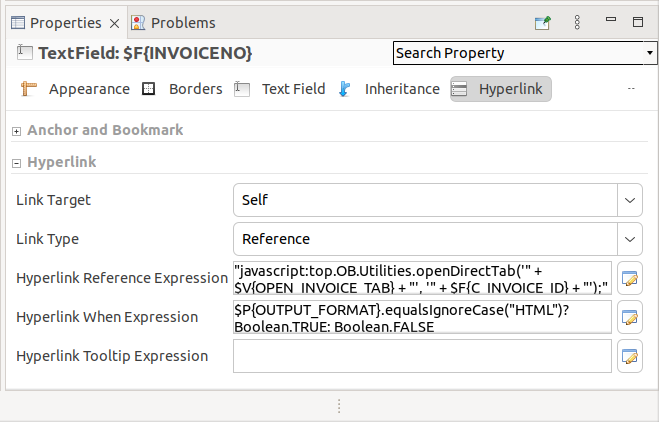
Example 1: Navigating to a specific record (e.g., an invoice)
To open a specific window and record in the system (e.g., an Invoice window with a given invoice ID), use an expression like this in the Hyperlink Reference Expression:
"javascript:top.OB.Utilities.openDirectTab('" + $V{OPEN_INVOICE_TAB} + "', '" + $F{C_INVOICE_ID} + "')"
Where:
$V{OPEN_INVOICE_TAB}is the window ID of the Sales Invoice window.$F{InvoiceID}is the field containing the ID of the invoice you want to open.
You can also add a Hyperlink When Expression to make sure the link is only clickable when the report is being viewed in HTML format, or add any other conditions as needed.
Where:
$P{OUTPUT_FORMAT}is the output format of the report.
Example 2: Opening another report from a link
You can also use a hyperlink to trigger the generation of another report. In this case, instead of a simple URL, the Hyperlink Reference Expression should contain a javascript: call to OB.RemoteCallManager.call(...), passing all the required parameters for the report:
"javascript:top.OB.RemoteCallManager.call('your.custom.ReportActionHandler',"
  + "{"
  + "  _buttonValue: 'HTML',"
  + "  _params: {"
  + "    // Add here all the necessary input parameters"
  + "    Param1: '" + $P{Param1} + "',"
  + "    Param2: '" + $F{FieldFromDataSet} + "',"
  + "    DateParam: '" + $P{DateValue} + "'"
  + "  }"
  + "},"
  + "{"
  + "  processId: '" + $P{processId} + "',"
  + "  reportId: '" + $P{reportId} + "',"
  + "  windowId: null"
  + "},"
  + "function(rpcResponse, data, rpcRequest) {"
  + "  top.OB.Utilities.Action.executeJSON(data.responseActions, null, null, null);"
  + "}"
  + ");"
This JavaScript snippet makes a remote call to the report's process handler, passing all the parameters it needs. The report will be generated and opened as a result of this action. You can fully customize this logic to fit your navigation or integration needs.
Result
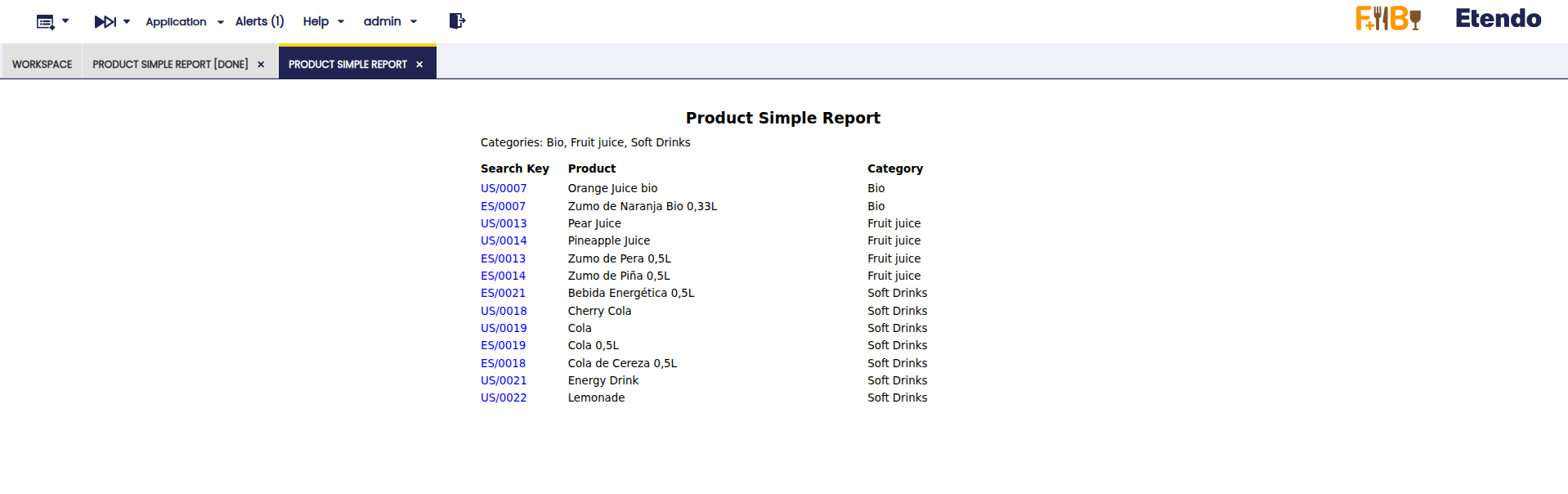
The result is shown in a new form with all the parameters and the corresponding Export button(s).

Once the report is executed, the result is displayed according to the selected action:
- View opens the report in a new window.
- Export to PDF downloads the report as a PDF file.
- Export to Excel downloads the report as an Excel file.
The form remains enabled, allowing the report to be executed again with different parameters.
This work is a derivative of How to create a Report using Process Definition by Openbravo Wiki, used under CC BY-SA 2.5 ES. This work is licensed under CC BY-SA 2.5 by Etendo.