How to Change Fonts in Etendo Reports
IMPORTANT: THIS IS A BETA VERSION
It is under active development and may contain unstable or incomplete features. Use it at your own risk.
Overview
This section explains how to change the fonts used in Etendo reports. Updating the default fonts can be useful in two main scenarios: enhancing the visual appearance of the reports with more readable or brand-aligned typography, or ensuring proper display of languages whose characters are not supported by the standard font set, such as Japanese, Arabic, or Vietnamese. Replacing the default fonts with ones that support the required character sets allows the reports to render correctly across different languages.
Info
For more information visit, How to Create a Module and How to Create a Report.
Etendo uses Jasper Reports tool to create reports:
Changing the font in Jasper Reports
When changing the font in Jasper Reports the software Jaspersoft Studio will be very helpful.
In the above link, find a detailed tutorial that describes how to handle custom fonts in Jaspersoft Studio. In short, these are the steps to carry out:
- Get the desired
font's .ttffile from the pc or from the Internet. -
Create the Font Extension, go to Preferences window.

-
Click on
JasperSoft Studio > Fonts. Click Add . At this point provide a unique name for the Font Extension and the path to its extension by selecting the path of the downloaded.ttf file. - Once done, set a PDF Encoding type for the new font in the wizard.
- Change the fontName and pdfFontName used in the text fields wanted to have being displayed with the new font in our report. Accomplish that by either using Jaspersoft Studio or making changes directly in the
.jrxmlfile using a text editor. - And, for the document(s), do not forget to to choose the same PDF Encoding type as the one set for the font in step 4.
- Export the font into a
.jarfile. Once again, Jaspersoft Studio can lend us a hand with doing this: Go toJasperSoft Studio > Fontsand this time click Export . Select the font and export it into a.jarfile. -
Create a new module to keep the
.jarfile. Inside the module folder, create a subfolder/lib/runtimeand put the exported.jarfile in there.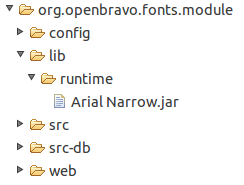
-
Stop tomcat.
- Execute
./gradlew smartbuild - Restart tomcat.
Result
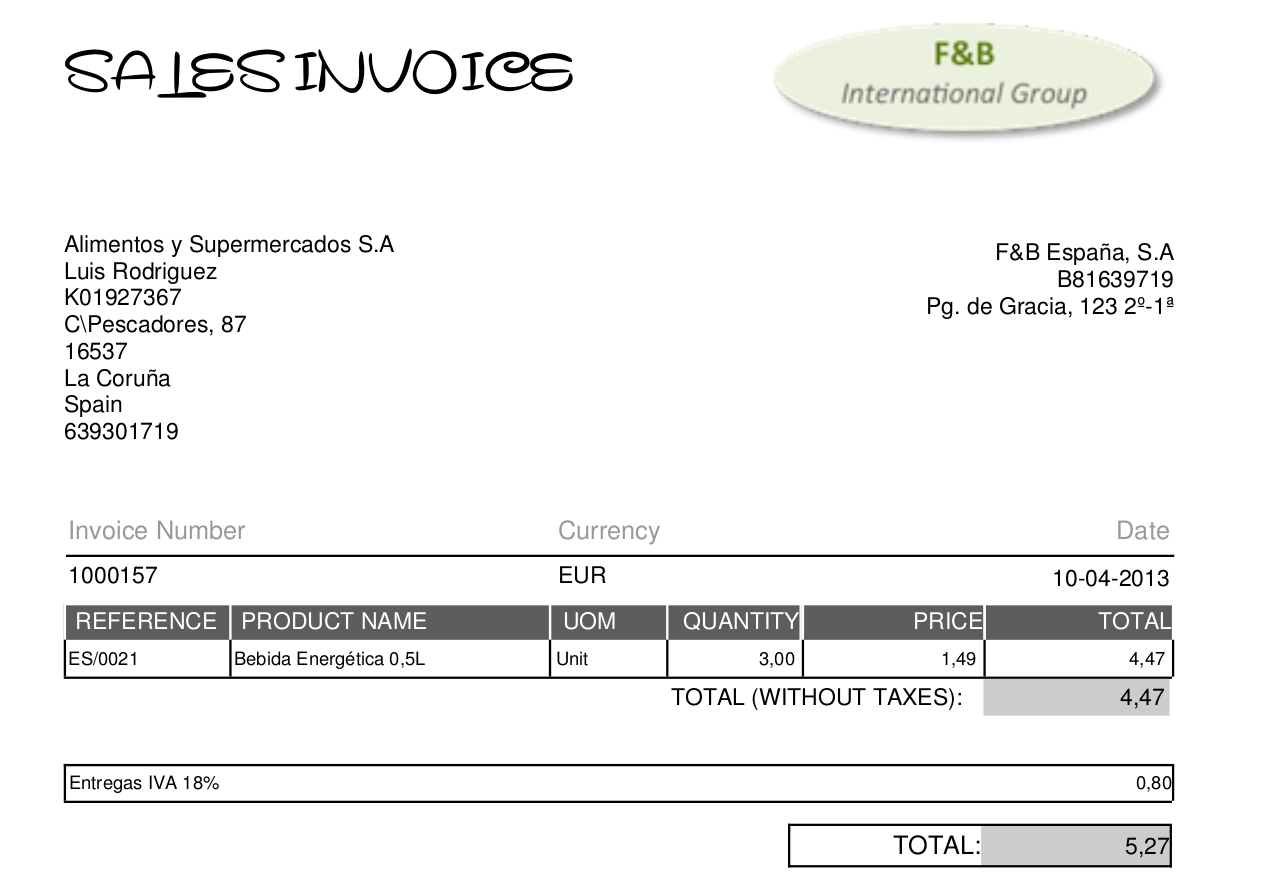
The following screenshots show the results after successfully carrying out the steps mentioned above:
Jasper Report where the font of the title has been replaced with another font:
This work is a derivative of How to Change Fonts in Openbravo Reports by Openbravo Wiki, used under CC BY-SA 2.5 ES. This work is licensed under CC BY-SA 2.5 by Etendo.