How to change an existing Report
IMPORTANT: THIS IS A BETA VERSION
This page is under active development and may contain unstable or incomplete features. Use it at your own risk.
Overview
When deploying Etendo, one of the most common initial customizations is adapting the standard document templates such as Orders, Shipments, and Invoices to meet the company’s functional requirements and corporate branding. These documents are shared across customer and vendor processes, making it essential that they reflect accurate information and a consistent visual identity. This guide describes how to modify existing report templates in a modular and maintainable way, using the Sales Order report as the reference example.
Info
For more information visit, How to Create a Report .
Defining the Module
First it is necessary to define a new module that contains your report modifications.
Info
For more information about creating a module, visit How to Create a Module .
-
As System Administrator
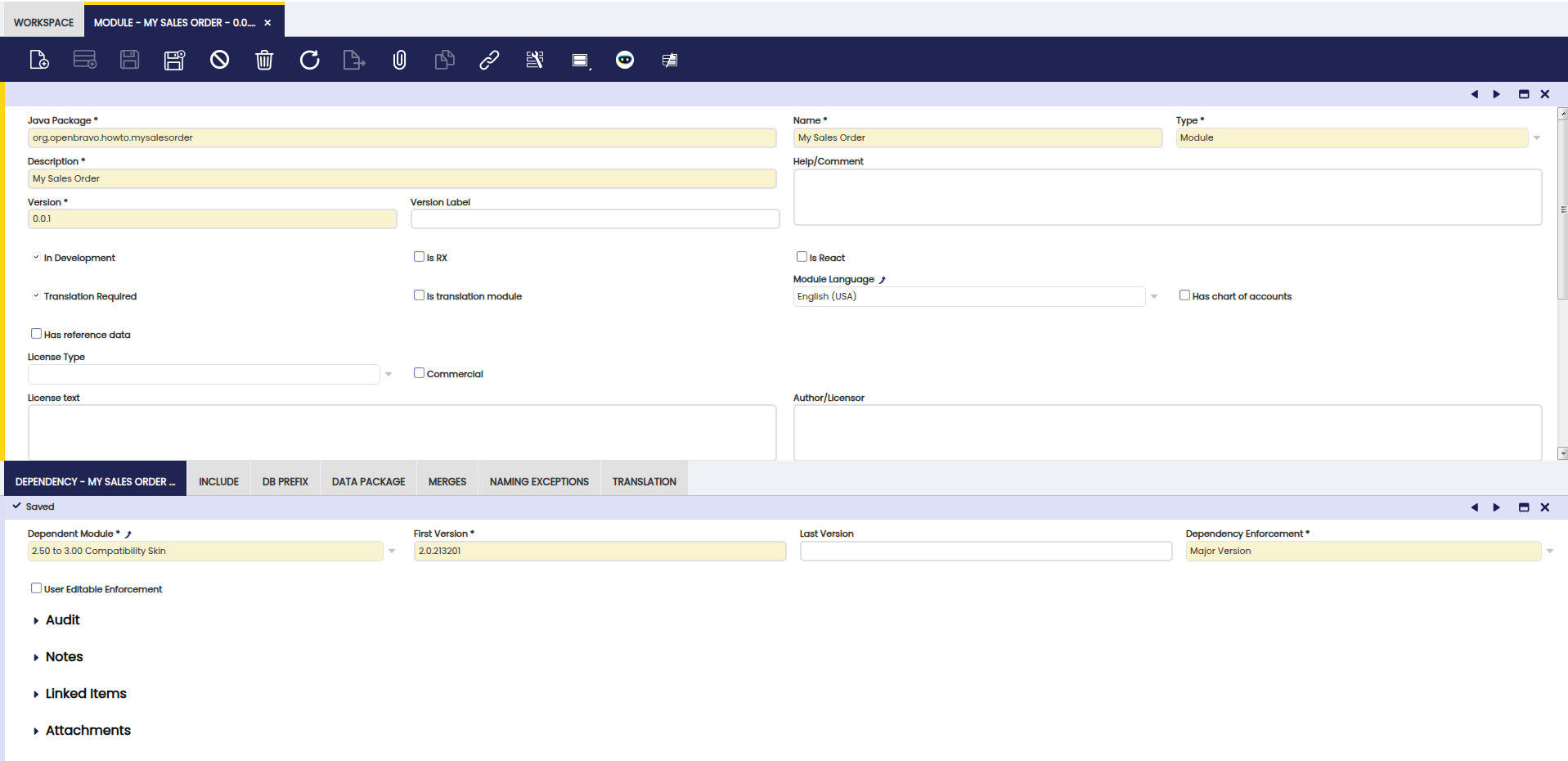
- Create a new record in the Module window.
- Fill all required fields.
- Fill all required data in child tabs: Dependency, DB Prefix, etc.
-
Export your changes to create the module structure
Copying the Base Template
After exporting the changes, there will be a new folder under the modules folder.
- Create a src folder.
-
Copy the base templates from
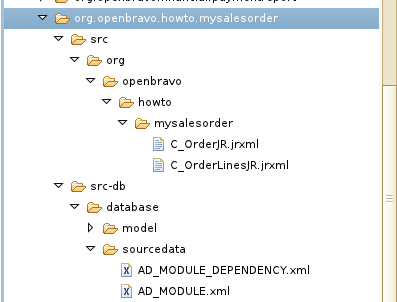
src/org/openbravo/erpReports/C_Order*.jrxmlto the module folder.It is important to follow the Java package structure so to end up with some structure like this one:
Changing the Template
After making a copy of the base template to the module, it is possible to make all the changes you need. Just add a simple label to the report header.
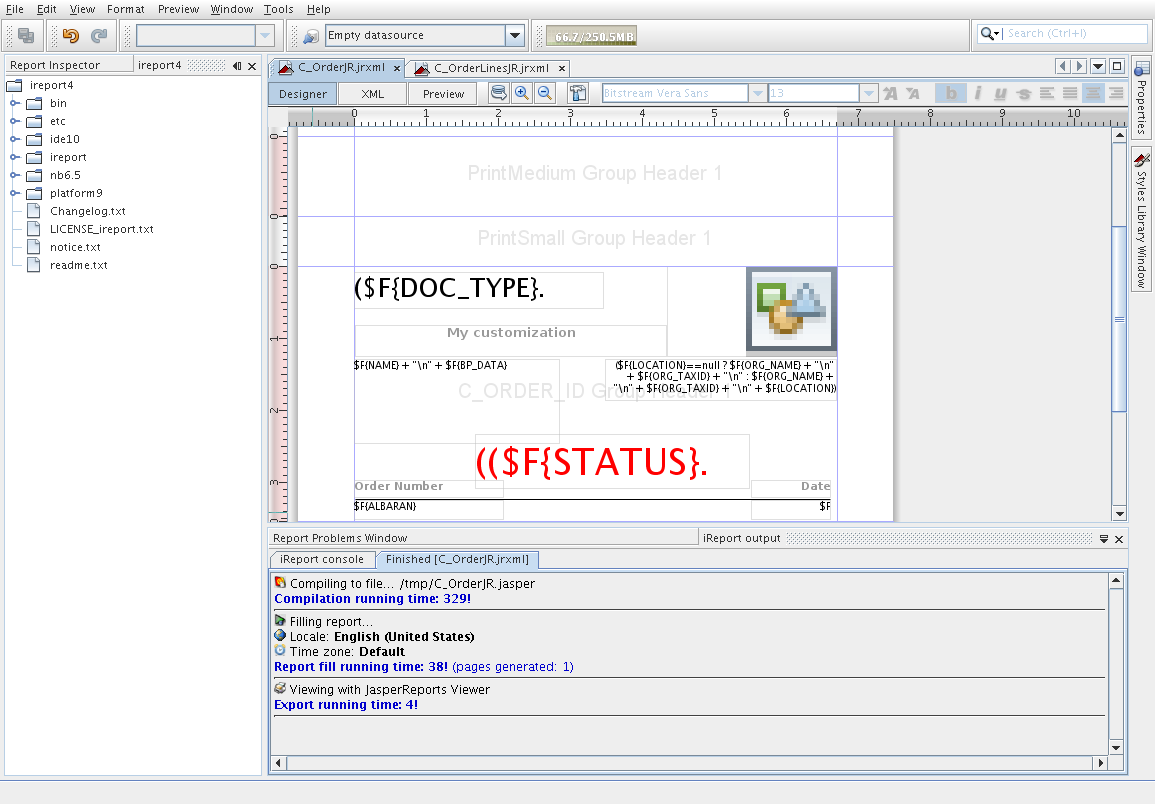
- Start iReport.
- Open the
C_OrderJR.jrxmlfile of your module. -
Add a simple label: My customization.
Info
It is possible to customize your template with any change you like, more fields, changing position, etc.
-
Rebuild your changes to deploy the module structure
-
Reload Etendo from Tomcat Manager
Defining the Report Template at Document Level
Report templates are defined at document level. It is necessary to change it in order to work.
- As Client Admin Role
-
Go to:
Financial Management > Accounting > Setup > Document Type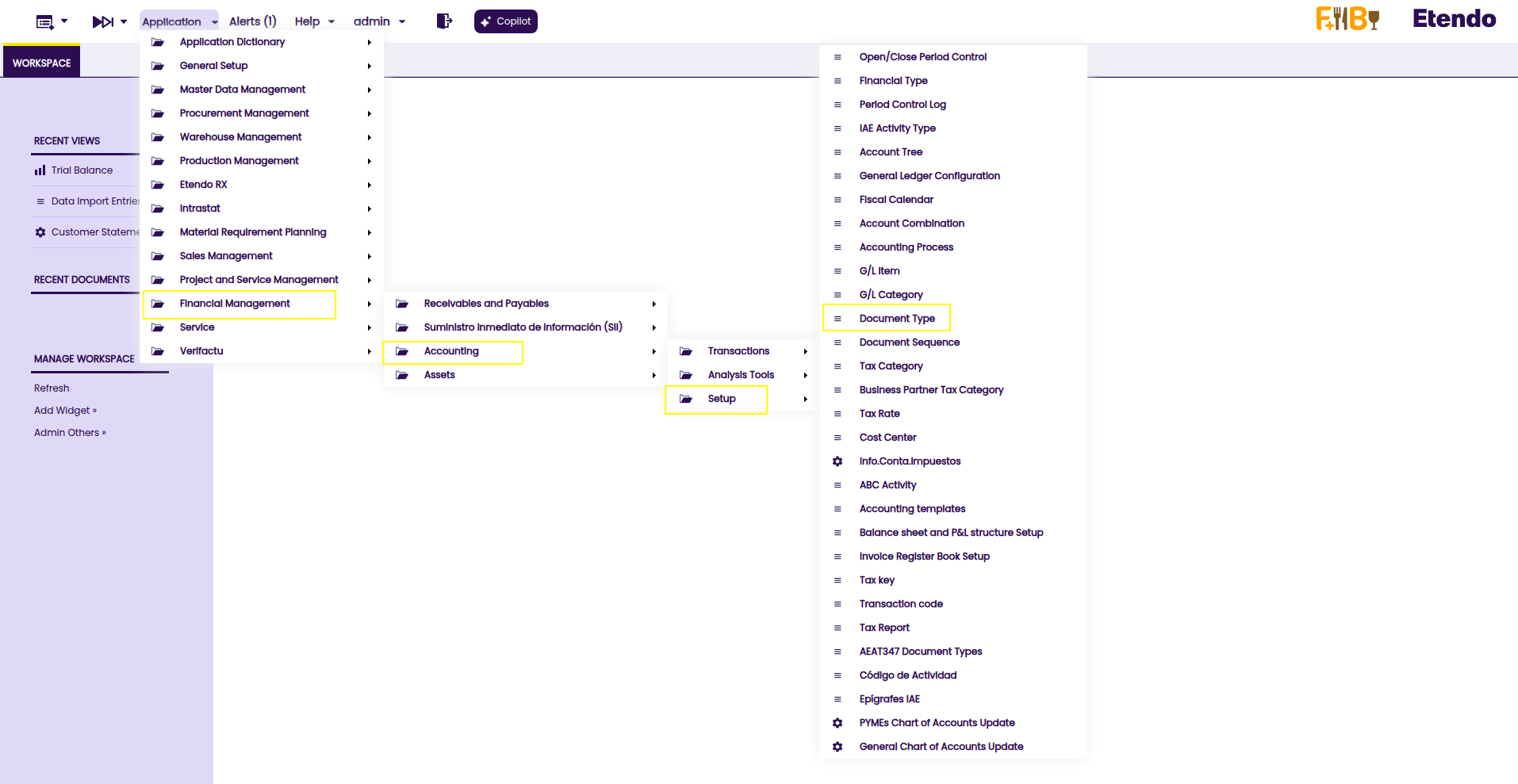
-
Search for Name Standard Order and open it.
- Open the Report Template tab and modify the Template Location field.
- Use the location where your copy is located. E.g
@basedesign@/org/openbravo/howto/mysalesorder - Save the changes.
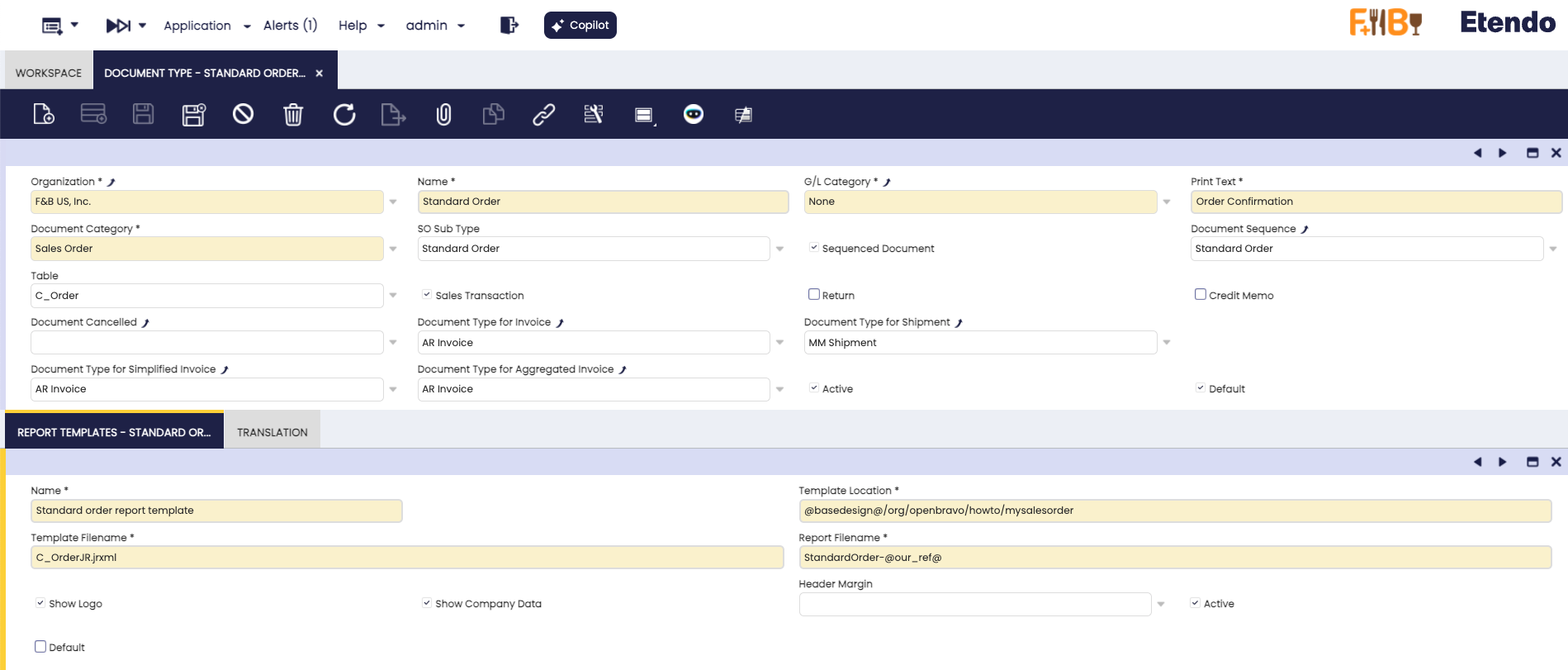
Testing the changes
All the definitions required to use the customized Sales Order template has been done. It is only needed to verify that the new document template created renders the document as expected with an existing Sales Order document.
- Open any Sales Order using Standard Order as document type.
- Print it.
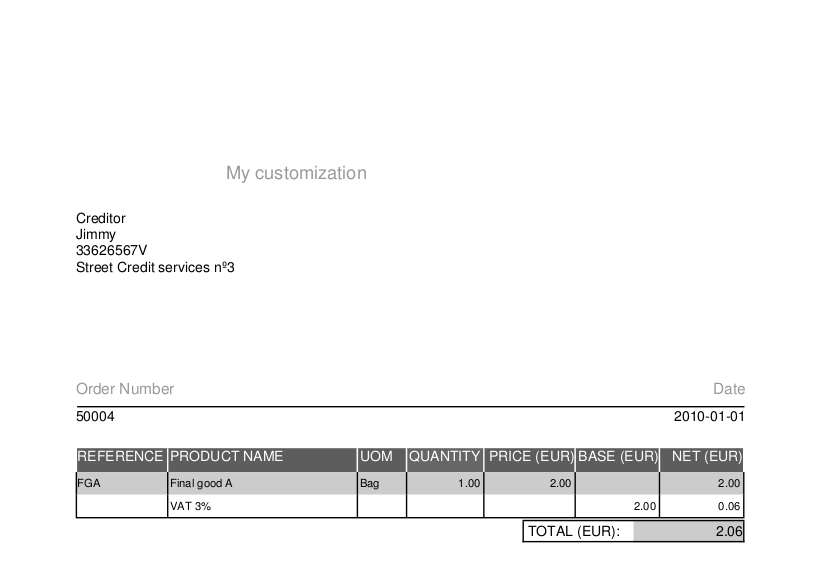
This work is a derivative of How to Change an Existing Report by Openbravo Wiki, used under CC BY-SA 2.5 ES. This work is licensed under CC BY-SA 2.5 by Etendo.